

SharePoint Information Architecture & Metadata Planning Worksheet
Use this SharePoint information architecture and metadata planning worksheet to map libraries, content types, metadata fields, search requirements, ownership, lifecycle controls, and priority actions before you build or restructure SharePoint sites. It gives teams a practical way to turn scattered content decisions into a clearer SharePoint planning model.
SharePoint works better when structure reflects how people actually work. Before you create another library, add more columns, or move content into a new site, use this worksheet to slow the conversation down and make better decisions.
Need help turning the completed worksheet into a workable SharePoint design? Contact dataBridge to discuss your information architecture, metadata, governance, and rollout needs.
What Is the SharePoint Information Architecture & Metadata Planning Worksheet?
The SharePoint Information Architecture & Metadata Planning Worksheet is a practical planning asset for teams that need to organize SharePoint libraries, metadata, content types, views, ownership, and search requirements before a site build, redesign, migration, or governance cleanup.
It is not meant to replace a full SharePoint Information Architecture & Metadata Consulting engagement. Instead, it helps your team prepare the right decisions before implementation begins.
The worksheet is especially useful when SharePoint has grown through quick fixes, department-by-department decisions, or file-share-style folder structures. Those patterns are common. Over time, they make search, ownership, governance, lifecycle management, and Copilot readiness harder.
Metadata that nobody understands is not governance. It is clutter.
The worksheet keeps the planning conversation grounded. It asks what content exists, how people use it, what needs to be found, who owns it, and which actions should happen first.
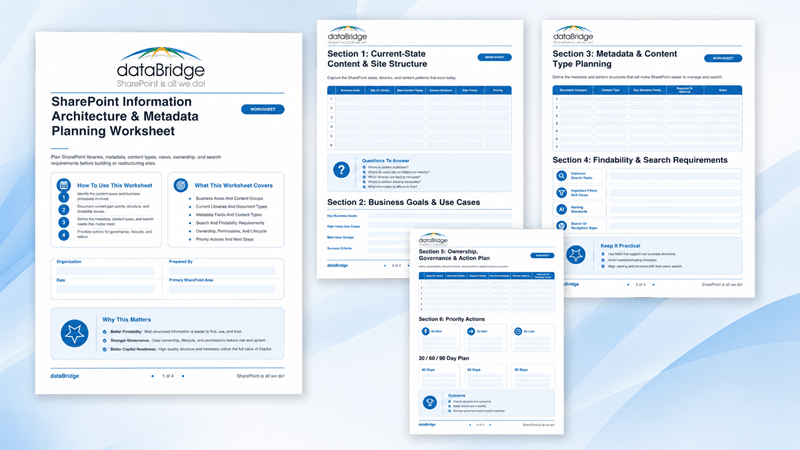
Download the SharePoint Information Architecture & Metadata Planning Worksheet
Use this worksheet before you create new libraries, redesign existing sites, migrate content, or standardize metadata across departments.
Download the worksheet here: SharePoint Information Architecture & Metadata Planning Worksheet
After downloading it, bring together the people who understand the content and the people who support the platform. A useful planning session usually includes business owners, SharePoint administrators, records or compliance stakeholders, and a small group of real users.
The best SharePoint structures are not designed in isolation. They come from honest conversations about how work actually gets done.
Who Should Use This Worksheet?
Use this worksheet when your organization needs a clearer way to plan SharePoint structure before making design or configuration decisions.
It is a strong fit for:
- SharePoint owners planning new sites, libraries, or hubs
- Department leaders preparing for a SharePoint redesign
- IT teams cleaning up inherited site sprawl
- Records, compliance, or governance teams reviewing ownership and lifecycle needs
- Project teams preparing for a file share to SharePoint migration
- Intranet owners improving findability and content ownership
- Microsoft 365 teams preparing SharePoint content for Copilot or agents
Many SharePoint problems do not begin with the platform. They begin with unclear decisions.
When teams skip planning, SharePoint often becomes a nicer-looking file share. Libraries multiply. Folders get deeper. Metadata becomes inconsistent. Search results feel unreliable. Ownership becomes unclear.
A worksheet will not fix all of that by itself. It does, however, give the right people a better place to start.
When to Use the Worksheet
Use the worksheet before major SharePoint structure decisions are made.
It works well before a new SharePoint site build, a document management redesign, an intranet refresh, a migration, a governance improvement project, or a Copilot readiness initiative.
Teams can also use it after SharePoint has already become difficult to manage. In that case, the worksheet becomes a discovery tool. It helps identify where content is duplicated, where metadata is missing, where ownership is unclear, and where users struggle to find information.
If your team needs the deeper educational framework behind these decisions, start with the SharePoint Metadata Strategy Guide. Then use this worksheet to turn that strategy into a working planning session.
What This Worksheet Helps You Plan
The worksheet helps teams document the planning decisions that shape a usable SharePoint environment.
It covers:
- Business areas and content groups
- Current libraries and document types
- Metadata fields and content types
- Search and findability requirements
- Ownership, permissions, and lifecycle needs
- Priority actions and next steps
Each section moves the conversation from opinion to evidence. That matters because SharePoint structure often fails when decisions are based on preference instead of user behavior, content patterns, compliance needs, and ownership reality.
A folder can feel simple to one department and become invisible to everyone else.
Metadata can improve search, filtering, reporting, automation, retention, and Copilot readiness. Still, it only works when fields are clear, useful, and consistently applied.
Section 1: Current-State Content and Site Structure
The first section helps your team capture the SharePoint areas, libraries, and content patterns that exist today.
Use it to identify business areas, sites or libraries, main content types, current structure, pain points, and priority level.
Do not rush this part. Current-state planning often reveals the real shape of the environment.
In dataBridge consulting work, this is where many important issues surface. Teams often uncover duplicate libraries, unclear site purposes, abandoned content, inconsistent naming, and folder structures that no longer match the way people work.
The worksheet prompts your team to answer practical questions:
- Where is content duplicated?
- Where do users rely on folders too heavily?
- Which libraries are hard to navigate?
- Where is content missing ownership?
- What information is difficult to find?
These questions move the team beyond “SharePoint feels messy.” They point toward specific design decisions.
If your current-state review shows deeper document control or records concerns, the broader SharePoint Document Management System page explains how structure, metadata, lifecycle, and governance work together in a more formal document management model.
Section 2: Business Goals and Use Cases
The second section connects SharePoint structure to business outcomes.
That connection matters. Information architecture should not be built around abstract categories alone. It should support the work people need to complete.
Use this section to document key business goals, high-value use cases, main user groups, and success criteria.
A site that supports project delivery may need a different structure than a site for policies, contracts, engineering documents, board materials, or HR procedures. The worksheet gives your team a place to name those differences before configuration starts.
Better SharePoint planning starts with use cases, not columns.
For example, a department may say it needs better metadata. After a focused planning discussion, the real need may be faster contract retrieval, clearer owner accountability, better lifecycle review, or fewer duplicate policy copies.
That distinction changes the design.
Section 3: Metadata and Content Type Planning
The third section helps teams define document categories, content types, key metadata fields, required fields, optional fields, and planning notes.
This is where structure becomes usable.
Good metadata helps people filter, sort, search, group, automate, protect, retain, and report on content. Poor metadata creates more work and usually lowers adoption.
The goal is not to create as many fields as possible. The goal is to create the right fields for the decisions users need to make.
Use this section to identify which content types deserve unique metadata. A policy, contract, project deliverable, procedure, invoice, case file, and template may not need the same fields.
Some content only needs a few practical columns. Other content may need formal classification, retention, approval, or security treatment.
If your team needs a deeper taxonomy model, the SharePoint Taxonomy and Metadata Strategy page explains how managed metadata, naming, classification, and governance fit together.
Section 4: Findability and Search Requirements
The fourth section focuses on how users find content.
This is where many SharePoint planning sessions become more honest. People often say content is hard to find, but the reasons can vary.
Search may be weak because names are inconsistent. Navigation may be unclear. Libraries may be overloaded. Metadata may be missing. Permissions may hide content from some users. Old documents may appear more trustworthy than current ones.
Search problems are rarely just search problems.
The worksheet asks your team to document common search tasks, important filters and views, naming standards, and search or navigation gaps.
That creates a better planning model. Instead of guessing which metadata fields might be useful, the team can identify how users search and what they need to filter.
For Copilot and AI-assisted retrieval, this step becomes even more important. Microsoft 365 experiences work better when content has clearer structure, stronger source authority, consistent naming, and appropriate access controls.
The Copilot-Ready SharePoint Information Architecture page explains how information architecture supports trusted AI outcomes across SharePoint content.
Section 5: Ownership, Governance, and Lifecycle Planning
The fifth section helps your team clarify accountability.
Use it to document the area or library, business owner, support owner, permissions notes, review cadence, and lifecycle or retention notes.
Ownership is where many SharePoint designs either become sustainable or slowly decay.
Someone needs to know whether a library is still needed. Someone must decide when outdated content should be reviewed, archived, retained, or removed. Another person may need to approve structural changes, permissions changes, or metadata changes.
Without ownership, SharePoint becomes everyone’s responsibility and nobody’s system.
This section gives your team a place to name the operating model behind the structure. Future decisions become easier because accountability is visible.
For larger environments, ownership should connect to site provisioning, hub design, lifecycle standards, and governance routines. The SharePoint Hub Site Architecture Framework is a useful next step when your worksheet reveals cross-site structure, navigation, or ownership issues.
Section 6: Priority Actions and 30 / 60 / 90-Day Plan
The final section turns planning into action.
Use it to separate decisions into three practical categories:
- Do Now
- Do Next
- Do Later
Then build a 30 / 60 / 90-day plan.
This section matters because a worksheet should not end as a meeting artifact. It should produce decisions your team can actually execute.
The goal is not to fix every library at once. That usually creates confusion and delay. A stronger approach is to prioritize the highest-risk and highest-value areas first.
Start with content that affects compliance, operations, customer service, leadership reporting, project delivery, or Copilot readiness. Then move to lower-risk cleanup work after the model has been tested.
A small, well-governed improvement beats a large redesign that never launches.
How to Complete the Worksheet
Start with one SharePoint area, department, process, or content group. Avoid trying to document the entire tenant in one session.
First, identify the content areas and business processes involved. Next, document current pain points, structure, and findability issues. After that, define the metadata, content types, and search needs that matter most.
Finally, prioritize actions for governance, lifecycle, and rollout.
This order matters. If teams jump straight to metadata fields, they often create columns without understanding why those columns matter.
A better planning session moves from context to decisions.
Use real examples during the discussion. Open a current library. Review common documents. Look at how people search. Ask what content is duplicated. Identify who owns decisions today. Then use the worksheet to capture what should change.
How to Interpret the Worksheet Results
A completed worksheet should help your team see patterns.
If several libraries have unclear ownership, the next step is not more metadata. It is an ownership model.
When many users rely on folders, the structure may need better views, filters, document sets, or library boundaries.
If content is difficult to find, review naming standards, metadata consistency, search behavior, navigation, and permissions.
When lifecycle notes are missing, your team may need retention, review cadence, archive rules, or disposition planning.
If the worksheet shows inconsistent categories across departments, a taxonomy discussion may be needed before implementation.
The worksheet is most valuable when it changes the next decision. Use it to identify what is ready, what needs review, and what should not move forward yet.
What to Do After Completing the Worksheet
After the worksheet is complete, review the results with the people who will own, use, and support the environment.
Start by confirming the highest-priority content areas. Then decide which metadata fields, content types, library changes, ownership rules, search improvements, and lifecycle actions should move into implementation.
Next, choose a pilot area. A pilot keeps the planning practical. It also helps your team test structure, views, naming, and ownership before rolling changes across a larger environment.
Once the pilot is stable, document the standards that worked. Those standards can inform future site builds, migration waves, intranet content models, and governance routines.
If the worksheet reveals deeper implementation needs, dataBridge can help turn the planning output into architecture, configuration, governance, training, and rollout support. Contact dataBridge to talk through the right next step.
How This Worksheet Supports Better SharePoint Information Architecture
SharePoint information architecture defines how sites, libraries, content types, metadata, navigation, search, ownership, and lifecycle rules work together.
This worksheet supports that work by giving teams a structured way to capture planning inputs before design decisions become permanent.
It also helps reduce the common gap between strategy and implementation. Many teams agree that metadata and governance matter. Fewer teams document the exact fields, owners, search tasks, review routines, and priority actions needed to make the model work.
That gap is where SharePoint environments often lose trust.
Use the worksheet as the bridge between the deeper educational concepts in the SharePoint Metadata Strategy Guide and the hands-on implementation work described in SharePoint Information Architecture & Metadata Consulting.
How This Worksheet Helps With SharePoint Migrations
A migration is not only a content move. It is a decision point.
Before moving file share content, legacy libraries, or disconnected department folders into SharePoint, teams should decide what should move, what should be archived, what should be restructured, and what should be excluded.
This worksheet helps migration teams review content structure, document types, metadata needs, search requirements, ownership, and lifecycle decisions before the migration plan is finalized.
That planning step prevents a common migration mistake: moving old problems into a newer platform.
For a broader migration planning path, use this worksheet alongside the SharePoint Migration Consulting page when scope, phasing, validation, cutover, and adoption need more structure.
How This Worksheet Helps With Copilot Readiness
Copilot readiness starts with trustworthy content.
If SharePoint contains duplicated documents, unclear owners, inconsistent metadata, stale libraries, weak naming, or broad permissions, AI-assisted experiences become harder to trust.
This worksheet helps teams review the structure behind the content. It does not promise that metadata alone makes SharePoint Copilot-ready. That would be too simplistic.
Instead, it helps your team identify the practical content decisions that support better retrieval, source confidence, ownership, and governance.
For a broader readiness path, use the worksheet with Copilot Readiness for SharePoint when your organization is preparing content, permissions, lifecycle, and source authority for Microsoft 365 Copilot.
When to Bring in dataBridge
Bring in dataBridge when the worksheet reveals decisions your team cannot easily resolve alone.
That may include unclear site architecture, inconsistent metadata, difficult migration scope, poor findability, uncontrolled library growth, weak ownership, lifecycle gaps, or Copilot readiness concerns.
dataBridge helps organizations move from planning worksheet to working SharePoint model. That can include discovery, information architecture, metadata design, content type planning, library design, hub structure, governance standards, migration planning, training, and support.
The dataBridge approach is practical. We do not design structure for structure’s sake. We design SharePoint so people can find, trust, manage, and use the content that matters.
If your team has completed the worksheet and needs help deciding what comes next, schedule a SharePoint planning conversation.
Related SharePoint Planning Resources
This worksheet works best when it sits between strategy and implementation.
Use the SharePoint Metadata Strategy Guide when your team needs a deeper framework for metadata planning, taxonomy, content classification, and governance.
Visit SharePoint Information Architecture & Metadata Consulting when your organization needs help applying the worksheet to real SharePoint sites, libraries, content types, permissions, search, and lifecycle requirements.
Review the SharePoint Document Management System page when your planning work involves controlled documents, formal libraries, records, procedures, policies, contracts, or operational documentation.
Explore Copilot-Ready SharePoint Information Architecture when your worksheet results point to source authority, oversharing, stale content, inconsistent naming, or AI retrieval concerns.
Use the SharePoint Planning Tools and Assessment Resources page to find related checklists, matrices, scorecards, and worksheets for governance, migrations, intranets, permissions, Copilot readiness, and document management.
Frequently Asked Questions
What is a SharePoint information architecture planning worksheet?
A SharePoint information architecture planning worksheet is a structured planning tool for documenting how SharePoint sites, libraries, metadata, content types, search, ownership, and lifecycle controls should work before implementation begins.
What does this SharePoint metadata planning worksheet include?
This worksheet includes sections for current-state content and site structure, business goals, metadata and content type planning, findability, ownership, governance, priority actions, and a 30 / 60 / 90-day plan.
Who should complete the worksheet?
The worksheet should be completed by the people who understand the content and the people who support SharePoint. That often includes business owners, IT, SharePoint administrators, records managers, compliance teams, and representative users.
Should we use the worksheet before a SharePoint migration?
Yes. The worksheet is useful before a SharePoint migration because it helps teams decide what should move, what should be restructured, what needs metadata, and who owns the content after migration.
Does this worksheet replace SharePoint consulting?
No. The worksheet helps your team prepare and organize planning decisions. A consulting engagement helps apply those decisions through architecture, configuration, governance, migration planning, training, and rollout support.
How does the worksheet support Copilot readiness?
The worksheet supports Copilot readiness by helping teams review content structure, metadata, ownership, search behavior, lifecycle controls, and source clarity. Those areas influence whether SharePoint content is easier to find, trust, and govern.
What should we do after completing the worksheet?
After completing the worksheet, review the highest-priority gaps, select a pilot area, confirm ownership, define metadata standards, and create a 30 / 60 / 90-day action plan. If implementation requires more support, contact dataBridge to discuss the next step.