
Why Copilot Can't See Your File Shares
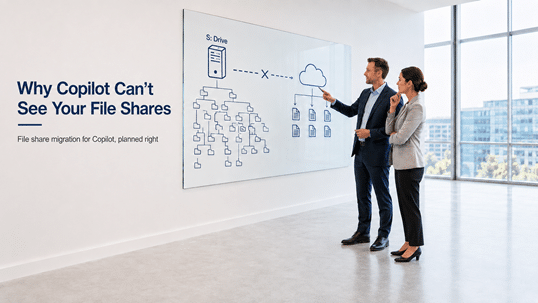
An offshore energy company came to us this summer with a file server that had been growing since 2005 – about 150,000 subfolders on a single S drive. The CEO wants the drive retired. The team wants AI in their future, and they already understood something plenty of larger organizations miss: every one of those 150,000 folders is invisible to Microsoft 365 Copilot.
Not hard to find. Not buried in results. Invisible. Copilot cannot read a file server, and no license tier changes that.
This post explains why that boundary exists, what the workarounds actually cover, and how to plan a file share migration for Copilot that improves your content instead of just relocating it.
Copilot Only Reads What Lives in Microsoft 365
Microsoft 365 Copilot grounds its answers in content stored inside Microsoft 365: SharePoint, OneDrive, Teams, and Exchange. It reaches that content through Microsoft Graph, which indexes what lives in your tenant and respects each user’s permissions. An on-premises file server sits outside that index, so Copilot cannot reference anything stored on it.
This surprises people because a mapped drive feels native. It shows up in File Explorer next to OneDrive. Users open, save, and share from it every day without thinking about where the bytes actually live. But to Microsoft Graph, that drive does not exist. The S drive, the NAS in the server room, the department share that has outlived four IT managers – none of it is available to Copilot, to Microsoft 365 search, or to SharePoint agents.
The boundary is architectural, not commercial. Buying more licenses, upgrading tiers, or waiting for a future release does not bridge it. Content participates in Copilot when it lives in Microsoft 365. That is the whole rule.
The Discovery Usually Happens After the Licenses
Most organizations find this out in the wrong order. Leadership approves Copilot licenses, IT runs enablement, and a pilot group starts asking real questions: summarize this contract, find the current version of that procedure, compare these two project budgets. The answers come back thin or wrong – and the reason is that the documents those questions depend on are sitting on a file server Copilot cannot see.
What the pilot group actually experiences is an AI that only knows a fraction of the company. The fraction that happens to live in SharePoint and OneDrive gets summarized well. The working content on the S drive, often the majority of it in file-server-heavy organizations, contributes nothing. Users conclude Copilot is unreliable within the first two weeks, and that first impression is expensive to reverse.
The readiness conversation usually starts with permissions, governance, and content quality, and those matter enormously – we cover them across Copilot Readiness for SharePoint. But location comes before all of it. Content quality on a file server is a moot point for AI, because Copilot never gets to evaluate it.
What About Graph Connectors for File Shares?
Microsoft does offer a Graph connector that can index Windows file shares into Microsoft 365 search, and indexed content can be referenced in Copilot experiences. It is a real option, and for certain content it is the right one. It is also a much smaller fix than it sounds.
A connector builds a read-only index. The files themselves stay on the server, which means everything that makes SharePoint content manageable never applies to them: no version history, no co-authoring, no sensitivity labels, no retention policies, no lifecycle control. Mapping file server permissions into the index is its own project, and getting it wrong exposes content to the wrong people through search. And the content itself stays exactly as messy as it was – the connector faithfully indexes every duplicate, every stale draft, every folder named “FINAL v3 old DO NOT USE.”
Where connectors earn their place is reference archives: large, stable, rarely edited content that people occasionally need to find but nobody needs to work in. For active working content, indexing a file server is a way to make Copilot quote your worst content faster. Migration is the durable answer for anything people actually use.
What Moving the Content Actually Buys You
Visibility to Copilot is the trigger, but it is the smallest part of the return. A well-run migration to SharePoint changes what the content is, not just where it sits:
- Permissions become intentional. SharePoint’s access model, applied deliberately during migration, replaces twenty years of accumulated NTFS exceptions – and Copilot respects those permissions on every answer.
- Metadata improves grounding. Columns, content types, and managed metadata give both search and AI the context a folder path never carried.
- One copy replaces five. Deduplication and version history end the “which file is current” problem that quietly poisons AI answers.
- Agents become possible. SharePoint agents can be scoped to specific governed libraries, which is how you put a trustworthy AI assistant on top of contracts, procedures, or project documentation.
Search gets better for humans at the same time, which matters more than it gets credit for. Employees stop recreating documents they cannot find, and Copilot stops summarizing the recreated duplicates.
And once documents land in SharePoint, what Copilot does inside those libraries depends on the same version and cleanup discipline the migration just taught you.
A File Share Migration for Copilot Is Not a Lift and Shift
Nobody should move 150,000 subfolders as they are. A file share migration for Copilot succeeds or fails on the decisions made before anything moves, because copying a 2005-era folder tree into SharePoint produces a 2005-era folder tree that Copilot can now quote.
The energy company from the opening is doing this part well. Before a single file moves, they are forming an executive-sponsored committee, splitting the drive into folder buckets, and assigning each bucket an owner to survey what is current, what is duplicate, and what should never make the trip. That survey work is the migration. The file transfer at the end is logistics.
The pattern we run with clients follows the same shape: assess the content estate, decide what gets archived or deleted, design the destination structure around flat libraries and metadata rather than deep folder nesting, and redesign permissions instead of recreating them. A migration readiness assessment is where that starts, and the complete guide to SharePoint Online migrations walks through the full methodology, including the wave planning and validation steps that keep a large migration from stalling.
Done this way, the migration and the Copilot readiness work are the same project. The cleanup that makes content safe to move is the cleanup that makes AI answers trustworthy.
Where to Start
Start with scope, not software. Identify which parts of the file server hold working content, which hold archives, and which hold nothing worth keeping – on file servers that have grown for a decade or more, the last category is consistently larger than anyone expects.
Then put numbers on it. The migration ROI calculator helps quantify what the current state costs in search time, duplication, and risk, which is usually the analysis that gets a migration budgeted alongside the Copilot licenses rather than after them.
When you are ready for help, our file share to SharePoint migration services cover the full path: content assessment, structure and permission design, wave planning, the migration itself, and the validation afterward. If Copilot is the reason you are moving, we plan the destination so the content arrives AI-ready, not just relocated.
FAQs: File Shares and Microsoft 365 Copilot
Does Copilot work with file shares?
No, not directly. Microsoft 365 Copilot reads content through Microsoft Graph, which indexes SharePoint, OneDrive, Teams, and Exchange. File servers and network shares are outside that index, so their content never appears in Copilot answers. The two paths for including it are indexing through a Graph connector or migrating the content into Microsoft 365.
Can Copilot read a mapped network drive?
No. A mapped drive is a shortcut to the same file server, so mapping it changes nothing about visibility. Even when the drive appears in File Explorer alongside OneDrive, Copilot cannot see it. Content becomes visible to Copilot when it is stored in SharePoint or OneDrive, not when it is mapped conveniently.
Can we index our file shares instead of migrating them?
You can, using the Microsoft Graph connector for file shares, and for stable reference archives that approach can make sense. The index is read-only: content stays on the server without version control, labels, retention, or co-authoring, and permission mapping needs careful setup. For content people actively work in, migration delivers far more than a searchable index of the existing mess.
Do we have to migrate everything before Copilot is useful?
No. Prioritize the content your pilot users depend on daily – policies, procedures, contracts, active project files – and move it in planned waves. Copilot becomes noticeably more useful with each wave of working content that lands in SharePoint. Archives can follow later or move to cheaper storage instead.
What happens to file share permissions during migration?
They get redesigned, not copied. File server permissions accumulate exceptions for years, and recreating them in SharePoint would carry the same oversharing risk into an environment where AI makes overshared content easier to surface. A proper migration maps who actually needs access, rebuilds the model around SharePoint groups and site structure, and documents it – which is exactly the permission foundation Copilot readiness depends on.
What Our Clients Say
