Microsoft 365 Backup is now a real product, and a decision, not a default
Here’s the part that’s changed, and the reason a post like this needs a date stamp. Microsoft 365 Backup is no longer a concept or a gap that third parties fill. It’s a first-party Microsoft product that reached general availability in late 2024.
A few things worth knowing before you assume it covers you:
It’s a paid add-on. Microsoft 365 Backup runs pay-as-you-go on a Microsoft Azure subscription, billed by the volume you protect. It isn’t switched on with your licenses – an admin has to set it up.
It covers SharePoint, OneDrive, and Exchange Online. That’s the core, and it keeps backups inside the Microsoft 365 trust boundary, so your data never leaves Microsoft’s environment. It also restores fast, recovering content in hours rather than the weeks a migration-style restore used to take.
It caps at 180 days. Restore points are kept for up to 180 days, and that ceiling isn’t extendable within the product. If your obligations run to years, this tool alone won’t meet them.
Granular restore arrived late. For its first eighteen months the product could restore a whole site or account but not a single file. File and folder-level restore for SharePoint and OneDrive only reached general availability in spring 2026. If you evaluated it at launch and walked away, it’s worth a second look.
Native or third-party: which do you actually need
Microsoft 365 Backup doesn’t end the conversation about third-party tools like Veeam or AvePoint. It reframes it. The honest answer depends on how far back you need to recover and what you need to protect.
Native Microsoft 365 Backup is usually enough when:
Your recovery window sits comfortably inside 180 days.
You mainly need to recover from accidental deletion or a ransomware event on SharePoint, OneDrive, and Exchange.
You want fast restores without standing up separate backup infrastructure.
Keeping data inside Microsoft’s trust boundary is a hard requirement.
A third-party tool still earns its place when:
You’re required to recover content from years back, well past the 180-day cap.
You need to protect things Microsoft 365 Backup doesn’t cover, like Teams configuration, Planner plans, or Entra ID objects.
Your risk policy demands a copy stored outside Microsoft’s environment, so a tenant-wide compromise can’t take the backup with it.
You need mature, granular recovery tooling with a longer track record.
For regulated environments, this decision deserves the same rigor as the rest of your architecture for regulated industries. The wrong assumption here doesn’t show up until an auditor or an attacker forces the issue.
Backup and retention are not the same job
This trips up even experienced admins, so it’s worth being precise. Retention governs the lifecycle of live data, how long content must be kept and when it should be disposed of. Backup is about getting content back after something goes wrong.
You can have airtight retention and still have no way to recover from ransomware. You can have a perfect backup and still fail an audit because nothing enforced disposition. They answer different questions, and a mature environment handles both. If you’re sorting out which control does what, start with the difference between retention labels, sensitivity labels, and permissions, then build the longer view with a proper records management and retention strategy.
Archiving is its own lane again. Microsoft 365 Archive moves cold, inactive content to cheaper storage while keeping it accessible, which lowers your cost on data you rarely touch. It is not a recovery copy, and treating it as one is another version of the same mistake.
What a recovery gap actually costs
The expensive part of a recovery failure isn’t the storage you didn’t buy. It’s the downtime. When a critical site is gone and your only option is a slow, migration-style restore, that’s days or weeks of a team unable to do its work, multiplied across everyone who depends on that content. Add the regulatory exposure if you can’t produce records on demand, and the math turns ugly fast.
This is the real argument for native backup’s speed. Recovering in hours instead of weeks is the difference between an incident your team barely notices and one that shows up in a board update. The cost of getting this right is small and predictable. The cost of getting it wrong is neither.
What we tell clients to do before they need it
Recovery planning is cheap before an incident and brutal after one. Four moves we walk clients through:
Map what actually matters. Not every site needs the same protection. Identify the libraries and mailboxes where loss would stop the business, and protect those first.
Pick your recovery window on purpose. Decide how far back you need to be able to go, in writing, and check it against the 180-day native cap. If you need years, plan for a tool that delivers years.
Test a restore before you trust it. A backup you’ve never restored from is a guess. Run a real recovery, time it, and confirm the result is usable.
Align the plan with your governance, not around it. Recovery sits inside your wider SharePoint security and compliance posture, and it should be documented alongside everything else in your governance model.
Frequently asked questions
Does Microsoft back up my Microsoft 365 data automatically?
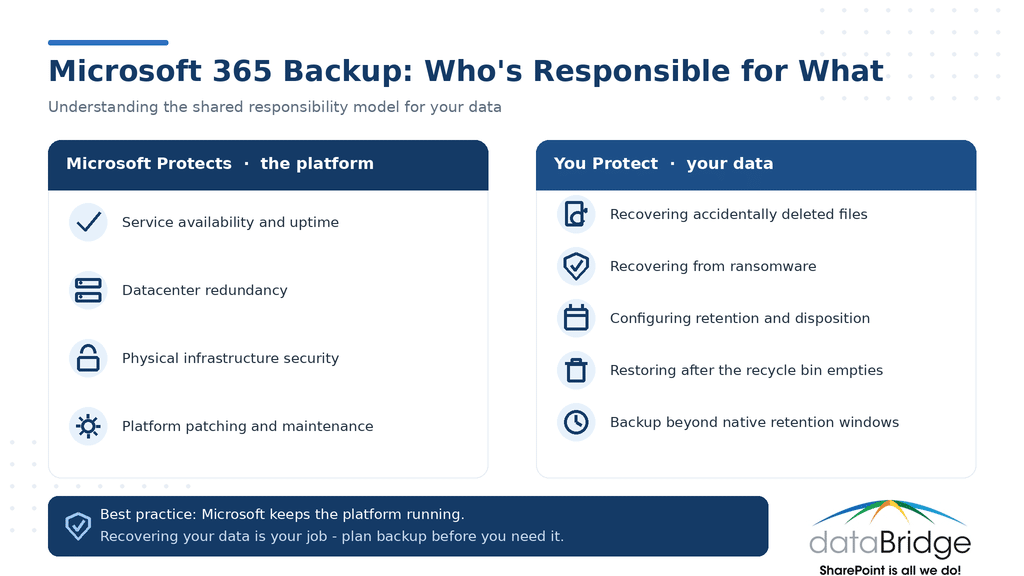
No. Microsoft keeps the platform available and replicated, but under the shared responsibility model you’re responsible for recovering your own content. Native recycle bins and retention aren’t a backup. Microsoft 365 Backup is a separate paid product an admin has to turn on.
How long does Microsoft 365 keep deleted files?
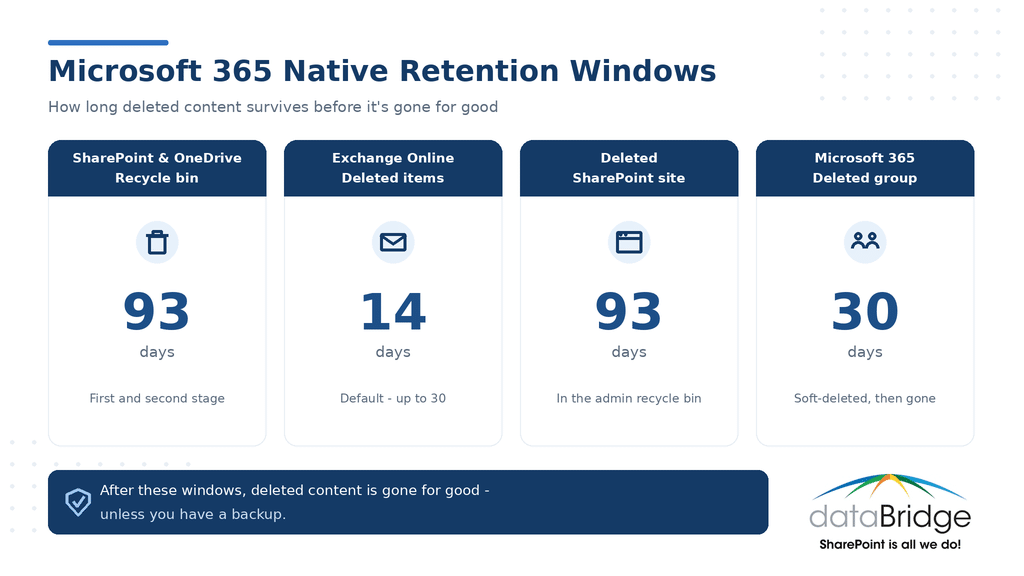
SharePoint and OneDrive hold deleted items in the recycle bin for 93 days, then remove them permanently. Exchange Online purges deleted items after 14 days by default, extendable to 30. A deleted site sits in the admin recycle bin for 93 days, and a deleted Microsoft 365 group is recoverable for 30. After those windows, the content is gone unless you have a backup.
Is Microsoft 365 Backup enough, or do I still need a third-party tool?
It depends on your recovery window and coverage. Microsoft 365 Backup restores SharePoint, OneDrive, and Exchange fast and keeps data in Microsoft’s trust boundary, but it caps at 180 days. If you need multi-year recovery, broader workload coverage, or copies stored outside Microsoft’s environment, a third-party tool still earns its place.
What’s the difference between backup and retention in Microsoft 365?
Retention controls how long live content is kept and when it’s disposed of. Backup is an independent copy you restore from after data is lost, corrupted, or encrypted. You can have strong retention and still be unable to recover from ransomware, which is why a mature environment uses both.
The bottom line
Moving to Microsoft 365 hands Microsoft the platform. It does not hand them your recovery. The shared responsibility model is clear about where the line sits, native tools stop short of true backup, and Microsoft 365 Backup – real and useful as it now is – is a paid decision with a 180-day ceiling, not a default that’s already protecting you.
The organizations that recover well are the ones that decided how, and tested it, before anything went wrong. If you want a second set of eyes on where your tenant stands, that’s the kind of thing we sort out inside our broader SharePoint governance work.
Reviewed By