Why SharePoint teams keep mixing these up
Part of the confusion comes from the fact that all three controls can apply to the same file.
A document can sit inside a site with specific permissions. The same document can also carry a sensitivity label. On top of that, it can have a retention label. None of that means the controls overlap in purpose. Instead, it means the content is being managed across three separate layers.
Those layers are:
- Access
- Protection
- Lifecycle
Most teams never separate those ideas clearly.
As a result, administrators expect permissions to solve records issues. In other cases, teams assume sensitivity labels replace access design. Sometimes retention labels get rolled out without enough structure, metadata, or ownership to support them well.
That approach creates friction.
It also creates the kind of SharePoint environment users stop trusting. You can see the same pattern in Why Employees Don’t Trust SharePoint. Poor structure and weak control decisions usually do more damage than the platform itself.
What permissions actually do in SharePoint
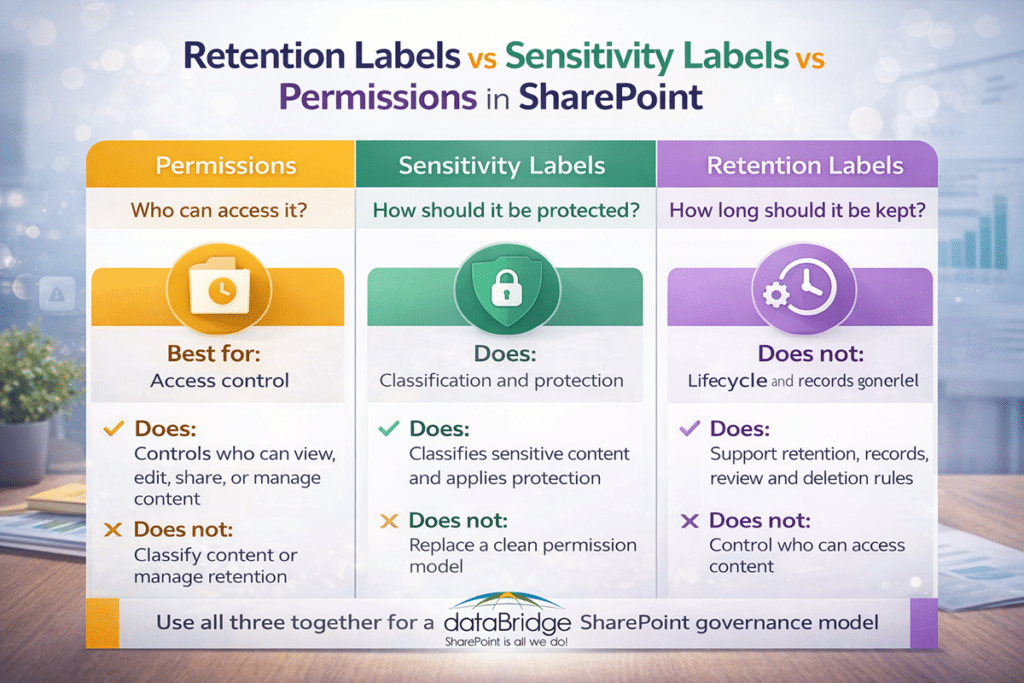
Permissions are the access-control layer.
They determine who can open a site, library, folder, or file. Access rules also shape who can edit, share, or manage that content. In plain terms, permissions decide who gets in.
That is why permissions come first.
When a user should not have access to content, permissions are the primary control that should enforce that boundary. Sensitivity labels do not replace that. Retention labels do not replace it either.
Permissions are foundational.
In our experience, this is where many environments drift off course. Teams break inheritance too often. Owners share files one by one. Exceptions pile up. Before long, nobody has a clean view of who can see what. At that point, security reviews get harder, governance gets weaker, and users lose confidence.
A strong permission model should feel intentional.
It should not feel like years of one-off fixes.
For the deeper version of this topic, the SharePoint Permissions Guide is the right companion resource. It explains how access should be structured before complexity takes over.
What sensitivity labels actually do in SharePoint
Sensitivity labels are classification and protection controls.
Their purpose is not to decide whether someone belongs in a SharePoint site. Instead, they identify sensitive content and apply the right protection based on risk, compliance, or business value.
That distinction matters.
Permissions protect access to the environment. Sensitivity labels help protect the content itself.
This becomes especially important when content moves.
A file may start in SharePoint, but it does not always stay there. People download it. Teams share it. Someone forwards it. Another copy ends up somewhere else. In those situations, sensitivity labels become much more valuable because they help carry protection with the content instead of relying only on the place where it was stored.
For a deeper walkthrough of site labels, file labels, Teams-connected workspaces, and Microsoft 365 groups, use our guide to SharePoint sensitivity labels before building the rollout model.
That is why sensitivity labels matter for:
- Confidential business documents
- Legal and financial records
- Client and partner information
- Sensitive HR content
- Regulated documents that need stronger protection
Still, sensitivity labels are not a shortcut for poor architecture.
They work best when they sit inside a broader control model that includes strong governance, clear ownership, and better content organization. That is one reason they align so naturally with a stronger SharePoint Document Management System strategy.
Structure matters here too.
When content is badly organized, classification becomes harder to apply consistently. If metadata is weak, automation gets less reliable. Without a clear governance model, labels start getting used differently across teams.
That is why sensitivity-label strategy should never live in a silo. It should connect directly to your SharePoint Governance Guide and your broader SharePoint Metadata Strategy Guide.
What retention labels actually do in SharePoint
Retention labels are lifecycle and records-management controls. That lifecycle does not end when a label is applied. Organizations also need a clear plan for what happens when retained content reaches the end of its retention period, which is why Microsoft Purview disposition review in SharePoint should be part of the broader retention label strategy.
They help determine how long content should be kept, whether it needs to be preserved as a record, and what should happen when its retention period ends.
That job is completely different from permissions.
Permissions answer who can access content. Retention labels answer how long the organization must keep that content and what governance rule applies over time.
This is where many organizations get tripped up.
Too often, teams use access controls as if those controls also solve retention or compliance needs. That never ends well. Permissions can help limit visibility. They do not create a defensible lifecycle strategy.
Retention labels are built for lifecycle governance.
They matter when the organization needs to answer questions like these:
- How long should this content be retained?
- Should this document be declared as a record?
- When should the content be reviewed?
- When can the content be deleted?
- How do we support consistency across regulated or business-critical content?
Those are governance questions.
They are also document-management questions. That is why retention labels fit naturally alongside a stronger SharePoint Document Management System approach rather than living as a disconnected Purview task.
In our work, the best retention-label strategies rarely start with labels alone. They begin with business rules, content types, metadata, ownership, and architecture. Once those foundations are clear, retention becomes much easier to apply consistently.
For a deeper rollout framework, our SharePoint retention label rollout plan explains how to move from label strategy to pilot planning, site owner training, exception handling, adoption monitoring, and phased Microsoft Purview deployment.
Retention labels vs sensitivity labels vs permissions in SharePoint
Here is the most practical way to compare them.
Use permissions when the problem is access
Ask this question:
Who should be able to see, edit, or share this content?
When that is the issue, start with permissions.
Permissions are the right control when you need to define access boundaries for sites, libraries, folders, files, or groups of users. They belong at the center of security design.
Use sensitivity labels when the problem is protection
Ask this question:
How sensitive is this content, and what protection should stay with it?
When that is the issue, start with sensitivity labels.
Sensitivity labels help classify and protect content based on business risk, confidentiality, and compliance requirements. They become even more valuable when content may move beyond its original SharePoint location.
Use retention labels when the problem is lifecycle
Ask this question:
How long must this content be kept, and what should happen later?
When that is the issue, start with retention labels.
Retention labels support lifecycle governance, defensible retention, and records management. They are essential when content needs structured retention or controlled disposition.
The decision most teams actually need to make
Most organizations do not need another feature list.
They need a cleaner way to decide which control fits which problem.
Use permissions when the risk is unauthorized access. Choose sensitivity labels when the concern is protecting sensitive content. Turn to retention labels when the business needs a clear lifecycle, a record, or a defensible deletion path.
That is the practical difference.
In other words, do not ask which control is best. Ask which governance problem you are solving.
SharePoint sensitivity labels vs permissions
This is one of the most common comparison questions.
The answer is not “pick one.”
Instead, the real answer is that they do different jobs.
Permissions manage access inside SharePoint. Sensitivity labels classify and protect the content itself. Strong environments usually need both because access control and content protection are not the same thing.
When organizations need to apply that protection model across collaboration activity, they also need to understand where DLP fits. Our post on Microsoft Purview DLP for SharePoint, Teams, OneDrive, and Copilot shows how DLP extends those controls into real Microsoft 365 usage.
That matters in real-world scenarios.
A user may have proper access to a document inside SharePoint. That does not automatically mean the file has the right protection posture once it leaves that collaboration space. On the other hand, a well-labeled document still does not fix a weak or overly broad permission model.
Both layers matter.
This is also why regulated organizations need a tighter control strategy. Industries with compliance pressure often need clearer architecture, stronger protection, and better lifecycle rules working together. That is exactly where SharePoint Site Architecture for Regulated Industries becomes especially relevant.
What retention labels do in SharePoint for Copilot readiness
Copilot has made this conversation more urgent.
It has not changed what each control does. What it has done is make bad governance easier to expose.
Here is the blunt version: Copilot does not clean up your SharePoint environment. It reveals what is already there.
That is why retention labels matter in a Copilot conversation. They help reduce stale, unmanaged, and outdated content over time. They support defensible governance. They make it easier to think clearly about what should stay active, what should be archived, and what should be disposed of.
Permissions matter too.
When access is poorly structured, Copilot can surface the consequences of that weakness faster. Sensitivity labels matter as well because protected content needs the right handling model in a modern AI-enabled environment.
Copilot readiness is not just a permissions project.
It is also a content, lifecycle, and governance project.
If you are cleaning up content before AI rollout, What to Archive Before Copilot Rollout is an important next read. For the broader planning view, Copilot Readiness for SharePoint connects the bigger structural pieces.
What we see in real SharePoint environments
At dataBridge, we usually do not see one big failure. More often, we see a stack of smaller control mistakes that add up over time.
A site has broad access because nobody wanted to slow down collaboration. Sensitive content sits in the right library, but no label strategy supports it. Retention rules exist on paper, yet content owners are not confident about what should be kept, declared, archived, or deleted.
That is the pattern.
Control confusion rarely looks dramatic at first. Instead, it shows up as uncertainty, inconsistency, and governance drift. Later, that drift turns into audit stress, user distrust, oversharing risk, and weak Copilot readiness.
This is one reason we take a strong view on the issue: labels do not rescue bad architecture. Clean governance decisions still matter more than feature count.
Where organizations make the biggest mistakes
Treating permissions like a records strategy
Permissions control access.
They do not define how long a document should be retained. They do not create a records rule. They do not replace retention governance.
That mistake is common, and it creates risk.
Assuming sensitivity labels replace permissions
Sensitivity labels help protect content.
They do not remove the need for clean site architecture, thoughtful access design, and controlled inheritance. A weak permission model stays weak, even if labels are in place.
Applying retention labels without enough structure
Retention labels work far better when content already has strong organization, clear ownership, and usable metadata.
Without that foundation, retention often becomes inconsistent, manual, or hard to trust. This is one reason more teams need to move beyond folders and toward structured classification. The article on How to Map Legacy Folder Structures to Metadata in SharePoint supports that transition well.
Preparing for Copilot without fixing governance gaps
AI rollout does not erase architecture problems.
When permissions are messy, content is stale, and lifecycle rules are unclear, Copilot will not solve that. It will increase the visibility of those issues. Strong governance comes before confident AI use.
The right layered model for SharePoint
The strongest SharePoint environments usually use all three controls together.
That is not overengineering. It is disciplined governance.
A healthy model usually looks like this:
- Permissions establish the access boundary.
- Sensitivity labels classify and protect important content.
- Retention labels govern lifecycle, records, and defensible deletion.
Each layer answers a different question.
When those layers work together, SharePoint becomes easier to manage and easier to trust. Security reviews get cleaner. Content protection becomes more intentional. Lifecycle governance becomes more defensible. Copilot readiness becomes less theoretical and more practical.
They also make investigations easier to manage. Our guide to eDiscovery for SharePoint and Teams shows how permissions, retention, ownership, and content structure affect what happens when an organization needs to identify, preserve, and review content under real investigative pressure.
This is the kind of control model that scales.
It also supports better authority positioning for the platform itself. SharePoint works best when structure comes before shortcuts.
How to decide which control to start with
Begin with the business problem.
For unauthorized access, start with permissions.
When the main concern is protecting sensitive content, use sensitivity labels.
For retention, records, or deletion governance, use retention labels.
In cases of broader control confusion, governance is usually the right starting point.
That is often the real answer.
Many teams do not have a technology problem. They have a control-model problem. Once the organization defines what each layer is supposed to do, better decisions follow much faster.
If your environment needs that kind of clarity, dataBridge can help you sort out governance, permissions, lifecycle design, and Copilot readiness before those issues get harder to unwind: Contact dataBridge.
Final thoughts
The wrong question is which of these controls is best.
That question creates the exact confusion most teams are already struggling with.
Permissions, sensitivity labels, and retention labels are not competing features. They are separate control layers for separate governance needs. One manages access. One manages classification and protection. One manages lifecycle and records control.
Organizations that understand that difference make better SharePoint decisions.
They stop asking one control to do another control’s job.
They build stronger governance.
They improve security.
They get more realistic about Copilot readiness.
Most importantly, they create an environment that is easier to defend, easier to scale, and easier for users to trust.
Frequently asked questions
What do retention labels do in SharePoint?
Retention labels help govern content lifecycle at the item level. They support retention, records management, review rules, and controlled deletion over time.
What is the difference between retention labels and sensitivity labels in SharePoint?
Retention labels govern how long content is kept and what happens to it later. Sensitivity labels classify and protect content based on sensitivity, confidentiality, or risk.
Do sensitivity labels replace permissions in SharePoint?
No. Sensitivity labels do not replace permissions. Permissions control access to content. Sensitivity labels classify and help protect that content.
What is the difference between sensitivity labels and permissions in SharePoint?
Permissions manage who can access content in SharePoint. Sensitivity labels help classify and protect the content based on sensitivity and risk.
Do retention labels matter for Copilot in SharePoint?
Yes. Retention labels matter because lifecycle governance affects how much stale, outdated, or unmanaged content remains in the environment. They do not replace permissions, but they do support a cleaner and more defensible content estate.
Should SharePoint use permissions, sensitivity labels, and retention labels together?
In many cases, yes. Most mature environments need all three because access, protection, and lifecycle are different governance needs.
Need help applying the right control model?
If your SharePoint environment needs clearer governance, stronger permissions design, better lifecycle control, or a more realistic Copilot readiness strategy, dataBridge can help you build the right structure before the platform gets harder to manage.
If your organization is unsure when to use permissions, sensitivity labels, retention labels, DLP, or records controls, dataBridge can help clarify the control model before SharePoint becomes harder to govern. Start the conversation here: Contact dataBridge.
Reviewed By