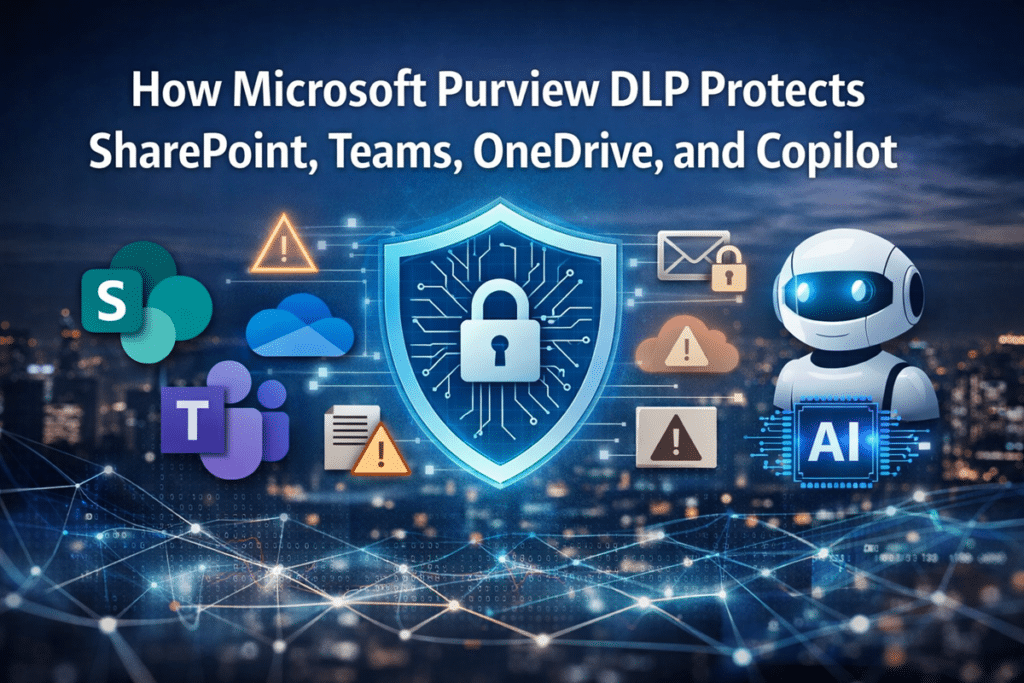
Microsoft Purview DLP for SharePoint, Teams, OneDrive, and Copilot helps organizations detect sensitive information, reduce risky sharing, guide users before mistakes happen, and strengthen protection across Microsoft 365. This article explains how DLP works across workloads, what it does not replace, and when DLP planning should become a larger governance, permissions, records, or AI readiness conversation.
Data loss rarely starts with a dramatic breach. More often, it starts with ordinary behavior. Someone shares the wrong file from SharePoint. Someone sends sensitive text in Teams. Someone keeps working from OneDrive because it is faster. Someone drops confidential information into a Copilot prompt without thinking through the risk.
At dataBridge, we see the same pattern repeatedly. Organizations invest in powerful controls, yet they do not always define how those controls should work across real collaboration habits. Good DLP is not a switch. It is an operating model.
This article focuses specifically on Microsoft Purview DLP and how sensitive content is detected, restricted, surfaced, and governed across Microsoft 365 workloads. It does not replace the broader SharePoint governance guide, the SharePoint permissions guide, or the records management and retention strategy. When external sharing is part of the risk, SharePoint external sharing governance should be reviewed alongside DLP policy design.
What this article covers
This article explains:
- How Microsoft Purview DLP protects SharePoint, Teams, OneDrive, Copilot, and Copilot Chat
- Why DLP helps reduce ordinary oversharing and convenience-based data loss
- What DLP does not replace, including permissions, sensitivity labels, retention labels, records, ownership, and governance
- How DLP connects to external sharing, sensitive content, user guidance, alerts, and Copilot readiness
- When DLP concerns should become a Purview planning effort, permissions cleanup, records strategy review, governance sprint, or larger SharePoint security project
Written by Michael Fuchs, Founder and CEO of dataBridge. Reviewed by Ken Lewis, Principal Consultant, for SharePoint document control, records management, information control, lifecycle governance, compliance alignment, and Microsoft 365 accuracy.
Published: April 16, 2026
Last reviewed: April 16, 2026
The quick answer
Microsoft Purview DLP helps protect Microsoft 365 in four practical ways.
- Detects sensitive data in files, messages, and prompts
- Blocks or limits risky sharing and access
- Shows policy tips and guidance when users are about to make a mistake
- Creates alerts, reports, and tuning options so controls improve over time
In SharePoint and OneDrive, DLP is especially useful when you need to reduce oversharing and external exposure. Teams adds protection for risky messages, while file protection still depends heavily on SharePoint and OneDrive because that is where Teams stores shared files. Microsoft 365 Copilot and Copilot Chat add another layer because DLP can protect prompts and exclude certain labeled files and emails from response summaries.
That is the real takeaway. DLP is your cross-workload enforcement layer for exfiltration control. It does not replace architecture, permissions, or lifecycle design. Instead, it helps make those decisions enforceable.
For the broader model around sensitive content, permissions, lifecycle governance, search, and Copilot readiness, use the SharePoint control design for AI readiness resource center.
At-a-glance comparison
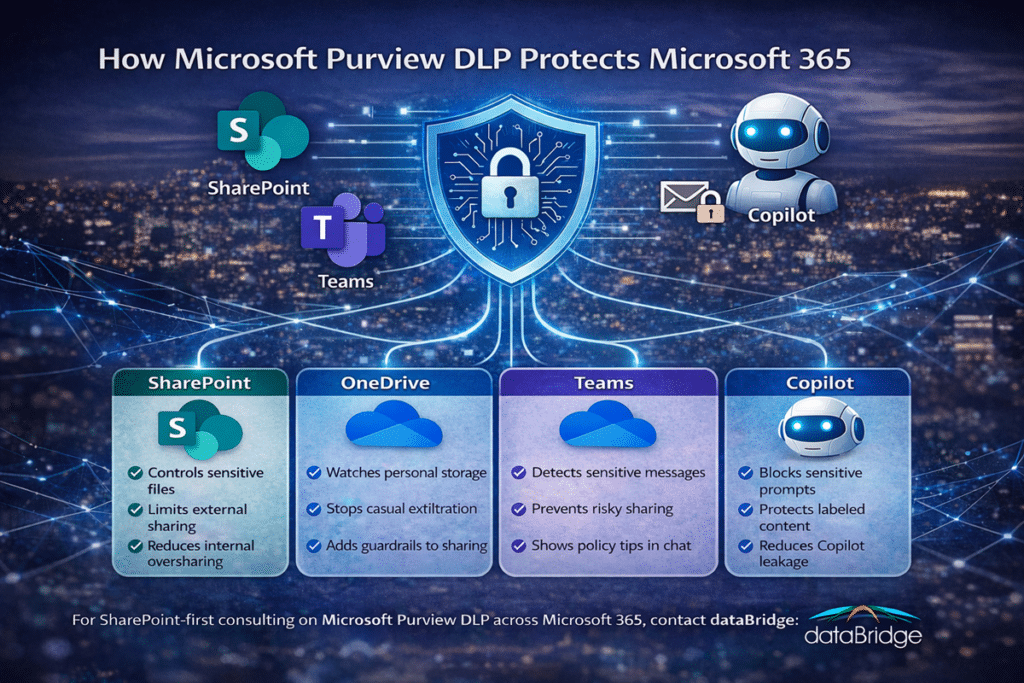
Here is the simplest way to understand where Microsoft Purview DLP helps most across Microsoft 365.
SharePoint
Best for: Controlling sensitive files, oversharing, and external access in governed collaboration spaces
Main risk: Sensitive documents shared too broadly or exposed through weak access boundaries
What DLP helps do: Detect sensitive content, apply policy actions, and reduce risky sharing behavior
OneDrive
Best for: Reducing casual exfiltration and risky personal-file sharing
Main risk: Sensitive working files shared quickly without enough control
What DLP helps do: Detect sensitive files, limit sharing, and create policy-based guardrails
Teams
Best for: Protecting chat and channel messages that contain sensitive information
Main risk: Casual sharing of regulated or confidential data inside conversations
What DLP helps do: Detect risky message content, guide users in the moment, and block some actions when policy requires it
Copilot and Copilot Chat
Best for: Protecting prompts and limiting use of some labeled content in AI summarization
Main risk: Users place sensitive information into prompts or expect AI to operate safely without stronger controls
What DLP helps do: Block selected sensitive information in prompts and exclude certain labeled files and emails from response summarization
This kind of comparison block improves skimmability fast. It also helps search engines and AI systems understand the page structure more clearly.
Why Microsoft Purview DLP matters more now
Microsoft 365 moves fast. Users move even faster.
A file can begin in OneDrive, get shared in Teams, land in SharePoint, and then get referenced in Copilot within minutes. That flow is exactly why point solutions fall short. Security that protects only one workload is not enough when work crosses workloads all day.
This is also why DLP belongs in the same conversation as SharePoint Security & Compliance.
That same conversation should also include SharePoint external sharing governance, because DLP helps reduce risky movement of content, but external sharing rules still determine how broadly files can be exposed in the first place.
Real protection is not about a single setting. It is about controlling how sensitive information moves through the environment.
Our view is direct. Most organizations do not have a DLP technology problem first. They have a policy design problem, a scope problem, or an ownership problem. Blocking everything is not a strategy. Clear policy intent is.
What leaders often miss
Most data loss is not dramatic. It is ordinary.
A user shares a proposal with the wrong guest. Another person pastes regulated data into Teams. Someone else drops sensitive text into Copilot because the tool feels conversational and low risk. Those are normal behaviors. Purview DLP exists to catch those moments before they become incidents.
In our experience, organizations often overestimate malicious leakage and underestimate convenience leakage. That mistake gets expensive quickly.
What Microsoft Purview DLP actually evaluates
Purview DLP is built to identify, monitor, and automatically protect sensitive information across Microsoft 365. It uses deep content analysis rather than a simple keyword scan. That is why mature policies can do more than look for obvious phrases.
Depending on the workload, Purview DLP can evaluate sensitive information types, labels, and other advanced conditions. That flexibility is valuable, but it also creates a design reality many teams miss: not every workload supports the same conditions. One giant policy rarely ages well.
That is one reason we prefer intent-based policies over bloated catch-all policies. Cleaner scope usually leads to cleaner enforcement.
What DLP Does Not Replace
Microsoft Purview DLP is important, but it does not replace the rest of the governance model.
DLP does not replace:
- SharePoint permissions
- Sensitivity labels
- Retention labels
- Records management
- Site ownership
- Metadata and information architecture
- Site provisioning standards
- External sharing governance
DLP works best when those controls already have clear ownership and structure.
Because DLP can evaluate labels but does not define the whole protection model, teams should also define how sensitivity labels in SharePoint apply to files, sites, Teams-connected workspaces, and Microsoft 365 groups.
How Microsoft Purview DLP protects SharePoint
SharePoint is where governed collaboration should happen. It is also where oversharing becomes visible fast.
Purview DLP helps protect SharePoint by detecting sensitive content and then responding based on policy. That response can include policy tips, user notifications, alerts, and access restrictions. In practical terms, DLP can help stop a sensitive document from being shared too broadly or being accessed by the wrong audience.
This becomes especially important with external sharing. When a sensitive file lives in SharePoint, DLP can help restrict access before guest sharing turns into exposure. That matters because the fastest way to lose trust in SharePoint is to let convenience outrun control.
At dataBridge, we often find that SharePoint risk is not caused by missing features. More often, it comes from unclear ownership, inherited sharing habits, and weak enforcement where the business needs firm boundaries.
For the broader foundation behind this work, see SharePoint Security & Compliance.
If access design is already messy, work through The Complete Guide to SharePoint Permissions.
What good SharePoint DLP usually focuses on
- Files that contain regulated or confidential information
- External sharing to guests or broad links
- Internal oversharing that exposes content to the wrong departments
- Policy tips that educate users before risky behavior becomes routine
- Alerts and reporting that show where sensitive content is moving
Strong SharePoint DLP does not try to fix bad architecture after the fact. It reinforces a structure that was designed to be governed.
How Microsoft Purview DLP protects OneDrive
OneDrive is where convenience often beats discipline. That is exactly why it deserves attention.
Many organizations still treat OneDrive as low risk because it feels personal. In reality, it often holds drafts, exports, deal files, HR documents, and working copies of sensitive content. It also makes sharing easy, which means it can become an exfiltration path quickly.
Purview DLP helps protect OneDrive by watching for sensitive content and controlling how that content is shared or accessed. That can include blocking external access, sending notifications, surfacing policy tips, and creating an audit trail that administrators can review.
Here is the blunt truth. OneDrive is often the place where a strong SharePoint strategy gets undermined by casual behavior. If your DLP design ignores OneDrive, your security story is incomplete.
Why OneDrive matters in real environments
Users do not think in workload diagrams. They think in tasks.
A person saves a file to OneDrive because it is fast. Later, they share it in Teams. After that, someone references it in Copilot. The business sees one workflow. Security teams see three different risk surfaces. Purview DLP helps close that gap.
If your organization is still unclear about when content should live in personal storage versus team storage, that is a governance issue, not just a DLP issue.
How Microsoft Purview DLP protects Teams
Teams creates speed. It also creates spill risk.
Purview DLP can protect Teams chat and channel messages by detecting sensitive content inside the conversation itself. That matters because people are usually more casual in chat than they are in formal documents. As a result, risky sharing often shows up in messages first.
When DLP is configured well, Teams users can see policy feedback in context. That helps turn security into a guided moment instead of a silent failure. In many environments, that user education piece matters almost as much as enforcement.
There is an important nuance here. Teams messages and Teams files are not the same thing. Message protection lives in Teams. File protection still depends heavily on SharePoint and OneDrive because that is where Teams stores shared files behind the scenes.
That distinction matters more than most teams realize. If you protect Teams chat but ignore SharePoint and OneDrive, you do not have complete Teams protection. You only have message protection.
The same workload overlap matters in investigations too. Our article on Microsoft Purview eDiscovery for SharePoint and Teams explains how SharePoint, Teams, and OneDrive structure affects preservation, search, review, and case readiness before pressure hits.
A practical rule that prevents blind spots
Do not design DLP around app names alone. Design it around how content actually moves.
For Teams, that usually means one set of controls for chat and channel messages and another for files that live in SharePoint or OneDrive. The more these controls are forced into one oversized policy, the harder they become to tune well.
How Microsoft Purview DLP protects Microsoft 365 Copilot and Copilot Chat
This is where the conversation gets more urgent.
Microsoft now supports DLP protections for Microsoft 365 Copilot and Copilot Chat in two important ways. First, organizations can block Copilot from processing prompts that contain selected sensitive information types. Second, they can prevent Copilot from using certain sensitivity-labeled files and emails in response summarization.
That matters because Copilot changes the speed of access. It does not change the underlying permissions model, but it can make weak governance much easier to notice. Good DLP reduces the chance that users place sensitive text into prompts or that highly sensitive labeled content gets used in AI-generated summaries.
There is also a nuance many teams miss. Excluding a labeled item from Copilot processing is not the same as making it invisible. A user may still see that item in citations if they already have access to it. DLP is helping control processing and summarization, not rewriting permissions.
Another operational truth matters here too. Prompt protection evaluates the text a user types into the prompt. It does not inspect the contents of a file that someone uploads directly into a prompt for analysis. That is one more reason file governance still belongs in SharePoint, OneDrive, labeling, and permissions design.
If your organization is preparing for broader AI use, pair this work with Copilot Readiness for SharePoint.
Copilot does not create content chaos. It accelerates the consequences of content chaos.
What smart organizations do with Copilot DLP
- Treat Copilot as a distinct policy surface, not as an afterthought inside an old file-sharing rule
- Define clearly which sensitive information should never be placed into prompts
- Use sensitivity labels deliberately so the right content is excluded from AI summarization
- Review permissions because DLP does not rescue a weak access model
That last point is worth repeating in plain language. AI protection starts before the prompt.
A short real-world scenario
A leadership team wants to roll out Copilot quickly. They already have SharePoint, Teams, and OneDrive in place, so they assume the foundation is good enough.
Then reality shows up.
A department stores sensitive client files in SharePoint but still shares drafts from OneDrive. Project discussions happen in Teams. Staff start experimenting with Copilot prompts using content they believe is safe because it lives inside Microsoft 365. Meanwhile, permissions have drifted over time, external sharing rules are inconsistent, and nobody is sure which sensitive information types should trigger a policy response.
This is the kind of situation we see often. The problem is not that Microsoft 365 lacks controls. The problem is that the controls were never aligned into one operational model.
That is where Purview DLP becomes valuable. It helps reduce risky sharing, guide user behavior, and create enforcement points across the places where work is actually happening. At the same time, it also reveals where governance, permissions, and lifecycle decisions still need work.
In other words, DLP does not eliminate the need for discipline. It makes the need for discipline impossible to ignore.
What happens when a DLP policy matches
Many teams think DLP only blocks content. That is too narrow.
Purview DLP can respond in several ways depending on the workload, the rule, and the business risk involved. A policy match can trigger notifications, policy tips, alerts, access restrictions, and user override paths with justification. The best design depends on what the organization is trying to stop and what users still need to do.
Common DLP responses that matter most
- Notify users that content conflicts with policy
- Show policy tips in context so people understand the issue
- Block everyone or block only people outside the organization from accessing sensitive files
- Allow controlled overrides with business justification when the business case is legitimate
- Generate alerts and incident visibility for administrators
This is one reason mature DLP programs feel measured rather than reactive. Not every issue deserves a hard block. At the same time, some issues should never be left to user judgment. Good policy design separates those cases clearly.
For organizations with heavier lifecycle requirements, DLP also works best when it sits beside a clear SharePoint Records Management and Retention Strategy.
Exfiltration control and lifecycle control are not the same thing, but they should support each other.
What Microsoft Purview DLP does not replace
DLP is important. Still, it is not magic.
It will not replace permissions, governance, or records management. Nor will it clean up stale content or redesign a site structure that was never built to scale.
We take a strong view on this because the pattern is so common. Teams often expect DLP to fix structural problems that should have been handled earlier. That is how false confidence creeps in.
Turn to The Complete Guide to SharePoint Permissions when the core issue is access.
Reach for SharePoint Security & Compliance when the broader protection model needs work.
A stronger SharePoint Records Management and Retention Strategy helps when the business needs defensible lifecycle control.
For AI exposure and cleanup priorities, use Copilot Readiness for SharePoint.
Those disciplines are related. They are not interchangeable. DLP helps control sensitive content movement, but it does not decide when retained SharePoint content should be deleted, preserved, or escalated for review. For that lifecycle decision point, organizations need a separate Purview disposition review process for SharePoint tied to retention labels, ownership, and records accountability.
Before that lifecycle model can work reliably, teams need a SharePoint retention label planning process that defines which labels apply, where they apply, who manages exceptions, and how rollout decisions connect to broader Microsoft Purview governance.
If you need help sorting out what should be solved by DLP and what should be solved by architecture or governance, talk with dataBridge.
How to roll out Microsoft Purview DLP without creating user backlash
Good DLP does not start with blocking. It starts with policy intent.
1. Define the real leakage scenarios first
Start with the business events that matter. External sharing of client files is one scenario. Pasting regulated data into Copilot is another. Oversharing inside Teams is another. Clear scenarios produce better rules.
2. Separate policies by workload and purpose
SharePoint files, OneDrive files, Teams messages, and Copilot prompts do not behave the same way. Treating them as one generic DLP project usually leads to shallow coverage and harder tuning.
3. Use simulation before broad enforcement
Simulation gives administrators a safer way to see what a policy would match before it starts blocking work. That step matters because false positives destroy trust quickly. Mature teams tune first and enforce second.
4. Decide where overrides are appropriate
Some rules should allow justification-based overrides. Others should not. Internal collaboration might allow for controlled exceptions. External sharing of regulated information usually should not.
5. Make the user message clear
A vague policy tip creates resentment. A clear one teaches judgment. Tell users what happened, why it matters, and what they should do next.
6. Review the results like an operating team
DLP is not a set-it-and-forget-it control. Look at alerts, overrides, false positives, repeat offenders, and risky sharing patterns. Then tune the rules. The strongest programs improve continuously because real user behavior always teaches something.
Common Microsoft Purview DLP mistakes
Trying to write one giant policy
This usually looks efficient on paper. In practice, it becomes hard to test, hard to explain, and hard to maintain. Cleaner policies age better.
Protecting Teams messages but not Teams files
That leaves a major gap. Teams chat protection matters, but file protection still depends on SharePoint and OneDrive.
Assuming DLP fixes oversharing by itself
It does not. DLP supports enforcement. Permissions and architecture still define the real access model.
Rolling out hard blocks too early
Security teams sometimes rush to maximum enforcement before they understand the business patterns. That move creates frustration and usually leads to exceptions that weaken the policy later.
Treating Copilot protection like a separate universe
It is not. Copilot risk is connected to the same content, labels, permissions, and governance choices that already exist across Microsoft 365.
dataBridge’s view
After years of SharePoint and Microsoft 365 consulting, our view is simple. The best DLP programs are the ones users can understand, administrators can tune, and leaders can defend.
That means the work is never just technical. It also involves ownership, language, rollout discipline, and realistic policy boundaries. Technology catches the event. Governance decides what the event should mean.
We also believe this: if your DLP roadmap ignores SharePoint structure, OneDrive behavior, Teams collaboration patterns, and Copilot readiness, it is not really a Microsoft 365 data protection strategy. It is a partial control plan.
The strongest environments layer these decisions on purpose. Permissions control access. DLP helps control risky movement and sharing. Records management governs lifecycle. Copilot readiness forces the quality conversation that many organizations postpone too long.
That is the model that scales.
Final thoughts
Microsoft Purview DLP is one of the most practical security controls in Microsoft 365 because it meets risk where users actually work.
Across Microsoft 365, the value is practical. SharePoint gets help with oversharing. OneDrive gets help with casual exfiltration. Teams gets help with risky messages. Microsoft 365 Copilot and Copilot Chat now get help with sensitive prompts and with some labeled content in response summaries.
Still, the biggest win is not the feature list. The biggest win is clarity.
In real client environments, the hardest part is rarely turning on the control. The harder part is deciding what the organization actually wants to stop, where users need flexibility, who owns the policy decisions, and how much inconsistency has already built up across SharePoint, Teams, and OneDrive.
That is where experience matters.
We have seen environments with strong licensing and weak control models. We have seen well-intentioned security efforts create friction because the policies were too broad, too vague, or too detached from daily work. We have also seen the opposite. When DLP is aligned to real leakage scenarios, reinforced by better permissions, and supported by stronger governance, it becomes one of the most useful controls in Microsoft 365.
That is our more opinionated view on this topic: DLP works best when it is treated as part of operational governance, not as a late-stage compliance patch.
If your team wants help designing Microsoft Purview DLP around real SharePoint, Teams, OneDrive, and Copilot risks, start the conversation with dataBridge.
Frequently asked questions
What is Microsoft Purview DLP in Microsoft 365?
Microsoft Purview DLP is a policy-based control that helps organizations detect sensitive information, monitor risky activity, and apply protective actions across Microsoft 365 workloads such as SharePoint, OneDrive, Teams, and Copilot experiences.
How does Microsoft Purview DLP protect SharePoint?
It helps detect sensitive files, limit risky sharing, restrict access when policy conditions are met, show policy tips to users, and create alerts and reporting for administrators.
Does Microsoft Purview DLP protect Teams files?
Yes, but the file side of that protection depends heavily on SharePoint and OneDrive because Teams stores shared files there. Teams DLP also protects chat and channel messages as a separate surface.
Can Microsoft Purview DLP protect Microsoft 365 Copilot and Copilot Chat?
Yes. Organizations can use DLP to block selected sensitive information from being placed into prompts and to exclude certain sensitivity-labeled files and emails from Copilot response summarization.
Does DLP replace SharePoint permissions?
No. DLP helps control risky movement, sharing, and processing of content. Permissions still control who can access that content in the first place.
Should DLP be part of Copilot readiness?
Yes. DLP belongs in the Copilot conversation because prompt behavior, sensitive content, permissions, and oversharing are all connected. Strong AI rollout depends on stronger content control.
If you need a practical DLP strategy that supports security, governance, and AI readiness without making Microsoft 365 harder to use, contact dataBridge.
Reviewed By

Author
-

Michael is the Founder and CEO of dataBridge, where he helps organizations approach SharePoint and Microsoft 365 with a stronger focus on strategy, governance, architecture, and long-term business value. His consulting-first perspective shapes how clients plan smarter, avoid costly missteps, and build digital workplaces that hold up over time.