
How to Map Legacy Folders to SharePoint Metadata Before Migration
Most file-share migrations copy old folder paths straight into SharePoint and lose the one chance to make content more searchable and governable. This article explains how folder paths become metadata, why classification matters before migration, and when folder cleanup should become a larger information architecture, document management, or governance conversation.
Many migrations fail to improve findability because old folder paths are copied into SharePoint without rethinking classification. Metadata creates a better structure for search, views, automation, lifecycle management, and governance.
Most organizations do not begin with a metadata strategy. They begin with folders. Folder trees grow deep. Naming becomes uneven. Duplicate content spreads. The structure only makes sense to the people who have lived with it for years.
Modern SharePoint works better when content is organized by meaning, not location alone. At dataBridge, this is one of the most important parts of many migration projects because it helps teams translate years of folder-based habits into a model that is easier to search, govern, manage, and scale.
This article focuses specifically on translating legacy folder logic into SharePoint metadata before or during migration. For the broader educational framework behind metadata, content types, and taxonomy, use the SharePoint Metadata Strategy Guide. For applied architecture design, use SharePoint Information Architecture & Metadata Consulting. For the larger document platform, start with the SharePoint Document Management System page. And when a legacy folder actually represents a repeatable work product rather than a simple container, weigh whether a folder should become a document set before you migrate it as-is.
What this article covers
This article explains:
- Why legacy folder structures break down in modern SharePoint
- How to identify useful business context hidden inside folder paths
- How metadata improves search, views, lifecycle, automation, and governance
- How folder-to-metadata mapping supports document management, migration planning, and Copilot readiness
- When folder cleanup should become an information architecture, metadata strategy, or SharePoint migration project
Why Legacy Folder Structures Break Down in Modern SharePoint
Folders feel comfortable. That is part of the problem.
The issue is not that folders are always wrong. The issue is that most legacy folder structures were built around storage habits, not information strategy. Someone needed a place to save a document. They wanted to mirror a department. Someone organized work the way one team happened to think about it at the time. Years later, that logic rarely scales well.
As a result, similar content gets organized in very different ways across the business. One group sorts by client. Another sorts by year. Another builds everything around document type. Someone else uses abbreviations that made sense ten years ago and confuse everyone now.
That makes content harder to find unless users already know where it lives. In other words, the structure rewards tribal knowledge.
Deep folder trees make the problem worse. A file may sit in the right place, but the meaning is buried inside the path. Users click through several levels just to figure out what the file relates to. They also need to decide whether it is current and whether it is the version they can trust.
That creates familiar long-term issues:
- Duplicate content spreads across similar folders
- Naming conventions drift over time
- Permissions become harder to explain and maintain
- Search becomes less dependable
- Reporting and automation become more difficult
- Governance becomes harder to apply consistently
A folder path may contain a story, but metadata makes that story visible, searchable, filterable, and governable.
Metadata Is Not Just Tagging
Many organizations hear the word metadata and think of extra fields. They picture forms people must complete before saving a document. That view is too narrow.
In SharePoint, metadata is part of the structure. It helps define what a document is. Metadata shows who owns it. It shapes how it should be handled. Metadata helps people find it later. Good metadata supports views, grouping, search refiners, automation, retention, and lifecycle decisions.
That is why metadata should not be treated like an optional layer. It is structural design.
Folders answer one question: where is this stored?
Metadata answers the questions users and administrators actually care about:
- What is this document?
- Who owns it?
- What process does it support?
- What kind of content is it?
- How sensitive is it?
- How long should it be kept?
- How should users find or filter it?
That difference matters during migration. A migration is one of the few moments when an organization is already open to change. It is the best time to replace path-based logic with a model that is more usable and more governable.
Before converting folder names into columns, use the SharePoint metadata planning worksheet to capture which business areas, document types, ownership rules, and search filters should guide the mapping.
After the mapping is defined, SharePoint document library forms for metadata intake can help prevent users from recreating the same folder habits by capturing the business context directly during file submission.
This is also why a strong SharePoint metadata strategy is tied so closely to migration success. If everything gets moved first and structure is addressed later, cleanup usually becomes slower, more political, and more expensive.
What Folder-to-Metadata Mapping Does Not Replace
Folder-to-metadata mapping is one part of a larger SharePoint structure.
It does not replace:
- A full SharePoint metadata strategy
- A complete SharePoint document management system
- An enterprise SharePoint taxonomy and term store strategy
- A broader SharePoint migration consulting plan
Its job is more specific: preserve useful business context from old folder paths and translate that context into metadata, content types, views, and governance rules that work better in SharePoint.
When Folder-to-Metadata Mapping Matters Most
Not every migration needs the same level of remapping. Still, some environments clearly need more than a lift-and-shift.
File server migrations are a major example. Shared drives often grow for years with very little oversight. Teams add nested folders to solve immediate problems. Then they keep stacking more folders underneath them. After enough time, the structure reflects history more than logic.
For that specific source-to-destination scenario, file share to SharePoint migration should connect folder analysis, metadata mapping, cleanup, ownership, permissions, and user adoption into one coordinated plan.
Older SharePoint environments can have the same problem. Many legacy sites were managed like file shares. Large libraries were built around folders. Very little metadata was captured. In those cases, moving to SharePoint Online without rethinking the structure usually carries the same problems forward.
This work becomes even more important in regulated or document-heavy environments. Classification matters there. Lifecycle control matters there. Search clarity matters there. Policies, contracts, client files, controlled documents, project records, and operational content all benefit from stronger metadata and clearer content types.
It matters even more now because of AI and search readiness. When content is poorly structured, Copilot and Microsoft Search have less context to work with. Better structure is not a magic fix. It does, however, improve retrieval quality and user confidence. That is one reason this topic connects naturally to Copilot-ready SharePoint information architecture.
Folder-to-Metadata Mapping Examples
Legacy folder pattern | Better SharePoint metadata approach |
HR > Policies > 2024 | Department = HR; Document Type = Policy; Year = 2024 |
Clients > ABC Company > Contracts | Client = ABC Company; Document Type = Contract |
Projects > Project Phoenix > Deliverables | Project = Project Phoenix; Content Type = Deliverable |
Finance > Audits > Final | Department = Finance; Business Process = Audit; Status = Final |
Procedures > Safety > Reviewed | Document Type = Procedure; Category = Safety; Review Status = Reviewed |
The goal is not to remove every folder. The goal is to stop using folder paths as the only way to describe business meaning.
Start With Discovery, Not Conversion
The first mistake many organizations make is trying to convert folders into metadata too early.
Before you can design the target model, you have to understand what the current structure is really doing.
That starts with inventory. Review the existing folder hierarchy. Look at the top level. Then look at the deeper patterns users rely on every day. Review folder depth, naming conventions, repeated structures, duplicate branches, and abandoned areas. At the same time, identify content owners, business units, and major usage patterns.
You also need to identify ROT content. That means redundant, obsolete, and trivial material. This matters because some folder structures look more complicated than they truly are. Once stale or duplicate content is removed, the real patterns become easier to see.
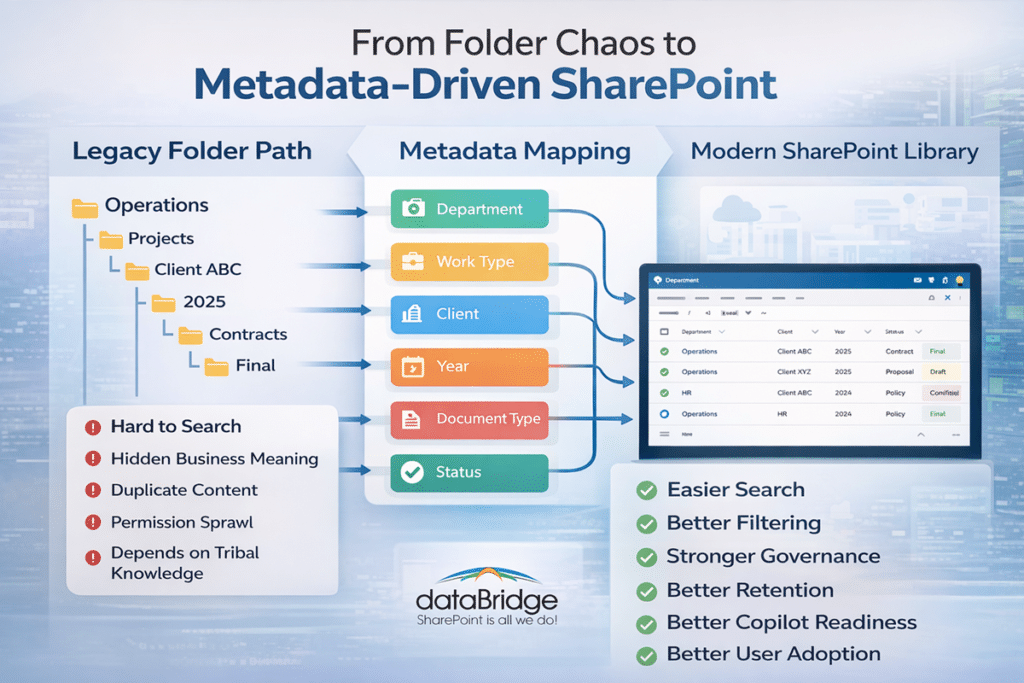
Then look for business meaning inside the folder path. A folder path often contains hidden metadata values. No one may have called them metadata before, but they are there. The path may point to department, client, project, fiscal year, document category, region, or status.
The real task is to separate business meaning from noise.
Useful questions include:
- Which folder names carry real business context?
- Which ones reflect convenience or old habits?
- Which levels of the path repeat often enough to become metadata?
- Which ones should disappear?
- Which patterns suggest content types, libraries, or document sets?
This is one place where experience matters. At dataBridge, we often find that a structure that looks messy at first still contains consistent business logic underneath it. The goal is not to preserve every folder. The goal is to extract the meaning that matters and rebuild it in a way modern SharePoint can support.
How to Read a Folder Structure as Metadata
A folder path often looks like storage. In practice, it is usually a rough data model hiding in plain sight.
Consider a simple example:
Shared Drive > Operations > Projects > Client ABC > 2025 > Contracts > Final
At first glance, it looks like a sequence of nested folders. Look closer, though, and it can be read as business attributes:
- Department = Operations
- Work Type = Projects
- Client = Client ABC
- Year = 2025
- Document Category = Contract
- Status = Final
Once you start reading folders this way, the path becomes easier to translate into SharePoint structure.
That does not mean every segment should become a column. In fact, that is one of the most common mistakes teams make. The goal is to identify the patterns that repeat. Those patterns should help users understand, find, and manage content.
It also helps to separate recurring logic from one-off exceptions. Design for the patterns that matter most across the environment. Edge cases can be handled later. If the whole model is built around exceptions, users usually end up with something too complicated to maintain.
This is where sound migration strategy meets strong architecture. The right answer often uses a mix of sites, libraries, content types, managed metadata, default values, and document sets. It is rarely just a flat list of fields.
Decide What Should Become Sites, Libraries, Content Types, and Columns
This is the point where migrations either gain long-term value or give it away.
A common trap is trying to map every major folder to a library and every subfolder to a metadata field. That usually creates an overbuilt environment. It ends up feeling almost as confusing as the source system.
A better approach is to decide intentionally where each type of logic belongs.
A site usually represents a major ownership boundary, business function, or security context. If a top-level folder reflects a separate team, business unit, or audience with its own governance needs, it may point to a site.
A library usually represents related content with a shared purpose, lifecycle, metadata pattern, and process. Libraries should make sense to users. They should not feel like technical translations of old folder paths.
Content types are useful when document classes have distinct metadata, templates, retention needs, or workflows. Contracts, policies, procedures, proposals, project documents, and client deliverables often fit well here.
Metadata columns are best used for the attributes people need to filter, group, search, govern, or report on. Department, client, region, fiscal year, confidentiality, status, and record category are common examples.
The guiding principle is simple. Do not turn every folder into a structural element just because it existed before.
Model for usability, governance, and scale.
That principle is a big reason this topic connects so closely to SharePoint information architecture and metadata. Good architecture is not about copying old structure into a new system. It is about designing the right structure for the way people need to work now.
Build a Metadata Model People Can Actually Use
A metadata model only works when people understand it and use it consistently.
That means the goal is not to capture every detail. The goal is to capture the details that matter most.
Start with the global metadata that should apply across the environment. Depending on the client, that may include department, content type, sensitivity, record class, or retention category. These fields support enterprise consistency and stronger governance.
Then add local metadata only where it adds real value. Project, client, region, program, business line, or workstream may help in some areas. They may not help in all of them.
Consistency matters too. Where users need standard values, controlled vocabularies usually work better than free text. Managed metadata term sets, choice fields, and naming rules reduce drift. They also improve search and reporting.
At the same time, avoid over-tagging. If users face too many required fields, they often lose patience. Some stop trusting the process. Others enter weak data just to move on. A bloated metadata model may look smart in planning sessions, but it usually performs badly in the real world.
This is one place where a clear opinion is worth stating plainly. The best metadata model is not the most detailed one. It is the one people will actually use correctly.
Common Mapping Patterns That Work Well in SharePoint
Some folder-to-metadata patterns come up again and again because they work.
One common pattern is replacing folder logic with metadata and views. Instead of asking users to click through nested levels, you give them filterable columns and views grouped by department, client, year, or status. It feels cleaner. It also works far better with modern SharePoint search and library experiences.
Another strong pattern is using document sets for related content that belongs together. Project packets, case files, client engagements, or controlled document groups often benefit from shared metadata and bundled context.
Default metadata is also useful. If documents are created or stored in a context where some values are already known, default values can reduce manual effort. That improves adoption because people are not asked to re-enter the same information again and again.
In some cases, a repeating path pattern points to a content type. If a certain folder consistently represents a document class, that logic may belong in a content type rather than a folder branch.
The point is not to force one pattern everywhere. The point is to choose the right pattern for the business meaning you found during discovery.
What Not to Do
Some mistakes appear so often that they are worth naming directly.
Do not rebuild deep folder trees in SharePoint Online just because users are familiar with them. Familiarity and usability are not the same thing. Recreating the same structure usually carries the same search, maintenance, and governance problems into the new environment.
Do not create a metadata column for every folder name. That usually produces cluttered libraries and weak user adoption. People stop engaging with a model that feels too technical or too heavy.
Do not separate metadata decisions from governance. Structure affects search, retention, permissions, compliance, automation, and lifecycle management. That is one reason this work supports broader SharePoint governance, even though this page is focused on a narrower issue.
Do not design only for migration day. The target model has to work after the move. A structure that is easy to migrate into but difficult to live in is still the wrong structure.
How Metadata Mapping Improves Search, Governance, and User Experience
This work matters because it leads to visible improvements after migration.
Search improves because users can filter, group, and refine by meaningful attributes. They do not have to guess where something might have been stored. Results become easier to understand because more context is visible.
Governance improves because content can be classified more consistently. Retention, sensitivity, lifecycle rules, and records decisions all work better when structure is based on clear metadata rather than folder assumptions.
User experience improves because people spend less time trying to remember paths. They spend more time finding what they need. That trust matters. When SharePoint feels predictable, adoption gets easier.
Automation and reporting improve as well. Power Automate flows, approval routes, lifecycle workflows, and content analytics become easier to build when the content model is structured well.
This is one reason strong folder-to-metadata mapping also supports better document management in SharePoint. The goal is not only to store files differently. The goal is to make the environment easier to manage and more valuable over time.
A Practical Folder-to-Metadata Mapping Process
A strong process usually follows six steps.
Inventory and Analyze the Source
Review folder patterns, ownership, content volumes, duplicate areas, and ROT content. Understand how people are actually using the structure, not just how it was originally intended to work.
Extract the Business Meaning
Identify what the path is trying to communicate. Look for recurring attributes such as client, project, year, department, document type, or status. Separate meaningful patterns from noise.
Design the Target Model
Define the right mix of sites, libraries, content types, metadata columns, document sets, and default values. Keep the model aligned with usability, governance, and future scale.
Validate With Business Owners
Review the proposed structure with the people who use the content every day. Make sure the labels, required fields, and document categories reflect real work rather than technical assumptions.
Map and Migrate
Build a mapping matrix that connects source paths to target locations, content types, and metadata defaults. Then test the model with a pilot set before applying it more broadly.
Train and Reinforce
Show users how the new model works and why it is better. Adoption improves when people understand the practical benefit, not just the rule.
This process also aligns naturally with the way dataBridge approaches SharePoint migration readiness assessments. A good assessment does more than count files. It helps uncover the structural decisions that shape the success of the target environment.
Use the migration checklist worksheet alongside folder-to-metadata mapping so the migration plan also covers ownership, cleanup, permissions, target libraries, testing, communication, and post-migration validation.
What a Mapping Matrix Usually Includes
A mapping matrix is one of the most useful tools in this work because it turns analysis into execution.
A practical matrix often includes:
- Legacy source path
- Target site
- Target library
- Content type
- Metadata defaults
- Exception notes
- Permission considerations
- Cleanup rules
It does not need to be overengineered to be helpful. What matters is that it clearly shows how source content will land in the target model. It also shows which metadata or content rules will apply.
The matrix also makes validation easier because business owners can react to something concrete. Instead of debating architecture in the abstract, they can review real examples and see how their content will be translated.
Signs You Need Metadata Mapping Before Migration
Some warning signs show up quickly.
Users say things like, “I know where it is, but I cannot explain it.”
Folder trees are several levels deep and still expanding.
Search exists, but people do not trust it.
Permissions are hard to understand because they have been layered across folders over time.
Similar content is stored differently across departments.
The organization wants better retention, better reporting, better automation, or stronger Copilot readiness. Yet it still relies on path-based organization.
If those conditions sound familiar, metadata mapping should not be treated as optional cleanup. It should be treated as part of the migration strategy.
How dataBridge Approaches Folder-to-Metadata Mapping
At dataBridge, we approach this work from a structure-first point of view.
That means we do not treat migration as a file-moving exercise. We treat it as a chance to improve architecture, governance, and usability. In real engagements, the most valuable decisions often happen before content is moved. They happen when we help clients identify what their folder structure is really saying and what the target experience should be instead.
That work usually pulls together more than one discipline. It draws on business analysis, information architecture, governance planning, migration strategy, and user experience design. This is not clerical translation. It is consulting work that directly shapes long-term platform success.
That is also why this topic connects so well to broader SharePoint consulting services. Clients rarely need help simply because they have folders. They need help because the old structure no longer supports search, governance, compliance, or modern collaboration.
Related Migration and Metadata Resources
- SharePoint Migration Consulting
- The Complete Guide to SharePoint Online Migrations
- SharePoint Migration Readiness Assessment
- SharePoint Migration Checklist for Microsoft 365
- SharePoint Metadata Strategy Guide
- SharePoint Information Architecture & Metadata Consulting
- SharePoint Document Management System
Frequently Asked Questions
Should All Folders Be Removed in SharePoint?
No. Some folders still have value in limited scenarios. The goal is not to eliminate every folder. The goal is to stop relying on folders as the primary structure when metadata would serve users better.
Can Metadata Replace Every Folder Structure?
Not perfectly in every situation. Still, metadata can usually capture most of the business value hidden inside a legacy path. It also makes content easier to search, filter, and govern.
Is Metadata Mapping Necessary for Every Migration?
Not at the same depth. Some smaller environments may need only light cleanup. However, any organization with deep folders, weak search trust, inconsistent content models, or stronger governance goals should evaluate it seriously.
What Is the Biggest Mistake Organizations Make?
Treating migration as file movement instead of content restructuring.
Does This Only Matter for File Shares?
No. It also matters for older SharePoint environments that were managed like file shares. This is especially true when libraries are built around nested folders with little meaningful metadata.
The Bottom Line
Legacy folder structures often contain real business meaning. The problem is that the meaning is buried inside the path.
Modern SharePoint works better when that meaning is translated into metadata, content types, views, and governed document experiences. Done well, folder-to-metadata mapping improves search, governance, lifecycle management, automation, and user adoption. It also creates a stronger foundation for future Microsoft 365 capabilities.
That is why this work matters so much in real migration projects. It is not just cleanup. It is one of the clearest ways to turn a migration into an improvement.
If your organization is moving from file shares or older SharePoint libraries and wants a better target structure, dataBridge can help you assess the source environment, identify the logic hidden in the folder tree, and map it into a model that works better in modern SharePoint.
Explore our approach to SharePoint migrations, learn more about SharePoint information architecture and metadata, or see how stronger structure supports a better SharePoint document management system.