
Quick answer
SharePoint document library forms help organizations collect files and metadata during the upload or submission process. They are useful when a library needs consistent document types, owners, departments, review dates, statuses, approval paths, or other metadata before content becomes hard to find, govern, automate, or trust.
This article focuses specifically on how SharePoint document library forms can improve file intake, metadata completion, and controlled submission workflows. For the broader document management model, start with SharePoint Document Management System. For the full metadata planning model, start with the SharePoint Metadata Strategy Guide.
Why SharePoint Document Library Forms Matter
Most SharePoint document problems begin before anyone searches for a file.
A user uploads a document with a vague name. Metadata gets skipped. The wrong folder becomes the default destination. A file lands in a library without an owner, category, department, review date, status, or process context.
Later, the organization wonders why search feels inconsistent.
That is where SharePoint document library forms become useful.
They give teams a guided way to capture important information when content enters a library. Instead of treating metadata as cleanup work, organizations can make metadata part of the intake experience.
That shift sounds small. In practice, it can change the quality of the entire document library.
Metadata works best when users provide it while they still understand the document. Months later, nobody wants to go back and classify old files. Even worse, the person cleaning up the library may not know the right answer.
SharePoint document library forms help reduce that problem. They can make file intake easier, cleaner, and more consistent.
Features only matter when they support structure. Document library forms are useful because they support better structure at the exact moment content enters SharePoint.
What Are SharePoint Document Library Forms?
SharePoint document library forms are forms connected to document libraries. They help users submit or describe files with fields that support metadata, intake, workflow, review, or governance.
In practical terms, they can help collect information such as:
- Document type
- Department
- Business process
- Client or project
- Review date
- Status
- Owner
- Category
- Confidentiality level
- Retention need
- Approval path
- Related location or team
- Required follow-up
Microsoft has highlighted forms in document libraries as part of SharePoint user experience updates. That matters because document intake has always been one of the hardest places to get metadata right.
People usually do not resist metadata because they dislike structure.
They resist it because the intake process feels awkward, unclear, or disconnected from their work.
A well-designed document library form can reduce that friction.
The Real Problem: File Intake Is Usually Too Loose
Many SharePoint libraries rely on a familiar pattern.
Users upload a file. SharePoint stores it. Someone hopes the metadata gets completed later.
That is not governance. That is wishful thinking.
In client environments, dataBridge often sees document libraries where metadata exists but does not influence behavior. The fields are available, yet users skip them. Required columns are added too late. Folder habits return. Content owners then struggle to classify documents after the fact.
The result is predictable:
- Documents are hard to find
- Search results feel inconsistent
- Filters are incomplete
- Views do not work well
- Content types lose value
- Approval processes become manual
- Records decisions become harder
- Copilot and SharePoint agents have weaker signals
A document library form gives the organization a better intake point. It helps guide the user before the content becomes another unmanaged file.
That does not mean every document library needs a form. It means libraries with repeatable intake needs should consider one.
When SharePoint Document Library Forms Make Sense
SharePoint document library forms are most useful when a library supports a repeatable intake process.
They work well when users need to submit files with consistent information. The form gives structure without asking users to understand every metadata decision behind the scenes.
Good candidates include:
- Policy submissions
- SOP uploads
- Contract intake
- HR document collection
- Finance request documents
- Project deliverables
- Client documentation
- Compliance evidence
- Safety forms
- Training materials
- Knowledge base article attachments
- Vendor documents
- Board or committee materials
- Department resource submissions
The strongest use case is simple: a team needs files submitted in a consistent way, and the organization needs metadata to support governance, search, review, or workflow.
That is where a form can help.
When Document Library Forms Are Not the Right Answer
Not every SharePoint library should become an intake form experience.
A simple working library may not need one. A fast-moving project space may change too quickly for structured intake. A temporary draft area may not justify extra fields.
Use document library forms when the benefit is clear.
Avoid them when they add process without value.
A form should make the user’s job easier, not turn every upload into a compliance exercise. Overbuilding intake is one of the fastest ways to make people work around SharePoint.
The better question is not, “Can we create a form?”
The better question is, “What decision, workflow, search result, or governance outcome will this form improve?”
When the answer is not obvious, the form may not be needed.
How Document Library Forms Support Metadata Strategy
Metadata is only useful when it is complete, consistent, and connected to real business behavior.
SharePoint document library forms can support metadata strategy by helping users provide the right information at the right time.
For example, a policy library may need fields like:
- Policy owner
- Department
- Policy type
- Effective date
- Review date
- Approval status
- Related regulation
- Audience
A project deliverables library may need different fields:
- Client
- Project name
- Deliverable type
- Phase
- Status
- Owner
- Due date
- Final or draft
Both libraries use metadata. They do not need the same metadata.
That distinction matters.
A good SharePoint Metadata Strategy Guide should define which fields matter, where they apply, and how they support search, governance, automation, and lifecycle management. Document library forms help bring that strategy into the user experience.
Metadata should not live only in planning documents. It should show up where users actually work.
How Document Library Forms Reduce Folder Chaos
Folders are not always bad.
The problem starts when folders become the only way users classify content.
A library can quickly become a maze:
- Department folders
- Year folders
- Project folders
- Client folders
- Draft folders
- Final folders
- Old folders
- “Archive” folders that are not really archives
- Duplicate folder structures across teams
Soon, users rely on memory instead of structure.
SharePoint document library forms can reduce folder chaos by capturing the information people usually try to express through folder names.
Instead of creating a folder path like:
Finance > Contracts > Vendors > 2026 > Final > Reviewed
A better library design may capture:
- Department: Finance
- Document type: Contract
- Party type: Vendor
- Year: 2026
- Status: Final
- Review status: Reviewed
That structure gives users more flexible views, better filtering, and stronger search signals.
It also supports governance.
Folders hide context inside a path. Metadata makes context reusable.
If your organization is moving from shared drives or deeply nested folders into SharePoint, How to Map Legacy Folder Structures to Metadata in SharePoint can help connect folder cleanup, metadata design, and document library planning before users recreate the same old structure.
How Document Library Forms Support Document Control
Document control depends on more than storing files.
A controlled document environment needs clear rules for status, ownership, review, approval, versioning, access, and retention.
SharePoint document library forms can support that model by capturing controlled fields during intake.
Useful fields may include:
- Document owner
- Controlled document type
- Version status
- Review cycle
- Approval owner
- Effective date
- Expiration date
- Related process
- Department
- Audience
- Replacement document
- Superseded status
This gives the organization better control over what enters the library and how it should be managed.
A SharePoint Document Control model should define how documents move from draft to approved, reviewed, replaced, archived, or disposed. Document library forms can support the intake side of that lifecycle.
The form is not the whole control model. It is one practical entry point.
How Document Library Forms Improve Search and Findability
SharePoint search depends on content, permissions, metadata, and user behavior.
A document library form can improve search by making metadata more complete and consistent before users need to find the content later.
That helps with:
- Filters
- Views
- Refiners
- Search relevance
- Search verticals
- Search result confidence
- Content grouping
- Knowledge discovery
- Copilot grounding
- SharePoint agent source quality
When metadata is missing, search has less to work with.
That is one reason SharePoint Online Search Optimization should connect back to intake design. Search quality does not begin at the search box. It begins when content is created, uploaded, classified, and maintained.
A good form can help users add the signals that search needs.
How Document Library Forms Support Search Governance
Search governance is about keeping search trustworthy over time.
Document library forms can support that effort by making classification more consistent across libraries. Better intake can reduce duplicate content, unclear ownership, stale documents, and incomplete metadata.
That does not happen automatically.
The form needs the right fields. Site owners need accountability. Content needs review. Metadata values need stewardship.
This is where SharePoint Search Governance becomes important. The form can improve intake, but governance keeps the model healthy.
A form captures information. Governance decides whether the information stays useful.
How Document Library Forms Support Workflow
Many SharePoint workflows fail because the intake information is incomplete.
A Power Automate flow may need to know:
- Which department owns the request
- Which approval path applies
- Whether the file is confidential
- Which business process the document supports
- Whether legal review is required
- When the content should be reviewed
- Which owner should receive notifications
When users do not provide that information, the workflow becomes fragile.
SharePoint document library forms can make file intake more reliable because the required information is collected before automation begins.
The same discipline applies when the process runs on a SharePoint list instead of a library, which is why governing the list behind a flow keeps the automation from breaking later.
This is where document library forms connect naturally to a Forms & Workflow Readiness Assessment. A form is not just an interface. It can become the structured entry point for approvals, notifications, routing, review cycles, and governance actions.
Automation works better when intake is clean.
If your team is trying to connect file intake, metadata, approvals, and workflow into a cleaner SharePoint process, contact dataBridge to discuss a practical SharePoint document library and workflow review.
How Document Library Forms Support Copilot Readiness
Copilot readiness depends on trusted content environments.
That means permissions matter. Ownership matters. Metadata matters. Search matters. Source authority matters.
SharePoint document library forms can help because they improve the signals attached to content.
For example, a form can help identify:
- Who owns the document
- Which department it belongs to
- Whether it is final or draft
- Whether it is approved
- When it should be reviewed
- Whether it is sensitive
- Which process it supports
- Whether it replaces older content
Those details help organizations understand which content should be trusted.
Copilot does not automatically know that a file is authoritative because someone placed it in SharePoint. The environment needs structure behind it.
Document library forms can support that structure at the moment content enters the system.
For organizations preparing AI-enabled search, Copilot, or SharePoint agents, this intake discipline should connect to Copilot Readiness for SharePoint so metadata, ownership, permissions, source authority, and content lifecycle are reviewed together.
What Fields Should a SharePoint Document Library Form Include?
The best fields depend on the library’s purpose.
Still, most intake forms benefit from a few common field categories.
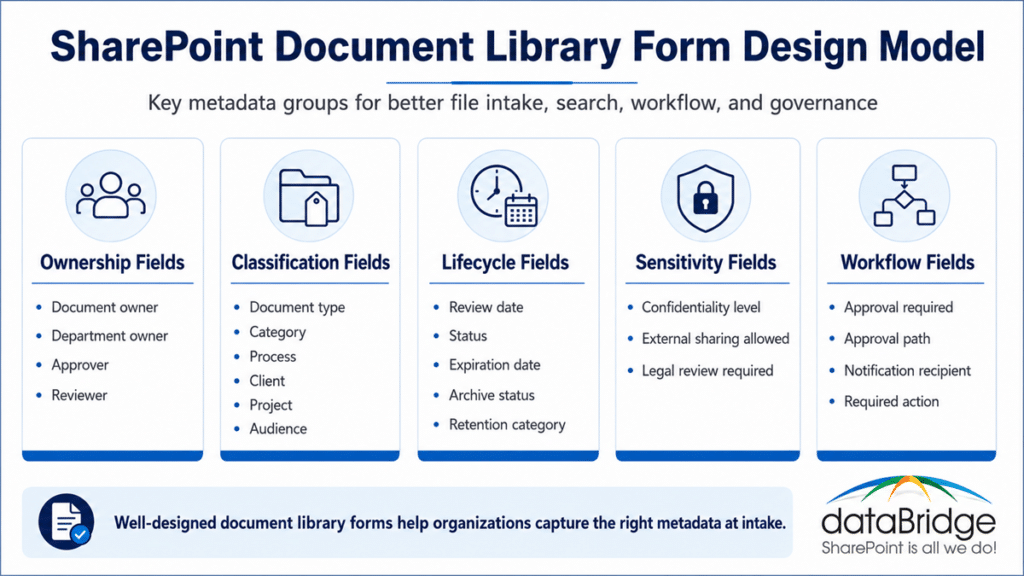
Ownership Fields
Ownership fields clarify who is responsible for the document.
Examples include:
- Document owner
- Department owner
- Backup owner
- Approver
- Reviewer
- Business unit
Without ownership, content eventually drifts.
A document without an owner is usually a future search problem.
Classification Fields
Classification fields explain what the document is.
Examples include:
- Document type
- Category
- Process
- Topic
- Client
- Project
- Location
- Audience
These fields help users filter, search, and understand content faster.
Lifecycle Fields
Lifecycle fields help manage review, retention, and cleanup.
Examples include:
- Created date
- Effective date
- Review date
- Expiration date
- Status
- Superseded by
- Archive status
- Retention category
This is where document intake connects to governance.
Content that has no lifecycle plan often becomes stale content.
Sensitivity Fields
Sensitivity fields help identify content that may require special handling.
Examples include:
- Confidentiality level
- Sensitive content indicator
- External sharing allowed
- Legal review required
- HR content
- Client confidential
- Regulated record
These fields should align with security and compliance policy. They should not become random labels invented by each site.
Workflow Fields
Workflow fields help route documents after submission.
Examples include:
- Approval required
- Approval path
- Review group
- Notification recipient
- Business process
- Request type
- Required action
These fields can support automation, but they should stay simple enough for users to complete accurately.
How to Design a Useful SharePoint Document Library Form
A good form feels simple to the user and useful to the organization.
That balance is hard.
Too few fields create weak metadata. Too many fields reduce adoption. The right design depends on the value each field creates.
Start With the Business Outcome
Begin by asking what the library needs to accomplish.
Does it support policy management? Contract intake? Project deliverables? Compliance evidence? Knowledge capture? Department resources?
The answer should shape the form.
A policy intake form and a project deliverables form should not look the same.
Use Plain-Language Field Labels
Users should understand each field without training.
Avoid labels that sound like internal taxonomy language. Use terms that match how the business speaks.
Instead of:
- Content Classification Value
Use:
- Document Type
Instead of:
- Retention Trigger Category
Use:
- Review or Retention Need
Plain language improves metadata quality.
People cannot classify content correctly when field names feel like system language.
Keep Required Fields Limited
Required fields should be truly required.
Overusing required fields often creates bad data. Users select the fastest option just to upload the file.
A better model separates fields into:
- Required for intake
- Recommended for governance
- Optional for context
- Auto-populated when possible
Metadata quality improves when users understand why a field matters.
Use Choice Fields Carefully
Choice fields are useful because they reduce variation.
They also create maintenance responsibilities.
When every team creates its own values, the organization ends up with messy metadata again. That is why taxonomy planning matters.
Use controlled choices when consistency matters. Leave free text only where variation is expected.
For broader planning, connect this work to SharePoint Information Architecture & Metadata Consulting Services. Field design should support the broader information architecture, not just one form.
Avoid Turning the Form Into a Survey
A document library form should collect the information needed to manage the file.
It should not become a long survey about everything the organization might want to know.
Every added field should pass a simple test:
Will this field improve search, governance, workflow, reporting, retention, access control, ownership, or user experience?
If not, remove it.
Good forms are opinionated. They ask for what matters and leave out what does not.
SharePoint Document Library Forms and Content Types
Document library forms become more powerful when they align with content types.
A content type defines a reusable kind of content. It can include metadata fields, templates, policies, and behavior. A form can help users supply the right information for that content type.
For example, a library may use content types such as:
- Policy
- Procedure
- Contract
- Project deliverable
- Training document
- Client document
- Compliance evidence
- Meeting packet
- Knowledge article
Each content type may need different metadata.
That is important because one generic form may not support every document type well.
If the library handles multiple document types, consider whether the form should guide users by type. The better the fit between content type and intake, the cleaner the library becomes.
This is also where document sets may matter. Some business processes need a group of related documents, not a single uploaded file. In those cases, the intake model should consider whether a document set, content type, library, or site structure is the better design.
SharePoint Document Library Forms and Permissions
Document library forms do not replace permissions.
They can, however, help identify which access model may apply.
For example, a form may ask whether a document contains sensitive information, belongs to a specific client, or requires restricted review. That information can support routing or trigger a review process.
Still, the permission model needs to be designed separately.
Do not use metadata as a substitute for security.
A field that says “Confidential” does not protect a document by itself. Access still depends on SharePoint permissions, Microsoft 365 groups, sharing settings, sensitivity labels, and other controls.
This is where The Complete Guide to SharePoint Permissions can support the broader model.
Forms can collect signals. Permissions enforce access.
SharePoint Document Library Forms and External Submission
Some intake scenarios involve people outside the immediate team.
Examples include:
- Vendors submitting files
- Departments submitting requests
- Employees uploading forms
- Project teams submitting deliverables
- Auditors requesting evidence
- Field staff submitting safety documents
- Client teams submitting materials
In those cases, the intake process should be designed carefully.
Questions to consider include:
- Who can submit files?
- Where do submitted files land?
- Who reviews them?
- Are submissions visible to other users?
- Does the content need approval?
- Are external users allowed?
- Should the form route content to a restricted library?
- Does the process need retention or records review?
External file intake can become risky when it is treated casually.
A form may improve the submission experience, but the library still needs ownership, permissions, and governance.
How to Use Document Library Forms for Controlled File Submission
A controlled file submission process should have a defined path.
The process does not need to be complex. It needs to be clear.
A practical model includes:
- Define the library purpose
- Decide which files belong there
- Identify required metadata
- Build the form around the intake need
- Assign an owner for review
- Route files when needed
- Apply approval or status fields
- Use views to manage submitted content
- Review stale or incomplete items
- Monitor form adoption
- Adjust fields based on user behavior
This creates a better intake experience than asking users to upload files and hope someone organizes them later.
A document library form should make the right behavior easier.
That is the real adoption test.
Example: Policy Intake Library
A policy library needs strong control because employees must know which policy is current.
A document library form may collect:
- Policy name
- Policy owner
- Department
- Policy category
- Effective date
- Review date
- Approval status
- Audience
- Related regulation
- Replaces prior policy
- Confidentiality level
This helps the organization manage approved content, identify owners, support search, and reduce confusion.
Without that structure, old and new policies often sit beside each other.
That creates trust problems.
A SharePoint policy library should not make employees guess which file is current.
Example: Contract Intake Library
A contract intake library may need different fields.
Useful fields may include:
- Vendor or client name
- Contract type
- Business owner
- Legal reviewer
- Effective date
- Renewal date
- Expiration date
- Confidentiality level
- Department
- Status
- Related project
- External sharing allowed
This supports ownership, renewal tracking, legal review, and controlled access.
It also helps search.
A contract called “Final signed agreement v3.pdf” is not useful by itself. The metadata tells the organization what the contract means and who owns it.
Example: Project Deliverables Library
A project deliverables library may focus on delivery tracking.
Useful fields may include:
- Client or internal project
- Deliverable type
- Project phase
- Owner
- Due date
- Status
- Review required
- Final deliverable
- Related workstream
- Audience
This structure helps project teams find the right files and understand what is complete.
It also helps avoid the folder sprawl that often appears when each project invents its own structure.
Example: Knowledge Base Submission Library
A knowledge base library needs trust and freshness.
A document library form may collect:
- Article or attachment type
- Topic
- Owner
- Audience
- Review date
- Source department
- Approved answer
- Related process
- Status
- Replacement content
- Retire date
This supports content quality.
It also helps Copilot and SharePoint agents because the environment has clearer signals about ownership, status, and source authority.
For broader knowledge design, connect this work to a SharePoint Knowledge Base strategy. A knowledge base should not depend on content volume alone. It needs a governed intake and review model.
Common Mistakes With SharePoint Document Library Forms
Document library forms can improve intake, but they can also create new friction.
The design matters.
Mistake 1: Asking for Too Much Metadata
Too many fields create poor completion.
Users may choose random values, select “Other,” or avoid the library entirely.
A good form should collect the smallest set of information needed to support the process.
More metadata is not automatically better. Better metadata is better.
Mistake 2: Using Fields Nobody Maintains
Choice fields need stewardship.
If departments, document types, categories, or status values are not maintained, the form will eventually become confusing.
Metadata values should have owners.
Otherwise, the form becomes another unmanaged asset.
Mistake 3: Making the Form Too Generic
A generic form often produces generic metadata.
If every document type uses the same fields, users may struggle to classify content properly.
A contract, policy, SOP, training document, and project deliverable do not need the same intake experience.
Design around the business process.
Mistake 4: Ignoring Search and Views
A form should support how users will find and manage content later.
If the fields do not improve views, filters, search, review, or workflow, they may not be worth collecting.
Always connect form design to the user experience after upload.
Mistake 5: Treating Forms as a Replacement for Governance
A document library form can improve intake.
It cannot define ownership, enforce lifecycle rules, maintain taxonomy, fix permissions, or decide which content is authoritative.
Governance still matters.
The form supports the operating model. It does not replace it.
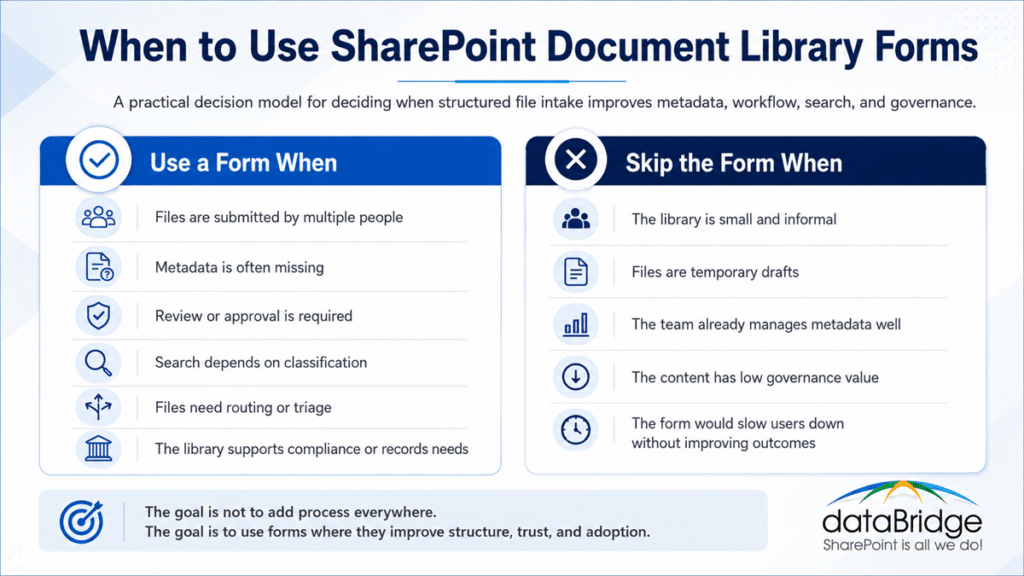
How to Decide Whether a Library Needs a Form
Use a simple decision model.
A document library may benefit from a form if:
- Files are submitted by multiple people
- Metadata is often missing
- The library supports a repeatable process
- Review or approval is required
- Search depends on classification
- Files need routing or triage
- Owners need to manage submissions
- The content has lifecycle requirements
- The library supports compliance or records needs
- Users currently rely on folders to classify everything
A form may not be needed if:
- The library is small and informal
- Files are temporary drafts
- The team already manages metadata well
- The content has low governance value
- The process changes too often
- The form would slow users down without improving outcomes
The best answer depends on the business value of structured intake.
A Practical Implementation Checklist
Use this checklist before rolling out SharePoint document library forms.
Define the Intake Purpose
- Identify what the library is for.
- Decide which files belong there.
- Define who can submit files.
- Confirm who reviews submissions.
- Document what happens after upload.
Design the Metadata Model
- Identify required fields.
- Choose recommended fields.
- Remove fields that do not support a decision.
- Use clear field names.
- Standardize choice values.
- Align fields with content types where needed.
Build the Form Experience
- Keep the form short.
- Group related fields.
- Use plain-language labels.
- Add help text where needed.
- Avoid unnecessary required fields.
- Test the form with real users.
Connect the Process
- Create views for reviewers.
- Add approval steps if needed.
- Use Power Automate where it adds value.
- Notify owners when new files arrive.
- Route exceptions to the right people.
- Track incomplete or stale submissions.
Govern the Library
- Assign a library owner.
- Review metadata quality.
- Maintain choice values.
- Monitor adoption.
- Review permissions.
- Retire outdated content.
- Update the form when the process changes.
A form should not be a one-time setup. It should evolve with the process it supports.
How dataBridge Helps With SharePoint Document Library Forms
dataBridge helps organizations design SharePoint document intake around real business structure.
That includes:
- Reviewing existing document libraries
- Identifying folder and metadata issues
- Designing practical intake forms
- Aligning forms with metadata strategy
- Connecting forms to content types
- Improving document library views
- Supporting workflow and approval design
- Reviewing permissions and ownership
- Connecting intake to search and governance
- Preparing document environments for Copilot and SharePoint agents
Our approach starts with the business process, not the feature.
The intake experience is only valuable when it supports better content management, cleaner metadata, stronger governance, and easier adoption.
If your organization wants help improving file intake, metadata, and document library structure, contact dataBridge to discuss a SharePoint document management review.
What Good Looks Like
A well-designed SharePoint document library form should make the library easier to use and easier to govern.
After implementation, you should see:
- More complete metadata
- Fewer unclear uploads
- Better library views
- Cleaner search results
- Stronger owner accountability
- Better review tracking
- More consistent document classification
- Less reliance on folder structures
- Easier workflow routing
- Stronger support for Copilot readiness
Users should also understand why the form exists.
That is important.
People complete fields more accurately when the fields clearly connect to their work.
A good form does not feel like extra administration. It feels like the natural way to submit the right file with the right context.
Final Takeaway
SharePoint document library forms can help organizations improve file intake, metadata completion, and controlled submission workflows.
They are not a magic fix for document management. They do not replace metadata strategy, information architecture, permissions, search governance, or ownership.
However, they can solve a practical problem that many SharePoint environments struggle with: getting the right information when the document first enters the library.
That is where better document management starts.
When users submit files with the right context, SharePoint becomes easier to search, govern, automate, and trust. The library becomes more than a storage location. It becomes part of a managed content system.
If your document libraries still depend on folders, vague file names, and after-the-fact cleanup, schedule a conversation with dataBridge.
Frequently Asked Questions
What are SharePoint document library forms?
SharePoint document library forms are forms connected to SharePoint document libraries. They help users submit files and provide metadata such as document type, owner, department, review date, status, category, or business process.
Why should organizations use SharePoint document library forms?
Organizations should use SharePoint document library forms when they need a cleaner way to collect files and metadata at the point of intake. Forms can improve classification, search, workflow routing, document control, and governance.
Do SharePoint document library forms replace metadata strategy?
No. Document library forms support metadata strategy, but they do not replace it. The organization still needs to define which metadata fields matter, how terms are maintained, and how metadata supports search, governance, automation, and lifecycle management.
Can document library forms reduce folder sprawl?
Yes, they can help reduce folder sprawl when they capture the information users normally try to express through folder names. Metadata fields can support views, filters, search, and governance more effectively than deep folder structures.
Are SharePoint document library forms useful for Copilot readiness?
Yes. Document library forms can support Copilot readiness by improving metadata completeness, ownership clarity, status signals, review dates, and source authority. Copilot works better when the underlying SharePoint content is structured and trustworthy.
Should every SharePoint document library have a form?
No. Forms are most useful for repeatable intake processes, controlled submissions, approvals, compliance evidence, policy libraries, project deliverables, contract intake, and knowledge submissions. Simple working libraries may not need a form.
How many fields should a document library form include?
Use the smallest number of fields needed to support the process. Required fields should be limited to information that directly improves search, governance, workflow, ownership, lifecycle management, or compliance.
Can SharePoint document library forms trigger workflows?
Yes, document library forms can support workflow by capturing metadata that Power Automate or other processes may use for routing, approvals, notifications, review cycles, and exception handling.