

SharePoint list governance is the structure behind how lists are created, owned, secured, named, maintained, and connected to Power Apps, Power Automate, reporting, search, and Copilot.
A list may start as a simple tracker.
Then a department builds a form on top of it. Someone adds an approval flow. A manager starts using the data in a report. Before long, that “simple list” becomes part of the business process.
That shift is where governance matters.
A poorly governed SharePoint list rarely causes a problem on day one. The issue usually appears later, when a workflow fails, a Power App depends on inconsistent data, permissions are unclear, or nobody knows who owns the list anymore.
SharePoint list governance helps organizations manage that risk before small list decisions become larger Microsoft 365 problems.
Quick Answer: What Is SharePoint List Governance?
SharePoint list governance is the operating model for managing Microsoft Lists and SharePoint lists across ownership, permissions, metadata, views, data quality, automation, Power Apps, lifecycle, support, and review.
A governed SharePoint list should answer practical questions:
- Who owns the list?
- What business process does it support?
- Who can view, add, edit, export, or manage list items?
- Which columns are required?
- Which values are controlled?
- Which views support users, managers, workflows, and reporting?
- Which apps or flows depend on the list?
- How will the list be reviewed, archived, cleaned up, or retired?
- How should the list support search, reporting, and AI readiness?
The best SharePoint lists are not just places to store rows of information. They are structured business assets.
That distinction changes how the list should be designed, secured, and maintained.
Why SharePoint List Governance Matters Now
SharePoint lists used to be treated as lightweight tracking tools.
That view is outdated.
Today, SharePoint lists often sit underneath Power Apps, Power Automate workflows, Teams-based processes, approval tracking, dashboards, search experiences, and Microsoft 365 Copilot readiness work. Microsoft explains that makers can use SharePoint list integration in Power Apps, and Microsoft also states that Power Automate is deeply integrated with SharePoint.
That flexibility is valuable.
It also creates a governance problem when lists are built too casually.
In SharePoint consulting work, we often see list issues surface after the list has already become important. The original owner may have moved on. A flow may be running under an old connection. A Power App may depend on fields nobody wants to change. Users may trust the list, even though no one is actively maintaining the data.
That is how a small list becomes invisible infrastructure.
Governance makes that infrastructure visible before it becomes fragile.
SharePoint Lists Are Often the Hidden Data Layer
Many organizations talk about Power Platform governance at the app, flow, and environment level.
That is necessary.
However, the data source underneath the app deserves the same attention. When a Power App uses a SharePoint list, the list design affects performance, permissions, usability, reporting, workflow logic, and long-term support.
That is why Power Platform governance and security should include the SharePoint lists that apps and flows depend on.
A Power App can have a polished screen and still rely on a weak list.
A workflow can automate a process and still break because a status value changed.
A dashboard can look credible and still report from inconsistent fields.
The interface is not always the foundation. In many Microsoft 365 solutions, the SharePoint list is the foundation.
That is the part organizations often underestimate.
SharePoint List Governance Is Not the Same as Power Platform Governance
SharePoint list governance and Power Platform governance overlap, but they are not identical.
Power Platform governance focuses on broader operating model decisions:
- Who can create apps and flows
- Which environments should be used
- Which connectors are approved
- How solutions are supported
- How data loss prevention policies are applied
- How apps and flows move through their lifecycle
SharePoint list governance focuses on the list itself:
- Why the list exists
- How the list is structured
- Who owns the list
- How permissions work
- Which metadata fields control the process
- Which apps, flows, reports, and users depend on it
- How data quality is protected
- How the list is reviewed over time
Both disciplines need to work together.
They also meet in a specific place. When someone customizes a list form, Power Apps drops a canvas app into the Power Platform default environment where those form apps land, which is exactly where a governed list can end up quietly powering an ungoverned app.
For broader app, workflow, environment, and connector planning, start with Microsoft Power Platform consulting. For the specific list structure underneath a Power App or automation process, use SharePoint list governance as the foundation.
This distinction matters because many Power Platform problems are really SharePoint structure problems.
The app may be where people notice the issue.
The list is often where the issue started.
When SharePoint Lists Are a Good Fit
SharePoint lists can work well for business processes that need structure without becoming full enterprise applications.
They are often a good fit for:
- Issue tracking
- Request intake
- Task coordination
- Asset tracking
- Departmental approval tracking
- Event planning
- Training records
- Policy acknowledgments
- Inspection checklists
- Change request logs
- Vendor tracking
- Project status tracking
- Content review queues
- Simple inventory tracking
- Operational checklists
These scenarios usually need more structure than Excel provides.
They may not need Dataverse yet.
That middle ground is where SharePoint lists can be very effective.
A practical rule helps: use SharePoint lists when the process needs shared visibility, permissions, structured fields, views, basic workflow, and Microsoft 365 integration.
Use something else when the process needs a complex relational model, advanced transaction control, heavy business logic, or enterprise application scale.
The decision should connect to Power Apps strategy and architecture before the list becomes a long-term platform decision.
When SharePoint Lists Are the Wrong Fit
SharePoint lists are useful, but they are not a universal database.
That needs to be said plainly.
A list may be the wrong fit when the solution requires:
- Complex parent-child relationships
- High-volume transactions
- Advanced security models
- Complex business rules across many tables
- Enterprise-grade application lifecycle management
- Heavy reporting across many related entities
- Strict relational data integrity
- Complex auditing requirements
- High concurrency across many users
- Large-scale operational processing
- External-facing application architecture
When those needs appear, Dataverse or another data platform may be a better fit.
The data source decision should happen before the app feels permanent. The SharePoint vs Dataverse for Power Apps guide explains how to make that decision based on app complexity, scale, governance, reporting, and Microsoft 365 fit.
A simple process does not need to be overengineered.
A complex process should not be forced into a list just because the list was easy to create.
Good governance knows the difference.
SharePoint Lists vs Excel for Business Processes
Excel is still useful.
It is not the right home for every shared business process.
A spreadsheet can work when one person owns the file, the data is temporary, and collaboration is limited. Problems appear when the spreadsheet becomes the system of record for a recurring process.
That usually creates familiar issues:
- Multiple file versions
- Manual copy-and-paste updates
- Weak permissions control
- Limited workflow visibility
- Inconsistent values
- Hard-to-track ownership
- Accidental overwrites
- Hidden formulas
- Limited auditability
- Poor mobile experience
A SharePoint list is usually stronger when a process needs:
- Shared tracking
- Defined fields
- Required values
- Role-based views
- Item-level status
- Basic permissions
- Power Automate workflow
- Power Apps forms
- Search visibility
- Integration with Teams and Microsoft 365
This same practical distinction came up in the May 2026 SharePoint updates webinar, where SharePoint Lists vs Excel was discussed in the context of structured tracking, governance, visibility, forms, workflow, and Copilot readiness.
The simplest test is this: if the spreadsheet is running a recurring business process, it may already be asking to become a governed list.
The Core Elements of SharePoint List Governance
A strong SharePoint list governance model does not need to be complicated.
It does need to be explicit.
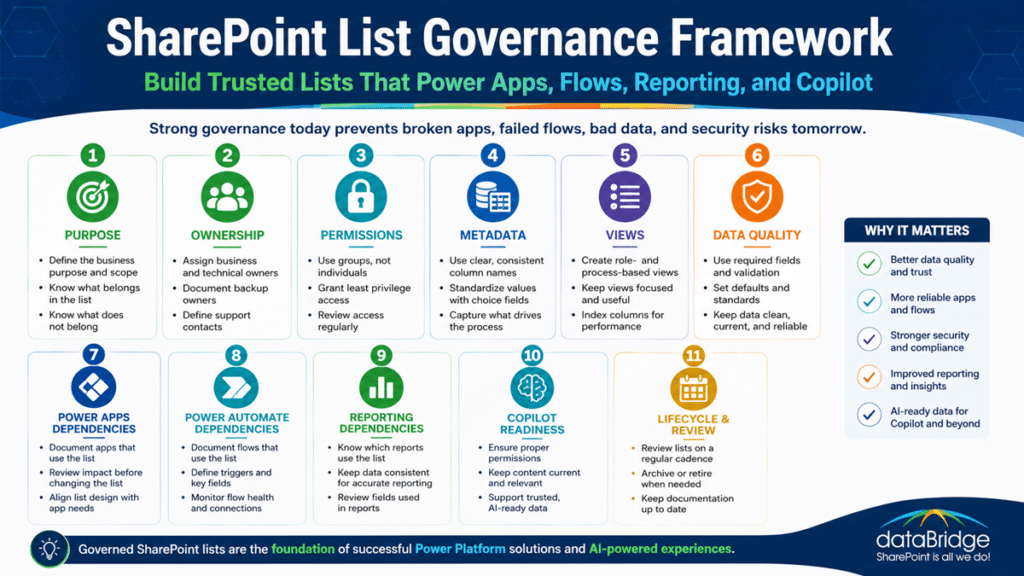
At minimum, every important list should have governance across these areas:
- Purpose
- Ownership
- Permissions
- Metadata
- Views
- Data quality
- App dependencies
- Automation dependencies
- Reporting dependencies
- Lifecycle
- Support
- Review cadence
This structure keeps lists from becoming unmanaged infrastructure.
Small lists do not always need heavy governance. However, any list connected to Power Apps, Power Automate, reporting, search, compliance, or Copilot readiness deserves more discipline.
The more a list supports business decisions, the more governance it needs.
Define the Purpose Before the List Is Built
Every governed SharePoint list needs a clear purpose statement.
That may sound basic, but it prevents many future problems.
A good purpose statement should answer:
- What does this list track?
- Which process does it support?
- Who uses the data?
- Who updates the data?
- What decisions depend on the data?
- What should not be stored here?
That last question matters more than many teams expect.
Lists often become messy because nobody defines what belongs somewhere else. Users add notes, attachments, exceptions, side processes, extra fields, and unrelated data until the list becomes a catch-all.
A catch-all list is not flexible. It is unclear.
A stronger purpose statement might sound like this:
This list tracks internal facilities requests from submission through completion. It stores request details, status, assignment, priority, dates, and resolution notes. It should not store HR issues, vendor contracts, confidential employee information, or project documents.
That kind of clarity helps users, site owners, app makers, and workflow designers make better decisions.
It also gives future owners a starting point when they inherit the list.
Assign Real Ownership
Every important SharePoint list needs a business owner and a technical owner.
Those roles should be clear.
The business owner is accountable for the process and data quality. They decide which fields matter, which values are valid, who should use the list, and how the process should work.
The technical owner supports configuration, permissions, automation, integrations, and troubleshooting.
In smaller organizations, one person may fill both roles. Even then, the responsibilities should be documented.
A governed list should identify:
- Business owner
- Backup owner
- Technical owner
- Site owner
- Power App owner
- Flow owner
- Support contact
- Review frequency
This is especially important when lists power apps and automation. A departed employee should never be the only person who understands the list.
That is not governance.
It is a support risk waiting to happen.
Design Permissions Before Users Start Working
Permissions should be designed before the list goes live.
They should not be improvised item by item.
SharePoint list permissions affect who can see the list, add items, edit items, delete items, manage views, export data, connect through apps, or trigger workflows. When Power Apps use SharePoint lists, the access model still matters because users generally need appropriate access to the underlying data source.
That is why list governance should connect to the complete SharePoint permissions guide before the app or workflow is treated as secure.
A simple permission model may include:
- List owners who manage structure
- Members who add and edit items
- Reviewers who view and comment
- Approvers who update status fields
- Visitors who only read final information
Sensitive lists need tighter control.
Examples include HR request lists, legal matter lists, finance tracking lists, executive issue logs, vendor risk lists, incident logs, and compliance review lists.
A practical rule helps: avoid item-level unique permissions unless the business need is clear and supportable.
Microsoft’s SharePoint limits guidance notes that unique permissions in lists and libraries have supported and recommended limits. Before using item-level security broadly, review Microsoft’s SharePoint limits and design for long-term manageability.
Just because SharePoint can do something does not mean it should become the default pattern.
Use Groups Instead of Individual Access
Individual permissions are tempting because they solve the immediate request.
They also create long-term support issues.
SharePoint list governance should favor Microsoft 365 groups, SharePoint groups, or security groups where appropriate. Group-based access makes onboarding, offboarding, access reviews, and support easier.
A governed list should define:
- Which groups have access
- What each group can do
- Who manages group membership
- How access requests are approved
- How often access is reviewed
This matters even more for Copilot readiness. Microsoft explains that Microsoft 365 Copilot only surfaces organizational data that a user has permission to view through Microsoft 365 services such as SharePoint. That makes permission quality a direct input into AI trust through Microsoft 365 Copilot data, privacy, and security.
Copilot does not fix poor permissions.
It reflects them.
Build Metadata That Supports the Process
SharePoint list governance depends on metadata.
A list with weak columns becomes a spreadsheet with a better interface. A list with strong metadata becomes a structured process.
Useful list metadata may include:
- Request type
- Status
- Priority
- Department
- Region
- Business owner
- Assigned to
- Due date
- Review date
- Approval stage
- Risk level
- Category
- Source
- Sensitivity
- Related project
- Outcome
- Closure reason
The best fields are not just descriptive. They drive action.
Status helps users understand progress.
Priority helps teams focus.
Assigned to supports accountability.
Review date supports lifecycle management.
Category improves reporting.
Sensitivity supports security and compliance decisions.
For broader classification planning, the SharePoint metadata strategy guide explains how metadata supports search, governance, compliance, and AI readiness across SharePoint.
The same principle applies to lists.
Metadata is not decoration. It is how the process becomes manageable.
Standardize Column Names and Values
Column names shape user behavior.
That is why they should be clear, consistent, and easy to understand.
Avoid vague fields like:
- Notes
- Type
- Owner
- Status 2
- Miscellaneous
- Other
- Category Old
- Final Status
- Manager Notes Final
Those names create confusion.
Better names are more specific:
- Request Status
- Request Category
- Assigned Team
- Business Owner
- Target Completion Date
- Final Resolution
- Review Required
- Sensitivity Level
Governed lists should also use controlled values where possible.
That may include choice columns, managed metadata, yes/no fields, person fields, date fields, and lookup fields. Free-text fields are useful, but they should not carry the entire process.
When everything is free text, reporting becomes cleanup work.
When values are controlled, automation becomes more reliable.
Design Views for Real Users
Views are part of governance.
They are not just display preferences.
A well-governed SharePoint list should include role-based and process-based views that help users see what matters.
Useful views may include:
- My Open Items
- New Requests
- Waiting for Approval
- Overdue Items
- High Priority Items
- Recently Completed
- Items by Department
- Items by Assigned Team
- Items Requiring Review
- Archived Items
These views help users work without filtering the list manually every time.
They also reduce accidental misuse.
A list with one giant default view invites confusion. A list with clear views guides behavior.
For larger lists, views also affect performance. Microsoft provides guidance for working with the SharePoint list view threshold, including the importance of indexes and filtered views.
That means view design is not only a usability decision.
It is also an operational decision.
Plan for List Growth Early
Small lists are easy to ignore.
That is why they become problems later.
A list with 200 items may work with almost any design. A list with 20,000 items behaves differently. Filtering, views, lookups, indexing, permissions, reporting, and app performance all become more important as the list grows.
Before building a list, ask:
- How many items will this list have in one year?
- How many items will it have in three years?
- Will items be archived?
- Will closed items stay in the same list?
- Which views need indexes?
- Which filters will users rely on most?
- Will Power Apps need to search or filter this data?
- Will Power Automate process every change?
- Will reporting need historical records?
These questions prevent list design from becoming accidental architecture.
Growth should not surprise the list owner.
It should be part of the design.
Govern SharePoint Lists Used by Power Apps
Power Apps can make a SharePoint list much easier to use.
That does not mean the app can hide weak data design.
Before connecting a list to Power Apps, define:
- The business process
- The user roles
- The required fields
- The permission model
- The data validation rules
- The views and filters
- The error handling approach
- The support owner
- The list lifecycle
- The likely future complexity
A Power App usually improves the user experience.
It does not automatically improve the data model.
That distinction is important.
When a SharePoint list powers a Power App, the list should be treated as an application data source. Changes to columns, field types, permissions, or values can affect the app. That means list changes need governance.
A practical control is to require impact review before major list changes.
Review before changing:
- Internal column names
- Required fields
- Choice values
- Lookup fields
- Person fields
- Permissions
- Views used by the app
- Fields used in formulas
- Fields used in flows
- Fields used in reports
One small column change can break more than the list.
It can break the process.
Govern SharePoint Lists Used by Power Automate
Power Automate often depends on SharePoint list triggers and actions.
That makes list governance essential.
A flow may run when an item is created, modified, approved, assigned, updated, or deleted. If the list structure is unclear, the flow logic becomes fragile.
Before using a SharePoint list in Power Automate, define:
- Which event should trigger the flow
- Which fields control the logic
- Which values are required
- Which account owns the connection
- Who receives failure alerts
- How errors are handled
- How duplicate runs are prevented
- How changes are documented
- How the flow is tested
- How the flow is retired
Microsoft’s SharePoint connector documentation explains supported SharePoint actions, triggers, and support boundaries through the SharePoint connector for Power Automate.
Governance should make those boundaries clear before the flow becomes important.
In real projects, many workflow failures trace back to simple list issues:
- A required value was missing
- A status value changed
- A column was renamed
- A field type changed
- A permission changed
- A user left the organization
- A connection owner was disabled
- A choice value was added without updating the flow
Those issues are not unusual.
They are normal results of unmanaged dependencies.
For broader automation planning, connect list governance to Power Automate best practices and use cases so workflows are designed with ownership, naming, documentation, and support in mind.
Govern Lists for Copilot and AI Readiness
Copilot readiness is not only about documents.
It is also about structured content, permissions, ownership, and trust across Microsoft 365.
SharePoint lists may contain business information that users search for, reference, report on, or include in Microsoft 365 processes. If list content is outdated, duplicated, poorly permissioned, or missing ownership, it can weaken trust in the broader environment.
AI does not magically know which data is authoritative.
It depends on the structure underneath.
A Copilot-ready list should have:
- Clear ownership
- Accurate permissions
- Current records
- Defined status values
- Review dates
- Retention or archive rules
- Reliable metadata
- Clear naming
- Useful views
- Documented purpose
- No abandoned fields
- No hidden old values still used by reports or flows
This is where SharePoint and Microsoft 365 integration becomes important. Lists do not live alone. They connect to Teams, Power Platform, search, reporting, governance, and AI readiness.
Copilot readiness should not be treated as a separate cleanup project.
It should become a stronger operating model for the Microsoft 365 environment.
Create Naming Standards for Lists
List names should be boring in the best possible way.
A name should tell users what the list does.
Avoid names like:
- Tracker
- Requests
- New List
- App Data
- Test List
- Final
- Master
- Intake 2
- Archive Old
Better names include:
- Facilities Request Tracker
- Marketing Campaign Intake
- Vendor Risk Review Log
- Policy Review Queue
- Employee Equipment Request List
- Client Onboarding Task Tracker
Naming standards should also address internal patterns.
For example:
- Use business-friendly names for user-facing lists
- Avoid test names in production sites
- Identify archive lists clearly
- Identify system lists that support apps
- Document lists that should not be edited directly
- Align list names with process names
A list name is a governance signal.
When names are vague, ownership usually is too.
Separate User-Facing Lists From System Lists
Some lists are meant for users.
Others are used mainly by apps, flows, configuration settings, or reporting.
Those two list types should not always be governed the same way.
A user-facing list may prioritize clear views, simple forms, friendly column names, and easy navigation.
A system-supporting list may prioritize stable field names, locked-down permissions, change control, and documentation.
For example, a Power App may use one list for requests and another list for configuration values. Users may need to add requests, but they should not edit configuration data.
Governance should define:
- Which lists users can edit directly
- Which lists are managed only through an app
- Which lists support flow logic
- Which lists store reference values
- Which lists should be hidden from navigation
- Which lists require change control
This prevents well-meaning users from changing data that controls an app or workflow.
A list can be visible and still not be safe to edit.
Avoid Turning One List Into Everything
One of the most common SharePoint list mistakes is building one list that tries to support every process.
At first, this feels efficient.
Later, it becomes confusing.
A single list may include too many departments, request types, statuses, workflows, permissions, forms, and reporting needs. Users see irrelevant fields. Workflows need exceptions. Views multiply. Owners disagree about changes.
That is usually a sign the process needs separation.
Governance should ask:
- Are these truly the same business process?
- Do the same users manage the items?
- Do the same fields apply?
- Do the same permissions apply?
- Do the same workflows apply?
- Do the same retention rules apply?
- Do the same reports apply?
When the answer is no, one list may be creating more complexity than it saves.
The best list design is not always the fewest lists.
It is the clearest structure.
Document App and Flow Dependencies
Every important SharePoint list should have a dependency record.
This does not need to be complex.
It should identify what depends on the list and what could break if the list changes.
Document dependencies such as:
- Power Apps
- Power Automate flows
- Power BI reports
- SharePoint pages
- Teams tabs
- Forms
- List rules
- Alerts
- Web parts
- Search experiences
- Export processes
- Manual reports
For each dependency, document:
- Owner
- Purpose
- Key fields used
- Permission needs
- Support contact
- Last review date
- Retirement plan
This is a simple governance habit with a large payoff.
In many environments, nobody knows a list is business-critical until something breaks.
Documentation turns hidden dependencies into managed dependencies.
Use Validation to Protect Data Quality
Data quality should not depend only on training.
Training helps, but the list should guide users.
Governed lists can use practical controls such as:
- Required fields
- Choice columns
- Default values
- Date validation
- Column formatting
- Conditional formatting
- Controlled views
- Person fields
- Lookup fields
- Managed metadata
- Clear field descriptions
These controls reduce cleanup work later.
They also improve app and workflow reliability.
For example, a flow that routes requests based on department works better when department is a controlled field. A report that groups by priority works better when priority values are standardized.
Good list governance reduces interpretation.
The system should not ask users to guess the right format every time.
Control Attachments and Supporting Documents
SharePoint list attachments can be useful.
They can also become a governance problem.
Attachments may create confusion when the list item becomes the process record, but supporting documents need their own metadata, permissions, retention rules, or lifecycle. In those cases, a document library may be a better home for the files.
Before enabling attachments broadly, ask:
- What kinds of files will users attach?
- Are attachments sensitive?
- Do attachments need metadata?
- Do attachments need retention labels?
- Do attachments need version control?
- Should documents live in a library instead?
- Should the list link to documents rather than store them?
- Will Power Automate process attachments?
- Will the app allow uploads?
- Who reviews attached content?
A list item is not always the right container for a business document.
When documents matter, align the list with a governed library structure.
Review List Permissions Before Copilot Rollout
Copilot makes permission quality more important.
It does not create access by itself, but it can make existing access more visible through Microsoft 365 experiences. That means list permissions should be reviewed as part of broader AI readiness.
Review:
- Lists with broad access
- Lists with external users
- Lists with unique item permissions
- Lists in public Teams
- Lists connected to sensitive processes
- Lists used by apps
- Lists used by flows
- Lists with exported data
- Lists with old owners
- Lists with unknown business purpose
Look closely at lists that store HR, finance, legal, executive, compliance, security, client, vendor, or incident data.
A good AI readiness review does not only inspect documents.
It inspects structured business data too.
Create a List Review Cadence
SharePoint list governance needs a review rhythm.
Without one, lists slowly decay.
A practical cadence might include:
Monthly review for critical process lists:
- Failed flows
- New fields
- Permission changes
- Open items
- Overdue items
- App issues
- Data quality problems
Quarterly review for important operational lists:
- Ownership
- Permissions
- Views
- Metadata values
- Reporting needs
- Archive needs
- User feedback
Annual review for low-risk lists:
- Continued business need
- Owner confirmation
- Access review
- Cleanup opportunities
- Retirement decision
This review should not be a theoretical exercise.
It should result in decisions.
Keep the list. Improve the list. Archive the list. Retire the list. Replace the list. Move the solution to another platform.
Governance is only useful when it changes behavior.
SharePoint List Governance Checklist
Use this checklist before a SharePoint list becomes part of a business process, Power App, automation flow, report, or Copilot-readiness scope.

Purpose and Scope
- The list has a clear business purpose
- The process owner is identified
- The list scope is documented
- The list defines what belongs there
- The list defines what should not be stored there
- The list has a clear production location
- Test lists are separated from production lists
Ownership and Support
- Business owner is assigned
- Backup owner is assigned
- Technical owner is assigned
- Site owner is known
- App owner is documented
- Flow owner is documented
- Support contact is listed
- Review cadence is defined
Permissions
- Access groups are defined
- Individual permissions are limited
- Item-level unique permissions are justified
- External access is reviewed
- Sensitive data is identified
- Owner access is controlled
- Edit rights are limited to appropriate users
- Access review is scheduled
Metadata and Data Quality
- Required fields are defined
- Choice values are standardized
- Field names are clear
- Field descriptions are helpful
- Validation rules are applied where useful
- Default values support users
- Free-text fields are not overused
- Metadata supports reporting and workflow
Views and Performance
- Default view is useful
- Role-based views are created
- Process-based views are created
- Filters support common tasks
- Large lists use indexed columns where needed
- Closed items have an archive strategy
- Views do not show unnecessary columns
- Managers can see what they need quickly
Power Apps Readiness
- The list is a good fit for SharePoint
- Dataverse has been considered where needed
- Users have appropriate list access
- Fields used by the app are documented
- Changes to columns require review
- App owner is known
- Support model is defined
- Future complexity has been considered
Power Automate Readiness
- Flow triggers are documented
- Flow owner is assigned
- Connection ownership is governed
- Fields used in logic are documented
- Error handling is defined
- Failure notifications are configured
- Changes to values require review
- Flow retirement is planned
Copilot and Search Readiness
- List name is clear
- List purpose is clear
- Permissions are appropriate
- Sensitive list data is reviewed
- Data is current
- Owners are active
- Review dates are used where needed
- Outdated list content is archived or retired
A Practical Implementation Roadmap
SharePoint list governance works best when it follows a practical sequence.
This is where The dataBridge Way applies well because list governance is not just configuration. It is discovery, architecture, implementation, adoption, and ongoing optimization.
1. Assess and Discover
Start by identifying important lists.
Look for lists that:
- Support recurring business processes
- Store sensitive data
- Feed Power Apps
- Trigger Power Automate flows
- Support reporting
- Replace spreadsheets
- Have many users
- Have unclear ownership
- Have high item counts
- Appear in Teams tabs
- Support compliance or approvals
Then document current risks.
Common findings include unclear owners, inconsistent fields, broad permissions, old views, broken flows, and duplicate lists.
Discovery should be practical.
The goal is not to inventory everything forever. The goal is to find the lists that matter most.
2. Architecture and Governance
Next, define standards.
Your standards should cover:
- When to use SharePoint lists
- When to consider Dataverse
- When to keep Excel
- Naming rules
- Ownership rules
- Permission patterns
- Metadata standards
- View standards
- App dependency documentation
- Flow dependency documentation
- Review cadence
- Archive and retirement rules
This is where SharePoint and Power Platform planning should come together.
The list is not separate from the app.
The app is not separate from the list.
3. Design and Build
After standards are clear, improve the lists that matter most.
That may include:
- Renaming unclear fields
- Standardizing choice values
- Creating better views
- Adding required fields
- Removing abandoned columns
- Adjusting permissions
- Documenting dependencies
- Improving forms
- Creating app-friendly fields
- Updating flow logic
- Building archive views
- Adding review dates
Do not try to fix every list at once.
Start with high-value and high-risk lists.
That is where the business will feel the improvement fastest.
4. Implementation and Adoption
Governance only works when users understand it.
List owners and makers need practical guidance.
They should know:
- When to create a list
- How to request a new list
- How to name a list
- How to choose columns
- How permissions should work
- When to involve IT
- When to involve a Power Platform owner
- When to use Dataverse instead
- How to document apps and flows
- How to review list health
This does not need to become a giant policy document.
A short owner guide, checklist, and intake process often work better.
People follow governance when it helps them do the right thing.
5. Ongoing Optimization
Finally, review and improve.
Lists change as processes change.
A healthy governance model should identify:
- Lists with no owner
- Lists with no recent activity
- Lists with too many unique permissions
- Lists with many failed flows
- Lists with outdated columns
- Lists with duplicate purposes
- Lists with unclear names
- Lists that should be archived
- Lists that should move to Dataverse
- Lists that need better metadata
Optimization keeps the environment clean.
It also keeps Power Apps, Power Automate, search, and Copilot readiness from being built on weak foundations.
If your organization needs help assessing which lists are ready for apps, automation, and AI-enabled work, contact dataBridge to review your SharePoint structure before small list issues become larger platform problems.
Common SharePoint List Governance Mistakes
Most list governance issues are predictable.
That is good news.
Predictable problems can be prevented.
Mistake 1: Creating a List From Excel Without Redesigning the Process
Importing a spreadsheet into a list can be useful.
It can also carry old problems into a new place.
Before importing, review the columns, values, ownership, permissions, and process. A bad spreadsheet does not become a good process just because it lives in SharePoint.
Mistake 2: Treating the List as Temporary After It Becomes Critical
Many lists start as quick fixes.
Then people depend on them.
Once a list supports a real process, governance needs to catch up. Temporary tools become permanent faster than teams expect.
Mistake 3: Letting Every Department Use Different Values
One team uses “Complete.”
Another uses “Completed.”
A third uses “Done.”
The flow expects “Closed.”
Reporting becomes messy.
Standard values matter because they turn list data into reliable process data.
Mistake 4: Giving Everyone Edit Access
Broad edit access feels easy.
It often creates data quality and security problems.
Users should have the access they need, not the access that was fastest to grant.
Mistake 5: Breaking Permissions at the Item Level Too Often
Item-level permissions can solve specific needs.
They can also create support complexity.
Use them carefully, document the reason, and review them often.
Mistake 6: Connecting Flows Without Documenting Them
A list may have several flows behind it.
If nobody documents those flows, the list becomes risky to change. Every important list should show which flows depend on it.
Mistake 7: Building a Power App Before Designing the List
The app screen gets attention.
The list structure does the work.
Design the list before building the app. Otherwise, the app may look good while the process remains unstable.
Mistake 8: Forgetting the Archive Plan
Closed items still take up space, clutter views, affect performance, and confuse users.
Every recurring process needs a plan for old items.
Mistake 9: Ignoring Search and AI Readiness
List data may influence how users find and trust information across Microsoft 365.
Old, unclear, or overshared list content should not be ignored during Copilot readiness planning.
Mistake 10: Assuming Governance Will Slow Makers Down
Good governance does not block useful work.
It reduces rework.
Clear list standards help makers build faster because they do not have to invent every pattern from scratch.
How SharePoint List Governance Supports Better Power Platform Outcomes
SharePoint list governance improves Power Platform outcomes because it strengthens the foundation.
A governed list gives makers:
- Cleaner data
- More reliable fields
- Clearer permissions
- Better views
- Stronger validation
- Known ownership
- Documented dependencies
- Safer change control
- Better support paths
That helps Power Apps become easier to use.
It helps Power Automate become more reliable, helps reporting become more trustworthy and it helps Copilot readiness become more realistic.
This is why SharePoint-first architecture matters. Power Platform success is often not just a Power Platform issue. It is a SharePoint structure issue underneath the app.
When the foundation is strong, the solution can scale.
When the foundation is weak, the solution inherits the weakness.
What dataBridge Looks for in SharePoint List Governance Reviews
When dataBridge reviews SharePoint lists that support apps, automation, or Microsoft 365 processes, we look for practical signals.
The goal is not to criticize the list.
The goal is to understand whether it can support the process reliably.
Key review areas include:
- Business purpose
- Ownership
- Permissions
- Metadata design
- Required fields
- Choice values
- Field naming
- Views
- Item volume
- Unique permissions
- App dependencies
- Flow dependencies
- Reporting dependencies
- Sensitive data
- Archive rules
- User experience
- Support model
- Future scalability
In many cases, the fixes are not dramatic.
They are practical.
Rename unclear fields. Standardize values. Clean up permissions. Create better views. Document flows. Assign an owner. Archive old items. Decide whether the list still fits.
Small governance improvements can prevent large support problems later.
That is the value of doing this work before the list becomes invisible infrastructure.
When to Ask for Help
SharePoint list governance becomes more important when lists support real business operations.
It may be time to get help when:
- A SharePoint list powers a business-critical Power App
- Multiple flows depend on the same list
- Users do not trust the data
- Permissions are unclear
- The list replaced an important spreadsheet
- The list contains sensitive information
- The list is growing quickly
- Reporting depends on list data
- The app is becoming harder to maintain
- Nobody knows who owns the list
- Copilot readiness work is exposing SharePoint structure issues
dataBridge helps organizations design SharePoint and Microsoft 365 environments where lists, libraries, metadata, permissions, apps, automation, and governance work together.
If your organization is using SharePoint lists to support Power Apps, automation, reporting, or Copilot readiness, start a conversation with dataBridge about building a stronger governance model before small list issues become larger platform problems.
Frequently Asked Questions About SharePoint List Governance
What is SharePoint list governance?
SharePoint list governance is the process of managing how SharePoint lists and Microsoft Lists are created, structured, secured, owned, maintained, connected, reviewed, and retired. It helps organizations keep list-based business processes reliable, secure, and supportable.
Why does SharePoint list governance matter for Power Apps?
SharePoint list governance matters for Power Apps because many apps use SharePoint lists as data sources. If the list has weak permissions, unclear fields, inconsistent values, or no owner, the app will inherit those problems.
Why does SharePoint list governance matter for Power Automate?
Power Automate workflows often use SharePoint list triggers and actions. If the list structure changes without review, flows can fail or behave unpredictably. Governed lists make automation more reliable.
Are SharePoint lists better than Excel?
SharePoint lists are usually better than Excel when a process needs shared tracking, structured fields, permissions, workflow, views, and Microsoft 365 integration. Excel is still useful for analysis, modeling, and individual work, but it often struggles as a shared process system.
Should every SharePoint list have governance?
Not every small list needs heavy governance. However, any list used for Power Apps, Power Automate, reporting, sensitive data, search, compliance, or Copilot readiness should have clear ownership, permissions, metadata, views, and lifecycle rules.
Do SharePoint list permissions affect Power Apps?
Yes. When Power Apps connects to SharePoint lists, users need appropriate access to the underlying data. The app interface does not remove the need for a sound SharePoint permission model.
Can SharePoint lists support Copilot readiness?
Yes, but usually through structure, permissions, ownership, and data quality. Lists that contain important business information should be reviewed as part of broader SharePoint and Microsoft 365 Copilot readiness planning.
When should we use Dataverse instead of SharePoint lists?
Dataverse is usually a better fit when the app needs complex relationships, advanced security, higher scale, enterprise application lifecycle management, or deeper business logic. SharePoint lists often fit simpler Microsoft 365-centered processes.
Who should own SharePoint list governance?
SharePoint list governance should be shared between business owners, site owners, IT, and Power Platform governance leaders. The business owner should own the process. Technical owners should support structure, permissions, apps, automation, and lifecycle management.
What is the first step in improving SharePoint list governance?
Start by identifying lists that support important processes, apps, flows, reports, or sensitive data. Then review ownership, permissions, metadata, views, dependencies, and lifecycle. Fix the highest-risk and highest-value lists first.
Reviewed By

Author
-

Hayden helps organizations shape SharePoint and Microsoft 365 environments from the ground up, with a strong focus on discovery, readiness, architecture, migration planning, and adoption. He is especially skilled at helping clients translate broad goals into practical next steps and sustainable solutions.