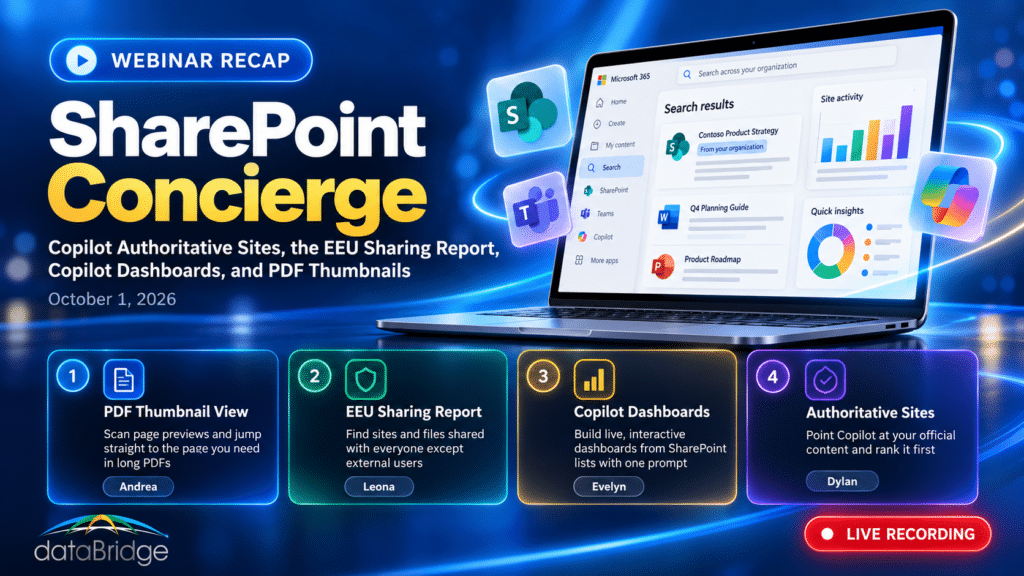
Since an August update, Copilot ranks content from sites you mark as authoritative above older copies sitting in Teams chats and Outlook threads. That one change makes a clean policy site worth more than it was a month ago, and it was the headline of our October 1 SharePoint Concierge webinar.
Four dataBridge consultants walked through four features that recently landed in SharePoint and Copilot. Two of them shape what Copilot can find and trust. One gives business users a faster path from list data to a shared dashboard. The last is a small fix for anyone who opens long PDFs every day. Here is what each feature does and where we’d tell clients to be careful.
What we covered in the October SharePoint Concierge webinar
The October session covered Copilot authoritative sites, the new “Everyone except external users” sharing report in the SharePoint admin center, Copilot-built dashboards from SharePoint lists, and the thumbnail view for PDFs. Hayden Honerkamp moderated, with demos from Dylan Skinner, Leona Winter, Evelyn Runnals, and Andrea Skinner, followed by an open Q&A on anything in Microsoft 365.
SharePoint Concierge is our recurring webinar series. We run about ten a year and focus on features you can use the week you hear about them.
Copilot authoritative sites: point Copilot at your official content
Copilot authoritative sites let a SharePoint admin flag specific sites as trusted sources for Copilot Search and Copilot Chat. Results from those sites carry a “From your organization” label, and since August they also get a ranking boost, so official content is more likely to show up first.
Dylan Skinner’s demo made the distinction clear. Copilot Search runs on the semantic index Microsoft builds once your tenant has Copilot users, and it’s separate from classic SharePoint search and Microsoft Search. You hit it two ways: the dedicated Search module in Copilot, or a regular Copilot Chat with Work IQ turned on so Copilot can pull from your organization’s content. The authoritative label shows up in both.
Why the August ranking change matters
When the feature first shipped, it only added the label. The August release notes added ranking priority for high-quality content like company news and policies. That’s the part that changes how useful this is.
Dylan’s example is one every HR and IT team will recognize. An employee asks Copilot about a policy. An outdated version of that policy was emailed to them last year and dropped into a Teams chat the year before. Without help, Copilot might surface any of those copies. With the policy site marked authoritative, the finalized version from the official site is more likely to come up first, and the employee can see it’s the official source without clicking around to check.
How to turn it on
Right now this is an admin task done through PowerShell. Microsoft documents two methods, PowerShell and the client-side object model, and PowerShell is the easier path. Connect to your SharePoint admin center with the SharePoint Online Management Shell, then run Set-SPOSite against the site URL with the IsAuthoritative parameter set to true. Give it some time, and results from that site start carrying the label and ranking higher.
A few limits Dylan flagged:
- The admin running the command doesn’t need a special license.
- Your tenant needs at least one user with a Microsoft 365 Copilot license, or a SharePoint Advanced Management license.
- You can mark up to 100 sites.
- There’s no admin center toggle yet, though we expect one eventually.
Which sites deserve the authoritative label
Be selective. A site marked authoritative tells Copilot and your users that its content is the official answer, so it needs to stay clean long after you flip the switch. Good candidates include an HR policy hub, a knowledge base, IT guidance like how to submit a ticket or report a phishing email, and a locked-down SharePoint document management system where final versions live.
Marking a site with stale drafts and duplicate files as authoritative does the opposite of what you want. Copilot will rank the wrong content higher and stamp it as official. If you’re not sure which of your sites are ready, our Copilot readiness work starts with that exact question.
The “Everyone except external users” report: find overexposed content
The new Everyone except external users report shows which sites and items have been shared with every internal user in your tenant. It lives in the SharePoint admin center under Reports, then Data access governance, in a new section at the bottom of the page. It’s one of the fastest ways to see where content is more open than anyone intended.
How EEU ends up on your sites
Leona Winter started with what the group actually is. Everyone except external users, which she shortens to EEU, is generated automatically by SharePoint. It includes every user in your domain and excludes guests. It isn’t managed in Active Directory, so there’s no group to review there.
EEU lands on content in more ways than most site owners realize. Someone can assign it on purpose, either by adding it to a site or by sharing a file or folder with everyone in the organization. It also gets added automatically: when someone creates a group site and picks “Public,” SharePoint drops EEU into the membership.
Leona’s point was that most overexposure is accidental. People click Public because it sounds friendly, or hit Share without knowing who they just gave access to.
Turn on the index today
Here’s the catch. The first time you click View reports, SharePoint starts a new indexing job that takes up to 24 hours. The report only covers data from that point forward, so anything shared before you click is invisible to it. Leona’s demo tenant was indexed on September 27, so her reports could only reach back to September 27.
If you want this report to be useful in three months, start the index this week. It costs nothing.
Running the report
Once the index is built, you create a report by naming it and setting filters. You can narrow by site template and by whether teams are public or private, and add a sensitivity label filter if you use labels. You then choose one report type: files, folders, and lists, or site membership. You can only pick one per report, so Leona recommends running at least two, one for each type.
Results show the top 100 sites with the most items shared in the last 28 days. For each site you get the URL, the number of items shared, the primary admin, whether it’s connected to Teams, the template, any sensitivity label, the external sharing setting, and privacy.
The operating limits are worth knowing before you plan around this:
- You can keep up to 10 reports at a time.
- Each report can take up to 24 hours to complete.
- You can rerun a report once every 24 hours.
- Data reflects activity up to 24 hours before the report runs.
Hayden added the practical angle. Many of our clients let department leads manage permissions for their own sites, which is usually the right call because they know their content best. But training doesn’t catch everything. A scheduled report does. This feeds directly into the broader SharePoint data access governance review we recommend before any Copilot rollout, since Copilot will surface whatever a user can technically reach.
Copilot dashboards built from SharePoint lists
Copilot can now build an interactive dashboard from SharePoint list data with a single detailed prompt. The output is an HTML file saved to your site, which you can embed on a SharePoint page for the rest of your team.
Evelyn Runnals demoed this against a work tracker list with a lot of metadata. Her prompt asked for a new interactive live dashboard with at least four chart types. A few minutes later she had four charts and a dropdown filter. A follow-up prompt switched the dashboard to a blue color scheme and added summary cards for categories and assignees.
The details that make it work
- Ask for a “live” dashboard in the prompt, so it pulls fresh list data every time someone loads it.
- The dashboard can draw from one list or several.
- Keep iterating. Each follow-up prompt adjusts the existing dashboard.
- To share it, open the file’s menu, choose Embed, copy the code, and paste it into an Embed web part on a SharePoint page.
Licensing and permissions
Only the person who creates the dashboard needs a Copilot license. Everyone else just views an HTML file. Hayden called out how different that is from Power BI licensing, where every viewer typically needs coverage. Power BI still has plenty of uses, but for a project status board, sales KPIs, a leadership meeting, or a board portal view, this removes a real barrier.
The dashboard also respects existing permissions all the way down, from the page it’s embedded on to the list feeding it, so you can control who sees what. And as with anything AI produces, check the numbers before you put them in front of leadership.
Thumbnail view for PDFs in SharePoint and OneDrive
The PDF viewer in SharePoint and OneDrive on the web now has a thumbnail panel on the left side, so you can scan page previews and jump straight to the page you need. It’s on by default and needs no admin action.
Andrea Skinner reviews statements of work all the time, and she knows what the budget table and terms page look like. With thumbnails, she spots them visually instead of scrolling through every page. Legal teams can jump to signature pages and exhibits. Finance can go straight to contract terms. Training and project teams can find charts and diagrams fast, and an employee hunting through a long handbook can land on the right section without paging through all of it.
It works best on long PDFs where pages look visibly different. On short or text-heavy files where every page looks the same, it won’t help much.
Andrea was careful to scope it. This helps you move around inside a file you’ve already opened. Finding the right file in a library still depends on metadata and a sound information architecture.
What these four updates have in common
Every feature in this session performs only as well as the structure underneath it. Authoritative sites reward clean, owned content and amplify messy content. The EEU report exposes permission drift that piles up when nobody reviews sharing. Copilot dashboards are only as good as the list metadata feeding them. Even the PDF thumbnail view starts after search and metadata have done their job.
This is why we keep telling clients to fix structure before chasing features. Copilot wants to help, as Hayden put it, and it will bring back whatever it can find. Your job is to make sure the best answer is also the easiest one for it to find. If your environment needs that groundwork, start with our SharePoint architecture and governance consulting or the free resources in our SharePoint AI Readiness Center.
Frequently asked questions
Does marking a site authoritative change who can access its content?
No. Dylan answered this one live. The setting only adds the label and the ranking boost. If a user couldn’t open a document before, they still can’t. To restrict access to specific documents, use Microsoft Purview policies applied through sensitivity labels, or manage access at the site level.
Can I use a Copilot dashboard as the starting point for a Power BI report?
The dashboard is a regular HTML file saved in your site, so you can download it and modify it like any other file. Evelyn hadn’t tested a Power BI Desktop handoff specifically, but nothing stops you from using the file as a base.
Will the Everyone except external users report show sharing that happened last year?
No. The report only sees data from the moment you first start the index. Anything shared before that won’t appear, which is why starting the index now matters.
What license do I need for Copilot authoritative sites?
Based on the requirements Dylan walked through, your tenant needs at least one user with a Microsoft 365 Copilot license or a SharePoint Advanced Management license. The admin who runs the PowerShell command doesn’t need a special license.
Where can I watch the full webinar?
All SharePoint Concierge recordings are posted on our public website, so you can rewatch a demo or send it to a colleague. dataBridge SharePoint support clients also get the slides and notes in their learning portal.