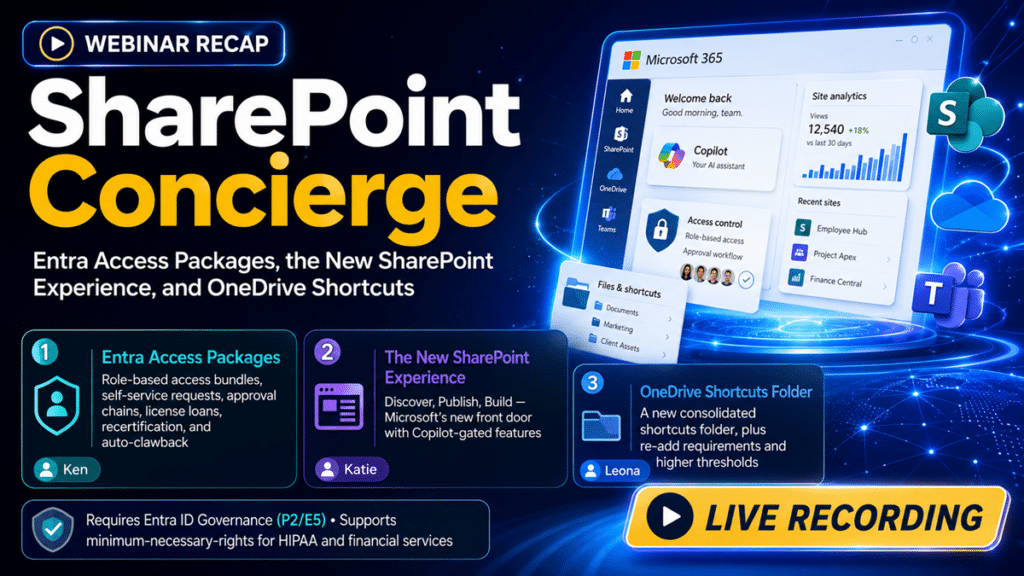
Entra Access Packages: governing who gets access to what
Access Packages let you bundle everything a role needs – specific apps, group and Team memberships, SharePoint sites, security groups – into a single request a user or their manager can pick from, with an approval step attached.
Picture a new project manager joining your PMO. They need Microsoft Project, the PMO site, the team where the PMs collaborate, and a handful of security groups. Instead of someone checklisting that by hand, you build one catalog item for “new project manager.” The PM requests it, or their manager kicks it off for them, and an approval step routes it – to the manager, the manager’s manager, or different approvers for different application stacks.
A few things make this useful at scale:
- Time-boxed access. Loan out an expensive license, say Power BI or Visio Pro, for two or four weeks, and the tool reclaims it automatically when the window closes.
- Periodic recertification. Every quarter or six months, the system can confirm a person still needs what they hold, and claw back what they don’t.
That recertification is where compliance comes in. In healthcare and financial services, confirming staff carry only the minimum access they need to do their jobs isn’t a nice-to-have – HIPAA and similar rules expect it, and access packages give you the recurring review to prove it.
One honest note from Ken: this needs enhanced licensing. Entra ID Governance, which rides along with P2, E5, or E7. It costs more. If you’re a smaller shop with simple architecture and few staffing changes, doing this by hand is perfectly fine. The tool earns its keep once you’re managing a thousand people across a thousand applications, where the time saved and the lower risk profile pay for themselves.
For the full decision framework, including the licensing tiers and the four questions that settle it, read Microsoft Entra Access Packages: Are They Worth It?
Presented By
Microsoft moved the front door of SharePoint. Log in this month and your team may land on a screen they don’t recognize – that’s the new Discover experience, and it was the headline of three changes we walked through on the 20th. If you couldn’t make the live session, here’s the recap, plus two questions from the room worth passing along.
The new SharePoint experience: Discover, Publish, and Build
Microsoft is reorganizing SharePoint around three areas – Discover, Publish, and Build – tied together by a new app bar running down the left side. This is more than a visual refresh. It changes where people start and how they create.
For the full walkthrough of each area and the governance decision it forces, read our full breakdown of Discover, Publish, and Build.
Discover
Microsoft calls this the AI-powered front door. Instead of starting with “where’s the site I need,” your users land on a personalized view. There’s a For You section surfacing relevant sites, news, and files, a recent-items area so people resume where they left off, and a feed of updates from the coworkers they actually work with. For anyone with Copilot licensing, the sparkle actions can summarize a site’s recent activity, so catching up doesn’t mean opening a dozen tabs.
Publish
This is the workspace for the people who create and communicate – comms teams, content owners, anyone who publishes pages and news. It brings drafts, templates, and analytics into one place. You can start a page from a saved template, a blank, or one of Microsoft’s, then choose which site it lands on, which helps if you post across several. The analytics strip shows unique viewers, total views, and average time on recent content without leaving the page.
Build
This is the biggest shift, and the one to watch. Build is where people create sites, lists, libraries, and agents, more and more through natural language instead of from scratch. If some options look grayed out, that usually means no Copilot license or that your org has turned off site creation – nothing’s broken. There’s also an “owned by you” dashboard listing every site, list, library, and agent you own, with activity and analytics in one place. If these AI capabilities are on your radar, getting your environment Copilot-ready comes first.
The catch for admins
Here’s the part to act on. When Build lets end users spin up a site in a few sentences, provisioning gets easy – and so does sprawl. The feature itself is fine. The trouble starts when sites get created outside your intranet and hub structure, with no owner and no governance attached. If your permissions and provisioning policies aren’t set the way you want, this is the month to check them, before your users discover they can build. Decide who can create what, and make sure your governance model is doing its job.
The same caution applies to pages, since Build lets Copilot generate HTML pages on request, so settle governing the HTML pages users can now publish before the feature reaches your authors.
Presented By

The new OneDrive Shortcuts folder
OneDrive now has a dedicated Shortcuts folder, so your SharePoint library shortcuts stop scattering among your personal files. When you click “Add shortcut to OneDrive,” you’ll now see a dropdown. Shortcuts drops it into the consolidated folder. My Files puts it in the old spot, mixed in with everything else.
Why this matters: if you like working in OneDrive and move content into SharePoint later, shortcuts used to vanish into a sea of folders, with only a small icon to tell your content from the organization’s. The Shortcuts folder cleans that up.
Two things to know before you switch:
- Existing shortcuts don’t move on their own. You’ll need to remove the old shortcut, then re-add it from the library so it lands in the Shortcuts folder. One-time hassle.
- You can’t drag and drop into the folder. Same remove-and-re-add step.
If you’ve never used shortcuts before, start with the Shortcuts folder now and skip the cleanup later. And a small quality-of-life note: the shortcut threshold is climbing from 300,000 to a million, so hitting a ceiling gets far less likely.
Presented By
Moderated & Reviewed By
Author
-
Michael is the Founder and CEO of dataBridge, where he helps organizations approach SharePoint and Microsoft 365 with a stronger focus on strategy, governance, architecture, and long-term business value. His consulting-first perspective shapes how clients plan smarter, avoid costly missteps, and build digital workplaces that hold up over time.