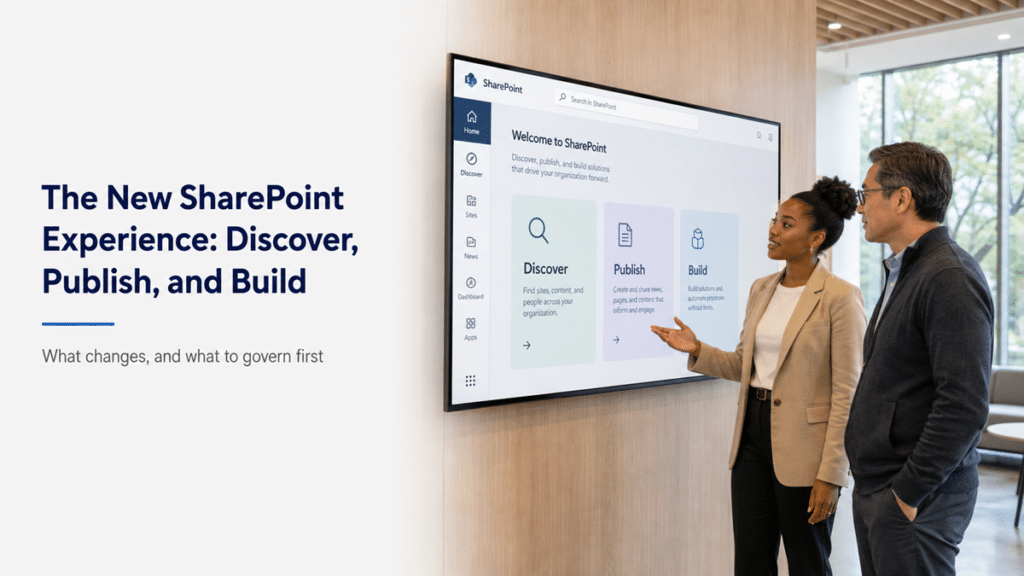
Discover: the AI-powered front door
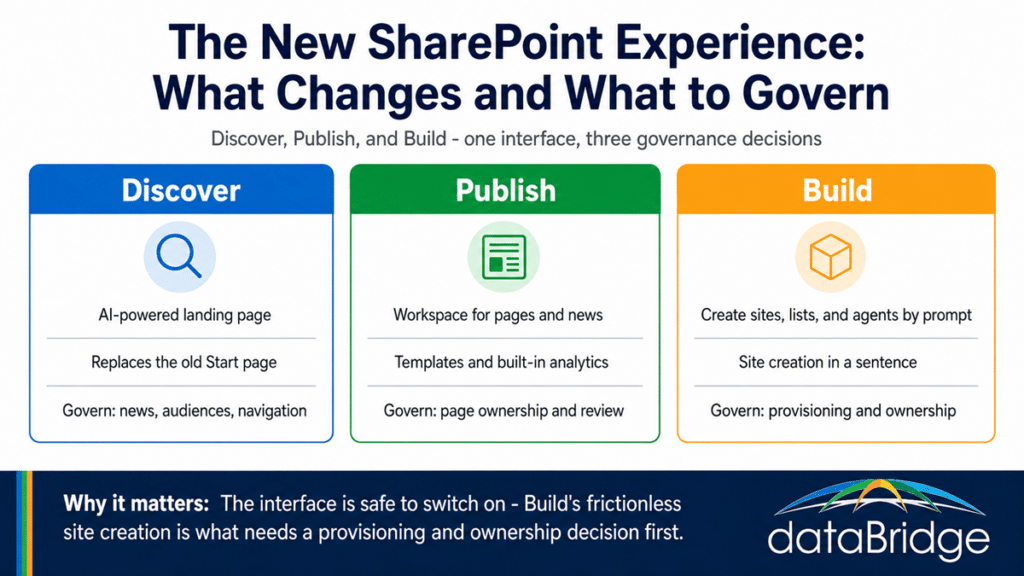
Discover is the new personalized landing page, replacing the Start page as the first thing users see. Instead of opening to “where is the site I need,” people land on a curated view built around their work. There is a For You section surfacing relevant sites, news, and files, a recent-items area so people resume where they left off, and a feed of updates from the coworkers they actually work with.
For anyone with Copilot licensing, the summary actions can recap a site’s recent activity, so catching up does not mean opening a dozen tabs. The quieter implication is for your intranet. If employees increasingly start from a personalized feed rather than your curated homepage, the homepage stops being the guaranteed entry point it used to be. That raises the value of getting news, audiences, and navigation right, so the content people should see still reaches them through the feed. The operating model behind that is SharePoint page governance, which decides what gets published, who owns it, and how it stays current enough to be worth surfacing.
Publish: one workspace for pages and news
Publish is a dedicated workspace for the people who create and communicate – comms teams, content owners, and anyone who publishes pages and news. It brings drafts, templates, and analytics into one place. You can start a page from a saved template, a blank, or one of Microsoft’s, then choose which site it lands on, which helps when you post across several.
The built-in analytics strip is the useful part. It shows unique viewers, total views, and average time on recent content without leaving the page, so content owners can see what is landing and what is ignored. That visibility is only as good as the content behind it. If your pages are unowned or stale, better analytics just measure the drift faster. One authoring option inside this workspace, publishing raw or Copilot-generated HTML as a live page, carries its own governance questions, which is worth reviewing before you enable HTML pages.
The other measurement layer arriving alongside Publish lets teams group news posts into measurable campaigns, though that one sits behind Viva Amplify licensing.
Build: the biggest shift, and the one to watch
Build is where people create sites, lists, libraries, and agents, more and more through natural language instead of from scratch. This is the largest change in the new experience and the one with the most governance weight. There is also an “owned by you” dashboard listing every site, list, library, and agent a person owns, with activity and analytics in one place.
If some options look grayed out for a user, that usually means no Copilot license or that your organization has turned off site creation. Nothing is broken. The point to sit with is how low the effort has dropped. Creating a SharePoint site used to take enough steps that it functioned as a small speed bump. Build removes the speed bump. When creation costs a sentence, the volume of new sites climbs, and volume is where governance either holds or gives way.
Why Build is a governance problem before it’s a feature
Build becomes a governance problem when frictionless site creation runs ahead of your provisioning rules. The feature itself is fine. The trouble starts when sites get created outside your intranet and hub structure, with no owner and no governance attached, because those are the sites that turn into the cleanup project two years from now.
A site created in a sentence still needs a home in your architecture, an owner accountable for it, and a lifecycle decision about when it should go away. Build supplies none of that on its own. So the sites it produces default to unowned and unplaced unless your provisioning model already answers those questions. This is the same pattern behind most SharePoint sprawl, arriving through a faster door. The fix is a SharePoint site provisioning strategy that defines how new sites are requested, approved, named, owned, and reviewed before creation gets easy, and a hub and information architecture that gives every new site somewhere to belong.
The licensing catch: AI features need a Copilot license
The AI-specific parts of the new experience require a Microsoft 365 Copilot license. Discover’s activity summaries and the natural-language creation in Build are the clearest examples. Users without a Copilot license still get the reorganized experience, but the AI actions are off for them.
In a mixed-license tenant, that means an uneven experience by design. Some people get the full AI-assisted version, others get a more manual one, and the difference will generate questions if nobody plans for it. Fold that into adoption planning rather than discovering it on rollout day, and confirm exactly what your licensing covers, since these terms shift. If Copilot is on your roadmap anyway, the license conversation belongs inside a broader Copilot readiness effort that also covers whether your content and permissions are ready for AI to reach them.
What to do before you turn it on
Decide the governance questions first, then enable the experience. The new interface is low-risk to switch on because users can toggle back during preview, but Build’s creation capability is the piece that rewards a deliberate decision rather than a default. Four things are worth settling first:
- Decide who can create sites, and whether Build’s site creation should be on for most users at all or limited while you prepare.
- Confirm your hub and information architecture so any new site has a defined place to live instead of floating loose.
- Set an ownership rule so nothing launches unowned, with a named owner and a review expectation attached from day one.
- Plan for the mixed-license experience so Copilot and non-Copilot users understand why their screens differ.
None of this requires blocking the new experience. It requires deciding, on purpose, what your environment allows before your users decide for you. Getting that model right is the work we do in SharePoint architecture and governance engagements, and the surrounding decisions on provisioning, permissions, and lifecycle are mapped in the SharePoint governance center. We also walked through the new experience in our August 2026 Concierge webinar, where the short version was this: the change is good, and the month to check your provisioning and permissions is the month before your users find Build.
Frequently asked questions
How do I turn on the new SharePoint experience?
You enable it from the SharePoint admin center under the new experience setting. During the preview period, users can switch back to the old view, so the rollout is reversible while your team adjusts. That toggle makes it safe to enable the interface, but the Build creation capability underneath it still deserves a provisioning decision before broad use.
Does the new SharePoint experience require a Copilot license?
The reorganized interface itself does not, but the AI features inside it do. Discover’s activity summaries and the natural-language creation in Build need a Microsoft 365 Copilot license. Users without one still get Discover, Publish, and Build, just without the AI-assisted actions, which creates an uneven experience in mixed-license tenants.
What is the difference between Publish and Build?
Publish is the workspace for creating and managing pages and news, with drafts, templates, and analytics in one place. Build is the workspace for creating sites, lists, libraries, and agents, increasingly through natural language. Publish is about content on existing sites, while Build is about creating the containers themselves.
Will the new experience change our custom branding or web parts?
The page editing tools are moving to a neutral-themed interface that uses standard colors instead of site branding, rolling out through September 2026. It requires no admin action, but it can affect how custom or third-party web parts look. If you rely on branded or custom web parts, check their appearance in the new editing view before assuming nothing changed.
How do we stop Build from creating site sprawl?
Set provisioning governance before Build is widely used. Decide who is allowed to create sites, whether to limit site creation while you prepare, and how every new site gets an owner and a place in your hub structure. The goal is not to block creation but to make sure a site created in a sentence still lands inside a model someone maintains.
Reviewed By