Building the policy library step by step
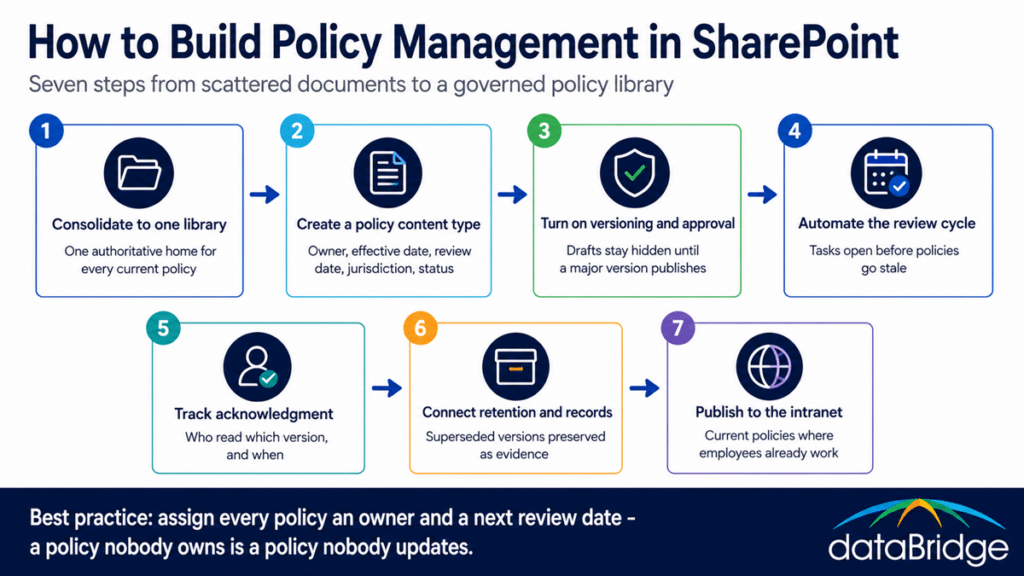
Consolidate to one library
Every policy goes into a single document library on a site the right people control. Copies scattered across department sites, Teams channels, and file shares are how version conflicts start – two documents with the same name and different content, both of which someone believes is current. Consolidation is unglamorous work, and it is the step that makes every later step trustworthy.
Create a policy content type
A policy is a distinct kind of document and deserves its own content type. Give it columns for policy owner, effective date, next review date, status, and – this one matters more than most guides admit – jurisdiction. Tag each policy with the states or regulatory regimes it must satisfy. When employment law changes in one state, you can filter to every policy affected in seconds instead of rereading the whole handbook. This is the direct antidote to the uncustomized-template problem: the metadata forces the questions the template let you skip. Our guide to building a SharePoint document management system covers the content type and metadata foundations in more depth.
Turn on versioning and approval
Enable major and minor versions with content approval. Drafts and legal-review edits live as minor versions only editors can see; employees only ever see the last approved major version. That separation is what lets you prove which version was in effect on any given date, and it is the same mechanism behind document control in SharePoint more broadly. If a policy dispute ever reaches a hearing, the version history is your timeline.
Content approval holds drafts back, but it won’t tell an approver that something is waiting. To close that gap, pair content approval with a Power Automate flow that sends the request and writes the approver’s name back to the policy.
Automate the review cycle
A next-review-date column does nothing by itself. Add a Power Automate flow that opens a task for the policy owner sixty or ninety days before the date arrives, and escalates if the task sits. Calendar-driven review is the floor, not the ceiling – jurisdiction metadata lets you run event-driven reviews too. When a state passes new leave legislation, filter the library by that jurisdiction and open review tasks for every match. The organizations that get caught with outdated policies are almost never the ones that lacked a template. They are the ones that had no trigger to look again.
Track acknowledgment
Acknowledgment is what turns a policy from a document into something enforceable. The native pattern is a SharePoint list that records employee, policy, version, and timestamp, fed by a Power Automate flow that assigns the read-and-acknowledge task when a new major version publishes. It holds up well for most organizations. Target the assignments by audience – not every policy applies to every employee, and over-assignment trains people to click through without reading.
Connect retention and records
Superseded policy versions are evidence, and evidence has to survive the person who would rather it didn’t. Apply retention so that retired versions are preserved for your required period, and consider declaring final versions as records so they cannot be quietly edited. Our records management and retention strategy guide covers how retention labels and disposition fit together.
Publish to the intranet
Employees will not go looking for a document library. Surface current policies through intranet pages with a clean policy landing page, search that actually finds them, and links from the places people already work. We built exactly this pattern for a nonprofit whose policy updates had been circulating by email attachment – the full story is in our policy management case study.
The customization problem, solved by process
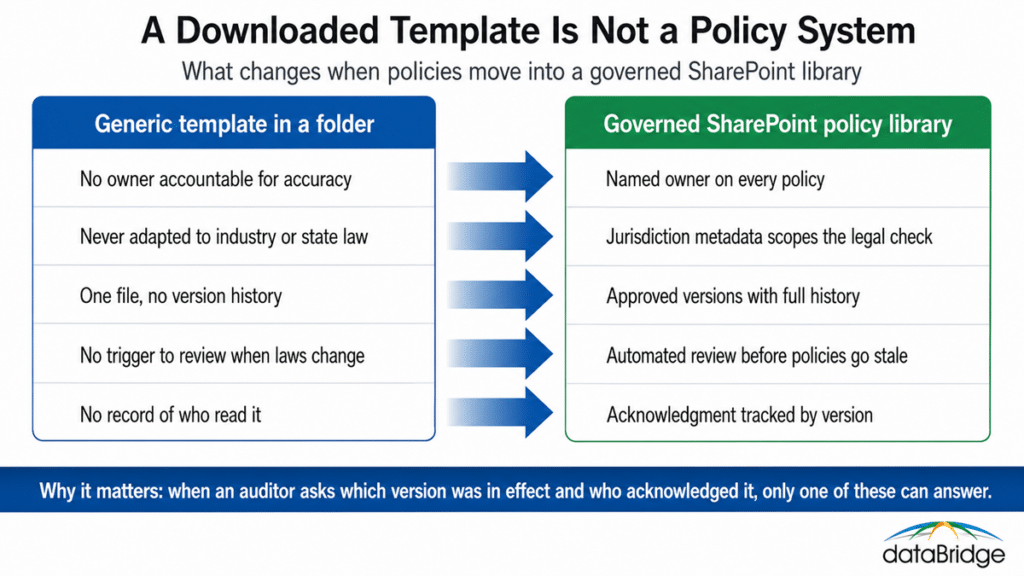
A template becomes your policy the day someone accountable reviews it against your industry, your states, and your actual practices – and not before. The system above makes that review unavoidable rather than aspirational. Ownership metadata names the accountable person. Jurisdiction metadata scopes the legal check. The review flow puts it on a schedule. Version history proves it happened.
That is the honest answer to the downloaded-handbook pattern. You do not fix a generic template by finding a better template. You fix it by building the process that would have caught the gaps in the first one.
Do you need a third-party policy management tool?
Most organizations do not. SharePoint with Power Automate covers a controlled library, scheduled reviews, version-level acknowledgment, and audit-ready history using licenses you already own. That should be the default, and it keeps policies inside the same governed environment as the rest of your content.
Dedicated add-ons earn their cost in narrower situations: thousands of employees spread across many jurisdictions, regulators that mandate specific attestation report formats, or comprehension testing where a signature is not enough and quiz results must be recorded. If you are not in one of those situations, buying a platform to avoid a Power Automate flow is an expensive way to skip an afternoon of configuration.
Where policy management fits in your governance
Policy management is document management with the discipline turned all the way up – and it fails for the same reasons ordinary document management fails: unclear ownership, uncontrolled copies, and no lifecycle. If your broader environment has those problems, the policy library will inherit them. The SharePoint Governance Center collects our frameworks for ownership, lifecycle, and permissions – the foundations this system stands on.
Frequently asked questions
Is SharePoint good for policy management?
Yes, for most organizations. SharePoint natively handles the core requirements – version control, approval workflows, scheduled reviews, acknowledgment tracking through Power Automate, and retention of superseded versions. The gap is never capability; it is configuration and ownership discipline.
How do you track policy acknowledgment in SharePoint?
Use a SharePoint list that records the employee, the policy, the version acknowledged, and the timestamp, populated by a Power Automate flow that assigns acknowledgment tasks when a new major version is published. Scope assignments to the employees each policy actually covers.
How often should policies be reviewed?
Annually at minimum, with high-risk areas such as leave, conduct, and data handling reviewed more often. Calendar reviews alone are not enough – jurisdiction metadata should let you trigger an immediate review of affected policies whenever employment law changes in a state where you operate.
What is the difference between policy management and document control?
Document control governs how any managed document is drafted, approved, versioned, and superseded. Policy management adds obligations specific to policies: employee acknowledgment, legal and jurisdictional review, and proof of which version was in force on a given date.
Can SharePoint replace dedicated policy management software?
For most mid-market organizations, yes. Dedicated platforms make sense at large multi-jurisdiction scale or under regulators that mandate specific attestation reporting. Below that threshold, SharePoint and Power Automate deliver the same outcomes on licensing you already pay for.