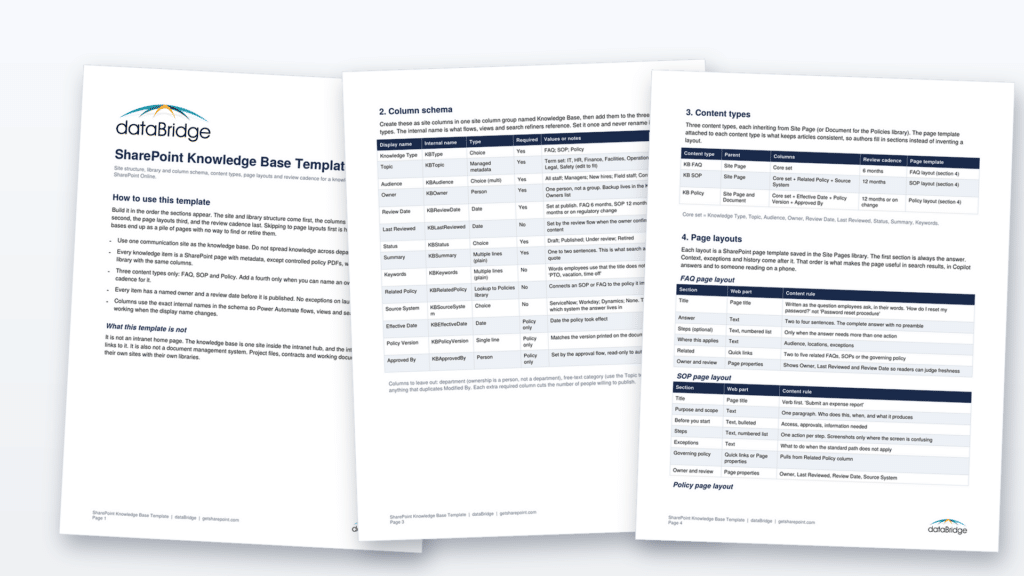
Download the SharePoint knowledge base template (PDF)
Download the column schema (CSV)
If you want the thinking behind the design decisions, our guide to SharePoint knowledge base design covers them in depth. This page is the build sheet.
What Is in the SharePoint Knowledge Base Template?
The template covers the five things a SharePoint knowledge base needs before it has any content: one communication site with task-based navigation, a set of site columns with fixed internal names, three content types (FAQ, SOP and Policy), a page layout for each content type, and a review and retirement cadence that runs on two columns. Every section is built to be created in SharePoint Online with no code and no third-party add-on.
What it leaves out is just as deliberate. There is no department column, because ownership is a person and departments show up in the Topic term set. There is no free-text category, because free text is how two people tag the same policy three different ways. And there is no separate library per topic, because navigation is a filtered view, and folders and libraries are how a knowledge base turns back into a file share.
The Site Structure
One communication site, associated to your intranet hub, holding everything. Most knowledge bases fail at this step by spreading content across department team sites, which guarantees that search returns four versions of the travel policy and nobody knows which one is current.
The template’s navigation has six items and every one of them is a task: get help with IT, HR and benefits, policies, how to do things, find an owner, ask a question. Each item is a view filtered on the Topic, Audience or Knowledge Type column. When a new department joins, you add a term to the term set, and the navigation doesn’t change.
Two supporting pieces sit beside the Site Pages library. A Policies document library holds controlled policy files with the same columns as the pages, for the policies that have to remain a signed or versioned document. A Knowledge Owners list records every owner and their backup, so an owner change is one edit instead of a hunt through two hundred pages. If you’re deciding how the knowledge base relates to the rest of the intranet, the hub site architecture framework covers where it fits.
The Column Schema
Fourteen site columns, nine of which apply to every item and five of which are policy-only. The ones that do the most work:
- Knowledge Type, a choice of FAQ, SOP or Policy. This drives the content type, the page template, the review cadence and the navigation.
- Topic, a managed metadata column tied to a term set you edit once with the content owners. This is the taxonomy decision most organizations never make, which is why it’s required.
- Owner, a person column, one name, never a group. Groups don’t answer review emails.
- Review Date and Status, which together run the review and retirement flows in section 5.
- Summary, one or two plain sentences. This is the text search results show and the text Copilot quotes, so it’s required, and it’s the column most authors skip when it isn’t.
Internal names are fixed in the template (KBType, KBTopic, KBOwner and so on). Display names can change later. Internal names can’t without breaking every view, flow and search refiner that references them, which is the detail that separates a template from a wish list. The CSV download has the full schema, and if you’re new to the metadata side, our SharePoint metadata strategy guide explains why managed metadata beats a choice column for Topic.
The Three Content Types
FAQ, SOP and Policy. Each inherits from Site Page (Policy also from Document, for the controlled file), carries the core column set, and has its own page template and review cadence: six months for FAQs, twelve for SOPs and policies.
Three is the right number for most organizations. We’ve seen knowledge bases launch with nine content types and collapse into one, because authors couldn’t tell a “procedure” from a “work instruction” from a “guide.” Add a fourth type only when you can name its owner, its review cadence and the question it answers that the other three don’t. If policies are the bulk of what you’re publishing, managing policies and procedures in SharePoint goes deeper on the policy lifecycle than this template does.
The Page Layouts
Each content type gets a saved page template, and all three follow one rule: the first section is the answer. An FAQ page opens with the question as its title and a two-to-four-sentence answer, then steps if needed, then scope, then related items. An SOP opens with purpose and scope, then prerequisites, then numbered steps with one action each. A policy page opens with a plain-language summary that most employees will read instead of the PDF, then the key requirements, then the controlled document.
That order is not a style preference. Search results show the first lines of a page. Copilot grounds its answer on the first paragraph it finds relevant. An employee on a phone reads the top screen and leaves. A page that opens with history and context fails all three readers at once. The SharePoint page governance post covers how to keep authors on the template after launch.
The Review Cadence That Keeps It Trusted
A knowledge base is only useful while people believe what’s in it. The template’s review process runs on two columns and three flows, all under a service account with two co-owners so it keeps running when the person who built it leaves.
Thirty days before the Review Date, the owner gets an email with the page link and a one-click confirmation. Confirm, and the flow stamps Last Reviewed and advances the date. Ignore it, and the page’s Status moves to Under review, a banner appears on the page, and the backup owner gets the reminder. Thirty days past due with no response, the KB admins are notified and the page retires unless someone steps in. Retired means moved out of navigation and out of search the same day, which is the step most organizations skip and the reason employees stop trusting the search box.
The PDF includes the five admin views that make this manageable, including one that should always be empty: items with no owner.
How to Build From the Template
The launch checklist in the PDF has ten items. The order matters:
- Create the site, associate it to the hub, and populate the permission groups with at least two owners
- Create the site columns with the internal names from the schema, in one site column group
- Create the three content types and add them to Site Pages and the Policies library
- Save the three page templates and have someone who didn’t build them write a test article in each
- Populate the Topic term set with the content owners in the room, not after
- Fill the Knowledge Owners list, with a backup for every owner
- Build the review and retirement flows under a service account
- Migrate the first 30 items, every one with an owner and a review date
- Test search with ten real employee questions before anyone announces the site
- Link the knowledge base from the first screen of the intranet home page
Step 5 is the one that stalls. Taxonomy decisions need the people who own the content in one meeting, and that meeting is the real work of the project. If you’d rather have an outside facilitator for it, that’s what the first phase of a SharePoint document management maturity assessment does, and the template plugs into it directly. The rest of our planning downloads, including the IA worksheet that pairs with this one, are on the SharePoint planning tools page.
Frequently Asked Questions
Is there a built-in SharePoint knowledge base template?
Microsoft offers a few site templates in the Look Book and the template picker, and they’re a reasonable starting look. None of them ships with a column schema, content types or a review process, which are the parts that decide whether a knowledge base is still trusted a year later. This template supplies those and works with any of Microsoft’s visual templates.
Should a SharePoint knowledge base use pages or documents?
Pages for everything except controlled policy files. Pages are searchable at the paragraph level, render on mobile, and give Copilot and SharePoint agents clean text to ground on. Documents are the right choice only when the item must stay a signed or versioned file, and the template gives those files the same columns so they’re found the same way.
How many content types should a knowledge base have?
Three to start: FAQ, SOP and Policy. Add a fourth only when it has its own owner, its own review cadence, and answers a question the other three can’t. More types than that and authors stop being able to pick the right one.
Can I use this template with Copilot or SharePoint agents?
Yes, and that’s part of why it’s shaped this way. The required Summary column, the answer-first page layouts and the retirement process all exist so that AI tools quote current, well-structured content. A knowledge base that lets stale pages stay searchable will feed those stale pages to Copilot. SharePoint knowledge management as a system covers the AI side in more depth.
Can I download the SharePoint knowledge base template as a site template?
The download is a PDF build sheet and a CSV of the column schema, which is what the people building the site columns and content types need. A PnP provisioning template that creates the columns and content types automatically is a reasonable next step once you’ve adjusted the Topic term set and audience values to your organization, and we can build one as part of an engagement. Tell us what you’re setting up and we’ll point you at the right starting point.
Reviewed By