

SharePoint Document Management Maturity Checklist
Use the dataBridge SharePoint Document Management Maturity Checklist to score whether your SharePoint document libraries are structured, owned, permissioned, searchable, governed, and ready for Copilot. The worksheet helps teams see whether SharePoint is working as a trusted document management system or simply storing files in a newer location.
SharePoint document management usually fails for practical reasons. Libraries grow without owners. Metadata is inconsistent. Permissions become hard to explain. Old folders get recreated. Stale content stays visible. Users lose trust in search, versions, and source-of-truth documents.
Download the checklist to review your current SharePoint environment and identify the improvements that matter most.
Download the SharePoint Document Management Maturity Checklist
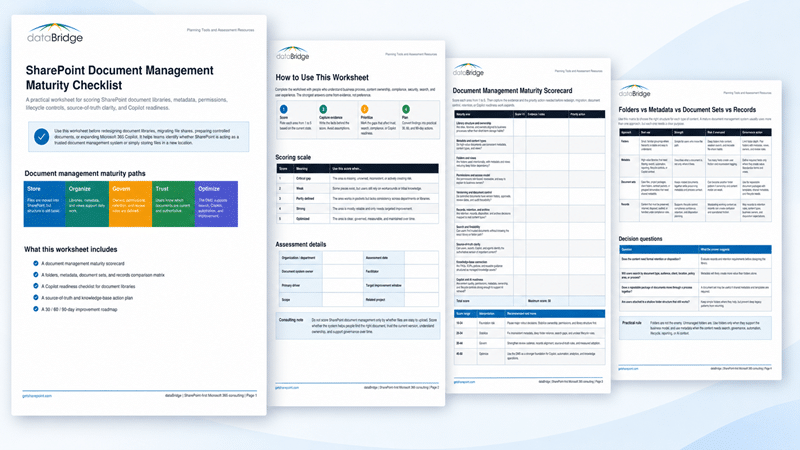
Preview the SharePoint Document Management Maturity Checklist
The worksheet gives your team a practical way to score document management maturity across library structure, ownership, metadata, folders, permissions, document control, records, search, source-of-truth clarity, knowledge management, and Copilot readiness.
Use the preview to see how the checklist is organized before downloading the full worksheet. The purpose is not to prove that SharePoint can store documents. The purpose is to understand whether people can find the right document, trust the version they find, know who owns it, and understand what happens to it over time.
Add the worksheet preview image here.
Quick Answer: What Is the SharePoint Document Management Maturity Checklist?
The SharePoint Document Management Maturity Checklist is a practical dataBridge worksheet for evaluating whether your SharePoint document libraries are mature enough to support reliable document management.
It reviews the areas that usually determine whether SharePoint works as a governed business system: structure, ownership, metadata, permissions, search, lifecycle control, document control, records readiness, source-of-truth clarity, and Copilot readiness.
Use the checklist before redesigning libraries, improving metadata, cleaning up permissions, migrating file share content, or preparing document-heavy sites for Microsoft 365 Copilot.
For the broader strategy behind this worksheet, start with SharePoint Document Management System. This checklist is the practical scoring tool that helps your team see where the document management model is strong and where it needs work.
Who Should Use This Checklist?
This checklist is useful when your organization needs to understand whether SharePoint is ready to support long-term document management, not just basic file storage.
It is especially helpful for:
- SharePoint administrators who need a structured way to review libraries, permissions, metadata, and ownership.
- Department leaders who need confidence that teams can find and trust important documents.
- Site owners who are responsible for keeping libraries organized after launch.
- Records and compliance teams that need stronger retention, review, archive, or disposition decisions.
- IT leaders planning a file share migration into SharePoint.
- Operations teams that rely on controlled documents, SOPs, policies, forms, procedures, contracts, or project files.
- Microsoft 365 leaders preparing document-heavy sites for Copilot, SharePoint agents, or AI-enabled search.
- Executive sponsors who need a practical way to turn document management concerns into a prioritized roadmap.
The best review usually includes more than IT. Strong document management depends on the people who understand the content, the process, the risk, and the ownership model behind the documents.
What This Tool Helps Prove
The SharePoint Document Management Maturity Checklist helps your team move from opinion to evidence.
Use it to identify the document management conditions that need attention, including library structure, metadata, versioning, ownership, permissions, lifecycle controls, records readiness, search confidence, adoption, and Copilot readiness.
The goal is not to complete a worksheet and stop. The goal is to turn the findings into a practical improvement plan. After completing the checklist, review the weakest areas, assign accountable owners, decide what should happen next, and connect the results to the right dataBridge service or resource.
When the findings show a broader document management problem, use the SharePoint Document Management System page to understand the full model. When the findings point to metadata, content types, libraries, or search structure, use SharePoint Information Architecture and Metadata Consulting to define the right next step.
What the Checklist Helps You Review
A mature SharePoint document management system is not measured by the number of documents it stores. It is measured by whether the environment is clear, findable, secure, governed, and supportable.
The checklist helps your team review the areas that most often determine whether SharePoint becomes a trusted document management system.
Library Structure and Organization
Library structure should reflect how the business works. It should not simply recreate an old network drive inside SharePoint.
A strong structure helps users understand where content belongs, how libraries differ, which sites support which processes, and when a separate library or site is truly needed. When structure is weak, teams often end up with deep folder paths, duplicate content, inconsistent permissions, and search results that feel unreliable.
For deeper planning around sites, hubs, libraries, content types, metadata, navigation, and ownership, use SharePoint Information Architecture & Metadata Consulting.
Ownership and Accountability
Every important document area needs a business owner.
Without ownership, SharePoint environments drift. Permissions stop being reviewed. Metadata changes without a plan. Stale content remains active. No one knows who should approve structure changes or answer user questions.
Strong ownership answers practical questions:
- Who decides what belongs in this library?
- Who reviews outdated content?
- Who approves major structure changes?
- Who validates permissions?
- Who confirms whether documents are still authoritative?
When ownership is unclear, document management becomes reactive. Problems get handled only after users complain, search fails, or a risk appears.
Metadata and Content Types
Metadata should help people make decisions, find content, and manage information over time.
Useful metadata might describe document type, department, client, project, region, status, owner, review date, confidentiality, record category, or source authority. The right fields make filtering, views, search, automation, and reporting easier.
Poor metadata creates a different problem. Users ignore fields they do not understand, apply values inconsistently, or go back to folder names and file names as the real system of organization.
Use the SharePoint Metadata Strategy Guide when your team needs a broader framework for classification, views, automation, and findability.
Folders, Metadata, Document Sets, and Records
The issue is not whether folders are good or bad. The real question is whether the organizing method fits the business need.
Folders can still work for simple grouping, limited process steps, or clear security boundaries. Metadata is usually stronger when users need filtering, views, search, reporting, automation, or cross-library consistency. Document sets are useful when related documents belong to one project, case, client, contract, or package. Records apply when content needs formal retention, protection, review, disposition, or auditability.
When old folder structures are driving the entire SharePoint design, use How to Map Legacy Folder Structures to Metadata in SharePoint before the structure becomes permanent.
Permissions and Access Control
Permissions need to be intentional, understandable, and reviewable.
A strong document management model gives users access to the content they need without exposing sensitive libraries through broad groups, old exceptions, stale users, unmanaged sharing links, or broken inheritance.
A healthier permissions model usually includes clear SharePoint groups, limited unique permissions, documented exceptions, external sharing rules, recurring access reviews, and business owner accountability.
Use the SharePoint Permissions Guide when permissions have become difficult to explain, audit, or maintain.
Document Control and Version Confidence
Some documents need more control than others.
Policies, procedures, SOPs, quality documents, compliance documents, contracts, safety materials, templates, and controlled forms often need stronger rules around versioning, approvals, ownership, review dates, publishing, and audit history.
Basic version history may be enough for everyday collaboration. Controlled business documents usually need a more deliberate model.
Use SharePoint Document Control when important documents need more than a simple library and standard versioning.
Contract libraries are the most common place these gaps show up first, which is why we wrote a full guide to SharePoint contract management covering what a well-built repository handles and when a dedicated CLM is actually justified.
Records, Retention, and Lifecycle Governance
Documents need a lifecycle.
Many SharePoint environments focus on upload, collaboration, and migration. Fewer define what happens when content becomes old, inactive, replaced, expired, archived, or record-worthy.
A mature document management environment includes practical rules for retention, review, archiving, disposition, ownership changes, and cleanup. The rules do not need to be overbuilt. They do need to be clear enough for site owners and departments to follow.
Use SharePoint Records Management and Retention Strategy when document lifecycle, retention labels, records, disposition, archive, and Microsoft Purview alignment need a stronger operating model.
Search and Findability
Search quality depends on the content foundation.
When users cannot find the right document, the problem is not always search configuration. It may be library structure, metadata, permissions, naming, source authority, content freshness, or ownership.
Better search usually starts with cleaner information architecture and stronger content decisions. Search can only return what the environment makes understandable, accessible, and trustworthy.
Use SharePoint Online Search Optimization when users struggle to find the right documents or when search problems reveal broader structure and metadata issues.
Source-of-Truth Clarity
Users need to know which document is authoritative.
Source-of-truth confusion is one of the most common document management failures in SharePoint. Multiple versions of the same policy, procedure, form, template, or client document may exist across different sites and libraries. Search may return older copies. Teams may keep using files that should have been replaced.
Clear source-of-truth rules help users know which library, page, document, or site should be trusted.
Use the SharePoint Source of Truth Model for Copilot Readiness when document authority, content trust, and AI retrieval need stronger rules.
Copilot and AI Readiness
Copilot readiness starts with the content foundation.
Documents need clear ownership, appropriate permissions, useful metadata, current content, reliable search behavior, and source-of-truth clarity. Without those basics, AI-assisted discovery can make existing document problems more visible.
Poorly governed content does not become trustworthy because Copilot can find it. It becomes easier to surface.
Use Copilot Readiness for SharePoint when your organization needs to connect document management, permissions, metadata, lifecycle governance, source authority, and adoption into a broader AI readiness plan.
How to Use the Checklist
Start with a focused review.
Do not try to score every SharePoint site at once. Choose a representative set of document-heavy areas first. That may include department libraries, policy libraries, project sites, quality document areas, contract repositories, HR libraries, client folders, or migration candidates.
Use this process:
- Choose the document area or group of libraries you want to evaluate.
- Identify the business owner and technical owner for each area.
- Review structure, metadata, permissions, lifecycle rules, search behavior, and source-of-truth clarity.
- Score each category from 1 to 5.
- Capture evidence for the score.
- Identify the lowest-scoring categories.
- Turn the findings into a practical improvement roadmap.
The evidence matters. A score without examples will not help your team prioritize. Capture the specific library, site, permission issue, metadata gap, search concern, ownership problem, stale content area, or lifecycle rule that supports each score.
How to Interpret Your Document Management Score
Use the score as a guide, not as the only decision.
A high total score can still hide a serious weakness. Low scores in permissions, records, source-of-truth clarity, search, or Copilot readiness should be treated as priority issues even when the overall score looks acceptable.
Score each area from 1 to 5:
- 1 means the area is missing, unowned, inconsistent, or actively creating risk.
- 2 means some pieces exist, but users still rely on workarounds or tribal knowledge.
- 3 means the area works in pockets, but it lacks consistency across departments, libraries, or sites.
- 4 means the area is mostly reliable and needs targeted improvement.
- 5 means the area is clear, governed, measurable, and maintained over time.
Use the total score this way:
- 10–24: Foundation risk. SharePoint may still be acting like a file storage location instead of a document management system.
- 25–34: Stabilize. The foundation exists, but ownership, metadata, permissions, search, or lifecycle rules need cleanup.
- 35–44: Govern. The environment works in important areas, but recurring review and consistency need to improve.
- 45–50: Optimize. The document management foundation is strong enough to support deeper automation, governance, reporting, and Copilot readiness.
Do not chase a perfect score everywhere. Focus first on the categories that create the most business risk or user friction.
What Low Category Scores Usually Mean
Low scores should become action items.
A low score in library structure usually means users do not have a clear place to store or find content.
A low score in ownership usually means no one is accountable for review, cleanup, permissions, or lifecycle decisions.
A low score in metadata usually means users depend too heavily on folder names, file names, or memory to find content.
A low score in permissions usually means access may be too broad, too complex, or too difficult to audit.
A low score in document control usually means important documents may lack approval, version confidence, review dates, or publishing rules.
A low score in records and retention usually means the organization has not clearly defined what happens to content over time.
A low score in search usually means findability problems are likely caused by structure, metadata, permissions, content quality, or source authority.
A low score in Copilot readiness usually means AI-assisted discovery could surface confusing, outdated, duplicated, or poorly governed information.
The score should not sit in a spreadsheet after the review. It should become a roadmap.
What to Do After Completing the Checklist
After completing the worksheet, choose the three lowest-scoring or highest-risk areas.
Turn those findings into a 30/60/90-day improvement plan.
First 30 Days: Stabilize the Foundation
Identify high-risk libraries, unclear owners, sensitive content areas, stale content, duplicate repositories, and obvious permission issues.
During this phase, your team should confirm which libraries matter most, who owns them, and which issues create the most operational or compliance risk.
Next 60 Days: Improve Structure and Governance
Standardize the highest-value improvements.
This may include metadata cleanup, view design, content type planning, permission group cleanup, source-of-truth rules, review cadence, records alignment, or archive decisions.
Use the SharePoint Governance Framework when the findings show that document management issues are really governance issues.
Next 90 Days: Operationalize the Model
Document the rules and make the model repeatable.
Site owners should know how to request changes, review content, validate access, manage document lifecycle decisions, and escalate issues. Administrators should know which standards apply across libraries and which decisions belong to business owners.
Use the SharePoint Governance Maturity Scorecard when document management gaps reveal broader governance weaknesses across ownership, permissions, site lifecycle, metadata, records, search, adoption, or support.
When the Checklist Should Lead to a Broader Assessment
The checklist is a practical starting point. In some cases, the results show that a broader assessment is needed.
A broader assessment may make sense when:
- Multiple departments use different document structures for similar content.
- Search results are unreliable across important libraries.
- Permissions are difficult to explain or validate.
- File share migration would bring old folder sprawl into SharePoint.
- Records, retention, archive, or disposition decisions are unclear.
- Business users do not trust that SharePoint contains the current version.
- Microsoft 365 Copilot rollout depends on document-heavy sites.
- Site owners do not know what they are responsible for after launch.
When several of these conditions exist, the issue is usually larger than one library. The real problem is the operating model behind document management.
Related Consulting Service
SharePoint Document Management Consulting helps organizations design the structure behind a trusted document environment.
dataBridge helps define libraries, metadata, permissions, ownership, document control, records alignment, search, lifecycle governance, and adoption practices so SharePoint becomes easier to use and easier to sustain.
Use the checklist first when your team needs a practical current-state review. Talk to dataBridge when the score reveals structural problems that need a roadmap, redesign, migration plan, governance model, or Copilot readiness plan.
Related SharePoint Planning Resources
The SharePoint Planning Tools and Assessment Resources hub includes scorecards, checklists, worksheets, and matrices for governance, document management, migrations, Copilot readiness, permissions, intranets, and information architecture.
Use these related tools when your checklist results point to a more specific planning need:
- Use the SharePoint Governance Maturity Scorecard when document management gaps are tied to ownership, permissions, lifecycle, metadata, records, search, adoption, or support maturity.
- Use the Copilot Readiness Checklist for SharePoint when document management improvement is part of a Microsoft 365 Copilot pilot or rollout.
- Use the SharePoint Permission Review Checklist for Copilot when sensitive libraries, broad groups, external sharing, stale access, or broken inheritance create risk.
- Use the File Share to SharePoint Migration Readiness Matrix when legacy shared drive content needs to be evaluated before migration.
- Use the SharePoint Information Architecture and Metadata Planning Worksheet when your team needs to plan sites, libraries, metadata, content types, and ownership before implementation.
Talk to dataBridge About Your Document Management Score
A checklist is useful only when it leads to better decisions.
If your score shows weak ownership, inconsistent metadata, confusing permissions, poor search, stale content, unclear records rules, or source-of-truth problems, dataBridge can help turn the findings into a practical SharePoint document management roadmap.
Bring your completed checklist to a working session with dataBridge. We can help evaluate the results, identify priority improvements, and define the next steps for structure, governance, migration, Copilot readiness, or long-term support.
Talk to dataBridge About Your Checklist Results
Frequently Asked Questions
What is the SharePoint Document Management Maturity Checklist?
The SharePoint Document Management Maturity Checklist is a dataBridge worksheet that helps organizations score how well their SharePoint document libraries support structure, ownership, metadata, permissions, lifecycle control, search, records readiness, source-of-truth clarity, and Copilot readiness.
Who should complete the checklist?
The checklist should usually be completed by a mix of SharePoint administrators, site owners, department leaders, records or compliance stakeholders, security, and business users who understand how the documents are used. Document management maturity depends on both technical structure and business ownership.
What does a low score mean?
A low score means the document area needs attention before it can be treated as a reliable document management environment. Low scores often point to unclear ownership, weak metadata, excessive folder reliance, confusing permissions, stale content, poor search, or missing lifecycle rules.
Should we use this before a file share migration?
Yes. The checklist is useful before a file share migration because it helps identify whether the destination SharePoint structure is ready to receive content. It can also reveal where legacy folders, duplicate files, unclear owners, or permission issues should be addressed before migration.
How does document management maturity affect Copilot readiness?
Copilot readiness depends heavily on the quality of the underlying SharePoint content foundation. If documents are poorly organized, outdated, overexposed, duplicated, or hard to identify as authoritative, AI-assisted discovery becomes harder to trust. Strong document management gives Copilot a cleaner foundation.