
Reviewed by Leona Winter, Solution Architect and Senior Support Manager
Why Permission Reviews Matter for Copilot Readiness
A SharePoint permission review checklist helps your organization find oversharing risk before Copilot makes that risk easier to notice.
That matters because Copilot does not invent access.
It works inside the permissions your Microsoft 365 environment already has.
At first, that may sound reassuring. In practice, it can create a false sense of safety. If SharePoint permissions are too broad, stale, inherited incorrectly, or full of old sharing links, Copilot may surface content people can technically access but should not rely on.
That is the real risk.
The problem is not always a breach. More often, it is exposure without intention.
Quick answer: A SharePoint permission review checklist helps organizations reduce oversharing risk before Microsoft 365 Copilot rollout. Start with high-risk sites, confirm active owners, review broad access groups, inspect guest access, remove risky sharing links, validate changes with business owners, and create a recurring review cadence.
This article focuses specifically on permission review before Copilot rollout. For the broader SharePoint AI readiness model, use Copilot Readiness for SharePoint. For the full explanation of how SharePoint permissions work, use The Complete Guide to SharePoint Permissions. For administrative controls that can help identify and reduce oversharing risk, use SharePoint Advanced Management for Copilot.
For the broader readiness path beyond permissions, use the SharePoint AI readiness model to connect access review with content trust, metadata, search, lifecycle governance, SharePoint agents, and adoption.
At dataBridge, we often see this during Copilot Readiness for SharePoint work. A team gets excited about AI. Then the permission review reveals old project sites, broad member groups, broken inheritance, external guests, and libraries nobody owns.
Copilot readiness is not only about enabling AI. Microsoft explains that Microsoft 365 Copilot only surfaces organizational data to users who have at least view permissions, which makes existing SharePoint permissions, sharing settings, and policies central to readiness planning. That makes permission review a practical readiness step, not just an administrative cleanup task.
That point is supported by Microsoft’s current Copilot privacy and security documentation.
It is about preparing SharePoint so AI works from a cleaner, safer, and more trusted environment.
To place permission review inside the larger governance picture, use the SharePoint governance resources hub for related guidance on ownership, site provisioning, external sharing, lifecycle, records, search governance, and Copilot readiness.
If you want to compare this permission review with related governance, migration, Copilot, and intranet worksheets, use the SharePoint assessment resources hub as the practical planning layer across dataBridge tools.
If your organization is preparing for Copilot and needs help identifying permission risk, contact dataBridge to talk through a SharePoint permission review.
Use the SharePoint Permission Review Checklist Before Copilot Rollout
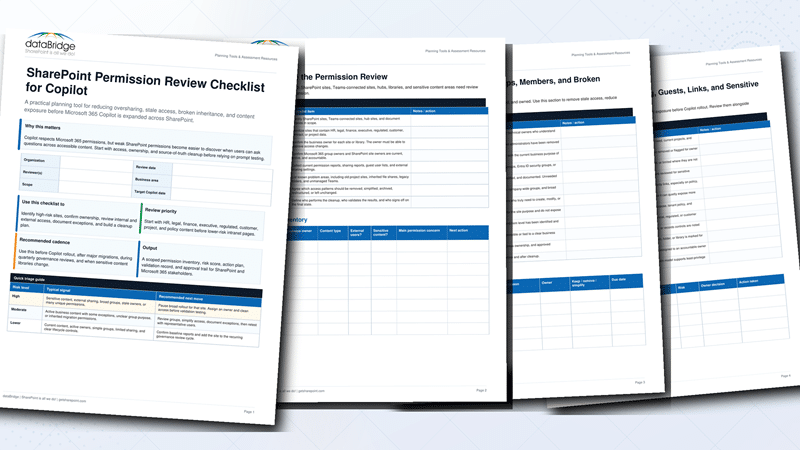
The SharePoint Permission Review Checklist for Copilot is designed to help teams move from concern to action before Microsoft 365 Copilot expands content discovery across SharePoint.
Use it as a working review tool, not just a downloadable resource. The checklist helps your team scope high-risk sites, confirm ownership, review broad access, inspect external sharing, document exceptions, validate cleanup, and create a practical action plan.
Permission review matters because Copilot works inside the access model your Microsoft 365 environment already has. The issue is not that Copilot creates new access. The issue is that overshared, stale, or poorly governed content can become easier for users to discover when AI-assisted search and summarization are introduced.
Who should use this checklist
Use this checklist when your organization is preparing for a Copilot pilot, expanding Copilot to more users, cleaning up after a migration, or reviewing sensitive SharePoint content.
It is especially useful for:
- Microsoft 365 and SharePoint administrators who need to review access before rollout.
- Security and compliance teams reviewing sensitive libraries, guests, and sharing links.
- Site owners who need to confirm whether current access still matches business need.
- Department leaders responsible for HR, legal, finance, executive, regulated, customer, project, or policy content.
- Governance teams that need a repeatable permission review process.
- Project teams that inherited old file-share permissions, legacy folders, unmanaged Teams, or broken inheritance.
A permission review should include both technical evidence and business judgment. IT can gather the reports, but business owners need to confirm whether access is still appropriate.
What This Tool Helps Prove
The SharePoint Permission Review Checklist for Copilot helps your team move from concern to evidence.
Use it to identify the access conditions that could create Copilot readiness risk, including broad access groups, external users, sharing links, direct permissions, broken inheritance, inactive owners, sensitive libraries, and high-risk content exposure.
The goal is not to complete a checklist and stop. The goal is to turn the findings into a practical permission cleanup plan. After completing the review, prioritize the highest-risk sites, confirm business owners, validate access with the right stakeholders, remove unnecessary exposure, and decide how often permission reviews should repeat.
When the findings show broader readiness issues, use Copilot Readiness for SharePoint to connect permissions with content quality, metadata, search, ownership, lifecycle, and source authority. When the findings require a formal review path, use the Copilot Readiness Assessment for SharePoint to turn access concerns into a practical readiness roadmap.
Quick triage guide
Start with risk. Do not review the entire tenant alphabetically.
High-risk sites should be reviewed first. These usually include sensitive content, external sharing, broad groups, stale owners, or many unique permissions.
Recommended next move: Pause broad Copilot rollout for that site. Assign an owner, clean access, remove risky links, and validate the final permission model before testing Copilot responses.
Moderate-risk sites usually include active business content with some exceptions, unclear group purpose, inherited migration permissions, or access patterns that need explanation.
Recommended next move: Review groups, simplify access, document exceptions, and retest with representative users.
Lower-risk sites usually include current content, active owners, simple groups, limited sharing, and clear lifecycle controls.
Recommended next move: Confirm the baseline report and add the site to the recurring governance review cycle.
Permission risk score interpretation
Use a simple 1–5 score when reviewing ownership, broad internal access, guest access, sharing links, broken inheritance, sensitive content exposure, duplicate or stale content, and source-of-truth clarity.
1 means controlled and documented. Access is intentional, owned, and easy to explain.
2 means mostly controlled. Minor cleanup may be needed, but the site does not show a major exposure pattern.
3 means some gaps or exceptions. The site may be acceptable for now, but owners need to review access, document exceptions, and confirm next steps.
4 means significant concern. Broad access, old guests, broken inheritance, or sensitive content exposure needs cleanup before broader Copilot use.
5 means high exposure or unclear ownership. Treat this as a priority risk. Assign an accountable owner, pause broad rollout for that area, and validate cleanup before relying on Copilot testing.
Do not average away a serious issue. One high-risk library can matter more than a generally acceptable site score.
What to do after completing the review
After completing the checklist, turn the findings into decisions.
- Confirm the accountable business owner for each high-risk site or library.
- Remove or expire risky sharing links that no longer have a valid business purpose.
- Review external guests and remove users tied to old projects or inactive relationships.
- Simplify broad groups, direct user permissions, and broken inheritance where possible.
- Document exceptions that must remain and assign a review date.
- Validate the cleanup with representative users from different roles and permission levels.
- Save the before-and-after permission evidence for governance review.
- Move unresolved risks into a 30-day, 60-day, and 90-day cleanup plan.
- Add high-risk sites to a recurring permission review cadence.
For a broader readiness path, pair this checklist with the Copilot Readiness Checklist for SharePoint and the Copilot Readiness Assessment for SharePoint. Permissions are the first concern for many teams, but Copilot readiness also depends on content quality, source-of-truth libraries, metadata, search, lifecycle governance, archive planning, and ownership.
Need help reviewing SharePoint permissions before Copilot?
dataBridge helps organizations assess SharePoint permissions, external sharing, ownership, governance, and Copilot readiness before Microsoft 365 Copilot expands content discovery.
If your team needs help identifying oversharing risk, prioritizing high-risk sites, validating cleanup, or building a repeatable review process, contact dataBridge to plan a focused Copilot permission review or a broader Copilot readiness assessment.
What Is a SharePoint Permission Review Checklist?
A SharePoint permission review checklist is a structured process for inspecting access across sites, libraries, folders, files, groups, owners, guests, and sharing links.
For Copilot readiness, the goal is specific.
You are not reviewing permissions only to clean up administration. You are reviewing them to understand what content employees, search, and Copilot can access.
A practical SharePoint permission review checklist should answer these questions:
- Who can access sensitive content?
- Which sites have broad access?
- Which libraries have broken inheritance?
- Which folders or files have unique permissions?
- Which guests still have access?
- Which sharing links still exist?
- Which site owners are still active?
- Which groups are too broad?
- Which content can Copilot surface?
- Which permissions should be cleaned up before rollout?
A permission review is not the same as a full SharePoint permissions guide.
For the underlying access model, The Complete Guide to SharePoint Permissions explains how SharePoint permissions work across sites, libraries, folders, and files. This article focuses on the operational checklist your organization should use before Copilot rollout.
That difference matters.
Permissions knowledge is useful. A review process turns that knowledge into action.
Why SharePoint Permissions Matter Before Copilot
Copilot makes permission quality more visible.
When people search manually, they may never discover certain files. When Copilot summarizes, answers, or points users toward content, weak access decisions can show up faster.
That does not mean Copilot ignores security.
It means Copilot reflects the access model already in place.
If the access model is messy, the AI experience may feel messy too.
Permission issues can create several problems before and after Copilot rollout:
- Users see content they should not use.
- Old project files appear beside current guidance.
- Sensitive content has too many readers.
- External guests keep access after projects end.
- Search results vary in ways users cannot explain.
- Site owners cannot explain who has access.
- Copilot answers from content that lacks proper ownership.
- Leaders lose confidence in the AI rollout.
That last point is important.
Copilot trust is fragile. One answer from overshared or stale content can make users question the whole experience.
In our SharePoint consulting work, permissions often become the practical starting point for AI readiness. Content quality matters. Metadata matters. Governance matters. Still, permission risk usually gets executive attention first.
That is why a SharePoint permission review checklist belongs in every serious Copilot readiness plan.
Copilot Does Not Fix Permission Drift
Permission drift happens when access changes over time without enough review.
It is common.
A site starts with clean groups. Then someone shares a folder. Another person grants direct access to a file. A project adds guests. A department changes owners. A Teams-connected site grows.
Years later, nobody can explain the access model.
That is permission drift.
Copilot does not fix it.
In fact, Copilot can expose it.
A well-governed environment gives Copilot cleaner boundaries. A messy environment gives Copilot more confusing access paths.
This is why SharePoint Advanced Management for Copilot can help organizations identify oversharing risk and improve governance visibility. However, the tool is not a substitute for ownership, decision-making, and cleanup.
Tools can show the signal.
Your organization still has to decide what to do with it.
That is why Data Access Governance reports for Copilot readiness work best when they feed a real permission review process, not just an exported report. The report can highlight possible risk, but owners still need to confirm whether access is appropriate, outdated, accidental, or too broad.
When a high-risk site cannot be cleaned up before rollout, you can temporarily exclude that site from Copilot and organization-wide search while the review runs, as long as the exclusion comes off once permissions are fixed.
How This Checklist Fits the Review Process
The checklist above is the working asset. The sections below explain the review logic behind each step.
Start by identifying high-risk sites. Then confirm owners, review groups, inspect broad access, find broken inheritance, review guests and sharing links, validate sensitive libraries, test results by user role, and document decisions.
That sequence matters. Permission review should not become a spreadsheet exercise with no outcome.
A strong review produces five things:
- A scoped list of priority sites and libraries.
- An accountable owner for each access decision.
- A record of risky groups, guests, links, and exceptions.
- A cleanup plan with due dates and validation steps.
- A recurring review cadence that keeps permissions from drifting again.
The goal is not to make every SharePoint site perfect before Copilot. The goal is to reduce the access risks most likely to damage trust, expose sensitive content, or create confusion when users begin relying on AI-assisted answers.
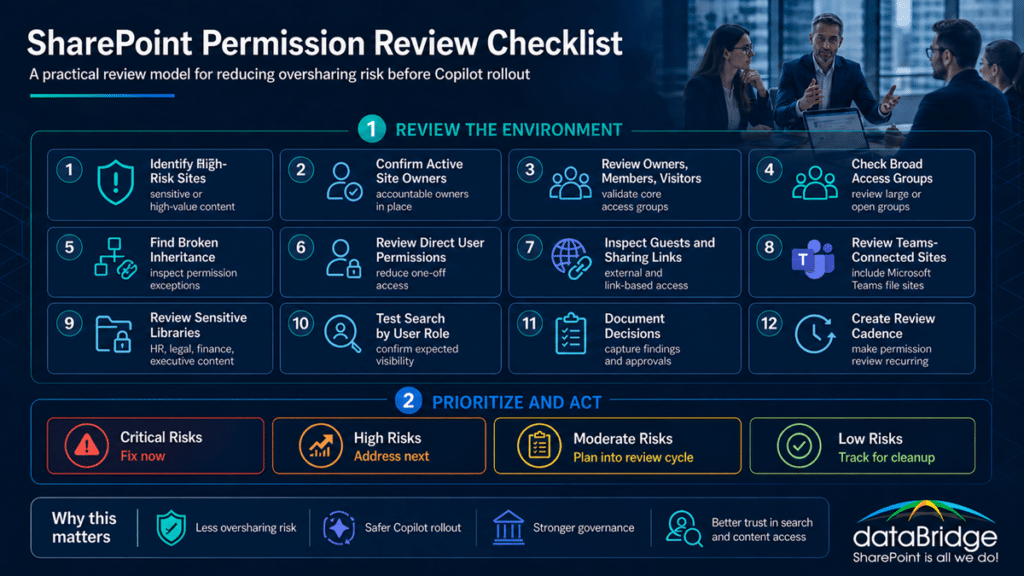
1. Identify High-Risk SharePoint Sites First
Start with the sites where permission mistakes would cause the most concern.
Do not begin with every site in the tenant.
That approach slows the work and hides the real priorities.
Focus first on sites that contain:
- Executive files
- HR content
- Finance content
- Legal content
- Client documents
- Board materials
- M&A content
- Regulated records
- Security documentation
- Employee relations content
- Sensitive operational procedures
- Confidential strategy files
These sites deserve early review because exposure risk is higher.
A low-risk team site with lunch planning documents does not need the same attention as an HR investigation library.
That sounds obvious. In practice, many permission reviews treat every site the same.
That is a mistake.
Risk-based review always beats alphabetical cleanup.
For larger environments, SharePoint Advanced Management for Copilot can help administrators identify potentially overshared sites, risky access patterns, and areas that need review before deeper cleanup work begins.
2. Confirm Site Owners Are Active and Accountable
Every SharePoint site needs real ownership.
A site owner should know what the site contains, who should have access, and when access should change.
Start by checking:
- Are the listed owners still with the organization?
- Do owners understand their responsibilities?
- Is there more than one owner?
- Does the business own the access decisions?
- Is IT acting as the default owner by accident?
- Can the owner explain who should belong to each group?
- Does the owner know whether external guests exist?
A site without a real owner is not ready for Copilot.
It may still function. It may even look organized. But nobody owns the access risk.
That is where permission drift grows.
For a practical ownership foundation, SharePoint Site Owner Responsibilities explains why site owners need more than a title. They need an operating role.
In our experience, owner cleanup often reveals the first serious gap. The site has permissions, but no one wants to approve changes.
That is not a technical problem.
It is a governance problem. A recurring permission review works best when it is part of a broader SharePoint governance framework, not a one-time cleanup effort after access issues become visible.
3. Review Site Members, Owners, and Visitors
Next, review the main SharePoint groups.
Most sites should have clear separation between owners, members, and visitors.
A healthy model usually looks like this:
- Owners manage the site.
- Members contribute content.
- Visitors read content.
- Guests have limited and justified access.
- Administrators support the platform.
The review should ask:
- Are too many people site owners?
- Are members allowed to edit content they should only read?
- Are visitors missing from sites that need read-only access?
- Do groups contain old employees or outdated teams?
- Are nested groups hiding broad access?
- Does group membership match the site purpose?
- Does the site still need every group currently assigned?
Too many owners create risk.
Too many members create content control problems.
Too many visitors may expose information that should stay limited.
Do not assume default groups are safe because they are default.
Default does not mean governed.
4. Check for Broad Access Groups
Broad access groups can create major Copilot readiness issues.
They are not always wrong. Sometimes broad access is intentional and useful.
The risk appears when broad groups show up in places where access should be limited.
Review access for groups such as:
- Everyone
- Everyone except external users
- All employees
- Department-wide groups
- Company-wide groups
- Large Microsoft 365 groups
- Dynamic groups with broad membership
- Legacy security groups
Ask these questions:
- Should this content be open to all employees?
- Is this access intentional?
- Was this group added for convenience?
- Does the site contain sensitive content?
- Could Copilot surface this content to too many people?
- Does the owner understand the scope of this group?
Broad access is not automatically bad.
Unexplained broad access is bad.
A company policy library may need broad read access. A legal matter site should not.
The difference is intent.
A good permission review makes intent visible.
5. Find Broken Permission Inheritance
Broken inheritance is one of the biggest SharePoint permission review priorities.
It happens when a library, folder, or file stops inheriting permissions from the parent site.
Sometimes that is necessary. Often, it becomes a long-term risk.
Review broken inheritance at these levels:
- Sites
- Libraries
- Lists
- Folders
- Files
- Pages
- Teams-connected document libraries
Ask:
- Why was inheritance broken?
- Who approved the exception?
- Does the exception still make sense?
- Is the content sensitive?
- Are direct permissions assigned to individuals?
- Could this exception confuse search or Copilot results?
- Can the owner explain the access difference?
Broken inheritance is not always a problem.
Unreviewed broken inheritance is the problem.
That is a simple rule we use often: exceptions need owners.
If a site has many unique permission exceptions, Copilot readiness becomes harder. Users may see inconsistent search results. Owners may not know who can access what. Administrators may struggle to clean it up without breaking work.
This is where a review checklist becomes useful.
It turns hidden exceptions into visible decisions.
6. Review Direct User Permissions
Direct user permissions are easy to grant and hard to govern.
They often appear when someone needs fast access. Later, that access stays in place long after the need ends.
Look for direct permissions assigned to:
- Individual employees
- Former employees
- Contractors
- Executives
- Service accounts
- External guests
- Temporary project members
- People outside the owning department
Then ask:
- Why does this person have direct access?
- Should access be managed through a group instead?
- Is the access still needed?
- Is the permission level too high?
- Does the owner know this access exists?
- Should it expire?
Group-based access is usually easier to govern.
Direct access should be the exception, not the operating model.
During Copilot readiness reviews, direct permissions often reveal old exceptions that nobody remembers. That does not mean every exception is wrong. It means every exception should be explainable.
If you cannot explain it, review it.
7. Review External Guests and Guest Access
External sharing is one of the most important areas to review before Copilot rollout.
Guest access can be valuable. It can also create long-term exposure when nobody removes it.
Review:
- Sites with external users
- Guest membership in Microsoft 365 groups
- External users in SharePoint groups
- Guests with access to libraries or files
- Old project guests
- Vendor or client access
- Anonymous or Anyone links
- Link expiration settings
- External domains with access
Ask:
- Does this guest still need access?
- Which company do they belong to?
- Who sponsored the access?
- When should access end?
- What content can they see?
- Does the site contain internal-only content?
- Should external collaboration use a separate site?
External sharing needs its own governance lane.
That is why SharePoint External Sharing Governance should connect directly to your Copilot readiness work. Guest access, sharing links, and external collaboration rules affect what content remains exposed over time.
A simple rule helps here.
Do not mix sensitive internal content and external collaboration unless the site was designed for that purpose.
Convenience creates many external sharing problems.
Structure prevents them.
8. Inspect Sharing Links
Sharing links are often more important than teams expect.
A site may look clean at the group level while file-level links tell a different story.
Review links such as:
- Anyone links
- People in your organization links
- Specific people links
- Existing access links
- Links with no expiration
- Edit links
- Links to sensitive files
- Links created by former employees
- Links shared externally
Ask:
- Are Anyone links allowed?
- Do edit links need to be changed to view-only?
- Should links expire?
- Are links being used instead of proper group access?
- Do owners know these links exist?
- Can the link be removed without disrupting work?
- Does link behavior align with policy?
Sharing links are where convenience often outruns governance.
A link can feel harmless when created. Months later, it becomes part of the risk surface.
Before Copilot rollout, organizations should reduce unnecessary sharing links, especially around sensitive content.
The goal is not to ban sharing.
The goal is to stop accidental permanence.
One category of links deserves its own pass. Older specific-people links held by external users without an Entra B2B guest account do not survive the SharePoint One-Time Passcode retirement, so flag those during the link review and re-provision the guests who still matter.
9. Review Teams-Connected SharePoint Sites
Many SharePoint permission issues hide inside Microsoft Teams.
Every Team has a connected SharePoint site. Files shared in Teams channels often live in SharePoint libraries.
That means Teams governance and SharePoint permissions are connected.
Review:
- Team owners
- Team members
- Private channel sites
- Shared channel sites
- Guest users
- Files tab permissions
- Channel-specific access
- Old Teams with active SharePoint sites
- Teams created for temporary projects
Ask:
- Does the Team still need to exist?
- Are owners active?
- Are guests still valid?
- Do private channels contain sensitive content?
- Are shared channels governed?
- Does the SharePoint site contain content beyond the Team’s current purpose?
Teams makes collaboration easy.
It can also make SharePoint sprawl harder to see.
Copilot readiness work should always include Teams-connected sites because users may not think of those files as “SharePoint content.”
The platform does.
10. Review Sensitive Libraries Separately
Some libraries deserve their own permission review.
A site may have broad access, while one library should be more controlled. The reverse can also happen.
Review libraries that contain:
- HR files
- Legal documents
- Finance records
- Board materials
- Client contracts
- Regulated procedures
- Audit evidence
- Security documents
- Confidential templates
- Executive communications
Ask:
- Should this library inherit site permissions?
- Does it need unique access?
- Are folders creating hidden exceptions?
- Are files shared directly?
- Do metadata and sensitivity match the access model?
- Are reviewers and approvers different from readers?
- Should this content become read-only for most users?
Library-level permissions need discipline.
Too many unique library models can confuse owners. Too little separation can expose sensitive content.
The right answer depends on risk.
That is why permission review should include business context, not only technical reports.
11. Check Folder-Level and File-Level Exceptions
Folder and file exceptions are common.
They are also some of the hardest to manage.
Review:
- Folders with unique permissions
- Files shared with specific people
- Sensitive files inside broad libraries
- Old project folders
- Client folders
- HR or finance folders
- Files with external access
- Files with direct edit access
Ask:
- Why is this exception needed?
- Would a separate library or site be cleaner?
- Is this folder being used as a security boundary?
- Does the owner understand the exception?
- Is the file still active?
- Should access be removed, moved, or redesigned?
Folders are useful for organization.
They are weak as a long-term permission strategy.
That does not mean you can never secure a folder. It means folder-level security should not become the hidden architecture of your environment.
If critical access depends on dozens of secured folders, the structure probably needs redesign.
12. Review Inactive Sites With Active Permissions
Inactive sites can still create access risk.
They may contain old content, broad permissions, guest access, and forgotten sharing links. Even if people no longer use the site, search and Copilot may still surface accessible content.
Review sites that show:
- Low activity
- No active owner
- Old project dates
- Stale content
- External users
- Broad access groups
- No lifecycle decision
- Old Teams connections
Ask:
- Should the site stay active?
- Should it be archived?
- Should permissions be restricted?
- Should content be moved?
- Should links be removed?
- Does any content need retention?
- Should the site be excluded from active collaboration?
Inactive does not mean harmless.
Old content can still shape search and Copilot experiences.
A mature permission review should connect to lifecycle governance. If sites never close, access never really ends.
13. Review Permission Levels
Permission levels control what users can do.
For Copilot readiness, the main issue is usually not whether users can read content. It is whether too many users can edit, approve, manage, or reshape content.
Review users or groups with:
- Full Control
- Design
- Edit
- Contribute
- Manage Lists
- Approve
- Limited Access
- Custom permission levels
Ask:
- Who truly needs Full Control?
- Should members have Edit or Contribute?
- Can users change content that should be controlled?
- Are custom permission levels documented?
- Are approval permissions assigned correctly?
- Are owners using Full Control because it was easier?
Overpermissioned editors create content trust problems.
If too many people can change authoritative content, the content becomes harder to trust. That matters before Copilot, because AI experiences depend on the content environment beneath them.
A permission review should protect both confidentiality and content integrity.
Those are different risks.
Both matter. For organizations with regulated, sensitive, or executive content, permission review should also connect to SharePoint security and compliance decisions so access, governance, and risk controls work together instead of being handled separately.
14. Review Site Collection Administrators
Site collection administrators have powerful access.
They can create risk if the role is assigned too broadly or never reviewed.
Check:
- Current site collection administrators
- Former administrators
- Service accounts
- IT administrators
- Business administrators
- External accounts
- Admins added during migration
- Admins added for troubleshooting
Ask:
- Does each admin still need this role?
- Is the role temporary or permanent?
- Is there a business reason for this access?
- Does the account follow security standards?
- Should access move to a more limited role?
- Was the admin added during a project and never removed?
Administrative access should be intentional.
Temporary admin access should not become permanent because nobody circled back.
This is one of the easiest areas to overlook. It is also one of the easiest to correct.
15. Compare Permissions Against Content Sensitivity
Permissions should match content sensitivity.
That sounds simple, but many environments do not apply the rule consistently.
Review whether access aligns with:
- Public internal content
- Department content
- Confidential content
- Highly confidential content
- Regulated content
- Client-sensitive content
- Legal or HR content
- Executive content
Ask:
- Does the permission level match the sensitivity?
- Are sensitive files stored in broad sites?
- Are labels and metadata aligned with access?
- Should sensitive libraries have stricter owner review?
- Is external access allowed where it should not be?
- Could Copilot surface this content to a broad audience?
Sensitivity without permission alignment creates false comfort.
A label may describe the content. Permissions determine who can access it.
The two should support each other. This is also why teams should understand the difference between permissions, retention labels, and sensitivity labels before using labels as a substitute for access review.
16. Test Search Results by User Role
Permission review should include user experience testing.
Why?
Because users feel permissions through search.
One person sees a file. Another does not. A third sees old content because they have broader access. From the platform side, this may be normal security trimming. From the user side, it can feel random.
The article Why SharePoint Search Results Vary by User explains this issue in more detail. For a Copilot permission review, the key point is simple: access boundaries shape what people can find.
Test common searches from different roles:
- Employee
- Manager
- Department owner
- Executive
- HR user
- Finance user
- External guest
- Site owner
- IT administrator
Then ask:
- Do users see content they should not see?
- Do users miss content they need?
- Do old files appear above current guidance?
- Do broad-access users see too much clutter?
- Do guests see only the intended content?
- Does search reveal unexpected access?
Search testing often exposes permission drift faster than reports alone.
Reports show access.
Search shows the experience.
Both matter before Copilot.
17. Document Permission Decisions
A permission review should leave behind decisions, not just findings.
Document:
- What was reviewed
- Who approved changes
- Which sites were high risk
- Which permissions were removed
- Which permissions were retained
- Which exceptions were accepted
- Which owners validated access
- Which guests remain active
- Which links were removed
- Which sites need follow-up
Documentation protects the organization later.
It also helps teams avoid repeating the same review from scratch.
In our experience, the best permission reviews create a practical decision trail. They do not produce a 90-page report that nobody uses.
A useful review record should help owners act.
If it only impresses the project team, it is not enough.
How to Prioritize Permission Risk Before Copilot
Not every permission issue has the same urgency.
A Copilot readiness review should prioritize risk by exposure, sensitivity, and likelihood of being surfaced.
Use this model.
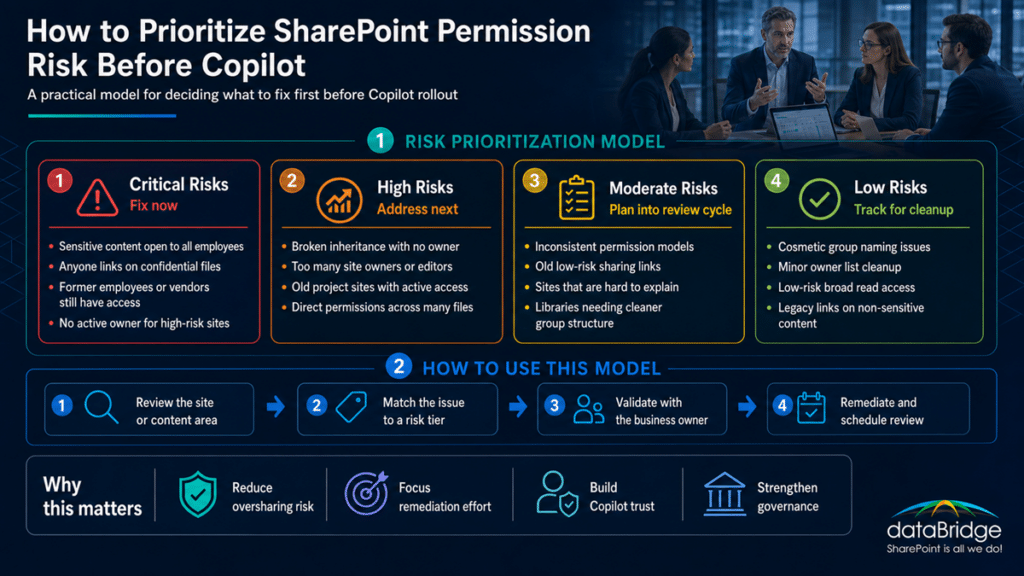
Critical Permission Risks
Fix these first.
Critical risks include:
- Sensitive content open to all employees
- Confidential files with Anyone links
- External guests in internal-only sites
- Former employees or vendors with access
- No active owner for high-risk sites
- Broad edit access to controlled content
- Legal, HR, or finance content in broad libraries
- Unknown sharing links on sensitive files
These issues can damage trust quickly.
They should not wait for a broad governance program.
High Permission Risks
Address these next.
High risks include:
- Broken inheritance with no owner
- Large groups on department-sensitive sites
- Too many site owners
- Old project sites with active access
- Private channel sites nobody reviews
- Direct user permissions across many files
- Edit permissions where read-only access would work
- Missing review cadence for external users
These problems often grow over time.
They may not create immediate exposure, but they weaken the environment.
Moderate Permission Risks
Plan these into the next review cycle.
Moderate risks include:
- Inconsistent group naming
- Minor permission level inconsistencies
- Old but low-risk sharing links
- Sites with unclear but low-sensitivity content
- Libraries that need cleaner group structure
- Permission models that work but are hard to explain
These issues matter.
They just may not need emergency remediation.
Low Permission Risks
Track these for cleanup.
Low risks include:
- Cosmetic group naming issues
- Minor owner list cleanup
- Low-risk sites with broad read access
- Historical permissions on archived content
- Non-sensitive documents with outdated links
A good review does not treat every finding like a crisis.
That creates fatigue.
Focus on the risks that could harm trust, expose sensitive content, or undermine Copilot adoption.
How to Remediate SharePoint Permission Issues
Finding permission risk is only the first step.
Remediation is where organizations need care.
Move too fast, and you break collaboration. Move too slowly, and risk stays in place.
A practical remediation workflow should follow this order.
1. Validate With the Business Owner
Start with the person who owns the content.
Ask them:
- Who should have access?
- Who should only read?
- Who should edit?
- Who should approve?
- Who should be removed?
- Which guests still need access?
- Which content is no longer active?
Do not let IT make every business access decision.
IT can provide the evidence.
The business should confirm the intent.
2. Remove Obvious Stale Access
Next, remove access that no longer has a valid business reason.
Examples include:
- Former employees
- Old vendors
- Closed project guests
- Temporary accounts
- Expired contractors
- Troubleshooting admins
- Unused direct permissions
- Old external links
This is usually the safest first cleanup step.
Stale access adds risk without adding value.
3. Replace Direct Access With Groups
Where possible, move users into groups.
Groups make access easier to review and sustain.
A clean model might use:
- Owners
- Members
- Visitors
- Department readers
- Project contributors
- External collaborators
- Approval groups
- Records or compliance reviewers
Direct access may still be needed sometimes.
However, it should not become the default way people get access.
4. Reduce Edit Rights
Too many users have edit access in many SharePoint environments.
That weakens content trust.
Review whether users need:
- Read
- Contribute
- Edit
- Approve
- Full Control
Many people only need read access.
This is especially true for policies, SOPs, executive updates, HR guidance, and controlled documents.
Before Copilot rollout, content integrity matters.
If the wrong users can change the source, the AI experience inherits that weakness.
5. Remove or Expire Risky Sharing Links
Sharing links need cleanup.
Start with the riskiest links:
- Anyone links
- External edit links
- Links to sensitive files
- Links with no expiration
- Links created by former users
- Links to old project materials
Then decide whether to:
- Remove the link
- Change edit to view
- Add expiration
- Move access into a group
- Create a governed external site
- Keep the link with owner approval
Do not remove links blindly.
Validate first, especially in active collaboration areas.
6. Redesign Sites When Permissions Are Too Complex
Sometimes cleanup is not enough.
A site may have so many exceptions that the structure itself is the problem.
Redesign may be better when:
- Many folders have unique permissions
- Sensitive and broad content live together
- External and internal collaboration are mixed
- Nobody can explain access
- Business areas need different governance
- Old project content competes with current content
- Private files sit inside a broad team site
A complicated permission model often signals a design issue.
When the structure is wrong, more permission tweaks only delay the fix.
7. Create a Recurring Review Cadence
Permission reviews should not be one-time projects.
Copilot readiness needs ongoing care.
Create a schedule for:
- High-risk sites
- External guests
- Broad access groups
- Sharing links
- Inactive sites
- Site owners
- Sensitive libraries
- Direct user permissions
- Broken inheritance
- Teams-connected sites
Review frequency should match risk.
For example:
- High-risk sites: quarterly
- External access: quarterly or monthly
- Standard department sites: twice per year
- Low-risk collaboration sites: annually
- Project sites: at kickoff, closeout, and major milestones
The exact cadence can vary.
The habit matters more than the calendar label.
| Content type | Suggested review cadence |
|---|---|
| HR, legal, finance, executive, regulated content | Quarterly |
| External guest access | Monthly or quarterly |
| Standard department sites | Twice per year |
| Low-risk collaboration sites | Annually |
| Project sites | Kickoff, major milestone, and closeout |
The SharePoint Governance Maturity Model is useful here because permission review maturity usually evolves over time. Most organizations move from reactive cleanup to structured review, then toward managed ownership and continuous governance.
That progression is healthier than chasing a perfect tenant in one project.
Organizations that outgrow manual review can also automate the cadence itself. Our breakdown of when Entra access packages earn their licensing cost covers the time-boxed access and recurring recertification that make the review happen without a ticket.
What Not to Do During a Copilot Permission Review
Permission reviews can go wrong.
Avoid these common mistakes.
Do Not Remove Access Without Business Validation
Fast cleanup can break work.
Validate high-impact changes with owners before removing access.
Do Not Treat Every Finding Equally
A stale guest in an HR site matters more than a naming issue in a low-risk project site.
Prioritize based on risk.
Do Not Ignore Teams-Connected Sites
Teams files live in SharePoint.
A SharePoint review that skips Teams-connected sites is incomplete.
Do Not Assume Broad Access Is Always Wrong
Some content should be broadly available.
The issue is whether broad access is intentional and appropriate.
Do Not Rely Only on Tools
Reports help.
They do not replace ownership, decisions, and remediation.
Do Not Treat Copilot as the First Step
Copilot should follow readiness work.
It should not be the event that reveals every permission problem.
Do Not Skip External Sharing
Guest access and sharing links can create long-term exposure.
They deserve a separate review path.
Do Not Leave Owners Out
Owners know the content context.
Without them, IT may clean permissions technically but miss the business intent.
A Practical Permission Review Workflow
A strong SharePoint permission review should feel manageable.
Use this workflow.
Step 1: Scope the Review
Start with the sites and content areas that matter most.
Focus on sensitive content, high-value knowledge, and likely Copilot source material.
Step 2: Collect Permission Data
Gather site owners, group membership, direct permissions, external guests, sharing links, broken inheritance, and admin access.
Step 3: Classify Risk
Group findings by critical, high, moderate, and low risk.
Do not overreact to every issue.
Step 4: Validate With Owners
Review the findings with business owners.
Ask them to confirm who should keep access and who should be removed.
Step 5: Remediate Access
Remove stale access, reduce excessive permissions, clean links, update groups, and redesign where needed.
Step 6: Test User Experience
Search from different roles.
Confirm users can find what they need without seeing what they should not.
Step 7: Document Decisions
Record what changed, who approved it, and what remains as an accepted exception.
Step 8: Create Review Cadence
Turn the process into a recurring governance habit.
That final step is where many organizations fall short.
A cleanup project gives temporary relief.
A review cadence creates lasting control.
SharePoint Permission Review Checklist Summary
Use this checklist as your working model.
- Identify high-risk SharePoint sites.
- Confirm active site owners.
- Review owners, members, and visitors.
- Check broad access groups.
- Find broken inheritance.
- Review direct user permissions.
- Inspect external guests.
- Review sharing links.
- Check Teams-connected sites.
- Review sensitive libraries.
- Inspect folder and file exceptions.
- Review inactive sites with active permissions.
- Check permission levels.
- Review site collection administrators.
- Compare permissions against content sensitivity.
- Test search results by user role.
- Document permission decisions.
- Prioritize remediation by risk.
- Create a recurring review cadence.
This checklist works because it focuses on what Copilot readiness actually needs.
Not theoretical permission hygiene.
Practical access clarity.
How dataBridge Approaches SharePoint Permission Reviews
In real permission reviews, the first issues are rarely hidden in advanced settings. They usually appear in familiar places: old project sites, broad member groups, forgotten guests, file-level sharing links, and libraries where no current owner wants to approve access decisions.
dataBridge approaches SharePoint permission reviews as a governance and risk-reduction process.
The goal is not to scare teams with a long list of findings.
The goal is to help them understand what matters, what to fix first, and how to maintain better control.
Our process usually focuses on five areas.
1. Permission and Oversharing Discovery
We review the current access model across priority SharePoint sites, libraries, groups, guests, and sharing links.
This helps identify where exposure risk is highest.
In many environments, the biggest risks are not hidden in obscure settings. They are sitting in old sites, broad groups, forgotten guests, and file links nobody has reviewed.
2. Business Owner Validation
We work with site and content owners to confirm whether access is appropriate.
The owner conversation matters because permission reports cannot explain business intent by themselves.
A report can show who has access.
The owner has to explain whether that access still makes sense.
3. Copilot Readiness Alignment
We connect permission findings to Copilot readiness.
That includes understanding what content users may find, what Copilot may reference, and where access boundaries need cleanup.
This helps teams move from broad AI concern to specific remediation.
4. Remediation Planning
We help prioritize cleanup so teams do not try to fix everything at once.
The best plan usually starts with sensitive content, broad access, external sharing, and stale permissions.
That sequence keeps the work focused.
It also helps stakeholders see progress quickly.
5. Governance Operating Model
We help define the recurring review process.
That includes owners, cadence, escalation rules, reporting, and ongoing governance checkpoints.
This is where permission work becomes sustainable.
A one-time audit can help.
A repeatable operating model helps more.
If your organization needs a practical SharePoint permission review before Copilot rollout, contact dataBridge to start the conversation.
When to Get Help With a SharePoint Permission Review
You may need help if your SharePoint environment has grown for years without a structured permission review.
Common signs include:
- Nobody can explain who has access to key sites.
- Site owners are missing or inactive.
- External guests remain after projects close.
- Sharing links exist with no expiration.
- Sensitive files appear in broad-access sites.
- Teams-connected SharePoint sites are unmanaged.
- Search results expose old or unexpected content.
- Copilot readiness work reveals oversharing concerns.
- Too many users have edit or owner rights.
- Broken inheritance appears across many libraries.
- Permissions are technically configured but not governed.
These signs usually point to permission drift.
Adding Copilot will not cause the drift.
It may make the drift harder to ignore.
The better answer is a structured review that turns access risk into clear remediation decisions.
Related Permission and Copilot Readiness Resources
- Copilot Readiness for SharePoint
- The Complete Guide to SharePoint Permissions
- SharePoint Advanced Management for Copilot
- SharePoint External Sharing Governance
- Microsoft Purview DLP for SharePoint, Teams, OneDrive, and Copilot
- Why SharePoint Search Results Vary by User
If your team needs help turning permission risk into a practical cleanup plan, contact dataBridge to discuss your SharePoint permission review.
Frequently Asked Questions About SharePoint Permission Reviews
What Is a SharePoint Permission Review Checklist?
A SharePoint permission review checklist is a structured process for reviewing who has access to SharePoint sites, libraries, folders, files, groups, guests, and sharing links. For Copilot readiness, it helps identify oversharing risk before AI experiences rely on the same access model.
Why Do SharePoint Permissions Matter for Copilot?
SharePoint permissions matter for Copilot because Copilot works within existing Microsoft 365 access boundaries. If users already have access to overshared, stale, or sensitive content, Copilot may surface that content in ways that reduce trust.
Does Copilot Ignore SharePoint Permissions?
No. Copilot does not ignore SharePoint permissions. The concern is that many environments already have permissions that are too broad, stale, or poorly governed. Copilot can make those existing access issues more visible.
What Should We Review Before Copilot Rollout?
Before Copilot rollout, review high-risk sites, broad access groups, external guests, sharing links, broken inheritance, direct user permissions, sensitive libraries, inactive sites, and Teams-connected SharePoint sites.
How Often Should SharePoint Permissions Be Reviewed?
Review frequency should depend on risk. High-risk sites and external access should be reviewed more often, usually quarterly or monthly. Standard department sites may be reviewed twice per year, while low-risk sites may only need annual review.
Who Should Own a SharePoint Permission Review?
IT can gather access data and support changes, but business owners should validate who needs access. Site owners, department leaders, compliance stakeholders, and governance teams should all play a role when sensitive content is involved.
What Is the Biggest Permission Risk Before Copilot?
The biggest risk is overshared sensitive content that users can technically access but should not rely on. That may include old project files, HR content, finance documents, legal files, executive materials, or external links with no review.
Should We Remove All Broken Inheritance?
No. Broken inheritance is not always wrong. Some libraries, folders, or files need unique permissions. The issue is unreviewed broken inheritance with no owner, no documented reason, and no ongoing review.
How Do Sharing Links Affect Copilot Readiness?
Sharing links can expose content outside the intended permission model. Links with broad access, external access, edit permissions, or no expiration can increase oversharing risk before Copilot rollout.
Can SharePoint Advanced Management Replace a Permission Review?
No. SharePoint Advanced Management can help identify oversharing and governance issues, but it does not replace business decisions. Your organization still needs owners, remediation priorities, and a recurring permission review process.
Final Thought: Copilot Readiness Starts With Permission Clarity
A SharePoint permission review checklist helps your organization move from concern to action.
That is the value.
Many teams worry that Copilot might expose the wrong content. A review process turns that fear into practical questions:
Who has access?
Why do they have access?
Should they still have access?
What should change before Copilot rollout?
Those questions are simple.
They are also powerful.
Copilot does not need a perfect SharePoint environment. It needs a better governed one.
Start with the highest-risk sites. Validate owners. Review broad access. Clean up stale permissions. Remove risky links. Then create a recurring review cadence.
That is how permission work becomes part of long-term SharePoint governance.
If your organization wants to reduce oversharing risk before Copilot rollout, contact dataBridge to plan a SharePoint permission review that supports safer AI adoption, better search, and stronger Microsoft 365 trust.
Reviewed By