
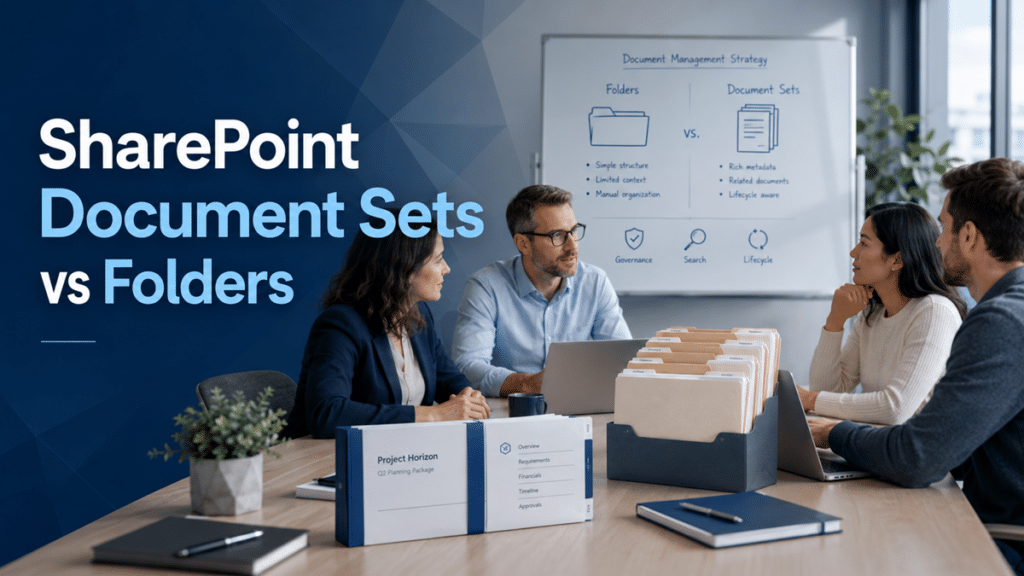
Should you use SharePoint document sets or folders? The answer depends on the business process behind the documents. Folders can organize simple files. Metadata can describe content across views. Document Sets help when a repeatable work product includes several related documents that need shared context, governance, and lifecycle control.
Quick Answer: SharePoint Document Sets vs Folders
SharePoint folders work best for simple organization. They give users a familiar place to store related files, especially when the structure is shallow and the content does not need much governance.
SharePoint Document Sets work best when several documents belong to one repeatable work product. A contract package, audit file, policy set, employee case file, client deliverable, or project closeout packet may need shared metadata, default documents, a consistent content type, and lifecycle rules.
The best SharePoint design answer is not “folders are bad” or “Document Sets are always better.”
A stronger answer is this:
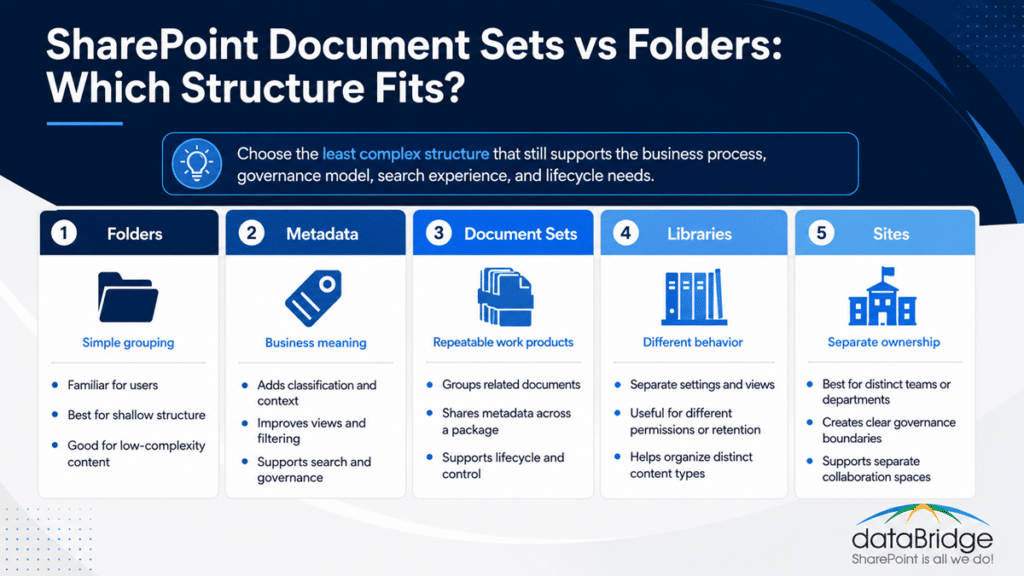
Use the least complex structure that still supports the business process, governance model, search experience, and lifecycle requirements.
That distinction matters. A folder gives users a container. A Document Set gives the organization a governed work product.
For the broader document management model behind this decision, start with the SharePoint Document Management System guide.
Why This Comparison Matters
Many SharePoint teams face the document sets vs folders question during a migration, intranet redesign, document control effort, or metadata cleanup project.
That is usually the right time to ask it.
When the decision happens too late, teams often recreate old shared drive folders inside SharePoint. At first, that feels comfortable. Over time, the structure becomes harder to search, govern, automate, and trust.
In dataBridge SharePoint document management projects, the issue is rarely whether SharePoint can store the files. It can. The real question is whether the structure helps people understand what the documents are, who owns them, how they should be used, and what happens to them over time.
That is where Document Sets can help.
They are not a replacement for every folder. They are not a shortcut around metadata design either. Instead, they are a specific SharePoint design pattern for managing several related documents as one business unit.
What Is a SharePoint Folder?
A SharePoint folder is a container inside a document library. It groups files under a familiar path, much like a network drive.
Folders are easy to understand because most employees already know how to use them. That familiarity matters for adoption. When the structure is simple and the business process is informal, a folder can be enough.
Folders usually make sense when:
- Content is temporary
- Users need a simple grouping method
- The hierarchy is shallow
- The library does not require complex filtering
- Documents do not need different behavior
- Files do not need a shared lifecycle
- Search is not the primary way users will find content
- Governance risk is low
- Users already understand the folder model
- The folder structure will not keep growing without control
A folder becomes a problem when it hides too much context.
For example, a folder path may show where a document lives. It may not clearly show what the document is. It may not show the owner, review date, lifecycle status, region, client, department, retention category, or sensitivity level.
That is why folders often get weaker as scale increases.
A simple folder can help users browse. A deep folder tree can make SharePoint harder to govern.
What Is a SharePoint Document Set?
A SharePoint Document Set is a group of related documents that can be managed as a single entity. Microsoft describes Document Sets as a way to organize related documents into one view so they can be worked on and managed together. Microsoft also explains that creating a Document Set creates a content type that can be configured for a multi-document work product in its Introduction to Document Sets.
That detail is important.
A Document Set is not just a folder with a more advanced name. It connects to content types, shared metadata, default documents, allowed content types, versioning options, and a work product model.
Microsoft’s Create and manage Document Sets guidance also explains that Document Sets can be configured with default content and allowed content types. Permissions can inherit from the library or be managed uniquely when needed.
In practical terms, a Document Set is useful when a business deliverable includes more than one document and those documents should be managed together.
Examples include:
- Contract package
- Client onboarding file
- Employee case file
- Audit evidence set
- Policy and procedure set
- Board meeting packet
- Project closeout package
- Construction submittal set
- Product launch documentation set
- Legal matter file
- Grant application package
- Vendor review file
Each example has the same pattern.
The individual documents matter. The package matters more.
SharePoint Document Sets vs Folders: The Practical Difference
The difference between SharePoint document sets and folders comes down to intent.
A folder organizes files by location.
A Document Set organizes related documents around a business object, deliverable, or process.
That may sound subtle, but it changes the design.
Folders answer this question:
Where should we put these files?
Document Sets answer a better question:
What work product do these files support?
That shift matters because modern SharePoint document management is not only about storage. It is about findability, ownership, governance, lifecycle, automation, and trust.
Here is the practical comparison.
Folders are useful when:
- The structure is simple
- The process is informal
- The content does not need shared metadata
- Users mainly browse instead of filter
- Documents do not need a package-level lifecycle
- The organization wants minimal configuration
Document Sets are useful when:
- Multiple documents belong to one repeatable deliverable
- The set needs shared metadata
- The package needs default documents or templates
- The content follows a business lifecycle
- Users need one place to manage the full work product
- The organization wants more consistency across similar packages
Metadata is better than both when:
- Documents need to appear in multiple views
- Users filter content by type, status, department, client, region, or lifecycle
- The same content needs different business lenses
- Search, reporting, retention, or Copilot readiness depends on classification
- The organization needs scalable information architecture
That is why the SharePoint Metadata Strategy Guide should sit beside this decision. Document Sets can use metadata well, but they do not replace the need for a metadata strategy.
Do Not Turn This Into Another Folders vs Metadata Debate
The SharePoint document sets vs folders decision is related to folders vs metadata, but it is not the same decision.
Folders vs metadata is mainly a classification question.
Document Sets vs folders is mainly a work product question.
That distinction matters because it prevents overengineering. It also keeps the SharePoint design conversation grounded in how the business actually works.
A folder can still be useful. Metadata can still be necessary. A Document Set can still be the right answer when multiple documents need to behave like one governed package.
The real design question is this:
Does the business need a container, a classification model, or a governed work product?
Those are three different needs.
For the broader folder and metadata discussion, read Folders vs Metadata: Why This Still Matters for AI.
When Folders Are Enough
Folders are enough when users need a familiar way to group simple files and the organization does not need much behavior behind that grouping.
This is common in team collaboration areas.
For example, a department may have a library for meeting notes, planning documents, or working drafts. If the structure is small and the content is not heavily governed, folders may be the easiest option.
Folders can work well for:
- Small team libraries
- Temporary project working areas
- Low-risk collaboration spaces
- Simple archive groupings
- Informal draft collections
- Event planning materials
- Internal brainstorming documents
- Limited-use reference files
- Short-term operational files
- Content that does not need advanced filtering
The risk starts when folders become the entire information architecture.
A deep folder tree can create several problems:
- Users bury content too many levels down
- File names carry too much responsibility
- Search results lose helpful context
- Metadata becomes inconsistent or unused
- Permissions become harder to inspect
- Duplicate folders appear across teams
- Content owners cannot see lifecycle status easily
- Migration cleanup becomes harder later
- Copilot and search have weaker signals to work with
The folder itself is not the enemy.
Uncontrolled folder growth is the problem.
When Metadata Is Better Than Folders
Metadata is better than folders when documents need to be filtered, sorted, governed, searched, retained, or reused across multiple business views.
A folder places a document in one location. Metadata describes the document in multiple ways.
For example, one document may need to be understood by:
- Department
- Document type
- Business process
- Client
- Region
- Status
- Owner
- Review date
- Sensitivity
- Retention category
- Product line
- Project phase
A folder path cannot handle all of that well.
Metadata can.
This becomes especially important in larger SharePoint environments. As libraries grow, users need views that match how they work. Legal may need one view. Finance may need another. Operations may need a third. Search may need consistent refiners. Compliance may need lifecycle reporting.
That is why strong metadata design belongs inside strong SharePoint information architecture best practices.
A practical rule helps:
Use folders for simple grouping. Use metadata for business meaning.
That rule is not perfect, but it prevents many bad SharePoint designs.
When Document Sets Make Sense
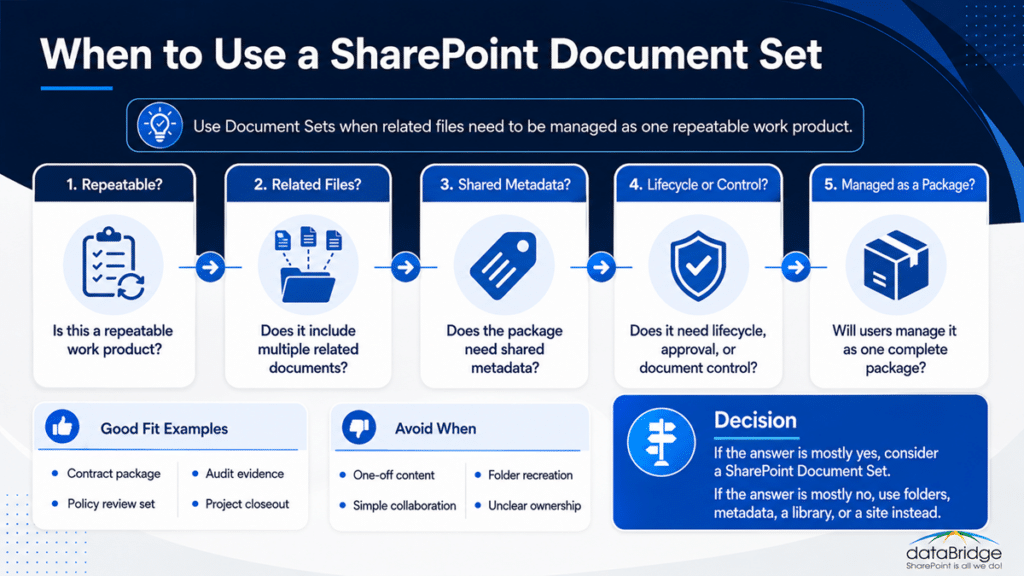
Document Sets make sense when a business process produces a repeatable set of related documents that should be managed together.
The key word is repeatable.
If every package is different, a Document Set may create more confusion than value. If the same types of documents appear again and again, a Document Set can bring useful structure to the process.
A Document Set is worth considering when:
- A deliverable includes several related documents
- The package needs shared metadata
- The work product follows a predictable process
- Users need default documents or templates
- The set needs a package-level view
- The documents should be reviewed together
- The package may need lifecycle or retention logic
- The structure should be consistent across teams
- Search should show the package context
- Document control matters
This pattern often appears in regulated or process-heavy environments.
A policy may include the policy document, approval evidence, training material, review notes, and related procedures. A client file may include an agreement, scope, onboarding checklist, requirements, correspondence, and final deliverables. An audit package may include requests, evidence, responses, sign-offs, and corrective actions.
In each case, the user is not just managing files.
They are managing a business package.
That is where Document Sets can provide structure without forcing everything into a deep folder tree.
How Document Sets Relate to Content Types
Document Sets are closely tied to SharePoint content types.
That is one of their strengths.
A content type defines a reusable kind of content with its own metadata, templates, behavior, and governance expectations. Microsoft explains that content types help provide consistency across a site by defining characteristics such as templates and metadata in its Create or customize a content type guidance.
A Document Set content type applies that idea to a multi-document work product.
For example, an organization might create a Document Set content type for:
- Client Matter File
- Contract Package
- Policy Review Set
- Audit Evidence Package
- Employee Case File
- Project Closeout Set
- Product Release Package
- Board Meeting Packet
- Vendor Due Diligence File
Each Document Set type can have its own metadata and rules.
That allows the organization to define the work product instead of relying on users to create folders manually each time.
This is also where SharePoint teams need discipline.
Content types are powerful, but too many content types create confusion. A Document Set should become its own content type only when the work product needs distinct behavior.
The dataBridge rule is simple:
Create a custom content type when the content needs to behave differently, not when someone wants a different label.
That same principle applies to Document Sets. For more guidance, read When Should You Create a Custom Content Type.
How Document Sets Support Repeatable Work Products
A repeatable work product has a predictable pattern.
It may not be identical every time, but it follows enough structure to justify a reusable model.
That is where Document Sets can help.
A Document Set can support repeatable work by giving users:
- A standard package structure
- Shared metadata across related files
- Default documents or templates
- Allowed document types
- One place to view the package
- A clearer work product boundary
- A more consistent user experience
- Better governance alignment
- More reliable search context
- A stronger lifecycle model
For example, a policy review set might include:
- Policy document
- Procedure document
- Approval record
- Review comments
- Training reference
- Effective date record
- Retention category
- Policy owner
- Next review date
A folder can hold those files.
A Document Set can define the package.
That difference matters when the process repeats across departments, regions, business units, or regulated functions.
How Document Sets Affect Document Control
Document Sets can support document control when the organization needs package-level structure.
Document control is about more than version history. It includes ownership, review, approval, effective dates, revision history, evidence, and lifecycle management.
A Document Set may help when controlled documents belong together.
For example, a controlled procedure package may include:
- Procedure
- Work instruction
- Approval evidence
- Revision notes
- Related form
- Training acknowledgment
- Audit evidence
If those files need to be reviewed or understood together, a Document Set may be useful.
However, Document Sets do not automatically create document control.
The organization still needs clear rules.
Those rules should define:
- Who owns the document set
- Which files belong inside it
- Which metadata is required
- Which versions matter
- How approvals work
- When review is required
- What happens when content expires
- How retention applies
- Who can change the structure
- How exceptions are handled
This is why Document Sets should connect to a broader SharePoint Document Control strategy.
A Document Set can support control. It cannot replace governance.
Where Document Sets Can Create Complexity
Document Sets are useful, but they are not always simple.
They add structure. That structure has to be designed, explained, governed, and maintained.
Document Sets can create problems when:
- The business process is not repeatable
- Users do not understand when to create them
- Too many Document Set content types exist
- Required metadata feels excessive
- Templates are outdated
- Permissions are handled inconsistently
- Views do not show package-level context
- Search results are not tested
- Retention rules are unclear
- Migration mapping is rushed
- Owners are not assigned
- Governance documentation is missing
The biggest mistake is using Document Sets as decorative folders.
That happens when teams create a Document Set but do not define the business logic behind it. Users then see extra clicks, extra fields, and no clear benefit.
A Document Set should make the process easier to follow.
If it only makes SharePoint harder to explain, it is probably the wrong design.
Document Sets and Permissions
Permissions deserve special care.
By default, Document Sets can inherit permissions from the library. Microsoft also notes that unique permissions can be applied to a Document Set when needed, but managing item-level or folder-level permissions can become complicated in its Create and manage Document Sets guidance.
That advice matches what we see in real SharePoint environments.
Unique permissions feel convenient at first. Later, they often become one of the hardest things to audit.
Before using unique permissions on Document Sets, ask:
- Should this content live in a separate library?
- Should this content live in a separate site?
- Does the exception happen often?
- Can groups handle the access model cleanly?
- Will site owners know how to review access later?
- Does the permissions model support Copilot readiness?
- Can the organization explain who has access and why?
A Document Set should not become a hiding place for permission exceptions.
When access differs significantly, the better answer may be a separate library, a separate site, or a clearer permission architecture.
Document Sets, Search, and Findability
Document Sets can improve findability when they are designed with metadata, views, naming standards, and search behavior in mind.
They can also hurt findability when they simply recreate old folder habits.
Search needs signals. Users need context. Content owners need clarity.
A strong Document Set design should answer:
- What should the Document Set be called?
- Which metadata appears at the set level?
- Which metadata appears on each document?
- Which fields should be searchable?
- Which views should users rely on?
- Should users find the package or the individual files first?
- How should old sets be closed, archived, or retained?
- What makes one package authoritative over another?
That last question matters.
In modern SharePoint, findability is not just about locating a file. It is about finding the right file and trusting it.
Document Sets can support that goal when they are part of a broader structure. They cannot fix weak naming, unclear ownership, poor metadata, or stale content by themselves.
Document Sets and Copilot Readiness
Document Sets can support Copilot readiness, but they are not a magic AI feature.
Copilot and SharePoint agents depend on the content environment underneath them. That environment includes permissions, metadata, content ownership, information architecture, lifecycle control, and search quality.
A well-designed Document Set may help because it gives related documents clearer package-level context.
For example, a contract package may include shared metadata for client, agreement type, status, owner, effective date, and renewal date. That context helps people understand the content. It can also strengthen the signals around the content for search and AI-assisted retrieval.
Still, the same warning applies.
A poorly governed Document Set is still poorly governed content.
AI readiness depends on trusted structure. It does not come from the container alone.
This is why Document Sets should align with taxonomy, metadata, and ownership standards. For enterprise terminology and managed metadata planning, use the SharePoint Taxonomy and Term Store Strategy guide.
A Practical Decision Framework
Use this framework when deciding between folders, metadata, Document Sets, libraries, and sites.
Use folders when the need is simple organization
Folders may be enough when:
- Users need a familiar structure
- The content is low risk
- The folder tree will stay shallow
- The documents do not need unique behavior
- The process is informal
- Governance needs are limited
- Browsing matters more than filtering
Use metadata when the need is classification
Metadata is stronger when:
- Users need multiple views
- Search refiners matter
- Reports depend on consistent fields
- Content needs lifecycle tracking
- Documents cross departments or processes
- Users need to filter by business meaning
- Copilot readiness depends on content context
Use Document Sets when the need is a governed work product
Document Sets are worth considering when:
- Several documents belong to one package
- The package is repeatable
- Shared metadata matters
- Default documents or templates help users
- The work product needs a consistent lifecycle
- Users need to manage the full set together
- Document control or audit readiness matters
Use separate libraries when the need is different behavior
A separate library may be better when:
- Permissions differ significantly
- Retention differs significantly
- Content types differ significantly
- Views need to be very different
- The library needs a separate owner
- The process is too different from nearby content
Use separate sites when the need is separate ownership
A separate site may be better when:
- A different business group owns the content
- Permissions need a clear boundary
- External sharing differs
- The content has its own lifecycle
- The process has its own governance model
- The scale justifies a distinct workspace
This decision framework keeps SharePoint architecture practical.
It also avoids the common mistake of forcing one structure to solve every problem.
Design Checklist Before You Create a Document Set
Before creating a Document Set, answer these questions.
- Purpose: What business work product does this Document Set represent?
- Repeatability: Will this same package be created often enough to justify the structure?
- Ownership: Who owns the Document Set after creation?
- Documents: Which files belong inside the set?
- Templates: Should any default documents be created automatically?
- Metadata: Which fields apply to the full set?
- File metadata: Which fields apply to individual documents?
- Content types: Which document types are allowed inside the set?
- Naming: How should each Document Set be named?
- Views: Which views will users need most?
- Search: Should users find the set, the files, or both?
- Permissions: Will the set inherit library permissions?
- Lifecycle: When does the set move from active to closed?
- Retention: Which retention or records rules apply?
- Governance: Who can create, edit, close, or archive the set?
- Training: Will users understand why this is not just a folder?
The best Document Set designs start with business questions, not SharePoint settings.
That small distinction has a large impact.
Example: Policy Review Document Set
A policy review process is a strong Document Set candidate when the organization needs to manage several related items together.
A policy review Document Set might include:
- Policy document
- Procedure document
- Approval record
- Review notes
- Training reference
- Effective date record
- Related forms
- Prior version reference
- Audit evidence
- Communication plan
The Document Set metadata might include:
- Policy owner
- Department
- Policy category
- Effective date
- Review date
- Approval status
- Sensitivity level
- Retention category
- Published status
- Related regulation
This model gives users a complete package.
It also gives compliance, legal, operations, and leadership a clearer way to understand the policy lifecycle.
A folder can store the same files. A Document Set can define the business object.
That is the difference.
Example: Client Project Document Set
A client project package may also fit the Document Set model.
For example, each client project might include:
- Statement of work
- Requirements document
- Design notes
- Meeting summaries
- Approval records
- Delivery checklist
- Change requests
- Training material
- Final deliverables
- Closeout notes
The shared metadata might include:
- Client name
- Project name
- Project owner
- Delivery phase
- Start date
- Close date
- Status
- Industry
- Service line
- Confidentiality level
This structure helps the team manage the package consistently.
It can also improve search because the project context travels with the work product.
However, this model only works if the organization governs it. If every team creates its own version, the value drops quickly.
Example: Audit Evidence Document Set
Audit evidence often needs structure.
An audit package may include requests, responses, supporting files, screenshots, approvals, remediation notes, and final sign-off. These items may come from different owners, but they need to be reviewed as one package.
A Document Set can help when each audit package needs:
- Shared audit period
- Control owner
- Evidence type
- Request status
- Response date
- Reviewer
- Remediation status
- Final disposition
- Retention category
This structure can improve control and reduce confusion.
Still, the design should be tested carefully. Audit content may have stricter permissions, retention rules, or records requirements. In that case, a separate library or site may be more appropriate.
The container should follow the governance need.
It should not drive it.
Migration Considerations: Do Not Convert Every Folder Into a Document Set
A SharePoint migration often exposes the document sets vs folders question.
Legacy file shares usually contain years of folder logic. Some folders represent departments. Some represent projects. Others represent clients, years, statuses, regions, document types, or personal filing habits.
Not every folder deserves to become a Document Set.
During migration planning, classify folder patterns into four groups:
- Keep: Simple folders that still make sense
- Flatten: Folders that should become metadata
- Convert: Repeatable work product folders that may become Document Sets
- Retire: Old or duplicate folders that should not migrate
This step prevents overengineering.
For example, a folder named “2025” may be better as metadata. A folder named “Policies” may be better as a library or content type. A folder named “Client ABC Contract Package” may be a Document Set candidate.
The strongest migration designs do not copy the folder tree blindly. They translate legacy structure into better SharePoint architecture.
For a deeper migration-focused approach, read How to Map Legacy Folder Structures to Metadata in SharePoint.
Governance Rules for Document Sets
Document Sets need governance rules before they scale.
Without rules, users may create inconsistent packages, skip metadata, upload the wrong document types, or use Document Sets where a simple folder would have worked better.
A practical governance model should define:
- When users should create a Document Set
- Which Document Set types are approved
- Who can create new Document Set content types
- Which metadata fields are required
- Which document templates are approved
- Which content types are allowed inside each set
- How naming conventions should work
- Whether permissions can break inheritance
- How closed sets should be handled
- How archived sets should be retained
- Who reviews usage and cleanup
- How users are trained
Governance should also keep the model simple.
A Document Set strategy with five clear patterns usually works better than one with thirty patterns nobody understands.
More structure is not always better structure.
The goal is useful control.
Common Mistakes With Document Sets
Document Sets fail when they solve a technical preference instead of a business problem.
The most common mistakes include:
- Treating Document Sets as upgraded folders
- Creating too many Document Set types
- Requiring metadata that nobody uses
- Ignoring library and site architecture
- Forgetting lifecycle rules
- Allowing unique permissions everywhere
- Skipping user training
- Failing to test search results
- Forgetting records and retention
- Migrating old folder problems into new Document Sets
- Creating templates without assigning owners
- Letting content types grow without governance
One mistake deserves special attention.
Do not create Document Sets because they feel more advanced.
Create them because the work product needs them.
That is the difference between architecture and decoration.
Best Practices for SharePoint Document Sets
Use these best practices when Document Sets are the right fit.
- Start with the business process before configuring SharePoint.
- Name each Document Set type after a real work product.
- Keep the number of Document Set types limited.
- Use shared metadata only where it creates clear value.
- Define which document types belong inside each set.
- Use default documents only when they reduce user effort.
- Keep permissions inherited unless there is a strong reason.
- Create views that show both active and closed work products.
- Align Document Sets with retention and records rules.
- Test search results before broad rollout.
- Train users on when to use folders, metadata, and Document Sets.
- Review usage after launch and simplify where needed.
A good Document Set model should feel obvious to users.
If users need a long explanation, the design may be too complex.
Where dataBridge Usually Sees the Best Fit
In dataBridge engagements, Document Sets tend to work best when the organization has repeatable document packages and a real need for governance.
The strongest fits usually include:
- Regulated document control
- Policy management
- Client deliverables
- Legal matter files
- Audit packages
- Vendor onboarding
- Contract management
- Quality management
- Project closeout
- Board or committee documentation
The weakest fits usually include:
- Informal team collaboration
- Personal working files
- Random uploads
- Deep legacy folder trees
- One-off document collections
- Libraries with unclear ownership
- Processes without lifecycle rules
- Content that should really be separated by site or library
That experience points to a simple principle.
Document Sets work best when the business already thinks in packages.
They work poorly when SharePoint is being asked to create order that the business has not defined.
The Best Structure May Use All Three
The best SharePoint document management design may use folders, metadata, and Document Sets together.
For example, a library might use:
- Metadata to classify documents by department, type, status, and lifecycle
- Document Sets to manage repeatable contract packages
- Simple folders for temporary working drafts
- Views to separate active, closed, and archived content
- Content types to define different document behaviors
- Taxonomy to keep terms consistent across libraries
That combined model is often stronger than a rigid rule.
Folders are not always wrong. Metadata is not always enough. Document Sets are not always worth the complexity.
The design should match how the organization works.
That is the heart of modern SharePoint architecture.
Need help deciding whether folders, metadata, Document Sets, libraries, or sites are the right fit for your document management environment? Contact dataBridge to talk through the structure before your team builds around the wrong pattern.
Final Recommendation
Use folders when the need is simple and the structure will stay manageable.
Use metadata when content needs business context, filtering, reporting, search refinement, governance, or AI readiness.
Use Document Sets when a repeatable work product includes multiple related documents that should be managed together.
The best answer is not based on a SharePoint feature preference. It is based on the business process, user behavior, governance requirements, lifecycle model, and search experience.
That is the difference between storing documents in SharePoint and designing a real SharePoint document management system.
Frequently Asked Questions
Are SharePoint Document Sets better than folders?
SharePoint Document Sets are better than folders when multiple related documents need to be managed as one repeatable work product. Folders are still useful for simple organization. Document Sets add value when shared metadata, templates, allowed content types, package-level context, or lifecycle control matter.
Should every SharePoint folder become a Document Set?
No. Every folder should not become a Document Set. Many folders are simple containers and should stay simple. Document Sets should be used only when the folder represents a repeatable business package that needs shared metadata, governance, and lifecycle control.
Are Document Sets the same as metadata?
No. Document Sets and metadata are different concepts. A Document Set groups related documents into a managed package. Metadata describes content so users can filter, search, govern, and understand it. A strong Document Set design usually uses metadata, but it does not replace a metadata strategy.
When should I use metadata instead of a Document Set?
Use metadata instead of a Document Set when documents need classification but do not need to be managed as a package. For example, document type, department, region, owner, status, review date, and retention category are metadata decisions. They do not automatically require a Document Set.
Do Document Sets replace document libraries?
No. Document Sets live inside document libraries. They do not replace libraries. A library still provides the broader container, permissions model, views, content types, versioning settings, and governance context. A Document Set can organize a repeatable package within that library.
Do Document Sets help with Copilot readiness?
Document Sets can support Copilot readiness when they improve structure, metadata, ownership, and content context. They do not make content AI-ready by themselves. Copilot readiness still depends on clean permissions, trusted content, strong metadata, lifecycle control, and well-designed information architecture.
When should I avoid Document Sets?
Avoid Document Sets when the process is not repeatable, users only need simple folders, metadata alone solves the problem, permissions differ too much, or the structure would be hard to explain. A Document Set should reduce confusion. If it adds complexity without business value, it is the wrong design.
How do Document Sets relate to content types?
A Document Set is connected to SharePoint content types. A Document Set content type can define the metadata, allowed content types, default documents, and settings for a specific multi-document work product. That makes Document Sets useful when a repeatable package needs consistent behavior.
Can Document Sets support document control?
Yes. Document Sets can support document control when related controlled documents need to be managed together. They may help organize policy packages, procedure sets, audit evidence, or project closeout records. However, document control still requires ownership, review rules, versioning standards, approval processes, and retention planning.
What is the simplest rule for choosing between folders, metadata, and Document Sets?
Use folders for simple grouping. Use metadata for business meaning. Use Document Sets for repeatable multi-document work products. When the structure needs separate ownership, permissions, or lifecycle rules, consider a separate library or site instead.
Reviewed By

Author
-

Michael is the Founder and CEO of dataBridge, where he helps organizations approach SharePoint and Microsoft 365 with a stronger focus on strategy, governance, architecture, and long-term business value. His consulting-first perspective shapes how clients plan smarter, avoid costly missteps, and build digital workplaces that hold up over time.