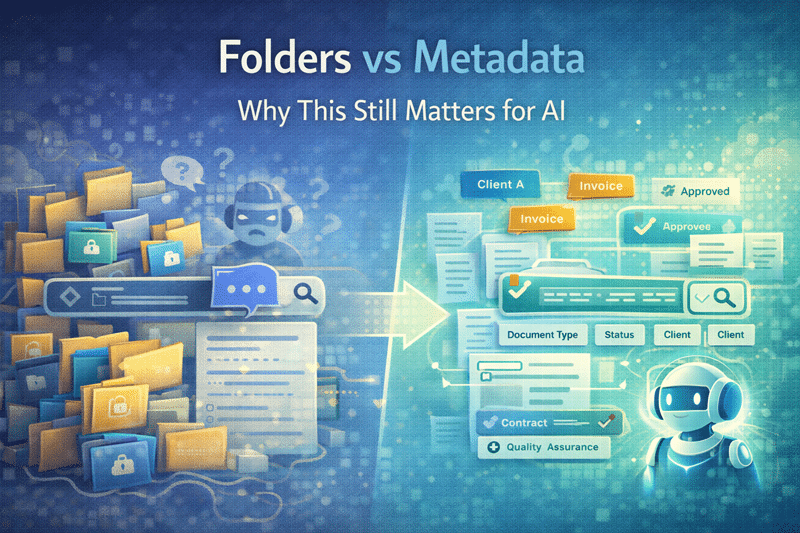
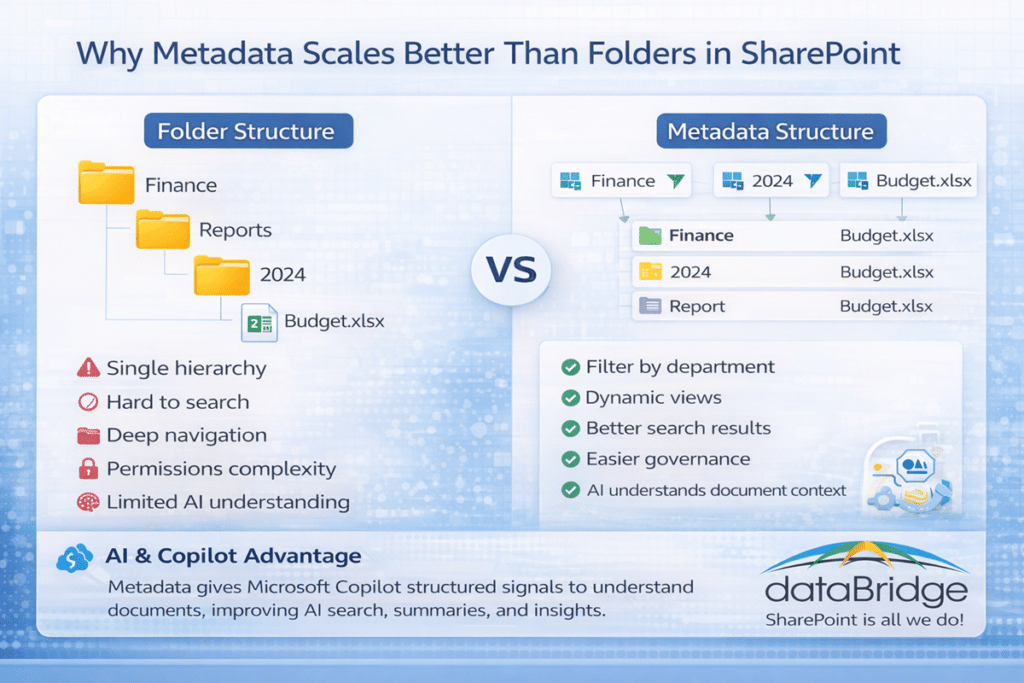
By contrast, metadata provides context.
Instead of forcing content into a single hierarchy, metadata allows files to be:
- Categorized without duplication
- Filtered dynamically
- Viewed in multiple ways
- Understood more accurately by AI
Because metadata describes what a document is—not just where it lives—it scales far better than folders alone. This is a core principle of SharePoint Information Architecture & Metadata design.
That principle is central to a modern SharePoint Document Management System, where classification, search, permissions, and governance all depend on structured metadata rather than folder depth.
Why Folder-Heavy Libraries Become Hard to Govern
Folder-heavy libraries usually age poorly.
At first, they feel organized because they mirror the old file share. Then the business changes. Departments reorganize. Project names change. People leave. New folders are added to solve local problems. Old folders remain because no one is sure whether they can be removed.
Eventually, the structure becomes something only a few long-time users understand.
That creates governance problems.
Permissions become harder to review because access may be applied at several folder levels. Content owners become unclear because responsibility is tied to an old department or project. Review cycles get missed because the folder path does not tell anyone when the information should be checked. Duplicate content spreads because users are not sure which location is authoritative.
This is where SharePoint often starts to feel messy, even when the technology is working exactly as configured.
It is also the moment people wrongly conclude the platform is the problem, which is why we wrote a full breakdown of is SharePoint a good document management system.
A SharePoint Governance Framework should address this before the library becomes difficult to clean up. Governance is not only about policies. It is about making ownership, structure, permissions, and lifecycle decisions visible enough to manage.
Why This Matters More With AI
AI raises the cost of weak structure.
Microsoft 365 Copilot and SharePoint agents work from the information environment they are given. If SharePoint contains duplicate files, stale policies, vague ownership, loose permissions, and inconsistent document structures, AI experiences may reflect that confusion.
Copilot does not magically know that the newer file is the approved version if the environment does not make that clear.
It does not decide that an old policy should be ignored because a better one exists somewhere else.
It does not repair a folder structure that has lost its business meaning.
That is why Copilot Readiness for SharePoint depends on more than licensing or enablement. AI readiness depends on content quality, permissions, metadata, ownership, search, governance, and lifecycle discipline.
Folders may help users browse.
Metadata helps the environment explain itself.
A Practical Example: The Policy Library
Consider a policy library.
A folder-based approach might organize documents like this:
HR → Policies → Current
HR → Policies → Old
Operations → Policies → Current
Operations → Policies → Drafts
Compliance → Policies → Approved
At first, that seems clear enough.
Then someone needs to find all policies due for review this quarter. Another person wants only approved policies. A department head wants policies owned by their team. Compliance wants anything marked confidential. Copilot needs to work from the current, approved source.
The folder path is not enough for those questions.
A metadata-based policy library can track document type, department, policy owner, review date, approval status, audience, sensitivity, and lifecycle stage. Users can still have simple views that feel familiar, but the library now has enough structure to support search, governance, reporting, and AI.
The user does not need to know where every document sits.
SharePoint can help surface the right documents because the content has been described properly.
Folders vs Metadata in Plain Terms
The difference is not complicated.
Folders answer: Where did someone put this?
Metadata answers: What is this, who owns it, how should it be used, and how should SharePoint handle it?
That distinction becomes important when a library grows beyond a small team. Once multiple departments, owners, audiences, content types, and security needs are involved, location alone is too fragile.
A folder might tell you a document is in the “Contracts” area.
Metadata can tell you it is a vendor contract, owned by procurement, tied to a renewal date, marked confidential, approved by legal, and due for review in six months.
That is the kind of information a mature SharePoint Document Management System needs in order to support the business over time.
Metadata Also Helps Permissions Make More Sense
Metadata does not replace permissions.
It does help people understand them.
In a folder-heavy library, teams often use folders as a security workaround. One folder is for leadership. Another is for finance. Another is for project managers. Then a few exceptions get added. Later, someone creates a folder inside a folder with different permissions. After enough exceptions, no one is fully confident who can see what.
That pattern is common.
It is also risky.
A better design separates the security model from the browsing experience. Some content may need a separate site or library because the audience is genuinely different. Other content may belong in the same library but should be filtered, grouped, or displayed through metadata-driven views.
The key is to make that decision intentionally.
That is why metadata design connects naturally to the SharePoint permissions guide. Findability, ownership, and security are connected. They should not be designed in isolation.
Metadata Should Not Become a Burden
Bad metadata is almost as frustrating as no metadata.
When users have to fill out too many fields, guess between unclear choices, or select values that do not match the way they work, adoption drops quickly. People upload fewer documents. They pick the first value in the list. They ask for folders again because folders feel faster.
A good metadata model is not the biggest one.
It is the one people will actually use.
Start with the fields that matter most. Document type is often useful. Department or business area may be useful. Owner, review date, status, and sensitivity can be important in governed environments. Other fields should earn their place.
The question should always be practical.
Will this field help users find content, manage risk, trigger a process, clarify ownership, support reporting, or improve AI readiness?
When the answer is no, the field probably does not belong in the first version.
Use Defaults Wherever You Can
Metadata adoption improves when SharePoint does some of the work for the user.
Default values can help. Library-level defaults, content types, templates, document sets, Power Automate, and forms can reduce manual tagging. Deciding when a group of related files should become a managed package instead of a simple folder is its own design question — the SharePoint Document Sets vs folders comparison walks through when each one fits. A well-designed intake process can collect the right information at the moment a document is created or submitted, instead of asking someone to clean it up later.
This is where SharePoint Document Library Forms for Metadata Intake becomes useful. The more natural the intake experience feels, the less metadata feels like extra work.
That matters because users do not adopt architecture.
On high-volume libraries where those fields already live inside the documents – contracts, invoices, claims – document AI can populate those fields for you, as long as the content is repeatable enough to extract.
They adopt easier ways to get their work done.
For document types that already exist in high volume, like contracts or invoices, SharePoint Premium and document AI can go a step further and pull metadata straight out of the files, so the tagging happens without anyone filling in a field – though only when those documents follow a repeatable pattern.
The Right Answer Is Usually Balance
This is not a purity test.
Most organizations do not need to eliminate every folder. They need to stop using folders as the only way to describe, govern, and retrieve content.
A balanced SharePoint library may use a few folders where they make sense, then rely on metadata for the things folders cannot handle well. It may give users simple views for daily work while still supporting governance, search, reporting, and lifecycle controls behind the scenes.
That balance is especially useful during migrations.
When organizations move from file shares to SharePoint, the goal should not be to recreate every old folder path. Some structure may be preserved because it still helps users. Other parts should be redesigned because the old structure reflects years of workarounds.
The migration is the best time to ask better questions.
What content is still useful?
Who owns it now?
Which files should be archived?
Which document types need metadata?
Where do permissions need to be simplified?
Which libraries should become trusted sources for Copilot?
Those questions lead to a better destination than a folder copy.
Where Metadata Supports AI Readiness
AI readiness depends on whether SharePoint can provide trustworthy signals.
Metadata helps by making the environment more understandable. It can identify document types, business owners, review dates, approval status, subject areas, and lifecycle stages. Those signals support better search, clearer governance, cleaner ownership, and more reliable content experiences.
Metadata alone does not make SharePoint AI-ready.
It works alongside other controls.
Permissions must be reviewed. Stale content needs a lifecycle plan. Sensitive information should be protected. Search should return the right sources. Owners need to know what they are responsible for. Sites and libraries should have a reason to exist.
The SharePoint AI Readiness Center brings those pieces together because Copilot readiness is not one setting. It is the result of many content, access, ownership, and governance decisions working together.
How to Start Without Overcomplicating It
A metadata strategy does not have to start with an enterprise taxonomy project.
In many environments, the best starting point is one important library.
Pick a library where users struggle to find content, where documents are duplicated, where ownership is unclear, or where AI readiness matters. Review the current folders. Look for patterns. Identify the document types. Talk to the people who use the library every day.
Then define a small set of useful metadata fields.
Not twenty fields.
Maybe five.
Build views around real work. Create a current documents view. Create a review-needed view. Create a by-department view. Create a source-of-truth view. Remove clutter where possible. Keep the experience simple enough that users can understand it without reading a guide.
After that, expand the pattern.
That is often how sustainable information architecture starts. Not with a giant model. With one library that becomes easier to use, easier to govern, and easier to trust.
Questions to Ask Before Rebuilding a Folder Structure
Before copying a deep folder structure into SharePoint, slow down long enough to ask:
- Does this folder path still reflect how the business works?
- Are users browsing because search is weak?
- Are folders being used as a permission workaround?
- Which folders contain duplicate or outdated content?
- Which documents need owner, status, or review-date metadata?
- What information should Copilot or search treat as authoritative?
- Can views replace some of the folder navigation?
- Who will maintain the structure after launch?
These questions are simple, but they change the project.
They move the conversation from “where should we put the files?” to “how should this information be managed?”
That is the more important question.
The Bottom Line
Folders help people place documents.
Metadata helps SharePoint understand them.
That is why this topic still matters. Not because folders are bad. Not because every library needs an elaborate taxonomy. The real issue is that modern SharePoint environments need more context than a folder path can provide.
Search needs context.
Governance needs context.
Permissions need clarity.
AI needs trusted signals.
Users need simple ways to find the right information.
Metadata provides that structure when it is designed carefully and kept practical.
For organizations preparing SharePoint for better search, stronger governance, cleaner document management, and more reliable AI outcomes, the next step is not to remove every folder. The next step is to design a smarter information model.
Start with the SharePoint metadata strategy guide when you need the deeper planning model, or use the SharePoint Information Architecture & Metadata page when your organization needs help designing libraries, metadata, views, ownership, and governance around the way people actually work.
Reviewed By