

SharePoint Server to SharePoint Online Migration
By the time most on-premises clients call us, they have already tried to move SharePoint Server to SharePoint Online the wrong way. They treated it as a lift-and-shift – point a tool at the old farm and assume everything lands intact on the other side. The documents moved. The InfoPath forms, the SharePoint Designer workflows, the custom code, and the folder structure twelve levels deep did not.
A SharePoint Server migration to SharePoint Online is a redesign, and it has to be planned as one from the first day. The two platforms are not the same product with a newer coat of paint. The on-premises farm carried things that have no home in Microsoft 365, and a content-only tool leaves all of it behind. The farms that move cleanly are the ones where someone mapped what breaks before anyone touched a document.
SharePoint Server 2016 and 2019 support ends July 14, 2026
Both SharePoint Server 2016 and SharePoint Server 2019 reach the end of extended support on July 14, 2026. After that date, Microsoft stops shipping security updates, cumulative updates, and technical support for both versions, and there is no paid program to buy more time. SharePoint Server has no Extended Security Update option the way Windows Server does. The two supported choices are to move to SharePoint Online or to upgrade to SharePoint Server Subscription Edition.Here is the part most teams underestimate. An enterprise migration runs six to eighteen months depending on data volume and customization. Count backward from July 14 and a farm that has not started is already past the line for an unhurried cutover. The servers will not switch off on July 15 – sites will still load and databases will still mount – but every new vulnerability found after that date stays unpatched. For a regulated organization, that turns into audit findings and cyber-insurance exposure quickly.
This is why the timing conversation comes before the tooling conversation. If you are reading this in mid-2026 with a 2016 or 2019 farm still in production, the migration is no longer a project you schedule for next year.
Why a lift-and-shift breaks an on-premises SharePoint migration
A lift-and-shift breaks because SharePoint Online rejects most of what made an on-premises farm function. The content will move. The machinery around it won’t.
On-premises environments accumulate years of customization that depended on server-side access Microsoft 365 doesn’t grant. Full-trust farm solutions ran code directly on your servers, and that model doesn’t exist in the cloud. Sandboxed solutions with managed code are gone. SharePoint Designer workflows and InfoPath forms were already on Microsoft’s deprecation list, and they do not carry into a modern tenant. Custom master pages and classic branding don’t apply to modern sites at all.
So when a team runs a straight content migration and calls it done, the documents arrive but the forms people filled out every day return errors, the approval workflows stop firing, and the branded portal looks nothing like it did. The failure shows up two weeks after go-live, when the business processes that ran on top of SharePoint quietly stopped running.
What carries over to SharePoint Online, and what doesn’t
Some of your environment migrates with good fidelity. A meaningful part of it has to be rebuilt. Knowing which is which before you start is the difference between a clean cutover and a scramble.
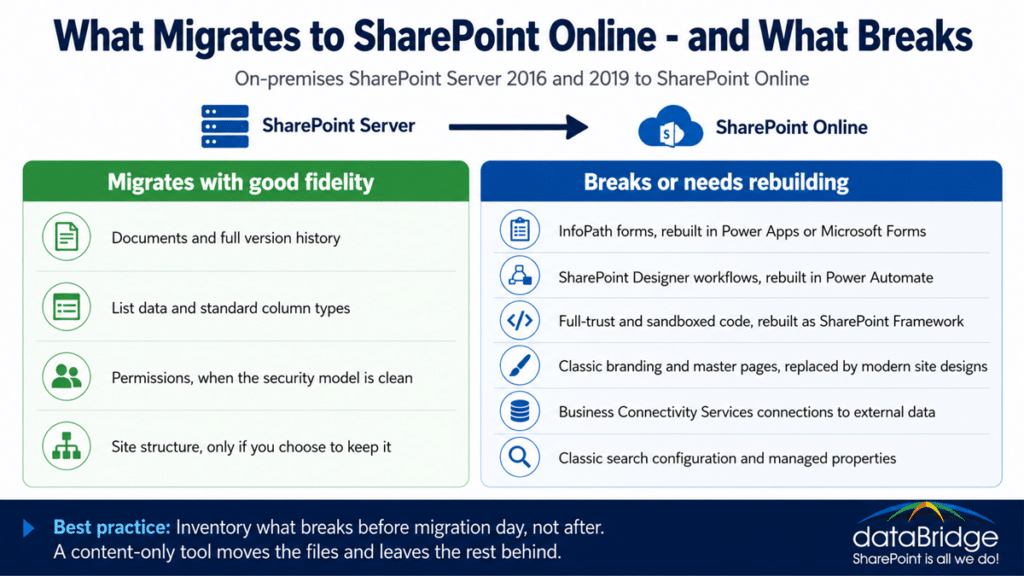
What migrates with good fidelity
- Documents and their version history
- List data and most standard column types
- Permissions, when the existing security model is clean enough to map
- Site structure, if you decide to carry it forward – and often you shouldn’t
What breaks or needs rebuilding
- InfoPath forms, rebuilt in Power Apps or Microsoft Forms
- SharePoint Designer workflows, rebuilt in Power Automate
- Full-trust and sandboxed solutions, rebuilt as SharePoint Framework components
- Classic branding and custom master pages, replaced by modern site designs
- Business Connectivity Services connections to external data
- Classic search configurations and custom managed properties
This inventory is the part most internal teams underestimate. A farm that looks simple from the admin center often has a decade of forms and workflows wired into how departments actually work. Finding that before migration day is cheaper than discovering it after.
SharePoint Online or Subscription Edition: which path fits your farm
Two supported paths exist, and they solve different problems. SharePoint Online moves you into Microsoft 365 with managed updates, native Teams integration, and no farm to maintain. SharePoint Server Subscription Edition keeps SharePoint on-premises on a supported lifecycle – it follows Microsoft’s Modern Lifecycle Policy and will not reach end of support before December 31, 2035.
Subscription Edition is the right call when you have a hard requirement to stay on-premises: a data-sovereignty rule, an integration that depends on internal systems, or a regulated workload that cannot move yet. The upgrade to Subscription Edition is a database-attach operation, a different kind of project from a cloud migration, and it keeps your existing customizations largely in place. That is its appeal and also its limit, because the customization debt comes along for the ride.
For most organizations, SharePoint Online is the stronger long-term position. You stop patching servers, you get the modern experience users already expect, and you land on the platform where Microsoft is putting its AI investment, which is what makes Copilot readiness for SharePoint reachable instead of theoretical. The tradeoff is real: the move is a content migration into a freshly structured tenant, not a database attach. That is exactly why the redesign matters.
An on-premises migration is the moment to redesign your information architecture
The migration is the one time you can fix your structure without fighting your users, because everything is moving anyway. Skip that window and you pay for it for years.
Most on-premises farms grew by accretion. Folders nested as deep as Windows would allow, sites spun up for one project and never retired, the same document living in four places. Copying that into SharePoint Online preserves every bad decision and adds cloud hosting costs on top. The better path is to redesign the architecture first, then migrate content into the new shape.
That means flattening folder depth and replacing it with metadata, so search and Copilot can actually find things. It means consolidating site sprawl into a deliberate hub structure. It means retiring dead content instead of paying to host it. We cover the underlying approach in our work on taxonomy and metadata strategy and SharePoint information architecture best practices, and the specific move from nested folders to a metadata model in our guide on how to map legacy folder structures to metadata. For organizations consolidating multiple legacy sites, the hub site architecture framework sets the target structure before a single document moves.
SharePoint 2013, 2016, and 2019 migration paths to SharePoint Online
There is no in-place upgrade from any on-premises version to SharePoint Online. Every path is a content migration into a freshly structured tenant, regardless of which server version you’re leaving.
That holds whether you’re on SharePoint 2013, 2016, or 2019. The version mostly affects how much remediation the surrounding customizations need, not whether you can skip the redesign. The SharePoint Migration Tool and Migration Manager handle direct content migration from all three versions. Larger or more complex environments usually justify a third-party platform for fidelity, throughput, and reporting at scale, plus classic-to-modern conversion as part of the move. We walk through the full sequence in the complete guide to SharePoint Online migrations. If your source is a network file server rather than a SharePoint farm, the approach differs, and our file share to SharePoint migration work covers that path.
How dataBridge runs a SharePoint Server to SharePoint Online migration
We run it as a structured program with the redesign built into the plan, not bolted on after the content lands. The sequence is deliberate.
Discovery and content inventory come first. We catalog what you have, what’s dead weight, and what’s been customized, so nothing surfaces as a surprise mid-project. Then we redesign the information architecture and agree on the target structure before anything moves. We build a remediation plan for the workflows, forms, and custom code that won’t survive the move, with a clear decision on what gets rebuilt and what gets retired. A pilot migration validates the approach against real content. The full migration then runs in waves, scheduled around how the business works, followed by validation and an adoption push so the new environment gets used instead of worked around.
You can pressure-test your own environment against this with our SharePoint migration readiness assessment, and confirm a clean cutover with the post-migration checklist. To put rough numbers around the effort before you commit, the migration ROI calculator gives you a defensible starting estimate.
Twenty years of SharePoint work has taught us that the farms which migrate cleanly are the ones where someone planned the structure before touching the content. If you’re staring down a 2016 or 2019 farm with the July 2026 deadline closing in, talk to our SharePoint migration team.
Frequently asked questions
How long does a SharePoint Server to SharePoint Online migration take?
Most mid-market and enterprise farms run as a multi-month program, commonly six to eighteen months depending on data volume and customization. Content volume affects throughput, customization affects remediation, and the structural redesign sets the planning timeline. A discovery phase gives you a real schedule instead of a guess. With end of support landing in July 2026, the practical takeaway is that a farm not yet in planning is already behind.
Can I keep running SharePoint Server 2016 or 2019 after July 14, 2026?
The farm will keep running, but it becomes unsupported. Microsoft ships no security patches, no cumulative updates, and offers no technical support after that date, and there is no paid extension to buy. Any vulnerability discovered later stays open. Regulated organizations typically face audit findings and cyber-insurance complications for running an unsupported platform, which is why most treat the date as a hard deadline rather than a suggestion.
Should I move to SharePoint Online or upgrade to Subscription Edition?
Move to SharePoint Online if you want the strongest long-term position and have no hard requirement to stay on-premises. Upgrade to Subscription Edition if data-sovereignty rules, internal integrations, or a regulated workload force SharePoint to remain on-premises. Subscription Edition keeps you supported past 2035 but carries your existing customization debt forward. SharePoint Online requires a redesign but lands you on the platform Microsoft is actively building.
Can I migrate SharePoint 2013, 2016, or 2019 directly to SharePoint Online?
There is no direct in-place upgrade from any on-premises version to SharePoint Online. All three migrate the same way, as a content migration into a newly structured tenant. The SharePoint Migration Tool and Migration Manager support direct migration from 2013, 2016, and 2019. The server version mainly changes how much remediation your customizations require, not the basic approach.
Do SharePoint Designer workflows migrate to SharePoint Online?
No. SharePoint Designer workflows do not carry into SharePoint Online and have to be rebuilt in Power Automate. Mapping each existing workflow to a modern equivalent during planning prevents business processes from breaking after go-live.
What happens to InfoPath forms?
InfoPath is deprecated and InfoPath forms do not migrate to SharePoint Online. They are rebuilt in Power Apps or Microsoft Forms, depending on complexity. Cataloging every active form during discovery is part of avoiding a post-migration scramble.
Will my customizations and branding carry over?
Full-trust farm solutions, sandboxed code, custom master pages, and classic branding do not carry into a modern tenant. Custom functionality is rebuilt as SharePoint Framework components, and branding is reapplied through modern site designs. The migration plan should account for each customization before content moves.
How much does a SharePoint Server migration cost?
Cost depends on content volume, the amount of customization that needs remediation, and how much information-architecture redesign the environment requires. A farm with clean content and few customizations costs far less to move than one carrying a decade of InfoPath forms and full-trust code. The migration ROI calculator gives you a defensible starting estimate, and a discovery phase converts that into a firm number.