
SharePoint & Microsoft 365 Updates That Impact Structure, Accessibility, and User Experience
Microsoft continues to refine SharePoint and Microsoft 365 in ways that directly affect how organizations design, govern, and support their environments. In this update, we’re highlighting several changes that impact site structure, accessibility, file management, and list usability—and more importantly, what those changes mean in practice.
Each of these updates reinforces a familiar theme: intentional design and governance matter more than ever. This is one of the many areas where our SharePoint Consulting Services help organizations move from features to strategy
SharePoint Site Limits for Lists, Libraries, and Subsites
Microsoft has clarified—and is now enforcing—limits related to the number of lists, libraries, and subsites within SharePoint environments.
As outlined in Microsoft’s SharePoint service limits, a site can contain up to 2,000 lists and libraries combined, including default and hidden libraries. Beginning in February 2023, Microsoft began enforcing these limits independently at both the root site and subsite levels.
What This Means in Practice
Under the updated enforcement model:
-
Each root site can have up to 2,000 lists and libraries
-
Each subsite can also have up to 2,000 lists and libraries
-
A site collection can include up to 2,000 subsites, including the root
However, once a site exceeds any of these limits:
-
You can no longer create new lists or libraries
-
You can no longer add new subsites if the subsite limit is exceeded
While this may sound generous, organizations that rely heavily on subsites, automated list creation, or legacy structures often hit these limits faster than expected.
Why Architecture and Governance Matter Here
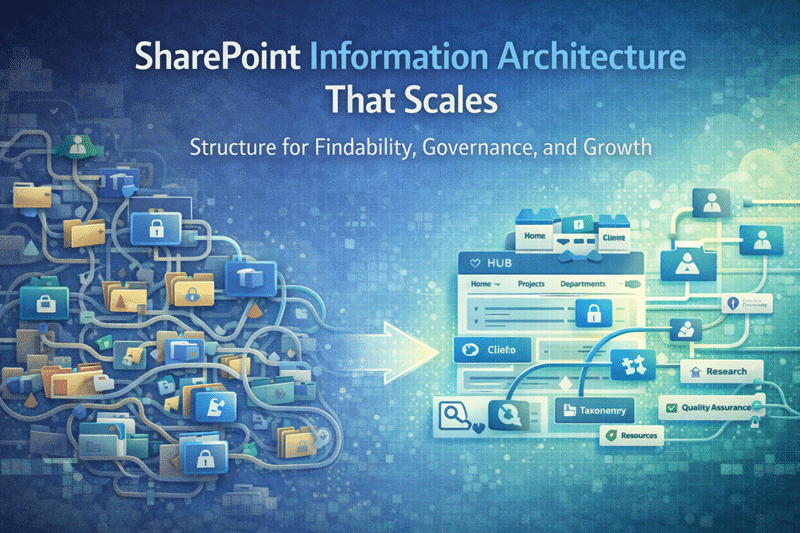
These limits highlight the importance of modern SharePoint architecture and governance. Without clear structure, sites accumulate unused libraries, outdated lists, and unnecessary subsites over time.
This is exactly why dataBridge emphasizes:
-
Intentional site and hub architecture
-
Lifecycle management for sites and content
-
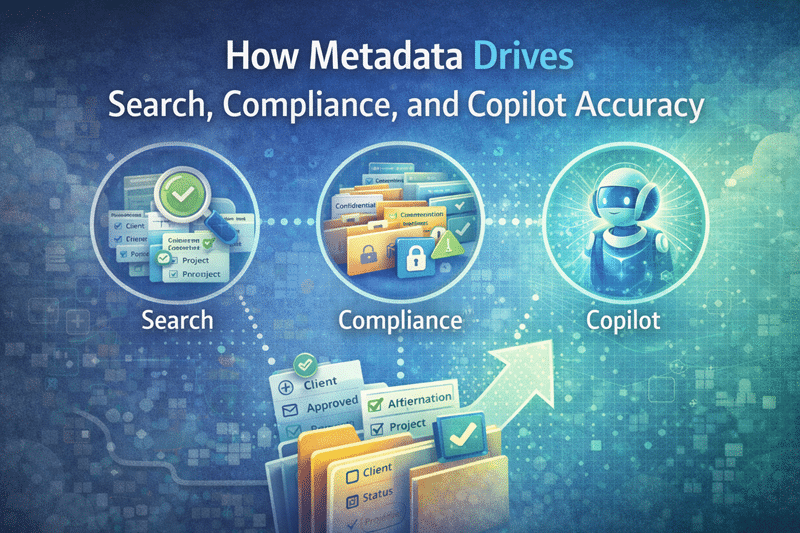
Metadata over list sprawl
If your environment is approaching these limits—or you’re unsure where you stand—this is often a signal to start with a
SharePoint Discovery & Readiness Assessment
or revisit your
SharePoint Architecture & Governance strategy.
Use Sign Language View in Microsoft Teams
Microsoft Teams has introduced Sign Language View, a new meeting experience designed to improve accessibility for users who are deaf or hard of hearing, as well as interpreters and others who use sign language.
When enabled, Sign Language View keeps up to two signers visible at all times, centered on screen, at the correct aspect ratio and highest available quality. This ensures a predictable and inclusive meeting experience—especially when interpreters are involved.
Key Highlights
-
Prioritizes up to two signers throughout the meeting
-
Maintains consistent placement and visibility
-
Works independently per user (does not affect other attendees)
-
Can be enabled during a meeting or as a persistent setting
This update reflects Microsoft’s continued focus on accessibility by design, not as an afterthought.
For organizations adopting Teams more broadly, this reinforces the need for thoughtful Microsoft 365 adoption and user enablement, which is often addressed through Microsoft 365 Adoption & Optimization and targeted training.
OneDrive: Updated Files On-Demand Settings on Windows
Microsoft has also updated the Files On-Demand settings in the OneDrive sync app for Windows.
Previously, users could toggle Files On-Demand on or off. With the new update:
-
The opt-out toggle is no longer visible for users who already have Files On-Demand enabled
-
Instead, users now see two options:
-
Download files as you open them
-
Download all files now
-
What Has (and Has Not) Changed
This update:
-
Only affects users who already have Files On-Demand enabled
-
Does not change admin-controlled policies
-
Does not affect users who have Files On-Demand disabled by policy
While subtle, this change encourages more consistent use of cloud-based storage while still giving users control over offline access.
For organizations managing storage, performance, and user expectations, these updates reinforce the importance of clear guidance and training—especially when OneDrive and SharePoint are used together.
Custom List View Inline Editing in SharePoint
SharePoint continues to enhance list usability with inline editing directly within views, supported by new JSON formatting concepts.
This capability allows organizations to:
-
Make specific fields editable directly in list or library views
-
Enable faster updates without opening full forms
-
Support scenarios like approvals, status updates, and quick actions
Examples include:
-
Dropdown-based approvals
-
Lightweight data updates
-
Custom workflows and quick links
While powerful, inline editing should be used thoughtfully. Without governance, it can introduce inconsistent data or bypass intended processes.
This is where information architecture, metadata design, and governance standards play a critical role—ensuring flexibility without sacrificing control. Learn more about this balance on our
SharePoint Information Architecture & Metadata page.
Bringing It All Together
Although these updates span SharePoint, Teams, and OneDrive, they share a common message: modern Microsoft 365 success depends on structure, governance, and intentional design.
Organizations that invest in:
-
Clear architecture
-
Practical governance
-
Thoughtful adoption and training
are far better positioned to absorb platform changes without disruption.
If these updates raise questions about your environment—or highlight existing challenges—dataBridge can help you assess where you stand and define the right next steps through a
SharePoint Discovery & Readiness Assessment.
Contact us to schedule a strategy session
Related Posts
https://getsharepoint.com/sharepoint-concierge-webinar-4/