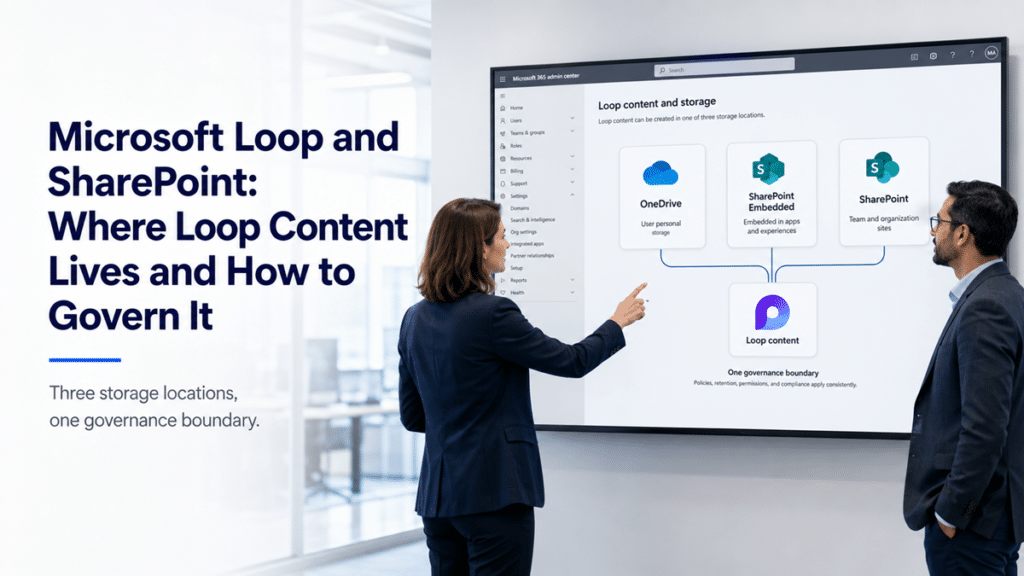
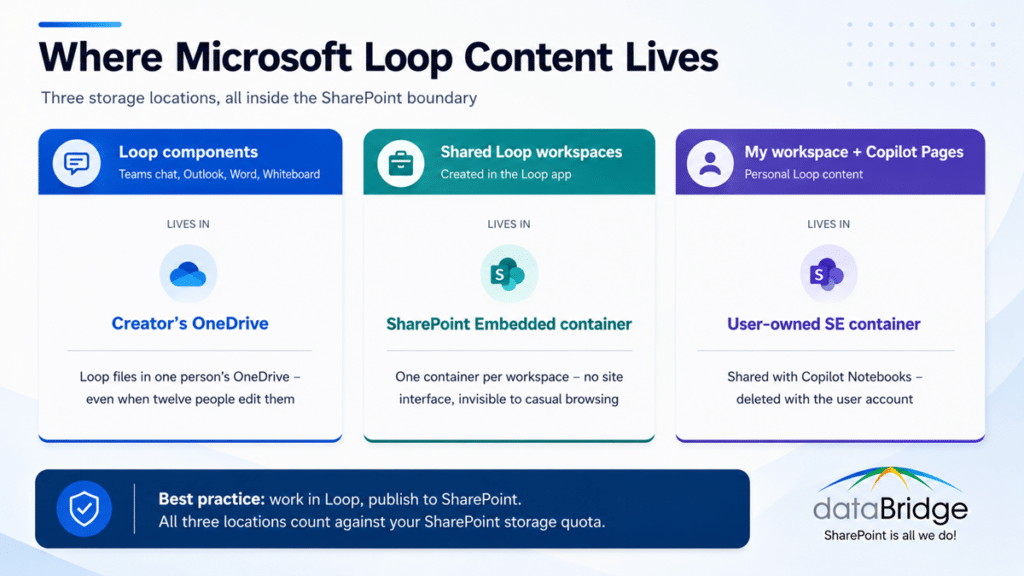
Three locations, created automatically, named in ways users never see. The person typing meeting notes believes the content lives “in Teams.” It doesn’t. Which brings us to the part that actually works in your favor.
The good news: Loop content is SharePoint content
Every one of those locations sits inside the SharePoint storage and compliance boundary. That has two practical consequences.
First, your existing compliance machinery reaches it. Data loss prevention, retention policies, eDiscovery, sensitivity labels, and conditional access all apply to Loop content in both its OneDrive and SharePoint Embedded locations. Loop is not a rogue SaaS app smuggling corporate content outside your tenant. It’s Microsoft 365 content in unfamiliar packaging.
Second, the containers are manageable with tools you already know. Admins manage Loop workspace containers much the way they manage SharePoint sites, and guest app permissions let third-party governance and migration tools reach container content for lifecycle work.
There’s also a quota angle worth knowing before it surprises you. The containers have no individual storage limits – their usage counts toward your organization’s overall SharePoint storage quota, and there’s no admin control to cap an individual container. Loop growth is SharePoint storage growth, accruing silently against the same pool your sites draw from.
The governance gaps you have to close deliberately
Inside the boundary doesn’t mean governed. Four gaps show up consistently.
Creation controls take two layers of configuration. Fully controlling Loop requires configuring both Cloud Policy and SharePoint PowerShell – Cloud Policy alone doesn’t control the Teams experiences. Plenty of organizations set one layer, believe they’re done, and keep generating ungoverned content through the layer they missed. And the Teams-related settings are blunter than the rest: most admin controls can be scoped to specific groups, but the Teams settings apply tenant-wide.
Controls govern creation, not access. Admin controls determine whether users can create new Loop content – they don’t restrict access to existing Loop files or workspaces. If a year of user-led adoption already happened, turning creation off doesn’t govern the content that exists. It just stops the clock. Existing content renders as hyperlinks instead of interactive components when creation is disabled, which degrades the experience without addressing the inventory.
Departing users take their container with them. The user-owned container is lifecycle-managed with the user account and is deleted when the account is deleted. Personal Loop workspaces and Copilot Pages vanish on the same schedule as the departing employee’s OneDrive. If anything in there was actually a team’s working knowledge, it leaves when they do – unless your offboarding process knows to look.
Nobody owns the inventory. Workspaces multiply the way Teams teams once did, except without even a visible site list to prompt the question. The sprawl problem that Teams governance finally taught organizations to manage has a new front, one container at a time.
Loop is a working canvas – SharePoint is the record
Storage and policy are half of Microsoft Loop governance. The other half is deciding what Loop is for, because users will decide for you otherwise.
Loop is genuinely good at the messy middle of work: live notes, rolling task lists, drafts that four people shape at once. What it must not become is the place where finished knowledge lives. A policy, a runbook, or a decision that matters can’t have its permanent home in a personal container that evaporates with someone’s account, any more than a Teams chat thread can be a file system. Finished content belongs where the organization has one governed source of truth: SharePoint sites and pages, with ownership, permissions, and lifecycle that page governance actually covers.
The boundary we give clients is one sentence: work in Loop, publish to SharePoint. Same division of labor that separates SharePoint and Teams – collaboration surface on one side, system of record on the other. Loop just adds a third surface to the same rule.
A practical starting point for Microsoft Loop governance
If Loop adoption already outran your policy – and it almost certainly did – this sequence closes the gap without punishing the users who adopted it:
- Decide your stance before touching settings. Allow, allow-with-rules, or pause new workspaces while you catch up. Pausing creation is reversible; it buys planning time without deleting anything
- Configure both policy layers. Cloud Policy and SharePoint PowerShell together, scoped to the groups you intend – remembering the Teams settings apply tenant-wide
- Fold the containers into your lifecycle process. Inventory what exists in the SharePoint admin center, assign ownership for shared workspaces, and treat orphaned containers the way you treat ownerless sites
- Add the departing-user check to offboarding. Before an account is deleted, someone confirms whether the personal container holds anything the team needs moved to durable storage
- Publish the one-sentence rule. Work in Loop, publish to SharePoint – communicated where users will actually see it, not buried in a policy document
None of this is exotic. It’s the same governance discipline you already apply to sites and Teams, extended to a storage location Microsoft created faster than most organizations noticed. If you’re building that discipline from scratch, our SharePoint governance resources cover the framework these steps plug into.
FAQ
Where is Microsoft Loop content stored?
In three places, depending on where it was created. Loop components from Teams chats, Outlook, Word for the web, or Whiteboard are stored as files in the creator’s OneDrive. Shared Loop workspaces each get a SharePoint Embedded container. Personal My workspace content shares a single user-owned container with Copilot Pages and Copilot Notebooks. All three sit inside SharePoint storage and count against the organization’s SharePoint quota.
Is Loop content covered by retention, DLP, and eDiscovery?
Yes. Because Loop content is stored in OneDrive and SharePoint Embedded, Microsoft Purview compliance controls reach it – retention policies, DLP, eDiscovery, sensitivity labels, and conditional access. Coverage details vary by storage location and continue to evolve, so verify the specifics for any control your compliance posture depends on.
Can we turn Microsoft Loop off?
You can disable creation of new Loop content using Cloud Policy plus SharePoint PowerShell – both are required, and the Teams settings apply tenant-wide. Disabling creation doesn’t remove or restrict existing Loop content; components render as static hyperlinks instead of interactive canvases. Governing what already exists is a separate, deliberate effort.
What happens to Loop content when an employee leaves?
The user-owned container – personal My workspace plus Copilot Pages and Notebooks – is lifecycle-tied to the account and is deleted when the account is deleted. Shared workspace containers survive, but workspaces whose only owners have left become orphans. Both cases belong in your offboarding checklist.
Does Loop replace SharePoint pages or OneNote?
No. Loop is a working canvas for in-progress collaboration. SharePoint pages remain the governed destination for finished, findable content with ownership and lifecycle. Treat Loop as the drafting surface and SharePoint as the record – the organizations that skip that rule end up with knowledge scattered across containers that nobody can search, govern, or trust.
Reviewed By