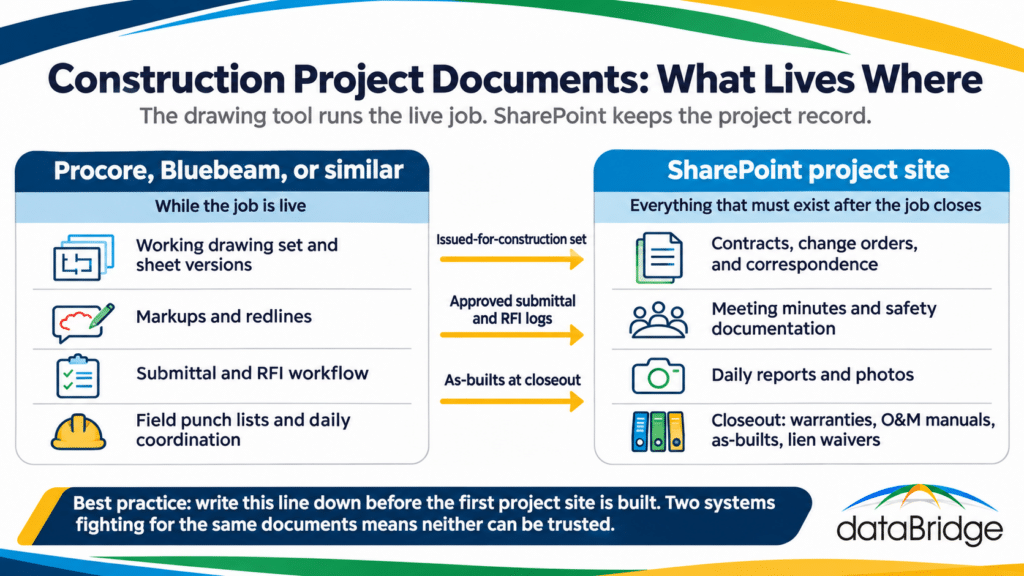
So the line is: the drawing tool owns the working drawing set and the field workflow. SharePoint owns everything that has to exist after the job closes, and it holds milestone copies of what the drawing tool produced, such as the issued-for-construction set, the approved submittal log, the final RFI log, and the as-built drawings at closeout. The project manager should be able to open one site and see the contract, the change orders, the correspondence, and the closeout status without logging into anything else.
Writing that line down is worth more than any configuration. Without it, the two systems fight for the same documents and both lose.
One site per project, provisioned from a template
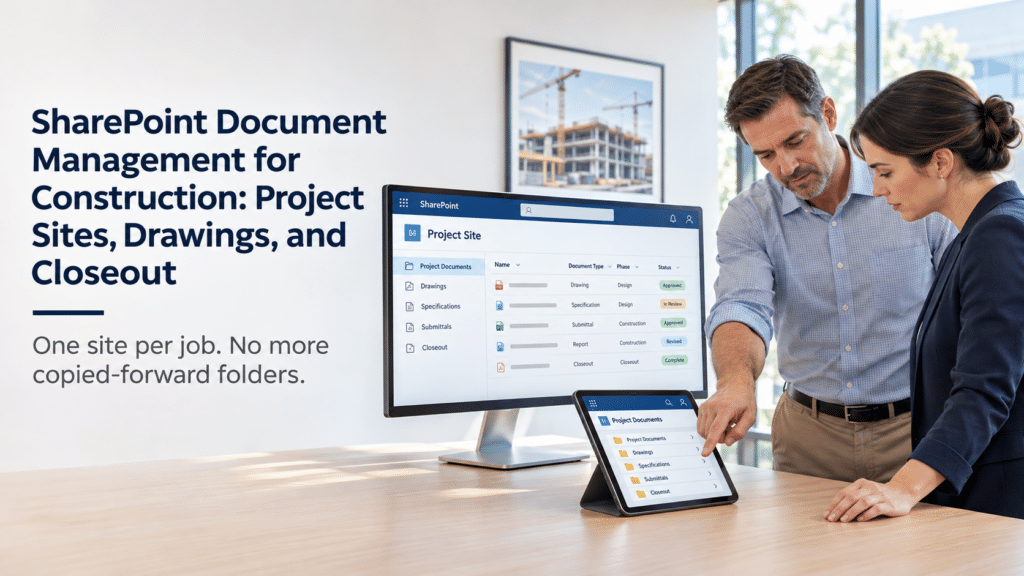
Each job gets its own SharePoint site, created from a standard template the moment the project number is issued, with the libraries, metadata, views, and permissions already in place. The template replaces the copied-forward folder tree, and site provisioning replaces the person who used to do the copying.
A per-project site does several things a shared folder tree cannot. It gives the job its own permission boundary, so a subcontractor invited to one project cannot see the others. It connects to a Team if the firm runs project communication in Teams, which puts files and chat in the same place for the field. It can be archived as a unit when the job closes, with its own retention rule. And it shows up in search as a project rather than a folder named with a number only the PM remembers.
The template is where the 40 subfolders go to die. Instead of a folder for every document type the firm has ever produced, the project template carries a small set of libraries, usually four or five, each with metadata columns that do the sorting:
- Project record: contracts, change orders, correspondence, meeting minutes
- Submittals and RFIs: milestone copies and logs exported from the drawing tool
- Field and safety: daily reports, photos, toolbox talks, incident documentation
- Closeout: warranties, O&M manuals, as-builts, final lien waivers, punch list sign-offs
- Financial, if the firm wants it separated from the project record for permission reasons
The SharePoint site provisioning strategy post covers how to make site creation a request-and-approve process rather than a free-for-all. For firms with many short jobs, a document set per project inside a shared library can replace the per-project site; the SharePoint document sets vs folders post explains when each fits.
Metadata instead of 40 empty subfolders
The copied-forward folder tree exists because file servers have no other way to classify a document. SharePoint does, and a handful of metadata columns on each project library replace most of the tree while making the documents findable in ways folders never allowed.
The columns that matter for a construction project library are short:
- Document type (contract, change order, RFI, submittal, daily report, photo, warranty)
- Phase (preconstruction, construction, closeout)
- Discipline or trade, where it applies
- Status (draft, issued, approved, superseded)
- Date issued, as a real date column rather than a folder named 2025-03
With those in place, “every approved submittal for the mechanical trade” is a filter, and “everything issued in March” is a sort. On the file server those were two separate folder structures that could not coexist, so the firm picked one and lost the other. Our SharePoint metadata strategy guide covers how to decide on the columns and keep the list short enough that people actually fill them in.
Folders do not vanish entirely. A job with 4,000 photos benefits from a folder per month, and some firms keep a shallow folder level by trade for people who refuse to use filters. The rule is that folders go two levels deep at most and metadata does the rest. The legacy folder-to-metadata mapping post walks through how to turn the existing 40-folder tree into those columns when the historical projects move over.
Field access without emailing PDFs
Superintendents email PDFs to the field because the file server does not open on a phone, and the fix is that SharePoint does. The SharePoint and Teams mobile apps open project libraries directly, OneDrive sync puts a project library on a laptop in the trailer with offline access, and a Teams-connected project site means the daily report can be filed from the same app the crew uses to message the office.
Two things make field access work in practice. The first is that the project site has to be simple enough to use on a five-inch screen: a short library list, a default view that shows document type and status, no nested folders to drill through, and nothing that requires a mouse. The second is permissions. Field staff need to add daily reports and photos without being able to edit the contract, which is a library-level permission decision made once in the template.
External access is the other half of field reality. Subcontractors, owners, architects, and inspectors need to see specific documents on specific projects. Per-project sites make that possible without exposing the rest of the firm, and the SharePoint external sharing governance post covers how to set the rules so a guest invited in March is gone by the time the job closes.
Closeout from one place
Closeout assembled by hand from six places is the direct cost of the scattered setup, and it is the part of the project where SharePoint pays for itself fastest. When every closeout document has been filed to the project site with Document type and Phase set, the closeout package is a filtered view of the project, and assembling it means checking that view for gaps rather than hunting across systems.
The closeout library in the project template carries its own columns: deliverable type (warranty, O&M manual, as-built, lien waiver, certificate), responsible subcontractor, received date, and a status that tracks outstanding versus received versus accepted. A view filtered to “outstanding” is the closeout punch list, and it has been building itself since the first warranty arrived instead of being compiled in the last two weeks.
As-builts come over from the drawing tool at this stage as the final milestone copy. The warranties and O&M manuals come from subcontractors through the external sharing model above. When the owner asks for the closeout package, it is the closeout library exported to a folder or shared as a read-only link, with every document already named and classified.
After handover, the project site is archived under a retention rule that matches the firm’s statute-of-repose exposure, and it stays searchable. Three years later, when a warranty claim comes in, the project is one search away rather than a restored backup.
Document control and contracts
Two document types in construction need more control than the rest: anything that has to be the single approved version, and anything with a contractual life of its own.
Specifications, safety procedures, quality plans, and firm-wide standards need approval before publishing and a clear superseded state when they change. The SharePoint document control post covers the configuration, and our document control migration case study shows what that looks like when a controlled library moves from a legacy system.
Contracts and change orders are their own problem. They have dates, counterparties, values, and amendments, and they are the first thing a lawyer asks for. The SharePoint contract management post covers how to hold them so the executed version, its amendments, its exhibits, and the correspondence that modified it stay together.
Where SharePoint is the wrong answer
SharePoint should not be the live drawing viewer, should not replace a field-management tool the superintendents already use well, should not go live without someone who owns the template afterward, and is a bad fit for a firm that will not commit to that template. If every PM is allowed to build their own site structure, you have rebuilt the copied-forward folder tree with a better logo.
The other honest case is Egnyte. Construction firms often arrive with Egnyte in place, and Egnyte does a good job of being a cloud file share that works on a phone. If that is all the firm needs, it is a reasonable choice. The case for SharePoint is the metadata, the per-project permission boundary, the Teams integration, and the closeout model above, none of which a file share provides. We lay out the comparison in Egnyte vs SharePoint.
Where to start
Start with the project template, because every job that opens without it is another 40-folder tree to migrate later. Define the libraries, the metadata, the permissions, and the line between SharePoint and the drawing tool. Provision one live project from it, run it through closeout, and fix what the PM complains about. Then make it the default.
Historical projects can move over afterward through a file share to SharePoint migration that maps the old tree to the new columns, and the firm’s intranet can surface active projects, standards, safety content, and company news to the whole company, which is what our construction SharePoint intranet page covers. The general architecture behind all of it is on our SharePoint document management system page.
Frequently asked questions
Can SharePoint replace Procore for document management?
Not for the live drawing set, markups, or the field workflow while a job is active. SharePoint should hold the project record, which is everything that has to exist after the job closes, plus milestone copies of what Procore produced: the issued-for-construction set, the approved submittal log, the final RFI log, and the as-builts. The two systems do different jobs and should be set up that way deliberately.
Should each construction project have its own SharePoint site?
For most firms, yes. A per-project site gives each job its own permission boundary, connects to a Team, archives as a unit at closeout, and shows up in search as a project. Firms with many short jobs can use a document set per project inside a shared library instead.
How do we stop every project from starting with the same 40 empty folders?
Replace the copied folder tree with a site template that carries four or five libraries and a short set of metadata columns: document type, phase, discipline, status, and date issued. Folders go no more than two levels deep. The template is applied at provisioning so no one copies anything forward.
How do superintendents access project documents from the field?
Through the SharePoint and Teams mobile apps, which open project libraries directly, and through OneDrive sync for offline access on a laptop in the trailer. The project site has to be simple enough for a phone, and field staff get permissions that let them add daily reports and photos without editing the contract.
How does SharePoint help with project closeout?
Every closeout document is filed to a dedicated closeout library with deliverable type, responsible subcontractor, received date, and status. The closeout package becomes a filtered view that has been building since the first warranty arrived, and the outstanding list is the punch list. After handover the site is archived under a retention rule and stays searchable.
Is Egnyte or SharePoint better for a construction firm?
Egnyte is a good cloud file share that works on a phone. SharePoint adds metadata, per-project permission boundaries, Teams integration, and a closeout model a file share cannot provide. If the firm only needs a cloud file share, Egnyte is reasonable. If it needs project document management, SharePoint is the stronger platform, and most firms already own it.
Reviewed By