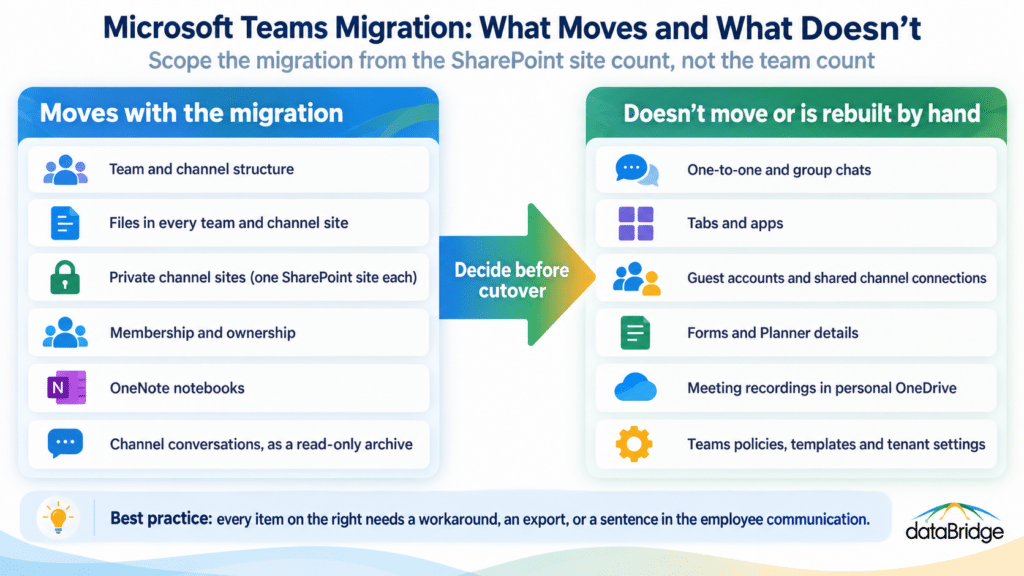
The Teams inventory a prospect hands us at the start of a migration lists every team and every standard channel, usually pulled from the admin center and pasted into a spreadsheet. Almost none of them count the private channels. Each private channel is a separate SharePoint site collection with its own permissions, its own document library and its own storage, and a tenant with 80 teams can easily be carrying 150 SharePoint sites once the private and shared channels are added up. The migration scope is understated before anyone has picked a tool, and the quote built on that inventory is wrong by the same margin.
That one miss is why Teams migrations run long more often than SharePoint-only migrations do. Teams looks like a single product in the client, but underneath it is an M365 group, an Exchange mailbox, a SharePoint site per team plus one per private or shared channel, a Planner plan, a OneNote notebook and whatever tabs and apps people bolted on. Migrating “a team” means migrating all of that, and the parts that don’t move need a decision before cutover, not after.
This checklist covers the Teams-specific mechanics. If your project is a merger or divestiture, our tenant-to-tenant migration guide covers the scenario and the sequencing; this post is the Teams layer inside it. For the SharePoint content itself, the SharePoint migration checklist is the sibling document.
What Does a Microsoft Teams Migration Actually Move?
A Teams migration moves the SharePoint sites behind each team and channel, recreates the team and channel structure in the destination, and rebuilds the membership. Everything else is case by case: channel conversations usually arrive as an archive rather than live threads, one-to-one and group chats mostly don’t come at all, and tabs, apps, Planner plans and Forms have to be reconnected by hand after the content lands. Understanding that split is the whole job, because the client sees one Teams and the tools see six different workloads.
The practical consequence is that a Teams migration plan is a SharePoint migration plan with a Teams shell rebuilt on top and a communication plan for what employees will lose. Treat it as a chat migration and the files will be fine but the structure will be a mess. Treat it as a file migration and employees will open Teams on Monday to find their conversations gone with no warning. The checklist below runs in the order the decisions have to be made.
Step 1: Inventory Every Team, Including the Ones Nobody Listed
The inventory has to count SharePoint sites, not teams, and it has to include private channels, shared channels, archived teams and orphaned teams whose owners have left. Pull the list from PowerShell or the Teams admin center with channel types broken out, then reconcile it against the SharePoint admin center’s site list, where every private and shared channel shows up as a site of its own. If the two numbers don’t match, the inventory is incomplete.
For each team, record the owners, the member count, the last activity date, the storage size of the team site and every channel site, whether guests are present, and which tabs and apps are pinned. Teams with no activity in a year and no owner are archive candidates, and that decision is cheaper to make now than after they’ve been migrated. Why Teams becomes chaotic explains how tenants end up with this sprawl in the first place; the migration is the one moment you’ll have leverage over it, so use it.
Step 2: Map Teams and Channels to the Destination
Every source team needs a destination decision: migrate as-is, merge into another team, convert to a SharePoint site with no team, or archive. Writing that decision down for every team is the design phase, and it’s where the structure either improves or gets copied forward with all its duplication intact. A tenant that grew by letting anyone create a team will have four marketing teams and two HR teams, and the migration is the cheapest point at which to consolidate them.
The mapping also has to handle naming, because the destination tenant will have its own conventions and possibly its own teams with the same names. Decide the naming standard before the tool runs, apply it in the mapping file, and make the destination M365 group names match. Our Teams consulting and governance page describes the structure we recommend; the point here is that structure gets decided in this step or it gets decided by the tool’s defaults.
Step 3: Plan the Files as SharePoint Content
Teams files are SharePoint files, so every file-side decision from a SharePoint migration applies: folder depth, path length, version history limits, link rewriting, and metadata. The Files tab in a channel is a folder in the team site’s default document library, and a private channel’s Files tab is the default library of that channel’s own site. Tools move these as SharePoint content, and the limits are SharePoint limits.
Two things trip people up here. The first is that files shared into a chat live in the sender’s OneDrive, not in any team, so if OneDrive isn’t in scope those files don’t move. The second is that links pasted into channel posts point at the source tenant’s URLs and will break at cutover unless the tool rewrites them, and most don’t rewrite links inside conversation archives. Teams is not a file system is the piece we send clients when this comes as a surprise, and it’s worth sending before the migration rather than after.
Step 4: Decide What Happens to Chats
Channel conversations can be migrated by most third-party tools, but they arrive as a read-only archive, posted into the destination channel or saved as an HTML file in the Files tab, with original authors and timestamps preserved in the text rather than as live threads anyone can reply to. One-to-one and group chats are much harder: they live in individual mailboxes, most tools don’t move them, and the ones that do are limited. Plan on channel history arriving as a record and personal chats not arriving at all.
That makes this a communication decision as much as a technical one. Employees need to know, before cutover, that their chat history will be in an archive or gone, so they export anything they need. Legal and compliance need to know whether retention obligations apply to the source chats, because an eDiscovery hold on the old tenant may be the right answer for chats that can’t move. Make the decision explicit, write it into the cutover plan, and tell people twice.
Step 5: Tabs, Apps, Planner, Forms and Loop
Tabs and apps don’t migrate; they’re reconnected by hand after the content lands, and the owner of each one has to be identified first. Planner plans are tied to the M365 group and most tools can recreate them, but check whether assignments, attachments and comments come along, because they often don’t. Forms are owned by individuals, so a form that drives a channel tab needs its owner to transfer or recreate it in the destination. Loop components in chat are stored in the sender’s OneDrive and follow the OneDrive migration, not the Teams one.
OneNote notebooks live in the team site’s library and move with the files, but the Notebook tab needs re-pinning. Third-party app tabs (Jira, Trello, Salesforce) depend on licenses and connectors in the destination tenant that may not exist. The inventory from step 1 should list every pinned tab so each one gets an owner and a reconnect task. Expect this step to take longer than the file copy for any team that has been actively used.
Step 6: Guests, External Access and Permissions
Guest users don’t migrate. They are re-invited into the destination tenant, accept new invitations and get new guest accounts, and their access to each team and channel has to be rebuilt. Shared channels are different again: they use B2B direct connect rather than guest accounts, and the cross-tenant access settings that make them work have to be configured in the destination before the shared channel is recreated. If the inventory shows guests or shared channels, this step has a lead time measured in weeks because it depends on people outside your organization responding.
Permissions inside Teams are mostly simple (owners and members) but the SharePoint sites underneath can carry unique permissions, broken inheritance and direct grants that were never visible in the Teams client. Audit the SharePoint permissions on every team and channel site before the move, decide which to carry and which to reset, and set the destination tenant’s external sharing defaults before any site lands. Our external sharing governance guide covers the settings; why Teams permissions are harder than they look covers the trap.
Step 7: Cutover, Communication and the First Two Weeks
Cutover for Teams is a people event more than a technical one. Pick a window where the source is set read-only, run the final delta sync, rebuild membership, re-pin tabs, and open the destination. Then tell employees exactly what changed: where their files are, that channel history is in an archive, that personal chats didn’t move, and which tabs they need to re-add themselves. Send that message before cutover, on the day, and again at the end of the first week.
Keep the source tenant readable for at least two weeks after cutover so people can retrieve anything the migration missed, and keep a short list of the teams most likely to generate questions (the busiest ones from the inventory) with a named person watching each. The post-migration period is where a Teams migration earns its reputation, good or bad. Our SharePoint post-migration checklist covers the file-side validation; the Teams-side validation is simpler: can every team’s owner find their files, their notebook and their Planner, and does every pinned tab open.
What Doesn’t Move in a Microsoft Teams Migration
The honest list, so nobody finds out at cutover:
- One-to-one and group chats, in most tools and most scenarios
- Channel conversations as live threads; they arrive as a read-only archive at best
- Meeting recordings stored in the organizer’s OneDrive, unless OneDrive is in scope
- Tabs and apps; they are reconnected manually
- Guest accounts; guests are re-invited and get new accounts
- Shared channel connections; B2B direct connect is configured again in the destination
- Forms, unless the individual owner transfers them
- Teams policies, templates and tenant-level settings
- Links inside conversation archives pointing at source-tenant URLs
- Wiki tabs, which Microsoft has retired; export to OneNote before migrating if any remain
Every item on this list needs either a workaround, an export, or a sentence in the employee communication saying it’s gone. None of them should be discovered after the fact.