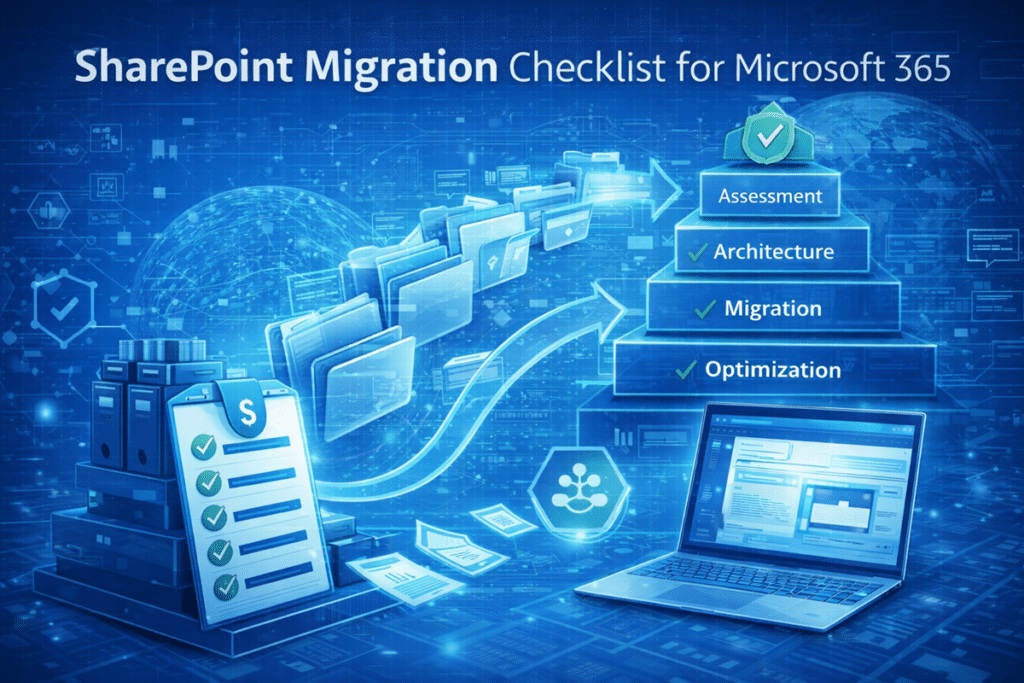
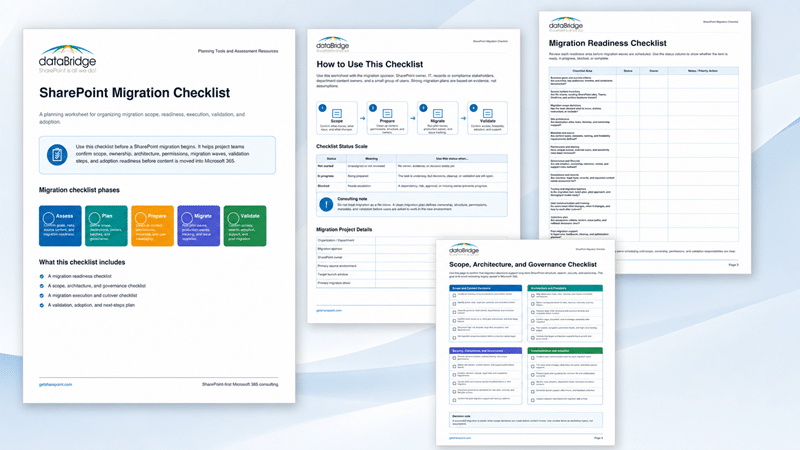
Below is a practical checklist organizations can use before migration waves begin. It is designed to help teams confirm whether the plan is ready for execution or whether scope, ownership, permissions, architecture, cleanup, or validation still needs work.
This page is not the full migration playbook. For the broader end-to-end model, use The Complete Guide to SharePoint Online Migrations. This checklist is the practical pre-migration asset that helps your team review the decisions that should be clear before content starts moving.
Use the checklist to confirm:
- Scope decisions: What moves, what stays, what gets archived, and what needs restructuring.
- Source inventory: Which file shares, existing SharePoint sites, Teams, OneDrive locations, and archives are part of the plan.
- Target architecture: Which hubs, sites, libraries, metadata, naming standards, and ownership rules are needed.
- Permissions and sharing: Where unique access, external users, sensitive content, and overexposure need review.
- Governance readiness: How site ownership, retention, lifecycle review, support, and cleanup will work after migration.
- Execution planning: How pilot waves, production waves, issue tracking, cutover timing, and validation will be managed.
- Adoption support: How users will learn what changed, where to work, and how to get help after cutover.
Before you finalize migration scope, use the File Share to SharePoint Migration Services path when shared drive cleanup, archive decisions, metadata mapping, and permission review need more focused planning.
Pre-Migration Decision Checklist
Use this checklist before migration waves begin. It is designed to prevent avoidable structure, permissions, and adoption problems after go-live.
Before Migration Waves Begin
Before a migration wave is scheduled, the project team should be able to explain what is moving, who owns it, where it is going, and how success will be validated.
A migration wave is not ready just because the tool can move the content. It is ready when the business decisions around that content are clear.
Confirm these items before wave scheduling begins:
- Scope is documented, including what moves, what stays behind, what gets archived, and what requires restructuring.
- Owners are assigned for source content, destination sites, validation, communications, and issue resolution.
- Destination architecture is mapped to approved hubs, sites, libraries, Teams-connected workspaces, and ownership rules.
- Metadata, naming, navigation, and search expectations are defined before users begin working in the new environment.
- Permissions are reviewed for unique access, external sharing, sensitive content, and outdated exceptions.
- Communication is ready so users know what changes, when it changes, and where to work after cutover.
- Validation criteria are documented for content accuracy, links, permissions, metadata, search, and owner acceptance.
- Support paths are prepared for hypercare, feedback, cleanup, and post-migration optimization.
A strong migration plan makes unclear items visible before they become production issues. When several of these items are unresolved, the next step is not a larger migration wave. The next step is a better plan.
1. Define Migration Goals
Before migrating any content, organizations should clearly define the purpose of the migration.
Common goals include:
- Improving collaboration across teams
- Centralizing organizational knowledge
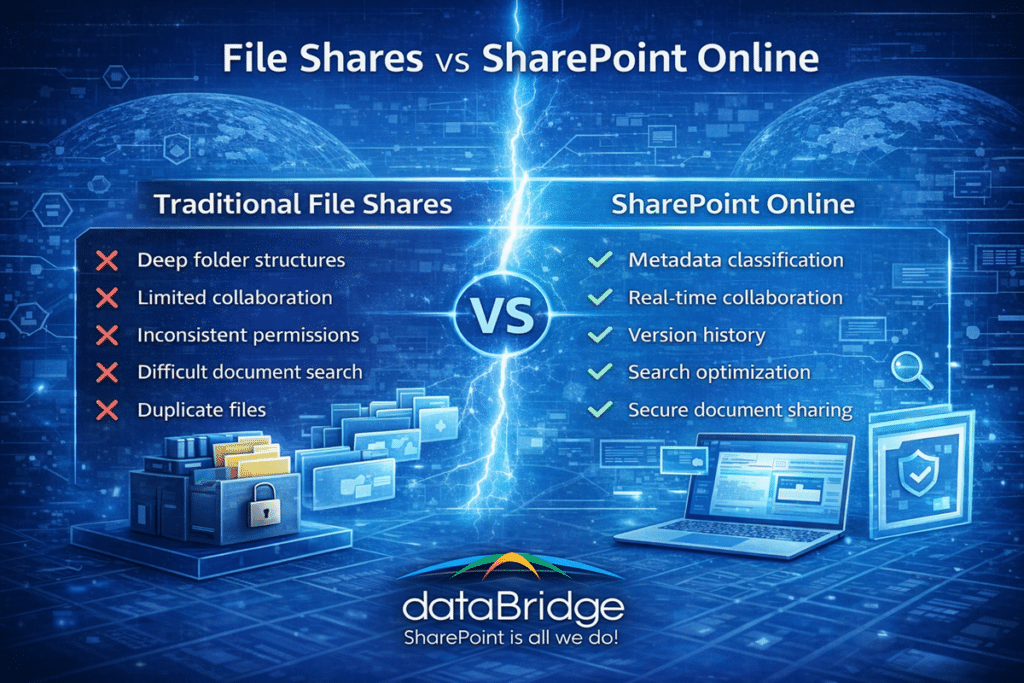
- Replacing legacy file shares
- Supporting remote and hybrid work
- Preparing for Microsoft Copilot
Clear goals help guide architecture and governance decisions throughout the migration process.
For example, organizations planning to deploy AI capabilities often prioritize structured metadata and taxonomy frameworks.
In our experience, migrations that align with broader collaboration strategies tend to deliver significantly better long-term outcomes.
2. Assess the Existing Environment
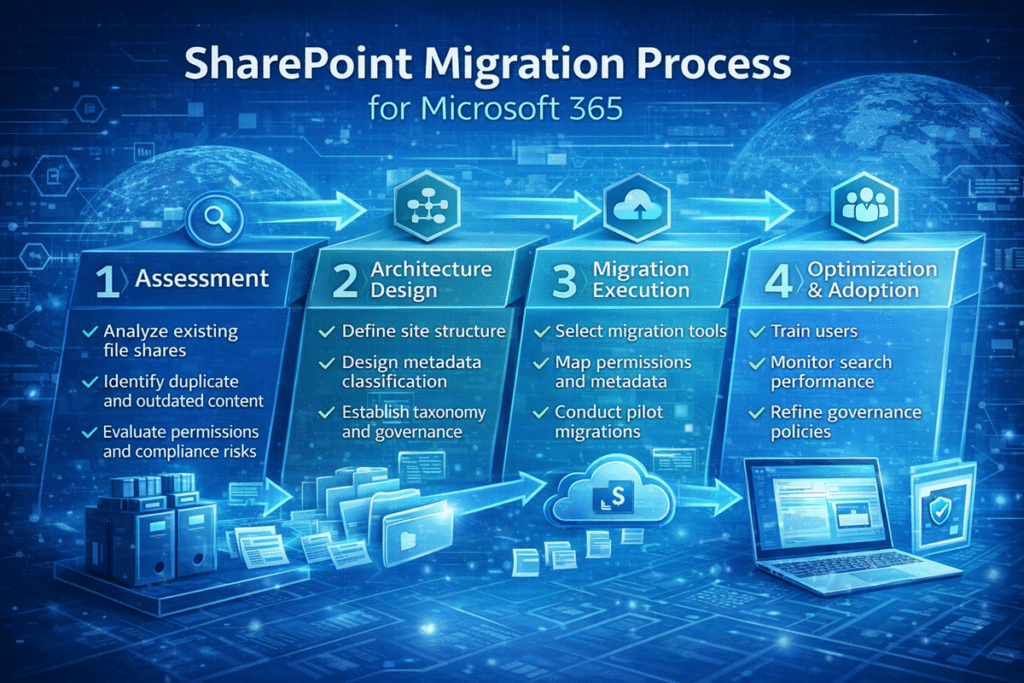
A comprehensive assessment of the current environment is critical before migration begins.
This assessment typically examines:
- Content volume
- File share structures
- Duplicate documents
- Permission models
- Compliance requirements
During this phase, organizations often discover that a large portion of legacy content is no longer needed.
This is common.
Many environments contain years of outdated or redundant information.
Migrating everything rarely makes sense.
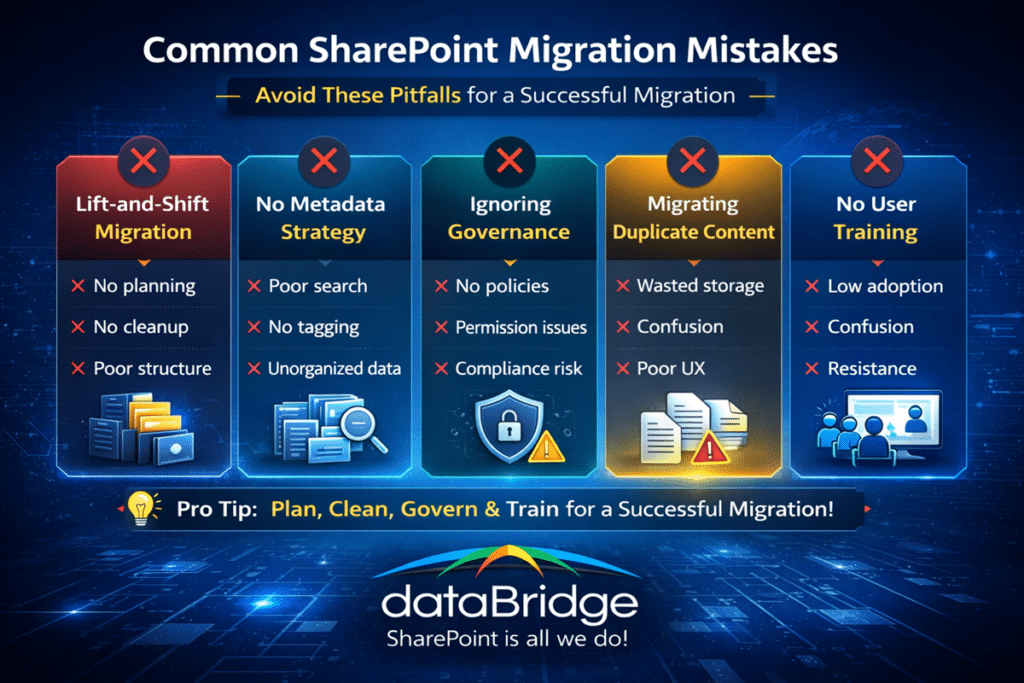
Instead, migration planning should focus on identifying high-value content and eliminating unnecessary files.
Before the assessment is complete, your team should be able to answer five practical questions:
- Which content is active and business-critical?
- What can be archived, deleted, or left behind?
- Where do permissions create risk or confusion?
- Which departments need unique site, library, or compliance structures?
- What should the future-state ownership and navigation model look like?
For broader supporting guidance, explore our SharePoint and Microsoft 365 Knowledge Center for migration, governance, and architecture resources.
3. Develop an Information Architecture Strategy
Migration is an ideal opportunity to improve information architecture.
Rather than recreating legacy folder structures in SharePoint, organizations should design a structure that reflects how teams actually work.
When legacy folder paths contain business meaning, teams should decide how to map legacy folder structures to metadata in SharePoint before migration waves begin. That helps preserve useful context without carrying forward deep folder paths, inconsistent naming, or tribal knowledge.
Effective SharePoint architecture typically includes:
- Department collaboration sites
- Project workspaces
- Knowledge resource hubs
- Policy and procedure libraries
Metadata classification and taxonomy structures also play a critical role in improving search accuracy and governance.
When architecture is designed intentionally during migration, organizations avoid many of the usability challenges that occur later.
For deeper planning, pair this step with our SharePoint Information Architecture & Metadata page and our SharePoint Metadata Strategy Guide. Those resources help teams define site structure, metadata, and search behavior before content is moved.
4. Establish Governance Policies
Governance policies help ensure SharePoint environments remain organized and secure after migration.
These policies typically define:
- Content ownership responsibilities
- Permission management standards
- Site creation guidelines
- Retention policies
- Metadata requirements
Without governance, even well-designed environments can gradually become disorganized.
In our experience, governance is one of the most important—but often overlooked—components of a successful migration.
Governance should be defined before migration waves begin—not after. Teams that want to formalize ownership, lifecycle, permissions, retention, and accountability should pair this step with the SharePoint Governance Guide and the SharePoint Governance Maturity Model.
Migration governance should also include SharePoint site provisioning standards so new sites created after launch follow consistent rules for requests, templates, ownership, permissions, and lifecycle review.
5. Clean and Prepare Content
Before migrating content, organizations should clean and prepare files for the new environment.
This includes:
- Removing outdated files
- Consolidating duplicate documents
- Renaming inconsistent file names
- Applying metadata classification
Content cleanup significantly improves search quality and overall usability in SharePoint Online.
While this step requires time, it is far more efficient to organize content before migration than after thousands of files have already been transferred.
6. Select the Right Migration Tools
Several tools are available for migrating content to SharePoint Online.
Common options include:
- Microsoft SharePoint Migration Tool
- Migration Manager in Microsoft 365
- Third-party migration platforms
When To Use SPMT, Migration Manager, Or A Third-Party Platform
Use SharePoint Migration Tool when you are moving from SharePoint Server or relatively straightforward file shares into Microsoft 365.
Use Migration Manager when you need centralized control, multiple agents, task-level reporting, and a more scalable approach to file share migration.
Use a third-party migration platform when the project requires complex restructuring, richer remapping, broader reporting, or specialized source systems.
The best tool depends on the complexity of the migration.
For example:
Small file share migrations may use native Microsoft tools.
Large enterprise migrations often require advanced migration platforms that support:
- Automated mapping
- Metadata preservation
- Detailed reporting
Regardless of the tool used, migration success depends far more on planning than technology.
7. Plan Security and Permissions
Permissions often represent one of the most complex parts of a SharePoint migration.
Legacy file shares frequently contain inconsistent permission models that evolved over time.
Migrating these structures directly can create unnecessary complexity.
Instead, organizations should review permissions during migration planning and simplify where possible.
Typical permission models include:
- Department access groups
- Project team permissions
- Restricted compliance libraries
When permissions align with governance policies, environments become easier to manage long term.
If your source environment includes broken inheritance, one-off access, or years of exceptions, review the SharePoint Permissions Guide before mapping permissions forward.
8. Conduct Migration Testing
Testing is a critical step before full migration begins.
During testing, organizations migrate a small sample of content to verify:
- File integrity
- Permission accuracy
- Metadata mapping
- Search functionality
Testing also helps identify potential issues before large volumes of content are transferred.
In our experience, pilot migrations often reveal small architecture improvements that significantly improve the final environment.
9. Train Users Before Launch
Even well-designed SharePoint environments require user training.
Employees need to understand:
- How to locate information
- Why and how to classify documents
- How to collaborate using SharePoint
Without training, users may revert to legacy storage habits such as storing files locally or relying on email attachments.
Effective migration strategies therefore include training sessions and documentation to support adoption.
10. Monitor and Optimize After Migration
Migration does not end on launch day.
Successful organizations continue to monitor and optimize their SharePoint environments after migration.
This includes:
- Reviewing search performance
- Monitoring site usage
- Updating governance policies
- Improving metadata structures
Continuous improvement ensures the environment remains organized as collaboration grows.
After go-live, use the SharePoint Post-Migration Checklist to validate permissions, search behavior, metadata quality, ownership, governance, adoption, and support needs before small issues become long-term platform problems.
Migrating File Shares to SharePoint Online