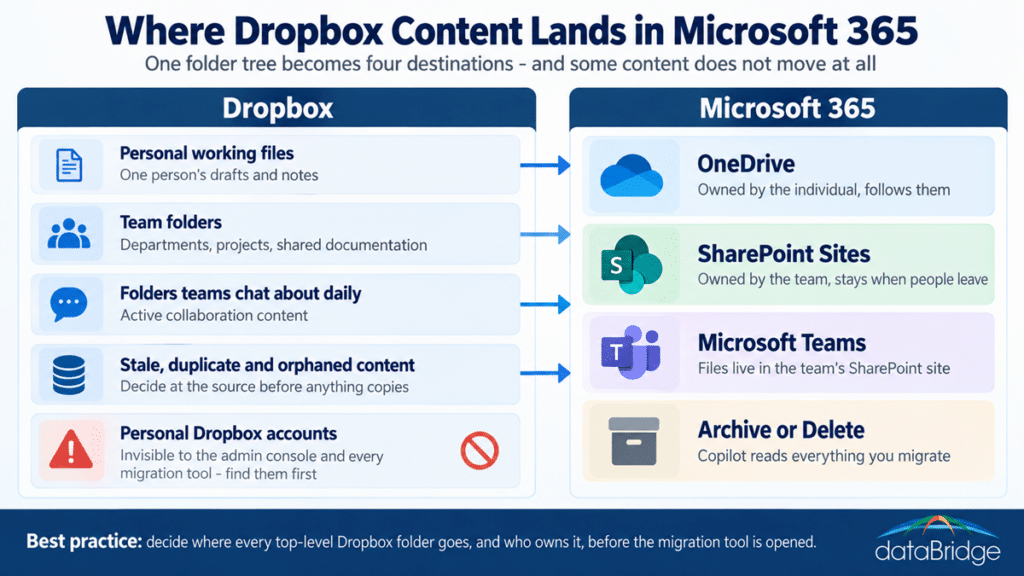
Your Dropbox admin console can’t show you the accounts that cause the most trouble in a migration. Those are the personal ones, opened by employees on their own years ago, with company files inside. They turn up in discovery again and again, and IT is usually hearing about them for the first time.
The second surprise is quieter. Somebody on the first call says some version of “it’s just files, how hard can it be,” and the budget and timeline get set on that assumption. Both problems are common, both are fixable, and both need to be dealt with before a migration tool is ever opened.
This post covers the two of them first, then the practical parts: what migrates from Dropbox and what doesn’t, where the content should land, and which tool to use. If you’re already scoping a project, our SharePoint migration services page explains how we run these.
Why Is a Dropbox to SharePoint Migration Harder Than It Looks?
It’s harder because Dropbox is one folder tree with sharing layered on top, and SharePoint is a set of sites, libraries, permission groups and retention rules. Every top-level Dropbox folder needs a decision about where it goes and who owns it on the other side. The copy itself is the easy week of the project.
When a migration is treated as a copy job, four decisions get skipped:
- Which folders are team content and which are one person’s working files
- Who owns each team folder once it becomes a SharePoint site
- What doesn’t move at all
- How shared links and outside partners will be handled at cutover
Skip those and you end up with a file share in the cloud, which is the outcome we describe in the SharePoint migration myth. The folders arrive, nobody can find anything, and within a few months people are asking whether Dropbox was better. If you want the full structure for planning the work, our SharePoint migration project plan lays out phases and roles.
The Dropbox Accounts IT Doesn’t Know About
Personal and free Dropbox accounts that hold company files sit outside your Dropbox business team, so no admin console and no migration tool can see them. A migration tool connects with your Dropbox admin credentials and reads the accounts that admin controls. Anything outside that boundary has to be found by other means, and it has to be found before you scope the project, because it changes the scope.
How company files end up in personal Dropbox accounts
Dropbox spread through most companies from the bottom up. Someone needed to send large files to a client, signed up with whatever email was handy, and kept using it. Later the company bought business licenses, and that person got a second account without ever emptying the first.
Other common sources: a client or vendor shared a folder to an employee’s personal account, a department paid for its own subscriptions on a credit card, or a long-tenured employee has synced a “work” folder to a home computer for a decade. None of this is malicious. It’s people getting work done with the tool that was easiest.
How to find personal Dropbox accounts before you scope
There’s no single report, so use several sources and compare them:
- Network and cloud app logs. Microsoft Defender for Cloud Apps and most firewalls can show which users send traffic to Dropbox. Compare that list to your licensed Dropbox users.
- Device inventory. Look for the Dropbox desktop app on company laptops belonging to people who don’t hold a business license.
- Expense reports. Individual Dropbox subscriptions show up as small recurring charges.
- Dropbox’s own domain tools. Some Dropbox business plans can list accounts registered under your company email domain. Accounts opened with a personal Gmail address won’t appear.
- Ask. Announce the migration, explain that nobody is in trouble, and give people a simple form to report where their work files live.
The last one finds the most. People tell you when they believe the goal is to move their files safely and not to catch them.
What to do with what you find
Have each owner move company files out of the personal account and into a company-controlled location before migration starts. That can be a Dropbox team folder that will be migrated with everything else, or it can go straight to OneDrive or the right SharePoint site if those are ready.
Two harder cases deserve honesty. Files in a former employee’s personal account are beyond any technical reach, and that becomes a conversation for HR or legal. And blocking personal Dropbox after cutover only sticks if you fix the reason people used it. That reason is almost always easy sharing with outsiders, so get SharePoint external sharing working well before you take the old option away.
What Migrates From Dropbox to SharePoint and What Doesn’t
Files and folder structure migrate, along with sharing permissions for the users you map to Microsoft 365 identities. Version history, shared links, comments and Dropbox-only features do not come across with Microsoft’s free tool. Knowing this list early keeps it from becoming a cutover-week emergency.
Version history
Microsoft’s Migration Manager moves only the most recent version of each Dropbox file. For most content that’s fine. For contracts, engineering drawings or anything with an audit requirement, decide early whether you need a third-party tool that carries versions or an export of specific folders.
Shared links
Every Dropbox link stops working once the content is gone or the account closes. Those links live in old emails, on websites, inside other documents and in your partners’ bookmarks. This is the same problem we walked through for Box to SharePoint migrations: inventory the links that matter, replace them on purpose, and tell the people who use them.
Dropbox Paper
Paper docs aren’t standard files and don’t always migrate as documents. Several third-party tools convert them to Word. Count your Paper docs during inventory so you know whether this is ten files or ten thousand.
External collaborators
People outside your company who are members of Dropbox folders have no Microsoft 365 identity to map to. They need guest invitations on the SharePoint side and a heads-up before cutover, or their access ends the day you switch.
Path length and file names
SharePoint limits the full path of a file to 400 characters. Deep Dropbox trees with long folder names go past that, and the scan report will flag them. Fix the structure at the source, because shortening paths one file at a time is miserable work.
Where Should Dropbox Content Land in Microsoft 365?
Personal working files go to each user’s OneDrive, and team folders go to SharePoint sites, often the ones behind a Microsoft Teams team. What shouldn’t happen is one giant library that mirrors the old Dropbox tree. Our page on OneDrive vs SharePoint explains the dividing line in plain terms.