
OneDrive vs SharePoint: Where Should Files Live in Microsoft 365?
If one person owns the file and it is still taking shape, start in OneDrive. Once a team depends on it, move it to SharePoint. That is the clearest rule.
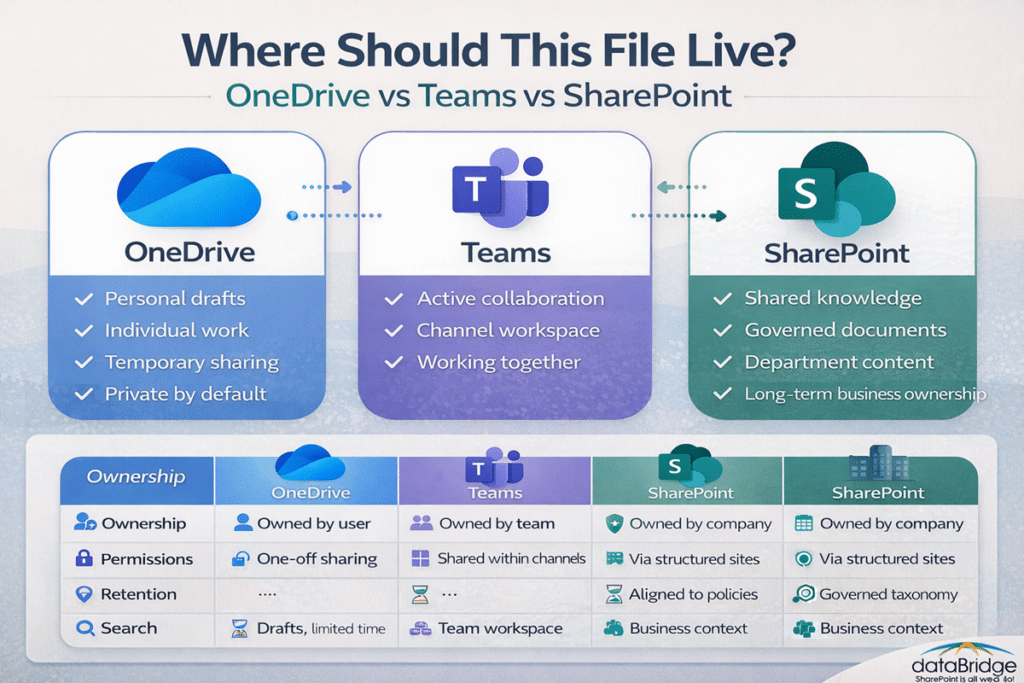
At dataBridge, we recommend a simple model. Draft in OneDrive. Collaborate in Teams. Store shared knowledge, controlled documents, and long-term business content in SharePoint.
This is not just a storage decision. It affects ownership, permissions, search, retention, lifecycle control, and Copilot results. It also influences how much users trust your Microsoft 365 environment.
Many organizations blur these lines. As a result, teams waste time looking for the right version, re-sharing links, and asking who owns what. That confusion is usually not a small annoyance. More often, it is the first sign that structure is missing.
When file placement is clear, users move faster. Search improves. Adoption becomes easier. Governance is much easier to maintain.
Quick answer: should I save files to OneDrive or SharePoint?
Choose OneDrive for personal work, early drafts, private notes, and temporary sharing.
Use SharePoint for team-owned files, department content, policies, procedures, templates, project libraries, and governed records.
Treat Teams as the collaboration layer, not the long-term filing model. For a deeper breakdown, see SharePoint vs Teams.
If the file must outlive the person who created it, it belongs in SharePoint.
That one sentence clears up more confusion than most training sessions.
Talk with dataBridge about your Microsoft 365 file model
OneDrive vs SharePoint at a glance
Use OneDrive when:
- You are creating the first draft
- The file is still personal
- Private review comes first
- You need lightweight sharing
- No team owns the content yet
- The file may still change direction quickly
Use SharePoint when:
- Multiple people rely on the file
- A department owns the content
- The document supports a repeatable process
- Metadata, approvals, or retention matter
- The content should survive role changes
- Users need to find it without tribal knowledge
- The file belongs inside a broader information architecture
Use Teams when:
- People need to chat, meet, and co-author quickly
- The work is active and collaborative
- The file belongs to a channel workspace
- Discussion is part of the work itself
Here is the key point. Teams is not a separate storage platform. Channel files live in SharePoint. Chat files live in OneDrive.
That distinction matters because many users assume Teams removed the need for a filing strategy. It did not. It only made weak storage habits easier to hide for a while.
What is the real difference between OneDrive and SharePoint?
OneDrive is personal workspace. SharePoint is shared structure.
OneDrive supports individual ownership, quick drafting, and simple sharing. SharePoint supports team ownership, metadata, permissions, versioning, search, and lifecycle control.
That difference matters because Microsoft 365 works best as a connected platform. See Microsoft 365 consulting and strategy and SharePoint and Microsoft 365 integration.
In practical terms, Teams is where work happens and SharePoint is where knowledge lives. Without that model, users start guessing. Search becomes weaker, version control slips, and governance gets harder.
A lot of organizations make this more complicated than it needs to be. They turn a simple ownership question into a technical debate. That is usually the wrong place to begin.
A better question is this: who should own this content six months from now?
If the answer is one person, OneDrive may still be right. If the answer is a team, department, function, or business process, it belongs in SharePoint.
Why this decision matters more than most teams expect
Poor file placement creates problems across the environment.
Search results become noisy because the same content exists in too many places. Permissions become inconsistent because files are shared one-off instead of managed through structure. Retention gets harder because the content is not living where lifecycle rules belong. Copilot readiness weakens because the environment is not clean, intentional, or trusted.
That is why storage decisions are not only operational. They are strategic.
A small choice about where a file lives can turn into a much bigger issue around how the organization works.
This is also why we treat this as an adoption issue, not just a technology issue. For more on that side of the equation, see SharePoint adoption and change management.
When OneDrive is the right choice
OneDrive is the right fit when the content is still personal, temporary, or early stage.
Common examples include:
- Draft proposals
- Personal working files
- Private notes
- Early review versions
- Files shared in a Teams chat
- Short-term collaboration before team ownership is clear
- Research notes that may never become shared deliverables
- Personal planning documents
- Draft presentations before stakeholder review
OneDrive is a drafting space, not a team repository.
That distinction matters. Personal storage should never become a team archive.
OneDrive works best when speed matters more than structure. It gives people room to think, revise, and prepare before the content becomes shared business knowledge.
There is nothing wrong with starting there. In many cases, it is the best place to start.
Trouble begins when the draft becomes important and still never leaves personal storage.
That is where version confusion starts. Shared ownership begins to break down there too. At that point, organizations create risk without always realizing it.
When SharePoint is the right choice
SharePoint is the right fit when the content becomes shared, durable, or worth governing.
Typical examples include:
- Policies
- SOPs
- Department templates
- Project documentation
- Client deliverables
- Knowledge base content
- Controlled records
- Shared operational files
- Department reports
- Board materials
- Training content
- Process documentation
- Published team resources
This is where a strong SharePoint document management system starts to matter.
It also depends on a clear SharePoint information architecture and metadata. If you are redesigning libraries, review the Complete Guide to SharePoint Metadata Strategy.
SharePoint is where business content becomes dependable.
That is the real shift. In OneDrive, the file belongs to a person. In SharePoint, the file belongs to a business context.
That business context supports:
- Shared access
- Better search
- Smarter metadata
- Cleaner navigation
- Retention rules
- Consistent permissions
- Easier transition during role changes
Many teams do not need more storage. They need stronger ownership.
SharePoint gives you the place to define that ownership clearly.
Where Teams fits
Teams is the collaboration experience. It is not the filing system.
That is why Teams can confuse people when there is no usage model. Users see one interface, but the files do not all live in one place.
The rule is simple:
- Files shared in Teams channel conversations live in SharePoint
- Files shared in Teams chats live in OneDrive
That difference may sound technical. In practice, it changes how content should be managed.
A file shared in a chat may be useful in the moment, but it is often the wrong place for long-term team knowledge. A channel file may already be in SharePoint, but it can still be poorly organized if no site or library model exists behind the scenes.
Good Teams governance starts with good SharePoint structure. See Microsoft Teams Consulting & Governance.
The strongest environments do not force users to memorize platform rules. Instead, they give users a simple mental model:
- Work alone in OneDrive
- Work together in Teams
- Store shared business value in SharePoint
That is easier to teach. It is also easier to sustain.
OneDrive vs SharePoint vs Teams real-world scenarios
Scenario 1: You are drafting a presentation for leadership
Start in OneDrive.
At this stage, the file is still personal work in progress. It may change direction quickly. You may only want limited review before it is ready for wider visibility.
Scenario 2: A project team now needs to update that presentation together
Move it to SharePoint or store it in the right Teams channel backed by SharePoint.
Once multiple people depend on it, the file needs shared ownership. It should not stay attached to one person’s OneDrive.
Scenario 3: A policy document needs formal review and future version control
Use SharePoint.
Policies, standards, and procedural content belong in a controlled library. They need stable ownership, clean versioning, and usually tighter permissions.
Scenario 4: A quick file is sent in a Teams chat
That file will usually live in OneDrive.
This is fine for short-cycle collaboration. It is not fine as the final resting place for important team content.
Scenario 5: A department maintains templates used by many employees
Use SharePoint.
Templates are shared operational assets. They should be easy to find, easy to trust, and easy to govern.
Scenario 6: A manager keeps departmental files in a personal folder and shares them out
This is a common mistake.
The content may feel accessible in the moment, but it creates long-term dependency on one person’s account. That makes the environment fragile, hard to govern, and easy to break.
Scenario 7: A migration brings thousands of files into Microsoft 365
Do not default everything into a flat SharePoint dump.
Migration is the right time to separate personal, collaborative, and governed content. Start with ownership, business value, and findability. Then map the destination intentionally.
For that work, review how to map legacy folder structures to metadata in SharePoint and the SharePoint post-migration checklist.
When should you move a file from OneDrive to SharePoint?
Most organizations wait too long.
Move the file when:
- A second team starts relying on it
- The document supports a repeatable process
- Shared ownership matters more than personal ownership
- Metadata or approvals are now needed
- Retention or compliance now applies
- Users need to find it through shared navigation or search
- The file should stay available after staff changes
- The content has become part of operational knowledge
- The file is referenced repeatedly by more than one role
If a file keeps getting re-shared from one person’s OneDrive, it is already overdue for SharePoint.
Good file placement is cheap. Cleanup is not.
This is one of the most overlooked points in Microsoft 365 governance. Teams often keep reusing a personal link because it is convenient. Later, they discover the file has become business-critical. By then, access is messy, duplicates exist, and nobody is fully sure which version is official.
Convenience is not the same as good design.
When you are restructuring legacy content, pair this step with how to map legacy folder structures to metadata in SharePoint. After the move, validate the result with the SharePoint post-migration checklist.
Need help defining what stays personal and what becomes shared?
Why this decision matters for permissions, retention, and AI
Permissions
People often treat this as a storage question. It is also an access question.
OneDrive can be shared, but the ownership model stays personal. SharePoint supports repeatable permission patterns, clearer site ownership, and stronger long-term control.
Start with the SharePoint permissions guide and the SharePoint site owner responsibilities guide.
A shared business file should not depend on one employee’s account.
That sentence sounds obvious. Even so, it describes one of the most common problems we see.
Organizations often create access through ad hoc sharing instead of clear structure. Over time, that creates permission sprawl. SharePoint gives you the chance to govern access at the right level instead of one file at a time.
Retention and lifecycle
A document may begin in OneDrive, move through Teams, and end in a governed SharePoint library. That lifecycle should be intentional.
Without a clear model, important content gets stranded in personal storage or buried in channel folders with no structure.
That is why strong organizations define the rules early. Use the SharePoint governance framework and the SharePoint records management and retention strategy to build that model.
Good lifecycle control is not just about deletion. It is about knowing what should be kept, where it belongs, who owns it, and how long it should remain useful.
Copilot and AI
AI does not fix messy content. It exposes it.
That is why Copilot readiness starts with structure, ownership, and clean permissions. When important files live in the wrong place, AI will still find them. It will just surface the disorder faster.
For a deeper view, see Copilot readiness for SharePoint.
Content quality shapes AI quality. Storage decisions are now AI decisions.
This is where many organizations misread the opportunity. They focus on prompts, not content design. They focus on licenses, not knowledge structure.
Copilot can only be as trustworthy as the environment behind it. If ownership is vague and content lives in the wrong places, AI will reflect that ambiguity.
Governance and compliance implications
This page is really about operating discipline.
OneDrive is valuable, but it is not where most organizations want to anchor their compliance posture. SharePoint provides the stronger foundation for controlled business content because it supports classification, structured permissions, metadata, retention alignment, and clearer ownership models.
That does not mean every file needs heavy governance. It means important files need the right home.
A practical governance model usually answers five questions:
- Who owns this content?
- Who should access it?
- How should users find it?
- How long should it be kept?
- What happens when the original author leaves?
If your team cannot answer those questions easily, the problem is not just storage. The problem is governance design.
For a stronger foundation, review the SharePoint governance framework and SharePoint security and compliance.
Migration and cleanup implications
File placement becomes even more important during migration.
Too many projects treat migration as a simple move from one platform to another. That approach usually recreates old chaos in a new system.
A better migration strategy separates:
- Personal working content
- Active collaboration content
- Shared operational knowledge
- Controlled records
- Outdated material that should not move at all
That is why good migrations are not just technical. They are architectural.
If everything from a file share lands in SharePoint without a clear model, users inherit the same confusion with a different interface. If personal drafts stay mixed with official team content, trust drops again.
Migration should improve the environment, not just relocate it.
For that reason, this topic connects closely to SharePoint migrations, the SharePoint migration readiness assessment, and how to map legacy folder structures to metadata in SharePoint.
Common OneDrive vs SharePoint mistakes
The most common mistakes are easy to spot:
- Using OneDrive as a permanent team file share
- Using SharePoint like a dumping ground
- Assuming Teams changes where files actually live
- Waiting too long to move important files out of personal storage
- Migrating folder chaos into SharePoint without redesign
- Training users before defining the usage model
- Letting convenience decide ownership
- Treating all content as if it has the same value
When people keep guessing where the real version lives, trust drops fast. That is one reason SharePoint adoption and change management matters so much.
A poor file model creates low-grade frustration every day. Users may not describe it as governance failure, but that is often what it is.
What experience shows
Since 2006, dataBridge has helped organizations turn fragmented file repositories into structured SharePoint environments built for scale, governance, and real-world adoption.
Across client environments, the pattern is consistent. When the storage model is obvious, people stop creating side systems. Search improves. Duplicate files drop. Ownership gets clearer. Governance becomes easier to sustain.
We see the strongest results when teams teach one rule well instead of teaching ten exceptions.
That is our view in plain terms. OneDrive is for work in progress. SharePoint is for shared business value.
The best environments are rarely the most complicated. In most cases, they are the clearest. Users succeed when the model feels intuitive, not academic.
That is why we favor practical structure over theoretical perfection.
Our recommended Microsoft 365 file model
Here is the model we recommend most often:
- OneDrive for personal drafts and early work
- Teams for active discussion and short-cycle collaboration
- SharePoint for team-owned knowledge, controlled documents, and governed business content
This model is practical, teachable, and scalable.
It also aligns with a strong SharePoint document management system and a connected SharePoint and Microsoft 365 integration strategy.
It gives employees a rule they can remember. Just as important, it gives leadership a model they can govern.
Frequently asked questions about OneDrive vs SharePoint
Should I save files to OneDrive or SharePoint if I am working alone?
Start in OneDrive if the file is still personal or in draft. Move it to SharePoint when the content becomes team-owned, process-driven, or worth governing.
Are Teams files stored in OneDrive or SharePoint?
Both, depending on the context. Channel files live in SharePoint. Chat files live in OneDrive.
Is OneDrive secure enough for business files?
Yes, but secure is not the same as suitable. OneDrive can protect files well. Even so, it is still the wrong home for long-term team knowledge, controlled content, and shared ownership.
When should a policy, SOP, or template move to SharePoint?
Move it as soon as more than one person depends on it. Then add version control, metadata, approvals, or retention as needed.
What happens if an employee leaves and important files still live in OneDrive?
That is exactly why personal storage should not become a team archive. Business-critical content should move into SharePoint before ownership risk becomes a problem.
Which platform is better for Copilot?
SharePoint is usually the stronger long-term foundation because it supports shared ownership, structured permissions, metadata, and cleaner lifecycle control. Learn more about Copilot readiness for SharePoint.
Does SharePoint replace OneDrive?
No. The two work best together. OneDrive supports individual work in progress. SharePoint supports shared, durable, governable content.
Can OneDrive and SharePoint work together?
Yes. In a healthy Microsoft 365 environment, they should work together. OneDrive supports the early phase of work. SharePoint supports the shared and governed phase of work.
Is Teams enough without SharePoint structure behind it?
No. Teams depends on SharePoint more than many users realize. Without strong SharePoint structure, Teams collaboration often becomes harder to govern and harder to scale.
Final recommendation
Use OneDrive first when the file is personal. Use SharePoint when the file becomes organizational.
That is the cleanest rule. It is also the easiest rule to teach.
If your team is still debating where files should live, the issue is not storage. The issue is operating model.
Contact dataBridge to define a clear OneDrive, Teams, and SharePoint usage model