
SharePoint Concierge Webinar Recap: Site Assets, Copilot Cowork, SharePoint Lists vs. Excel, and AI Readiness
On May 7, 2026, the dataBridge team hosted another SharePoint Concierge webinar focused on practical Microsoft 365 and SharePoint guidance.
This session covered four topics that come up often in real SharePoint environments: the role of the Site Assets Library, Microsoft Copilot Cowork, when to use SharePoint Lists instead of Excel, and how to prepare SharePoint content for Copilot and AI.
Each topic was different, but they all pointed to the same larger idea. SharePoint works better when structure, governance, ownership, and user experience are planned with intention. That is also why many organizations eventually need a more structured approach to SharePoint consulting services instead of trying to solve every issue through one-off configuration changes.
What We Covered in This Webinar
This webinar included four practical sessions:
- Understanding the role of the Site Assets Library in SharePoint
- Exploring Microsoft Copilot Cowork and its early-preview capabilities
- Comparing SharePoint Lists and Excel for business data tracking
- Preparing SharePoint content, libraries, metadata, and governance for Copilot
Each session focused on a different part of the Microsoft 365 experience. However, the real value came from how the topics connected. Microsoft 365 tools are powerful, but they deliver the most value when they sit on top of clear architecture, thoughtful governance, and consistent user practices.
For organizations modernizing older file shares or disconnected collaboration spaces, these same decisions often become part of a broader SharePoint migration strategy. Content structure, permissions, metadata, and site ownership should not be treated as cleanup items after the move. They are part of what makes the move successful.
Understanding the SharePoint Site Assets Library
The first session focused on the Site Assets Library, a system-created library that exists by default in every SharePoint site.
Most users never open this library directly. Even so, it plays an important role behind the scenes because it stores many of the files that help SharePoint pages function and display correctly.
These assets may include:
- Images used on SharePoint pages
- Logos, banners, icons, and background images
- Files embedded in web parts
- Videos and supporting resources
- Custom scripts or templates
- Page-related assets that support the design and layout of the site
The Site Assets Library is not meant to replace a normal document library. It supports the site itself.
That distinction is important because a SharePoint page may depend on files stored in that library. If someone moves, deletes, or reorganizes those files without understanding how they are being used, the page may no longer display as expected. Images can disappear. Backgrounds can break. Web parts may remain on the page but no longer show the content users expect.
In practical terms, the Site Assets Library acts like part of the site’s foundation. Strong SharePoint sites need more than attractive pages; they also need intentional SharePoint information architecture behind the scenes so users, owners, and administrators understand where content belongs.
Why Site Assets Governance Matters
A Site Assets Library can become messy over time if no one manages it.
Unused images, duplicate files, inconsistent naming, and unclear folder structures make the library harder to maintain. That creates problems for site owners, designers, marketing teams, and anyone responsible for keeping SharePoint pages clean and current.
A well-managed Site Assets Library helps:
- Keep branding consistent
- Prevent broken page images
- Reduce accidental deletions
- Make page maintenance easier
- Support long-term scalability
- Keep supporting files organized by purpose
Permissions also need attention. Most users need read access so they can view the content displayed on pages. Edit access, however, should usually be limited to the people responsible for managing the site.
This is where a practical SharePoint governance framework becomes useful. Governance should not only define who can create sites. It should also explain how site assets, page ownership, branding files, permissions, and lifecycle decisions are handled over time.
The Site Assets Library may sit quietly in the background, but site owners should not ignore it.
Presented By

Microsoft Copilot Cowork: What It Is and Why It Matters
The second session introduced Microsoft Copilot Cowork, an early-preview AI agent available through Microsoft’s Frontier program.
Copilot Cowork reflects Microsoft’s broader move toward agent-based AI capabilities. Instead of only responding in chat, tools like Cowork are designed to complete longer-running, multi-step tasks on behalf of a user.
That changes the conversation around Copilot.
Many people think of Copilot as a tool for summarizing, drafting, answering questions, or helping users think through a next step. Cowork moves closer to task execution. It can work with files, produce outputs, interact with Microsoft 365 content, and perform actions based on the user’s permissions.
During the webinar, the example shown involved asking Copilot Cowork to analyze SharePoint news post performance, retrieve page analytics, create an Excel report, build a visual KPI, and send the report by email.
That example is a good preview of where these tools are heading. Users may not only ask AI for help understanding a process. They may ask AI to complete parts of the process.
For many organizations, that makes Copilot readiness for SharePoint less of a future planning topic and more of a current governance priority.
Important Considerations Before Testing Copilot Cowork
Copilot Cowork is still in early preview, so organizations should approach it carefully.
At the time of the webinar, access depended on several requirements, including:
- A Microsoft 365 Copilot license
- Participation in the Microsoft Frontier program
- Anthropic enabled as a Microsoft sub-processor
- Availability within a standard commercial tenant
The session also noted that Copilot Cowork stores session output in the user’s OneDrive. Files generated from Cowork activity may appear in OneDrive folders tied to the session.
For an individual user, that could create clutter. For IT and governance teams, it creates broader questions about storage, lifecycle, ownership, and visibility.
Delegated access is the bigger issue.
Copilot Cowork acts based on what the user can access. If a user has broad access across SharePoint, OneDrive, Teams, or other Microsoft 365 content, an AI agent working on that user’s behalf may also have broad reach.
That is one reason organizations should review SharePoint permissions before expanding AI access. Copilot and related AI tools do not usually create oversharing by themselves. More often, they expose oversharing that already exists.
None of this means organizations should avoid testing these tools. It does mean the testing should be deliberate.
A safer starting point is a small group of IT users, super users, or a test account with limited access. That gives the organization a chance to understand Cowork’s behavior before expanding availability. A focused Copilot readiness assessment for SharePoint can also help identify where permissions, content quality, ownership, or governance need attention first.
Presented By

SharePoint Lists vs. Excel: Choosing the Right Tool
The third session addressed a familiar Microsoft 365 question: when should you use a SharePoint List, and when should you use Excel?
There is no universal answer.
A better way to frame the decision is to ask what kind of work the data needs to support.
SharePoint Lists are strong when the organization needs structured, shared, trackable business data. Excel is strong when users need deeper calculations, pivot tables, flexible analysis, and large-scale data manipulation.
Many organizations need both tools. Problems usually start when one tool is forced to do the other tool’s job.
That decision often connects to broader SharePoint document management decisions because lists, libraries, metadata, views, and permissions all shape how users manage information inside Microsoft 365.
When SharePoint Lists Work Best
SharePoint Lists are useful when users need a structured way to manage information across a team or business process.
They support views, metadata, permissions, version history, forms, automation, and integration with other Microsoft 365 tools.
During the webinar, several SharePoint List capabilities were demonstrated, including:
- List views
- Board views
- Gallery views
- Calendar views
- Conditional formatting
- Filtering and sorting
- Microsoft Forms integration
- Item-level permissions
- Rules and notifications
- Power Apps integration
- Power Automate integration
- Power BI export
- Version history
- List templates
These features make SharePoint Lists a good fit for work that needs structure, visibility, and collaboration.
Examples may include:
- Project intake
- Issue tracking
- Asset management
- Travel requests
- Departmental task lists
- Operational registers
- Simple approval tracking
- Portfolio or program dashboards
The advantage is that the data lives in Microsoft 365 and can be governed, filtered, secured, displayed, and automated. When lists become part of a larger business process, they also pair well with a thoughtful Power Platform strategy because Power Apps and Power Automate can extend SharePoint without forcing every process into a spreadsheet.
Where SharePoint Lists Have Limits
SharePoint Lists are not the right answer for every scenario.
They have technical and practical limits. In the webinar, one example was the 5,000-item view threshold and the issues that can appear when lists become too large or heavily customized.
SharePoint Lists also are not designed to replace the full calculation and analysis power of Excel.
If a process depends on advanced formulas, pivot tables, pivot charts, multiple data tables, or heavy analysis, Excel may be the better tool.
A practical rule is this:
Use SharePoint Lists when the business process needs structured tracking, governance, visibility, forms, and workflow. Use Excel when the primary need is analysis, modeling, calculations, or flexible data manipulation.
For organizations trying to connect lists, reports, dashboards, and business decisions, Power BI implementation and data modeling may also be part of the larger solution.
Why Excel Still Matters
Excel remains a workhorse because it is familiar, flexible, and strong for analysis.
It is often the better choice when users need:
- Advanced formulas
- Pivot tables
- Pivot charts
- Heavy calculations
- Large data analysis
- Ad hoc modeling
- Flexible spreadsheet-based review
- Complex data manipulation
The issue is not that Excel is bad. The issue is when Excel becomes a substitute for a shared business system.
When a spreadsheet is copied, emailed, renamed, re-uploaded, and modified by multiple people, the organization can lose track of the current version. At that point, the spreadsheet may still be useful, but the process around it has become fragile.
That is where SharePoint structure becomes valuable. A practical SharePoint metadata strategy helps organizations move beyond file names and folders so users can find, filter, secure, and trust the information they need.
Presented By

Preparing SharePoint for Copilot and AI
The final session began a four-part series on preparing SharePoint environments for Copilot and AI.
This is one of the most important conversations for organizations adopting Microsoft 365 Copilot.
A common assumption is that Copilot will clean up messy content.
It will not.
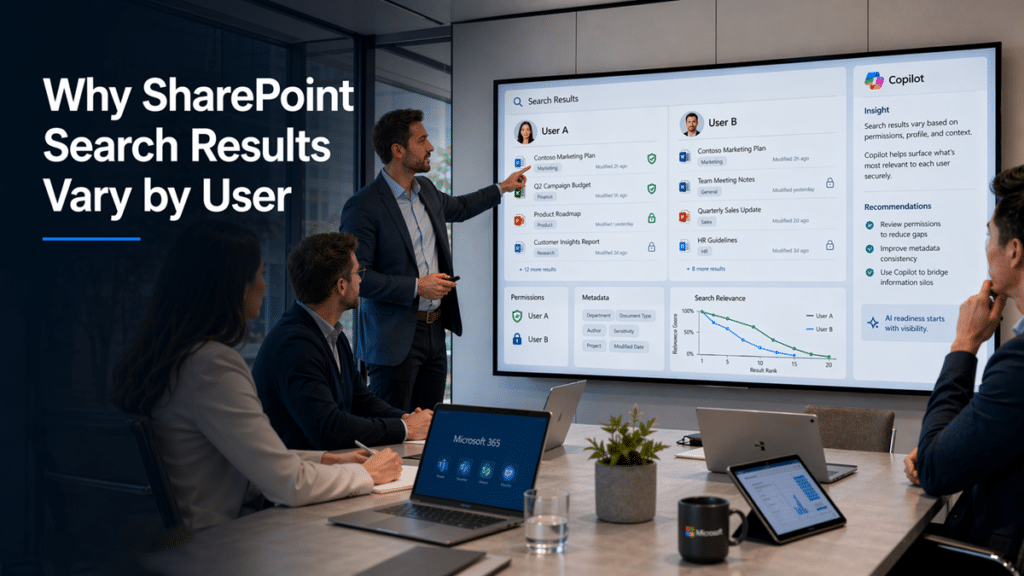
Copilot amplifies what already exists. Strong content can lead to better answers. Chaotic content can lead to confusing, incomplete, or misleading answers.
That point sits at the center of AI readiness.
AI readiness is not only about turning on a license or enabling a feature. It is about preparing the content, permissions, metadata, structure, and governance that AI will rely on. That is why Copilot-ready SharePoint information architecture should be treated as a business readiness issue, not just a technical configuration task.
Copilot Reflects the Quality of Your SharePoint Environment
When users ask Copilot a question, Copilot works with the content that user has permission to access.
That creates two important realities.
First, if users have access to outdated, duplicated, incomplete, or poorly structured content, Copilot may use that material in its response.
Second, if permissions are too broad, Copilot may surface content that technically follows the permission model but was not intended to be easily discovered in that context.
This is why SharePoint architecture matters for AI.
Site structure is not just a housekeeping issue. It affects the clarity, accuracy, and trustworthiness of AI-generated answers.
For executives, this is a risk issue. For IT, it is an architecture issue. For business owners, it is a productivity issue.
Organizations that are unsure where to begin can use a SharePoint governance maturity model to evaluate current gaps across ownership, permissions, lifecycle, content quality, and operational discipline.
Four SharePoint Problems That Hurt AI Readiness
The webinar highlighted several common problems that weaken Copilot readiness.
Unorganized Team Sites
Many SharePoint team sites begin with a clear purpose but eventually become file dumps.
Old project files, personal documents, legacy folders, duplicate files, and loosely related materials often end up in the same place. Over time, the site becomes harder for people to use and harder for AI to interpret.
A practical SharePoint site provisioning strategy can reduce this problem by defining when new sites should be created, who owns them, what template should be used, and how lifecycle decisions will be handled.
Ownership and Abandonment
People change roles. Teams reorganize. Projects end.
Many SharePoint sites, however, remain active long after their original purpose has changed.
When no one owns the site, no one reviews the content. That creates orphaned information with no clear accountability.
Ownership should be built into the operating model. A good SharePoint governance guide should make clear who owns sites, libraries, content, permissions, reviews, and decisions after launch.
Mixed Content from Different Time Periods
Copilot does not automatically know whether an older document reflects the current policy, strategy, or process.
If a 2019 document sits next to a 2026 document with similar language, Copilot may treat both as potentially relevant.
That can lead to outdated or conflicting answers.
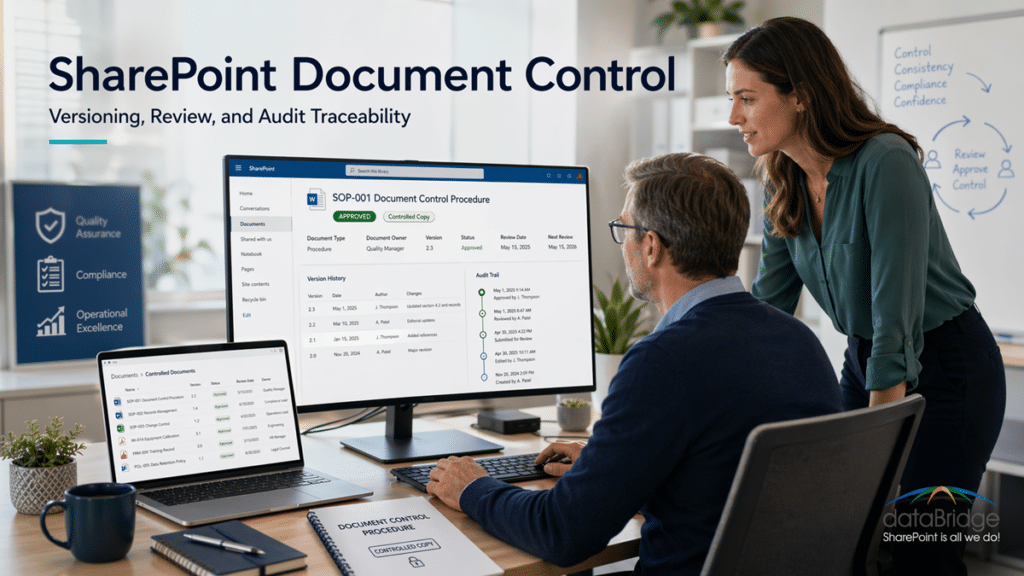
For controlled documents such as policies, procedures, SOPs, contracts, and specifications, organizations may need a more formal SharePoint document control model that defines versioning, approvals, owners, review dates, effective dates, and retention alignment.
Lack of Ongoing Cleanup and Governance
Without cleanup and governance, SharePoint sprawl is almost guaranteed.
Every ungoverned site, unused library, abandoned file, and inconsistent permission structure adds noise to the environment.
AI does not remove that noise. It exposes it faster.
Ongoing governance should include content reviews, permission reviews, lifecycle management, and practical cleanup routines. For many organizations, this becomes part of a broader SharePoint records management and retention strategy when business, legal, compliance, and operational requirements overlap.
Document Libraries Need Clear Purpose
Copilot works better when document libraries align to a business process, content type, department, lifecycle, or use case.
A library with a clear purpose gives both users and AI a better signal about the content inside it.
Poorly designed libraries create the opposite problem.
Deep folder structures, inconsistent naming, duplicate uploads, email attachments, and unclear source-of-truth rules all make it harder to identify the right content.
That is where user trust can break down.
If users have to verify every Copilot answer manually, the AI experience becomes less valuable. What should have saved time becomes another step in the process.
For intranet and knowledge environments, this also affects user adoption. A well-planned SharePoint intranet consulting approach should account for navigation, content ownership, publishing standards, governance, and the way users actually find trusted information.
Metadata Is One of the Highest-Value AI Readiness Improvements
Metadata was a major point in the AI readiness discussion.
Metadata helps Copilot understand context beyond the words inside a document.
Useful metadata may include:
- Status
- Department
- Content type
- Document owner
- Effective date
- Review date
- Audience
- Policy category
- Draft or final status
- Retired or current status
Without metadata, Copilot has to infer context from the document text, file name, and surrounding signals.
That is where problems begin.
A file named “Final Version 3 Use This One” is not a governance strategy. It is a warning sign.
When metadata is consistent, users get better search, better filtering, better lifecycle management, and better AI responses. The improvement helps more than Copilot. It also improves collaboration, compliance, onboarding, records management, and day-to-day knowledge sharing.
A strong SharePoint taxonomy and metadata strategy gives users a clearer way to classify content and gives Microsoft 365 better signals about what that content means.
AI Readiness Is Really SharePoint Readiness
The most important point from the final session was this:
AI readiness is not really about the AI tool. It is about the foundation the AI tool uses.
Copilot cannot fix poor structure, unclear ownership, missing metadata, weak governance, or outdated content. It reflects those issues back to the organization.
The strongest SharePoint environments for AI usually have four foundations in place:
- Site design
- Library organization
- Metadata
- Governance
When those foundations are weak, Copilot may return vague answers, inconsistent summaries, outdated information, or content users should not rely on.
When those foundations are strong, users are more likely to receive relevant insights, clear summaries, and trustworthy responses.
That is why AI readiness should connect directly to Microsoft Copilot consulting and readiness efforts. The license matters, but the content foundation determines whether users can trust the experience.
A Simple Test for Copilot Readiness
Here is a practical way to think about it:
If you would not trust a new employee to find the right document in SharePoint without asking several people for help, Copilot will probably struggle with the same environment.
It may move faster than a person, but speed does not fix confusion.
Organizations should address SharePoint content quality before they expect Copilot to deliver consistent business value.
A structured SharePoint assessment can help identify which sites, libraries, permissions, metadata fields, and ownership gaps need attention before Copilot adoption expands.
Presented By

Key Takeaways from the Webinar
This webinar covered several different topics, but they all connect to one larger message.
Microsoft 365 works best when it is intentional.
The Site Assets Library needs structure because it supports the SharePoint pages users depend on.
Copilot Cowork shows where AI agents are heading, but it also reinforces the need for permissions, governance, and controlled testing.
SharePoint Lists and Excel both have value, but each should be used for the right type of work.
Copilot readiness depends on the quality of the SharePoint environment underneath it.
The technology is powerful. The foundation still matters.
Need Help Preparing SharePoint for Microsoft 365 and AI?
dataBridge has spent 20 years helping organizations plan, structure, govern, and improve SharePoint and Microsoft 365 environments.
If your organization is preparing for Copilot, improving SharePoint governance, cleaning up content, or deciding how to structure sites, libraries, metadata, and permissions, dataBridge can help you move forward with a practical plan.
Learn more about our SharePoint consulting services or contact dataBridge to talk through your environment
Moderated & Reviewed By