
SharePoint sensitivity labels help organizations classify and protect sensitive information, but they do not work the same way everywhere. A label on a file serves a different purpose than a label on a SharePoint site. Neither one replaces SharePoint permissions.
That difference matters more than many teams realize.
When organizations treat sensitivity labels, permissions, retention labels, DLP, and external sharing settings as one combined compliance feature, the rollout becomes confusing. Site owners do not know which label to use. Security teams may assume files are protected when only the workspace is classified. Compliance teams may expect retention behavior from a sensitivity label. Employees see too many choices and start guessing.
A better SharePoint sensitivity label strategy starts with a clear model:
- Permissions control who can access content.
- Sensitivity labels classify and protect content or workspaces.
- Site labels control collaboration settings at the container level.
- File labels protect individual documents.
- DLP controls what happens when sensitive content is shared, downloaded, or exposed.
- Retention labels control how long content is kept, whether it becomes a record, and how disposition works.
That separation is the foundation of a practical SharePoint sensitivity label rollout.
Quick Answer: SharePoint Sensitivity Labels Explained
SharePoint sensitivity labels are Microsoft Purview labels that help classify and protect sensitive information in SharePoint, OneDrive, Microsoft Teams, and Microsoft 365 groups.
A sensitivity label can apply to an individual file, such as a Word document, Excel workbook, PowerPoint presentation, or supported PDF file. A sensitivity label can also apply to a container, such as a SharePoint site, Microsoft Team, Microsoft 365 group, Viva Engage community, or Loop workspace.
The key difference is scope.
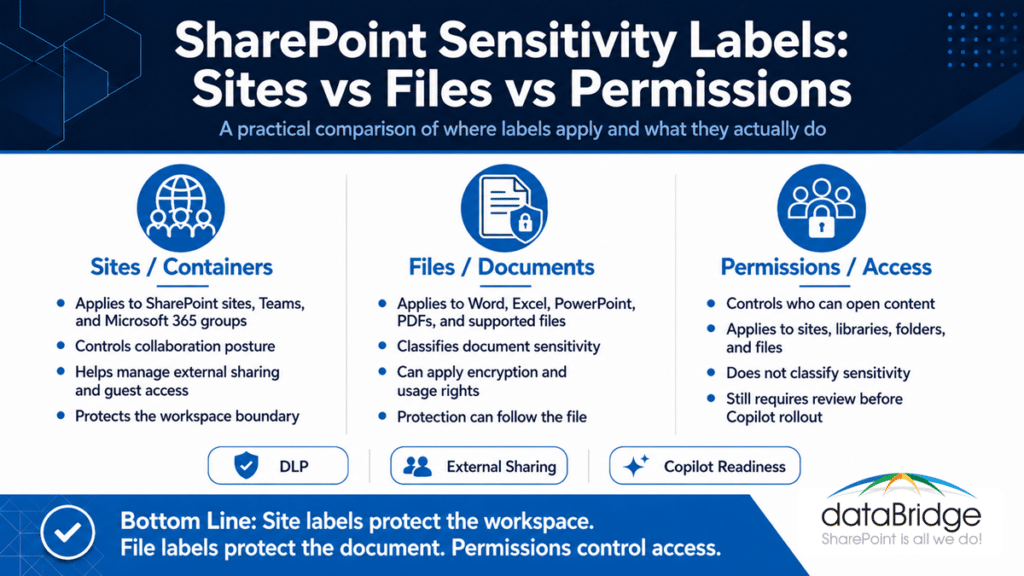
- A file sensitivity label protects the document.
- A site sensitivity label protects the collaboration space.
- SharePoint permissions still decide who can access the site, library, folder, or file.
That is why SharePoint sensitivity labels work best when they support a larger governance model. They should not become a shortcut for fixing broken permissions, unclear ownership, weak information architecture, or unmanaged external sharing.
For the broader comparison between sensitivity, retention, and access controls, see our guide to retention labels vs sensitivity labels vs permissions in SharePoint.
Why SharePoint Sensitivity Labels Matter Now
Sensitivity labels matter more now because SharePoint is no longer just a place to store documents.
Organizations use SharePoint for intranets, Teams files, client portals, knowledge bases, records libraries, policy centers, project workspaces, and Microsoft 365 Copilot experiences. Content moves across apps, devices, sync clients, sharing links, Teams channels, and AI-powered search experiences.
That movement creates risk.
A confidential file may begin inside a well-controlled SharePoint library. Later, someone downloads it, shares it externally, copies it to another workspace, or references it through Microsoft 365 Copilot. When the organization only relies on the original site location, protection can weaken once the content moves.
Microsoft explains that Microsoft Purview sensitivity labels help classify and protect organizational data while still allowing collaboration. That is the right way to think about the control.
Sensitivity labels are not just a compliance setting. They are a governance decision.
The strongest SharePoint environments use sensitivity labels to answer a practical question:
How sensitive is this content, and what protection should follow it?
That answer should be clear before labels are published broadly.
SharePoint Sensitivity Labels Are Not One Control
A common mistake is assuming “sensitivity label” always means the same thing.
It does not.
In SharePoint and Microsoft 365, sensitivity labels can apply in different places. Each location has a different purpose.
Sensitivity labels for files
File labels apply to individual documents. These labels can classify a document as General, Confidential, Highly Confidential, Restricted, or another category defined by the organization.
Depending on the configuration, a file label can also apply encryption, visual markings, access restrictions, or usage rights. That protection can stay with the file when it is downloaded, emailed, or shared outside its original SharePoint location.
Sensitivity labels for SharePoint sites
Site labels apply to the workspace. Microsoft often describes these as container labels because they apply to collaborative spaces such as SharePoint sites, Microsoft Teams, Microsoft 365 groups, Viva Engage communities, and Loop workspaces.
A site label can help control settings such as privacy, external user access, external sharing from SharePoint sites, unmanaged device access, authentication contexts, shared channel behavior, and default sharing link settings when configured for those outcomes.
Microsoft documents these capabilities in its guidance for sensitivity labels for groups and sites.
Sensitivity labels for Teams-connected sites
Teams-connected SharePoint sites need special attention because many employees experience the files through Teams, not SharePoint.
That does not change where the documents live.
Files shared in a Teams channel are stored in the connected SharePoint site. Files shared in Teams chats are stored in OneDrive. Because of that, SharePoint and OneDrive labeling, DLP, permissions, and governance still matter even when users never open SharePoint directly.
Sensitivity labels for Microsoft 365 groups
Microsoft 365 groups sit behind many collaboration experiences, including Teams-connected sites. Sensitivity labels can help set group-level protection, privacy, and guest access rules when the label is configured for groups and sites.
This can be valuable, but it can also create confusion.
A group label does not automatically mean every document inside the connected workspace has the same file-level protection. The container and the content still need separate planning.
The Simple Rule: Container Labels and File Labels Are Different
The most important rule is simple:
A site label protects the workspace. A file label protects the document.
That difference drives almost every implementation decision.
A SharePoint site sensitivity label can help define the collaboration boundary. It may control whether the site is public or private, whether guests can be added, whether external sharing is allowed, and how unmanaged devices should be handled.
A file sensitivity label can protect the actual document. It may identify the file as confidential, apply encryption, control what users can do with it, and keep protection with the file after download.
These controls complement each other.
They do not replace each other.
For example, a legal team site may use a “Confidential Workspace” site label. That label can help restrict external collaboration and unmanaged device access. Yet a merger document inside that site may still need a “Highly Confidential” file label because the document itself carries higher risk.
- The site label sets the boundary.
- The file label protects the item.
- SharePoint permissions control access.
- DLP watches for risky movement.
- Retention and records controls manage lifecycle.
That model is much easier to explain than a vague “label everything” approach.
SharePoint Sensitivity Labels vs Permissions
SharePoint sensitivity labels and SharePoint permissions are related, but they solve different problems.
Permissions answer this question:
Who can access this site, library, folder, or file?
Sensitivity labels answer a different question:
How sensitive is this content or workspace, and what protection should apply?
A user may have permission to open a file in SharePoint. A sensitivity label may still limit what that person can do with the file after opening or downloading it, depending on how the label is configured.
The reverse is also true.
A sensitivity label does not give someone access to content. If a person does not have SharePoint permission to a site or file, the label does not create access for them.
That is why permission reviews still matter.
Before a sensitivity label rollout, organizations should review site owners, group membership, external users, sharing links, unique permissions, and high-risk libraries. This becomes even more important before Microsoft 365 Copilot adoption. Our SharePoint Permission Review Checklist for Copilot explains how permission drift can expose risk before AI makes content easier to discover.
Teams planning labels alongside Copilot should download the SharePoint Permission Review Checklist for Copilot before assuming labels have solved oversharing, stale access, guest access, or broken inheritance.
A practical rule works well:
- Use permissions to decide access.
- Use sensitivity labels to classify and protect.
- Use both when content is sensitive and collaboration risk is real.
Sensitivity Labels for SharePoint Files
Sensitivity labels for SharePoint files apply at the document level.
This is the right control when the document itself carries sensitivity, regardless of where it lives. Examples include contracts, employee records, board materials, financial reports, acquisition documents, legal files, regulated data, and confidential client information.
When sensitivity labels are enabled for SharePoint and OneDrive, users can apply labels in supported Microsoft 365 experiences. Microsoft also documents that users can apply labels from the details pane in SharePoint and OneDrive, as well as from the Files tab in Microsoft Teams, when the capability is enabled. See Microsoft’s guidance on sensitivity labels for files in SharePoint and OneDrive.
That matters because users do not always open documents before working with them.
A file label can support several outcomes:
- Classification so employees understand the sensitivity of a document
- Encryption so protection can travel with the file
- Visual markings such as headers, footers, or watermarks when configured
- DLP policy conditions based on the assigned label
- Audit visibility into label activity
- Better alignment between SharePoint, OneDrive, Teams, and Microsoft Purview
However, file labels are not a cure-all.
They do not clean up duplicate content. They do not decide which policy is authoritative. They do not fix confusing metadata. They do not remove old sharing links. They do not replace site ownership.
In real SharePoint environments, file sensitivity labels work best after the content environment has basic structure. Libraries should have clear purposes. Owners should understand what belongs there. Permissions should be reviewed. External sharing should be intentional.
That structure makes labels easier to apply and easier to trust.
Sensitivity Labels for SharePoint Sites
Sensitivity labels for SharePoint sites apply at the container level.
A SharePoint site is a workspace. It may include document libraries, lists, pages, news, notebooks, connected Teams files, plans, and group-based membership.
A site sensitivity label helps classify the whole space.
For example, an organization might use labels such as:
- Public Internal Site
- General Business Site
- Confidential Department Site
- Restricted Client Site
- Highly Confidential Legal Site
- Regulated Records Site
The label should reflect the sensitivity and collaboration posture of the workspace.
This is useful because different site types need different rules. A marketing collaboration site should not have the same sharing posture as a legal matter site. A general department site should not behave like a regulated records workspace.
Site labels can help enforce those differences.
They can support privacy settings, external access controls, unmanaged device rules, authentication context requirements, and other container-level protections. That makes them valuable for organizations that need consistent collaboration rules across SharePoint and Teams.
Still, one warning matters.
A SharePoint site label does not automatically apply the same file-level protection to every file inside the site. Microsoft’s container guidance makes that distinction clear: items inside labeled containers do not inherit all item-level label settings from the container label.
That detail gets missed often.
If your organization needs file-level protection, plan file labels too.
Sensitivity Labels in Teams-Connected SharePoint Sites
Teams-connected SharePoint sites deserve their own section because they are one of the most common blind spots.
Employees often say, “We stored it in Teams.”
From a governance perspective, that usually means the files are in SharePoint or OneDrive.
That difference matters for sensitivity labels.
A Team can have a sensitivity label that helps control the container. The connected SharePoint site can reflect that collaboration posture. Yet the files inside the Teams channel still need the right file-level protection when the documents themselves are sensitive.
This is where many organizations create false confidence.
They label a Team as confidential. Then they assume every file has confidential protection. That is not how the model works.
A Teams-connected site should be reviewed through three layers:
- The Team or Microsoft 365 group label
- The connected SharePoint site settings
- The labels, permissions, and DLP controls applied to the files
That three-layer review helps reduce risk. It also makes the experience easier to explain to site owners.
A good owner does not need to know every Microsoft Purview setting. They do need to understand what type of site they own, what kind of content belongs there, and when a file needs stronger protection.
Sensitivity Labels for Microsoft 365 Groups
Many SharePoint sites are connected to Microsoft 365 groups.
That group connection affects membership, Teams integration, Outlook conversations, Planner plans, and other Microsoft 365 experiences. When sensitivity labels are configured for groups and sites, a label can help govern the group-backed workspace.
This creates consistency.
For example, a “Restricted Client Collaboration” label may signal that guest access is limited, sharing must be controlled, and unmanaged devices need stricter handling. A “General Internal Collaboration” label may allow broader internal teamwork.
The risk is overgeneralization.
A Microsoft 365 group label classifies the workspace. It does not replace the need to review documents, libraries, retention needs, DLP rules, or permissions.
- Think of the group label as the front door policy.
- Think of file labels as document protection.
Both matter, but they operate at different levels.
What SharePoint Sensitivity Labels Do Not Replace
Sensitivity labels are powerful, but they should not be asked to do jobs they were not designed to do.
- SharePoint sensitivity labels do not replace SharePoint permissions. Users still need the correct access to sites, libraries, folders, and files.
- They also do not replace retention labels. Retention labels manage how long content is kept, whether content is declared as a record, and how disposition works. For lifecycle planning, see our SharePoint records management and retention strategy.
- Sensitivity labels do not replace DLP. Data loss prevention policies decide what actions should be blocked, warned, audited, or allowed when sensitive content appears or moves.
- They do not replace information architecture. A poorly structured site with unclear libraries and weak metadata will still confuse users.
- These labels do not replace content ownership either. Someone still needs to understand the business meaning of sensitive content.
- They also do not replace external sharing governance. Sharing settings, guest access, link types, and permission reviews still need attention.
- Sensitivity labels do not replace Copilot readiness work. AI readiness depends on permissions, ownership, authoritative content, metadata, lifecycle, and source-of-truth decisions.
In short, sensitivity labels work best as part of a complete governance system. They should not be treated as a standalone compliance setting.
SharePoint Sensitivity Labels and DLP
Sensitivity labels become more valuable when they connect to Microsoft Purview DLP.
- A sensitivity label classifies the content.
- A DLP policy decides what should happen when that content is used, shared, downloaded, or exposed in a risky way.
Microsoft documents that sensitivity labels can be used as conditions in DLP policies across locations that include SharePoint, OneDrive, devices, Microsoft 365 Copilot, and other services.
That connection matters.
For example, a DLP policy may detect files labeled “Highly Confidential” and prevent external sharing. Another policy may warn users before sharing files labeled “Confidential” with external recipients. A third policy may audit activity for sensitive content without blocking normal work.
DLP turns classification into action.
Without DLP, labels may help users understand sensitivity, but they may not change risky behavior. Without labels, DLP can still use sensitive information types and other conditions, but it may lack the business context that a label provides.
The strongest model usually uses both.
Our guide to Microsoft Purview DLP for SharePoint, Teams, OneDrive, and Copilot explains how DLP fits into the broader SharePoint and Microsoft 365 protection model.
SharePoint Sensitivity Labels and External Sharing
External sharing is one of the biggest reasons organizations look at sensitivity labels for SharePoint.
The risk is easy to understand.
A team creates a site for collaboration. Someone invites a guest. Another user creates a sharing link. A file gets downloaded. A document moves outside the original workspace. Weeks later, nobody remembers who still has access.
Sensitivity labels can help create stronger guardrails, especially at the site and group level.
A container label can help define whether guest access or external sharing should be allowed for a workspace. A file label can help protect a sensitive document even when it leaves SharePoint. DLP can help prevent or warn against risky sharing actions.
Those controls should work together.
A practical external sharing model should answer these questions:
- Which SharePoint sites can include guests?
- Which sites should block external sharing?
- Which libraries contain sensitive files?
- Which file labels should prevent external access?
- Which DLP rules should block, warn, or audit?
- Who can approve exceptions?
- How often should external users and sharing links be reviewed?
This is where governance becomes more important than settings.
A label without an operating model creates confusion. A label with ownership, review cycles, and training creates control.
SharePoint Sensitivity Labels and Copilot Readiness
Microsoft 365 Copilot raises the stakes for SharePoint protection.
Copilot does not remove the need for SharePoint governance. It increases the importance of getting governance right.
Copilot works within the access and protection model underneath it. Sensitivity labels can help protect organizational data across Microsoft 365 experiences, but they are not a substitute for cleanup.
That point is important.
If sensitive files are stored in the wrong site, shared too broadly, duplicated across libraries, or left without ownership, sensitivity labels alone will not fix the environment. Copilot may make those weaknesses more visible because it helps users find and reason over content faster.
A Copilot-ready SharePoint environment needs more than labels.
It needs permission hygiene, clear ownership, authoritative content, search quality, lifecycle controls, and consistent information architecture. Our guide to Copilot readiness for SharePoint explains why the underlying SharePoint environment must be prepared before AI experiences scale.
The practical takeaway is simple:
- Do not roll out sensitivity labels only because Copilot is coming.
- Use Copilot as the trigger to clean up the content environment underneath.
Sensitivity Labels vs Retention Labels
Sensitivity labels and retention labels are often confused because both live in the Microsoft Purview conversation.
They solve different problems.
- A sensitivity label classifies and protects content based on sensitivity.
- A retention label controls lifecycle, retention, record declaration, and disposition.
For example, a contract may be labeled “Confidential” because it contains sensitive business terms. The same contract may also have a retention label that requires the organization to keep it for a defined period.
Those controls can exist together.
- One protects the information.
- The other manages the lifecycle.
This distinction is important for site owners. If they use the wrong mental model, they may expect a sensitivity label to keep content for seven years. They may also expect a retention label to prevent oversharing. Both assumptions create governance gaps.
For a practical rollout view, see our SharePoint retention label rollout plan for Purview.
Sensitivity Labels for Regulated SharePoint Environments
Regulated organizations need a more deliberate sensitivity label model.
Healthcare, financial services, government, manufacturing, education, legal, and nonprofit organizations often manage sensitive documents across many SharePoint sites. The challenge is not just labeling one file. The real challenge is applying a consistent protection model across departments, site types, Teams workspaces, document libraries, external collaboration spaces, and records locations.
That requires design.
A regulated SharePoint environment should define:
- Which site types require container labels
- Which files require sensitivity labels
- Which labels apply encryption
- Which labels affect external sharing
- Which labels connect to DLP policies
- Which libraries need default labels
- Which content requires retention or records controls
- Which users can downgrade or remove labels
- Which exceptions need approval
- Which reports confirm label adoption
This is where SharePoint architecture and compliance architecture meet.
The label taxonomy should reflect the way the organization actually works. It should not be copied from a generic compliance template.
For regulated environments, sensitivity labels should support the larger SharePoint structure. Our page on SharePoint architecture for regulated industries explains why governance, permissions, metadata, records, and compliance controls need to be designed together.
When to Use Site Labels, File Labels, Permissions, DLP, and Retention Labels
A strong implementation does not ask one control to solve every problem.
Use site sensitivity labels when the workspace needs a defined collaboration posture.
Good examples include:
- Legal sites
- HR sites
- Board sites
- Executive sites
- Client portals
- Regulated project sites
- Confidential Teams-connected workspaces
Use file sensitivity labels when the document itself needs classification or protection.
Good examples include:
- Contracts
- Financial reports
- Employee documents
- Sensitive presentations
- Client deliverables
- Acquisition materials
- Policy drafts
- Regulated files
Use SharePoint permissions when you need to control access.
Permissions decide who can enter the site, open the library, view the folder, or access the file.
Use DLP when you need policy action.
DLP can block, warn, audit, or restrict actions based on labels, sensitive information types, locations, users, or other policy conditions.
Use retention labels when the organization needs lifecycle control.
Retention labels help manage how long content is kept, whether it becomes a record, and what happens at disposition.
This model gives every control a job.
That clarity helps IT, compliance, legal, security, and business owners make better decisions together.
A Practical SharePoint Sensitivity Label Rollout Model
A sensitivity label rollout should not start with the label names.
It should start with the business decisions behind the labels.
1. Inventory sensitive SharePoint areas
Start with the sites and libraries that contain high-risk content. Look at HR, legal, finance, executive, board, client, regulated, and external collaboration areas.
Do not try to label everything at once.
A focused pilot teaches more than a broad rollout that nobody understands.
2. Separate container decisions from file decisions
Identify which sites need a container label. Then identify which documents need file labels.
This step prevents a common mistake.
A confidential site does not automatically mean every document needs the most restrictive file label. A general site may still contain a few files that need stronger protection.
The model should allow both realities.
3. Define a simple label taxonomy
Too many labels create hesitation.
Employees should understand the label names without reading a policy manual. Security teams may want precision, but users need clarity.
In many environments, a smaller label set works better:
- Public
- General
- Confidential
- Highly Confidential
- Restricted
That model can expand only where the business case is clear.
4. Map labels to real behavior
Every label should have a purpose.
For each label, define what it means, who should use it, where it applies, what protection it triggers, and which examples fit.
Avoid labels that sound different but behave the same.
That creates noise.
5. Connect labels to SharePoint site types
Different site types need different rules.
A department site, project site, client collaboration site, records site, intranet publishing site, and Teams-connected workspace may need different labeling decisions.
This is why sensitivity labeling belongs inside a broader SharePoint security and compliance model.
6. Review permissions before rollout
Labels do not fix over-permissioned sites.
Before publishing labels widely, review high-risk sites for broad access, old guests, anonymous links, unique permissions, inactive owners, and unmanaged Microsoft 365 groups.
This is not cleanup for cleanup’s sake.
It prevents labels from sitting on top of a weak access model.
7. Pilot with real business users
A pilot should include site owners, records stakeholders, security, compliance, and everyday users.
The goal is not only technical validation. The goal is usability.
- Can employees choose the right label?
- Do site owners understand container labels?
- Do DLP prompts make sense?
- Can external collaboration still happen where allowed?
- Do sensitive files remain protected without blocking normal work?
A good pilot reduces support tickets later.
8. Train site owners with examples
Site owners need examples, not theory.
Show them which label applies to a department site. Explain when a file needs stronger protection. Clarify what changes when a guest is invited.
Practical training works best when it uses real SharePoint scenarios.
Generic compliance language rarely sticks.
9. Monitor adoption and adjust
After rollout, review label usage, audit activity, DLP matches, external sharing events, and user feedback.
Some labels may be overused. Others may be ignored. Certain sites may need stronger defaults. A few DLP policies may create too much friction.
Treat the first rollout as a governed operating model, not a one-time configuration project.
Need help designing a practical sensitivity label rollout across SharePoint sites, files, permissions, DLP, and Copilot readiness? Contact dataBridge to discuss a SharePoint security and compliance roadmap.
Common Mistakes With SharePoint Sensitivity Labels
Sensitivity label projects usually struggle for predictable reasons.
Mistake 1: Using labels to compensate for bad permissions
A sensitivity label should not become a bandage for an overexposed SharePoint site.
Fix permissions first. Then apply the right label model.
Mistake 2: Assuming site labels apply to every file
A site label classifies the container. It does not automatically apply file-level label settings to every document inside the site.
This one misunderstanding creates a lot of false confidence.
Mistake 3: Creating too many labels
A large label taxonomy may look sophisticated, but it often hurts adoption.
If users cannot quickly tell the difference between labels, they will guess. Guessing is not governance.
Mistake 4: Ignoring Teams-connected sites
Many sensitive SharePoint files are accessed through Teams.
If the rollout only focuses on standalone SharePoint sites, it misses a major collaboration path.
Mistake 5: Treating DLP as the same thing as labels
DLP and sensitivity labels work together, but they are not the same control.
Labels classify. DLP enforces policy action.
Mistake 6: Forgetting lifecycle and records management
A sensitivity label may protect a file, but it does not decide how long that file should be retained.
Records, retention, and disposition need their own plan.
Mistake 7: Rolling out labels without site owner guidance
Site owners need clear instructions.
They should know which labels apply to their sites, which files need stronger protection, and when to escalate questions.
Mistake 8: Waiting until Copilot rollout to clean up SharePoint
Copilot readiness should start before Copilot is deployed widely.
Permissions, ownership, source-of-truth decisions, labels, DLP, and retention all need attention early.
How dataBridge Approaches SharePoint Sensitivity Label Planning
dataBridge approaches sensitivity labels as part of the SharePoint operating model.
That means we do not start by asking, “Which labels should we create?”
We start with better questions.
- Which SharePoint sites contain sensitive information?
- Which teams collaborate externally?
- Which documents need protection after download?
- Which libraries support records or regulated workflows?
- Which Teams-connected sites have guest users?
- Which permissions are too broad?
- Which DLP policies should act on labels?
- Which content should Copilot and SharePoint agents be able to use?
- Which site owners need training?
That approach keeps the label rollout grounded in real SharePoint behavior.
In 20 years of SharePoint consulting work, we have seen a consistent pattern. Organizations often buy the right tools, but they do not always design the structure around those tools.
They create labels, publish them broadly, and assume the environment is safer.
The result is usually mixed.
Some users label everything as confidential. Others label nothing. Site owners do not know whether the label applies to the site, the file, or both. Compliance teams expect records behavior from sensitivity labels. IT teams still have to clean up permissions after the fact.
A stronger rollout connects labels to architecture, ownership, permissions, DLP, retention, and adoption.
That is the difference between a compliance setting and a governed SharePoint environment.
SharePoint Sensitivity Label Planning Checklist
Use this checklist before publishing sensitivity labels broadly in SharePoint.
- Have we defined what each sensitivity label means?
- Have we separated file labels from site labels?
- Have we identified which SharePoint sites need container labels?
- Have we identified which files need file-level protection?
- Have we reviewed Teams-connected SharePoint sites?
- Have we reviewed Microsoft 365 group settings?
- Have we reviewed external sharing settings?
- Have we reviewed guest users and sharing links?
- Have we reviewed high-risk libraries?
- Have we mapped labels to DLP policies?
- Have we identified retention and records requirements separately?
- Have we tested labels with real site owners?
- Have we documented when users should apply each label?
- Have we trained business owners with SharePoint-specific examples?
- Have we reviewed Copilot readiness implications?
- Have we defined who can change or downgrade labels?
- Have we created a reporting and review cadence?
If the answer is no to several of these questions, the rollout needs more design before broad deployment.
Recommended SharePoint Sensitivity Label Model
There is no universal label design that fits every organization.
However, a practical model often includes three layers.
Layer 1: Site classification
This layer defines the workspace.
Examples include:
- General Internal
- Confidential Workspace
- Restricted Workspace
- External Collaboration
- Regulated Workspace
The goal is to classify the site and apply the right collaboration settings.
Layer 2: File classification
This layer defines the document.
Examples include:
- General
- Confidential
- Highly Confidential
- Restricted
The goal is to protect the content based on the document’s actual sensitivity.
Layer 3: Policy enforcement
This layer defines action.
DLP, external sharing rules, conditional access, audit activity, and retention policies help enforce the organization’s governance decisions.
Each layer should be understandable on its own.
Together, they create a stronger protection model.
Should Every SharePoint Site Have a Sensitivity Label?
Not always.
Every SharePoint site should have a classification decision. That does not always mean every site needs a highly restrictive sensitivity label.
The better question is:
Which sites need a label that changes behavior?
If a site label only adds a name and no meaningful governance effect, it may not provide much value. When the label guides privacy, external sharing, unmanaged device access, or guest collaboration, it can support real control.
The label should serve a purpose.
A practical approach is to start with site types that create the most risk:
- Executive sites
- Legal sites
- HR sites
- Finance sites
- Client collaboration sites
- Board sites
- M&A sites
- Regulated department sites
- Research and intellectual property sites
- Teams with guest access
Once those areas are stable, the model can expand.
Should Every SharePoint File Have a Sensitivity Label?
Not necessarily.
Some organizations require default labeling across all documents. Others apply labels only where sensitivity is clear. The right answer depends on licensing, compliance requirements, user behavior, risk tolerance, and the maturity of the SharePoint environment.
The more sensitive the content, the stronger the case for file labels.
For general business content, the risk often shifts toward label fatigue.
A default label can help establish a baseline, but users still need guidance. Microsoft documents that a default sensitivity label for a SharePoint document library can apply a baseline label to new files or edited files in a library, based on priority and configuration.
That feature can be useful, but it should be used carefully.
A default library label does not replace content inspection. It does not automatically solve every existing file at rest. It also does not remove the need for users and owners to understand the classification model.
Use defaults where the library purpose is clear.
Avoid defaults where the library contains mixed content with different sensitivity levels.
The Best SharePoint Sensitivity Label Strategy Is Boring
This may sound counterintuitive, but the best sensitivity label strategy is often boring.
- The labels are easy to understand.
- The rules are clear.
- The site types make sense.
- The owner responsibilities are documented.
- The DLP behavior is expected.
- The retention model is separate.
- The Copilot readiness impact is reviewed.
- The exceptions have a process.
That is what good governance looks like.
A confusing label strategy creates hesitation. A practical one helps people make the right decision without stopping their work.
SharePoint sensitivity labels should protect the business without making collaboration feel impossible.
That balance takes design.
FAQ: SharePoint Sensitivity Labels
What are SharePoint sensitivity labels?
SharePoint sensitivity labels are Microsoft Purview labels that classify and protect content or collaborative workspaces in SharePoint and Microsoft 365. They can apply to files, SharePoint sites, Teams-connected sites, and Microsoft 365 groups, depending on how they are configured and published.
Do sensitivity labels replace SharePoint permissions?
No. Sensitivity labels do not replace SharePoint permissions. Permissions control who can access a site, library, folder, or file. Sensitivity labels classify and protect content or containers. The strongest model uses both.
What is the difference between a site sensitivity label and a file sensitivity label?
A site sensitivity label applies to a workspace or container, such as a SharePoint site, Team, or Microsoft 365 group. A file sensitivity label applies to an individual document. Site labels help control collaboration settings. File labels help protect the document itself.
Does a SharePoint site sensitivity label apply to every file in the site?
No. A site label does not automatically apply the same file-level label settings to every document in the site. Organizations that need document-level protection should also plan file labels, default library labels, auto-labeling, or DLP policies.
Can sensitivity labels be used with Teams files?
Yes. Teams channel files are stored in the connected SharePoint site, and Teams chat files are stored in OneDrive. When sensitivity labeling is enabled and configured, files can be labeled through supported Microsoft 365 experiences, including the Teams Files tab.
Do sensitivity labels help with Microsoft 365 Copilot readiness?
Yes, sensitivity labels can help protect sensitive data in Microsoft 365 experiences. However, they do not replace permission cleanup, ownership, information architecture, source-of-truth decisions, DLP, or retention planning. Copilot readiness still depends on the SharePoint environment underneath.
What is the difference between sensitivity labels and retention labels?
Sensitivity labels classify and protect content based on sensitivity. Retention labels manage lifecycle, retention, records, and disposition. A document may need both controls, but they serve different purposes.
Should sensitivity labels be applied manually or automatically?
Both models can work. Manual labels rely on users to choose correctly. Default labels and auto-labeling can improve consistency, but they require careful planning. The best approach depends on content type, risk level, licensing, and governance maturity.
How do sensitivity labels work with DLP?
Sensitivity labels can be used as conditions in Microsoft Purview DLP policies. The label classifies the content, and DLP decides what action to take. That action may include warning, auditing, blocking, or restricting certain sharing behaviors.
What should organizations do before rolling out SharePoint sensitivity labels?
Organizations should review sensitive sites, permissions, external sharing, Teams-connected sites, Microsoft 365 groups, DLP requirements, retention needs, Copilot readiness, and site owner responsibilities. Labels work best when the SharePoint environment already has structure.
Build a Sensitivity Label Strategy That Fits SharePoint
SharePoint sensitivity labels can strengthen security, compliance, external sharing governance, DLP, and Copilot readiness. They can also create confusion when they are rolled out without a clear model.
The difference comes down to design.
- A file label is not a site label.
- A site label is not a permission.
- A permission is not a retention rule.
- A retention label is not DLP.
- DLP is not information architecture.
Each control has a job.
When those jobs are clear, sensitivity labels become easier to govern. Site owners know what to choose. Users understand why labels exist. Security teams get better protection. Compliance teams get stronger alignment. Copilot readiness becomes more practical because sensitive content is easier to classify and control.
If your organization is planning sensitivity labels for SharePoint sites, files, Teams-connected workspaces, DLP, external sharing, or Copilot readiness, contact dataBridge to build a SharePoint security and compliance strategy that is practical, governed, and ready for Microsoft 365.